
KANGAROO A0009
KANGAROO Indoor/Outdoor Security Camera (Model A0009) User Manual
1. Introduction
This manual provides essential instructions for setting up, operating, and maintaining your KANGAROO Indoor/Outdoor Security Camera (Model A0009). This versatile 1080p camera is designed for both indoor and outdoor use, featuring IP65 weather resistance, motion and sound detection, color night vision, and live streaming capabilities through the Kangaroo app. Please read this manual thoroughly before using your device to ensure proper functionality and safety.
2. Package Contents
Verify that all items listed below are included in your package. If any items are missing or damaged, please contact KANGAROO customer support.
- KANGAROO Indoor + Outdoor Camera
- User Manual (this document)
- 6.5 ft. USB cable with gasket
- Wall mounting plate, double-side adhesive, and mounting screws
- Power Adapter

Image: Front view of the KANGAROO Indoor/Outdoor Camera, showing the lens and indicator light.
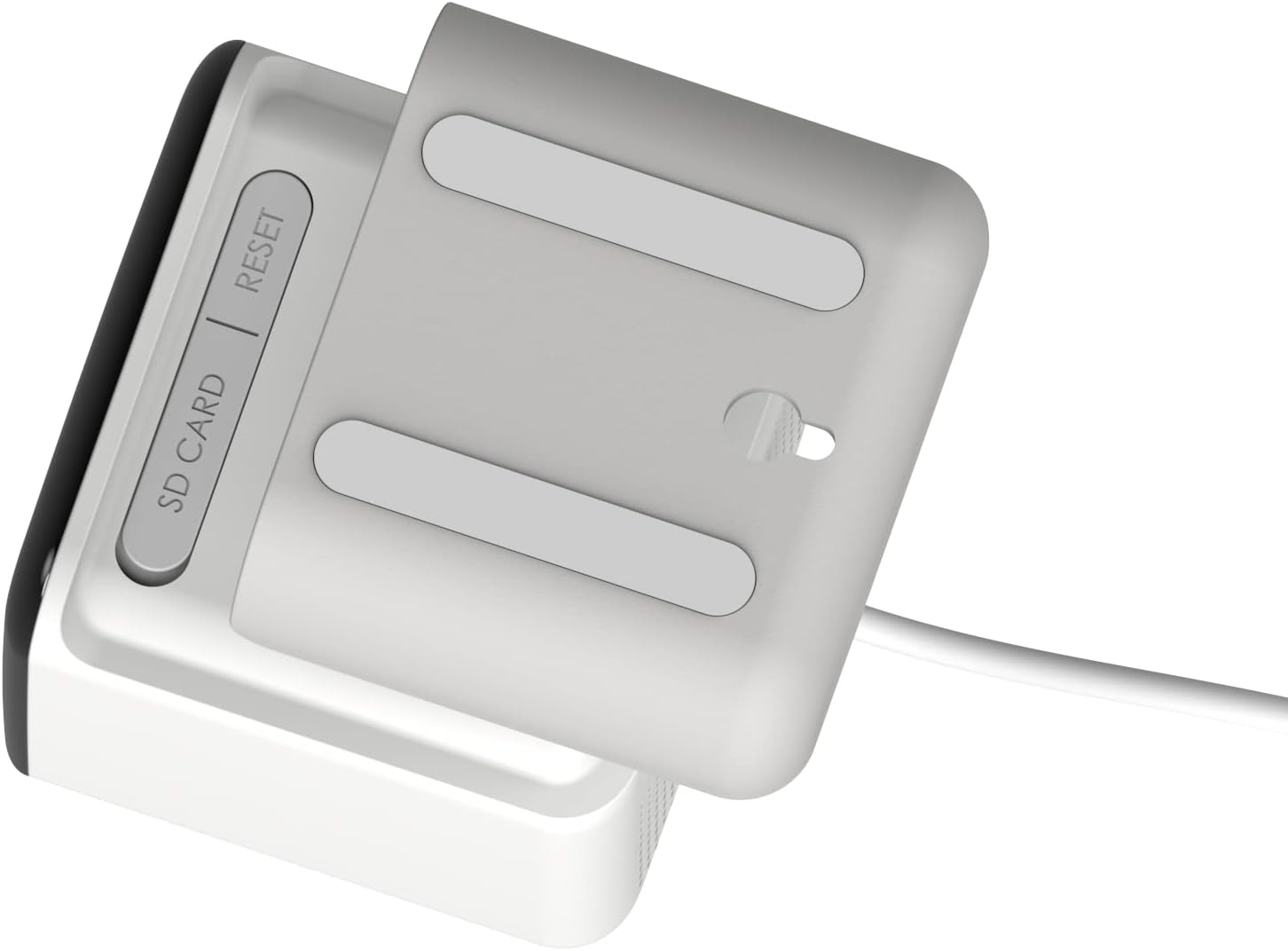
Image: Bottom view of the KANGAROO Indoor/Outdoor Camera, revealing the SD card slot and reset button under a protective cover.
3. Setup Guide
3.1. Unboxing and Initial Inspection
- Carefully remove all components from the packaging.
- Inspect the camera and accessories for any visible damage.
3.2. Powering On
- Connect the provided USB cable to the camera's power port.
- Plug the USB cable into the power adapter, then plug the adapter into a standard electrical outlet.
- The camera's indicator light will illuminate, indicating it is powering on.

Image: Rear view of the KANGAROO Indoor/Outdoor Camera, showing the power cable connected to the port.
3.3. App Installation and Account Creation
- Download the "Kangaroo" app from your smartphone's app store (available for Android and iPhone).
- Open the app and follow the on-screen instructions to create a new account or log in to an existing one.
3.4. Camera Pairing
- In the Kangaroo app, select the option to add a new device.
- Follow the in-app prompts to connect your camera to your home Wi-Fi network. Ensure your Wi-Fi network is 2.4GHz, as 5GHz networks are not supported.
- The app will guide you through scanning a QR code with the camera or other pairing methods.
3.5. Mounting the Camera
The KANGAROO camera can be placed on a flat surface or mounted to a wall using the included mounting plate and hardware.
- For Wall Mounting: Choose a suitable location, considering the camera's viewing angle (130 degrees) and proximity to a power outlet. Use the wall mounting plate as a template to mark screw holes. Drill pilot holes if necessary, then secure the plate to the wall with the provided screws. Attach the camera to the mounting plate.
- For Surface Placement: Simply place the camera on a stable, flat surface. The camera's base provides stability.

Image: KANGAROO Indoor/Outdoor Camera shown mounted on a wall, with the power cable neatly routed.
4. Operating Your Camera
4.1. Live Streaming
Access real-time video footage from your camera anytime, anywhere through the Kangaroo app. Simply open the app and select your camera to view the live feed.
4.2. Motion and Sound Detection
The camera is equipped with advanced motion and sound detection. When activity is detected, the camera will send alerts and recorded video clips to your smartphone via the Kangaroo app.
4.3. Color Night Vision
The camera provides clear color night vision, utilizing available ambient light to illuminate the environment and capture detailed footage even in low-light conditions. The night vision range is up to 32.81 feet.
4.4. Using the Built-in Siren
If you receive an activity alert and wish to deter unwanted visitors, you can activate the built-in siren directly from the Kangaroo app. The siren will sound to ward off intruders.

Image: An outdoor scene at night with a person climbing through a window, illustrating the camera's security monitoring capabilities.
4.5. Cloud Storage
The camera includes a basic level of cloud storage, providing 24 hours of recorded footage. This storage can be applied to up to five different cameras. For extended storage options, refer to the Kangaroo app for subscription details.
4.6. Adjusting Video Resolution
The camera records in HD 1080p resolution. If you are experiencing weak Wi-Fi connectivity or are using mobile data, you can reduce the video resolution directly within the Kangaroo app by tapping on the live stream view.
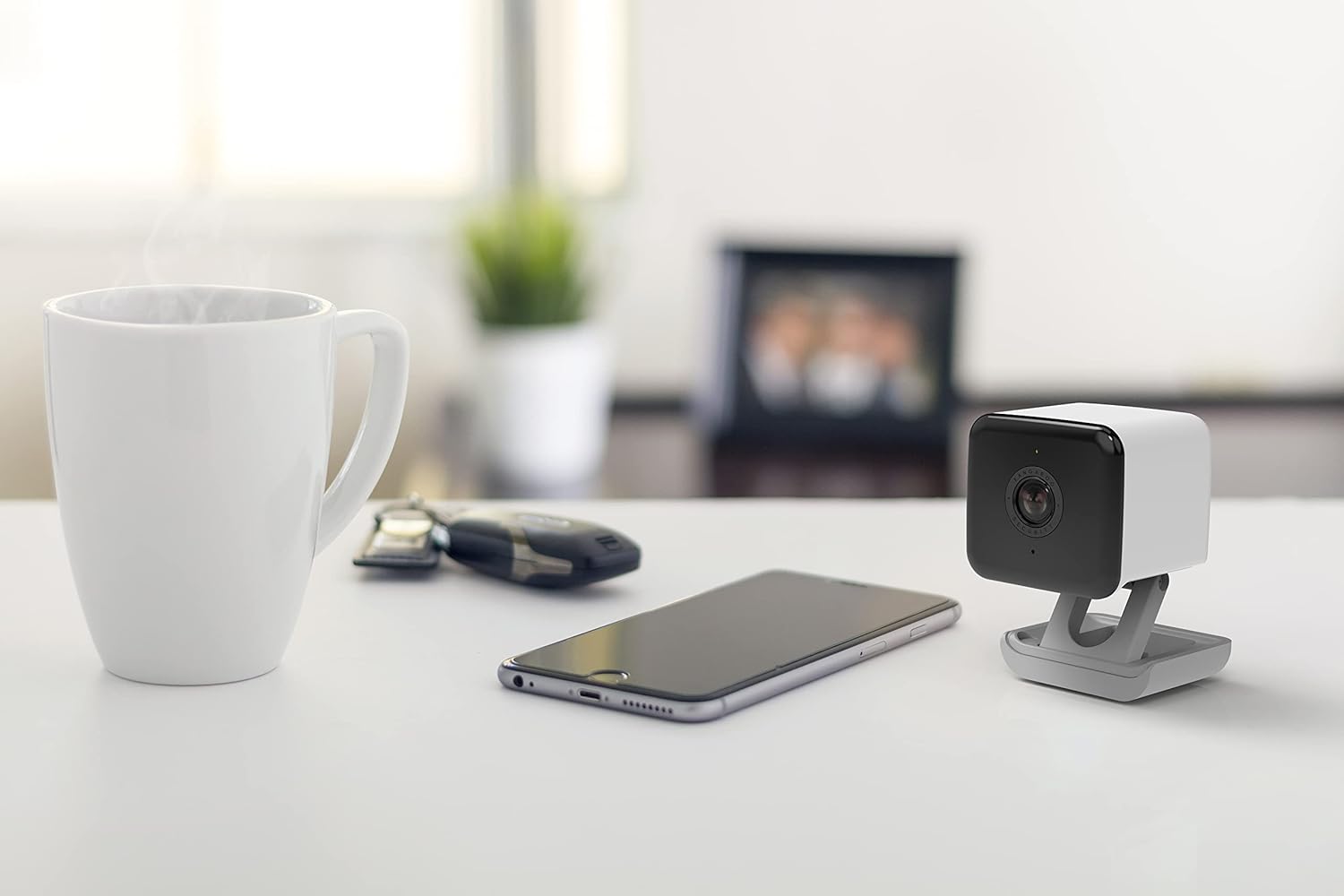
Image: KANGAROO Indoor/Outdoor Camera placed on a table next to a smartphone, illustrating app interaction.
5. Maintenance
- Cleaning: Use a soft, dry cloth to clean the camera lens and body. Avoid abrasive cleaners or solvents.
- Firmware Updates: Regularly check the Kangaroo app for available firmware updates. Keeping your camera's firmware up-to-date ensures optimal performance and security.
- Power Supply: Ensure the camera is always connected to the original KANGAROO power adapter and USB cable to prevent damage.
- Environmental Protection: While the camera is weatherproof (IP65), avoid submerging it in water or exposing it to extreme temperatures outside its operating range.
6. Troubleshooting
If you encounter issues with your KANGAROO camera, refer to the following troubleshooting steps:
| Issue | Possible Cause / Solution |
|---|---|
| Camera not powering on | Ensure the power adapter is securely plugged into a working outlet and the USB cable is firmly connected to the camera. Try a different outlet. |
| Camera offline / Disconnecting frequently | Check your Wi-Fi signal strength at the camera's location. Ensure the camera is within range of your 2.4GHz Wi-Fi router. Restart your router and the camera. Re-pair the camera through the app if necessary. |
| Cannot pair camera with app | Verify your Wi-Fi network is 2.4GHz. Ensure your phone is connected to the same Wi-Fi network during pairing. Reset the camera using the reset button (located under the bottom cover) and try pairing again. |
| Poor video quality / Lagging live stream | Check your internet connection speed. Reduce the video resolution in the Kangaroo app settings. Ensure there are no obstructions blocking the camera's view or Wi-Fi signal. |
| Motion/Sound alerts not received | Check app notification settings on your smartphone and within the Kangaroo app. Ensure motion/sound detection is enabled for the camera in the app. Verify the camera has a stable internet connection. |
| Incorrect power cable/adapter | Always use the power adapter and USB cable provided with your KANGAROO camera. Using third-party accessories may cause compatibility issues or damage the device. If you believe you received an incorrect cable, contact KANGAROO support immediately. |
7. Technical Specifications
| Feature | Specification |
|---|---|
| Model Name | Kangaroo Indoor+Outdoor Camera |
| Model Number | A0009 |
| Connectivity Technology | Wireless (Wi-Fi, Bluetooth) |
| Wi-Fi Frequency | 2.4 GHz (IEEE 802.11b/g/n) |
| Video Capture Resolution | 1080p HD |
| Frame Rate | 25 frames per second |
| Viewing Angle | 130 Degrees |
| Night Vision | Color Night Vision |
| Night Vision Range | Up to 32.81 Feet |
| Weatherproof Rating | IP65 (Water Resistant) |
| Power Source | Corded Electric |
| Voltage | 5 Volts |
| Item Dimensions (L x W x H) | 3.78 x 3.54 x 2.24 inches |
| Item Weight | 8 ounces |
| Storage | Cloud Storage (24 hours basic plan) |
| Compatible Devices | Smartphone (Android, iPhone) |
8. Warranty Information
KANGAROO products are designed for reliability and performance. For detailed warranty information regarding your Indoor/Outdoor Security Camera (Model A0009), please refer to the warranty card included in your product packaging or visit the official KANGAROO website. Keep your proof of purchase for warranty claims.
9. Customer Support
If you require further assistance, have questions, or encounter issues not covered in this manual, please contact KANGAROO customer support. You can typically find contact information (phone, email, or support portal) on the official KANGAROO website or within the Kangaroo app.
Online Resources: For the latest FAQs, troubleshooting guides, and product updates, visit the KANGAROO support page.
Related documentsA0009


Ask a question about this manual
Ask about setup, troubleshooting, compatibility, parts, safety, or missing instructions. Manuals+ will review the question and use this page’s manual context to help answer it.