1. Introduction
The IXTECH Portable Power Bank (Model IX-CD-08) is a versatile charging solution designed for mobile devices. Featuring a 10000mAh battery capacity, it supports both magnetic wireless charging (Mag-Safe compatible) and wired charging via USB-A and USB Type-C ports. This compact device allows for simultaneous charging of up to three devices, providing reliable power on the go.
2. Product Features
- Fast-Charging Magnetic Phone Charger: Designed for quick and convenient charging of Mag-Safe compatible phones and cases.
- Ultra-Portable and Compact: Small form factor for easy portability, fitting into pockets or bags.
- Real-Time Power Monitoring LED Display: An advanced AI chip ensures stable output and battery protection, with a clear LED screen showing remaining power.
- Powerful 22.5W Charging Speeds: The 10000mAh battery delivers 22.5 watts of output, capable of charging devices from 0% to 50% in approximately 25 minutes.
- Intelligent Adaptive Device Support: Capable of charging up to three individual devices simultaneously.
- Wireless Charging Compatibility: For phones without built-in Mag-Safe, a magnetic ring (included in the box) can be attached to the phone case to enable magnetic wireless charging.
3. Package Contents
Verify that all items are present in your package:
- IXTECH Magnetic Wireless Charging Power Bank (Model IX-CD-08)
- USB Type-C Charging Cable
- Magnetic Ring (for non-Mag-Safe compatible phone cases)

Image: The IXTECH Power Bank and its packaging, illustrating the included charging cable.
4. Setup
4.1 Initial Charging of the Power Bank
Before first use, fully charge your IXTECH Power Bank. Connect the provided USB Type-C charging cable to the power bank's Type-C port and plug the other end into a compatible USB power adapter (not included). The LED display will show the charging progress, indicating 100% when fully charged.
4.2 Attaching the Magnetic Ring (Optional)
If your phone case is not Mag-Safe compatible, you can use the included magnetic ring to enable magnetic wireless charging. Carefully align and attach the ring to the back of your phone case according to the instructions provided with the ring. Ensure it is centered for optimal magnetic connection and charging efficiency.
5. Operating Instructions
5.1 Power On/Off
To turn on the power bank, press the power button located on the side. The LED display will illuminate, showing the current battery percentage. The power bank will automatically turn off after a period of inactivity to conserve power.
5.2 Checking Battery Level
Press the power button once to view the remaining battery percentage on the digital LED display.
5.3 Wireless Charging
- Ensure the power bank is turned on.
- Align your Mag-Safe compatible phone (or phone with attached magnetic ring) with the magnetic charging area on the power bank. The magnets will securely attach the phone to the power bank.
- Wireless charging will begin automatically. The LED display may show a wireless charging indicator.

Image: The IXTECH Power Bank wirelessly charging a smartphone, demonstrating the magnetic attachment.

Image: A visual representation of the 'Snap and Go' magnetic charging feature.

Image: A user holding a smartphone with the IXTECH Power Bank attached, demonstrating ease of use during charging.
Video: An official IXTECH video demonstrating the magnetic wireless charging feature of the power bank.
5.4 Wired Charging
The power bank features a USB-A output port and a USB Type-C input/output port. These ports can be used to charge devices that do not support wireless charging or for faster wired charging.
- Ensure the power bank is turned on.
- Connect your device's charging cable to either the USB-A port or the USB Type-C port on the power bank.
- Connect the other end of the cable to your device. Charging will commence automatically.

Image: A detailed diagram highlighting the magnetic wireless charger, digital display screen, USB-A output port, and USB Type-C input/output port.
5.5 Charging Multiple Devices Simultaneously
The IXTECH Power Bank can charge up to three devices concurrently: one wirelessly and two via the USB-A and USB Type-C ports. Connect your devices as described in sections 5.3 and 5.4.

Image: The IXTECH Power Bank simultaneously charging three smartphones, one wirelessly and two via cables.
6. Maintenance
- Keep the power bank dry and away from moisture.
- Avoid extreme temperatures.
- Clean the device with a soft, dry cloth. Do not use harsh chemicals or abrasive materials.
- Store in a cool, dry place when not in use.
7. Troubleshooting
- Device not charging: Ensure the power bank is turned on and has sufficient charge. Check all cable connections. For wireless charging, ensure proper alignment and Mag-Safe compatibility (or use of magnetic ring).
- Slow charging: Verify that your device and cable support fast charging. Charging multiple devices simultaneously may reduce individual charging speeds.
- Power bank not charging: Use the provided USB Type-C cable and a compatible power adapter. Ensure connections are secure.
- Magnetic attachment is weak: Ensure your phone case is Mag-Safe compatible or that the magnetic ring is correctly installed and centered on your case.
8. Specifications
| Feature | Specification |
|---|---|
| Brand | IXTECH |
| Model Number | IX-CD-08 |
| Battery Capacity | 10000 Milliamp Hours (mAh) |
| Wireless Charging Output | 15W (Max) |
| Wired Charging Output | 22.5W (Max) |
| Input Port | USB Type-C (20W/18W) |
| Output Ports | USB-A, USB Type-C, Wireless |
| Product Dimensions | 4.29 x 2.59 x 0.62 inches |
| Item Weight | 6.7 ounces |
| Special Features | Wireless Charging, Digital Display Screen |
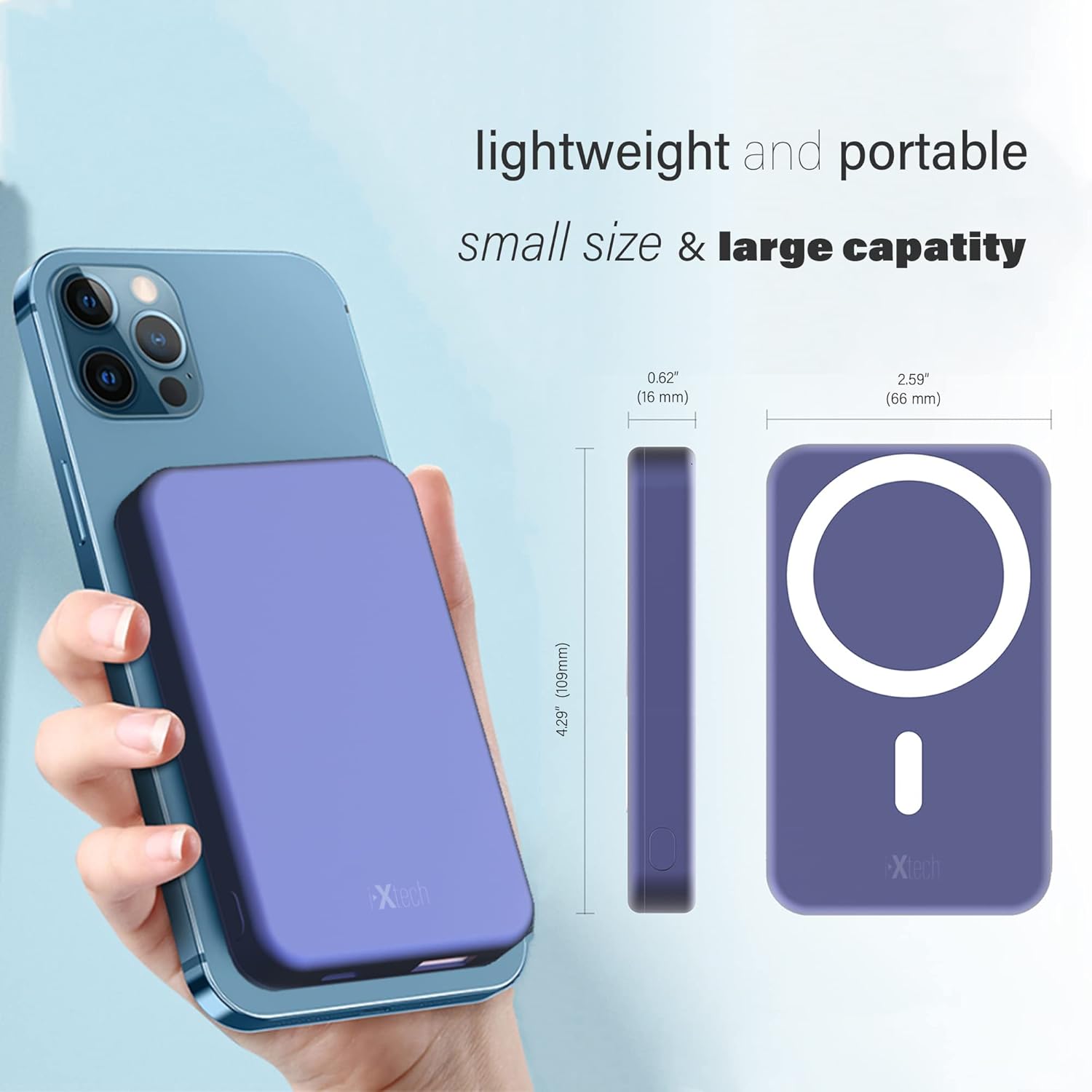
Image: The IXTECH Power Bank shown next to a smartphone, illustrating its compact size and dimensions.

Image: Close-up of the IXTECH Power Bank's digital display, showing the battery percentage.
9. Safety Information
- Do not disassemble, modify, or repair the device.
- Avoid dropping, hitting, or subjecting the device to strong impacts.
- Keep away from fire, water, and corrosive liquids.
- Do not expose to direct sunlight or high temperatures for extended periods.
- Dispose of the product responsibly according to local regulations.
10. Warranty and Support
For warranty information and customer support, please refer to the documentation included with your purchase or contact IXTECH directly through their official website or customer service channels. Keep your proof of purchase for any warranty claims.


