
havit PJ205-PRO
Havit PJ205 Pro Portable Android Projector User Manual
Model: PJ205-PRO | Brand: Havit
1. Product Overview
The Havit PJ205 Pro is a portable Android projector designed for versatile entertainment and presentation needs. It features native 1080p Full HD resolution, 220 ANSI lumens brightness, and a customized Android 9.0 operating system with access to the Google Play Store. Its compact design includes a hand rope for easy portability, and it offers multiple connectivity options including Wi-Fi, HDMI, USB, VGA, and AV ports.

Figure 1.1: Angled view of the Havit PJ205 Pro projector, showcasing its compact design, front lens, and textured grey casing with a black carrying strap.
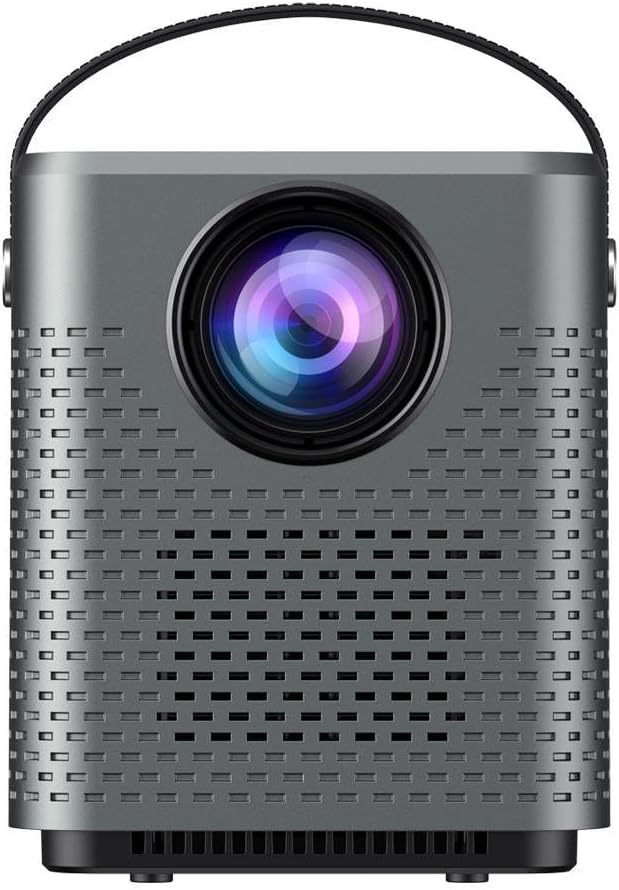
Figure 1.2: Front view of the projector, highlighting the large projection lens and the perforated speaker grilles on the front panel.
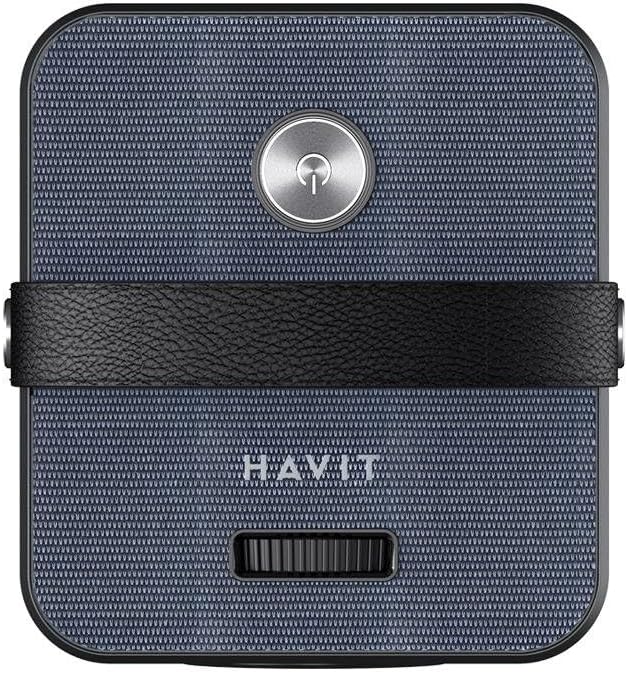
Figure 1.3: Top view of the projector, showing the power button, the "HAVIT" branding, and the focus adjustment wheel.

Figure 1.4: Rear view of the projector, displaying the various input ports including AV, HDMI, USB, and the power input.
2. Safety Information
Please read all safety instructions carefully before using this product. Failure to follow these instructions may result in electric shock, fire, or other hazards.
- Power Source: Use only the specified power adapter. Ensure the voltage is compatible with your region.
- Ventilation: Do not block any ventilation openings. Ensure adequate space around the projector for proper airflow.
- Heat: The projector may become warm during operation. Avoid touching the lens or hot surfaces.
- Water and Moisture: Do not expose the projector to rain, moisture, or any liquids.
- Cleaning: Unplug the projector before cleaning. Use a soft, dry cloth. Do not use liquid cleaners or aerosols.
- Lens Care: Avoid touching the projector lens directly. Use a lens cleaning cloth if necessary.
- Children: Keep the projector out of reach of children.
- Disassembly: Do not attempt to disassemble or repair the projector yourself. Refer all servicing to qualified service personnel.
3. Package Contents
Verify that all items listed below are included in your package. If any items are missing or damaged, please contact your retailer.
- Havit PJ205 Pro Portable Android Projector
- Power Adapter
- Remote Control (batteries not included)
- HDMI Cable
- User Manual
4. Setup
4.1 Initial Placement
Place the projector on a stable, flat surface. Ensure there are no obstructions in front of the lens or around the ventilation openings. For optimal viewing, position the projector perpendicular to the projection surface.
4.2 Power Connection
- Connect the power adapter to the DC IN port on the projector.
- Plug the power adapter into a wall outlet.
- Press the power button on the projector or remote control to turn it on. The indicator light will illuminate.
4.3 Focus Adjustment
Rotate the focus adjustment wheel located on the top of the projector until the projected image appears clear and sharp.
4.4 Keystone Correction
If the projected image appears trapezoidal, use the digital keystone correction feature in the projector's settings menu to adjust the image shape until it is rectangular. This projector supports automatic and manual keystone correction.
5. Operating Instructions
5.1 Navigating the Android System
The Havit PJ205 Pro runs on a customized Android 9.0 system. Use the remote control to navigate the interface. The main screen provides access to pre-installed apps, settings, and input sources.
- Home Screen: Displays frequently used applications and system shortcuts.
- Google Play Store: Log in with your Google account to download additional applications like Netflix, Prime Video, and YouTube.
- Settings: Access network settings, display options, sound settings, and system information.
5.2 Wi-Fi Connection
- Go to Settings on the home screen.
- Select Network & Internet.
- Turn on Wi-Fi and select your desired network from the list.
- Enter the Wi-Fi password if prompted and connect.
5.3 Screen Mirroring (Wireless Display)
The projector supports wireless screen mirroring for iOS and Android devices.
- Ensure your mobile device and the projector are connected to the same Wi-Fi network.
- On the projector, select the "Screen Mirroring" or "Wireless Display" application.
- On your iOS device, open Control Center and tap "Screen Mirroring" or "AirPlay Mirroring", then select the projector from the list.
- On your Android device, go to "Cast", "Smart View", "Wireless Display", or similar settings, then select the projector from the list.
5.4 Connecting External Devices
The projector offers various ports for connecting external devices:
- HDMI: Connect Blu-ray players, game consoles, laptops, or other HDMI-enabled devices. Select the corresponding HDMI input from the projector's input source menu.
- USB: Insert a USB flash drive to play media files (videos, photos, music, documents). Select the USB input source.
- VGA: Connect older computers or laptops using a VGA cable. Select the VGA input source.
- AV: Connect devices with AV output (e.g., DVD players) using the provided AV cable. Select the AV input source.
- Audio Out (3.5mm): Connect external speakers or headphones for enhanced audio.
6. Maintenance
6.1 Cleaning the Projector
- Exterior: Use a soft, lint-free cloth to wipe the projector's surface. For stubborn marks, slightly dampen the cloth with water. Do not use abrasive cleaners or solvents.
- Lens: Gently wipe the lens with a professional lens cleaning cloth or lens paper. Avoid touching the lens with your fingers.
- Ventilation Openings: Use a soft brush or compressed air to remove dust from the ventilation openings. Ensure the projector is unplugged before cleaning.
6.2 Storage
When not in use for extended periods, store the projector in a cool, dry place, away from direct sunlight and extreme temperatures. Use the original packaging or a protective case to prevent dust accumulation and damage.
7. Troubleshooting
| Problem | Possible Cause | Solution |
|---|---|---|
| No image projected | Power cable loose; Projector off; Incorrect input source selected. | Check power connection; Press power button; Select correct input source (HDMI, USB, AV, VGA). |
| Image blurry | Out of focus; Incorrect projection distance. | Adjust the focus wheel; Adjust the distance between the projector and the screen. |
| No sound | Volume too low; Muted; External device audio settings. | Increase projector volume; Unmute; Check audio output settings on connected device. |
| Wi-Fi connection issues | Incorrect password; Router too far; Network interference. | Re-enter password; Move projector closer to router; Restart router and projector. |
| Remote control not working | Batteries dead; Obstruction; Remote not paired. | Replace batteries; Remove obstructions; Re-pair remote if necessary (refer to specific pairing instructions if applicable). |
8. Specifications
| Feature | Detail |
|---|---|
| Model | PJ205-PRO |
| Native Resolution | 1920 x 1080 Pixels (1080p Full HD) |
| Brightness | 200 ANSI lumens |
| Operating System | Customized Android 9.0 |
| Connectivity | Wi-Fi, HDMI, USB, VGA, AV |
| Aspect Ratio | 16:9 |
| Display Type | LCD LED |
| Noise Level | 35 dB |
| Wattage | 40 watts |
| Dimensions (L x W x H) | 5 x 2 x 2 cm |
| Item Weight | 100 g |
| Special Features | Portable, Hand rope, Hifi stereo sound, Screen Mirroring |
9. Warranty and Support
For warranty information and technical support, please refer to the warranty card included in your product packaging or visit the official Havit website. Keep your proof of purchase for warranty claims.
If you encounter any issues not covered in this manual, please contact Havit customer support for assistance.
Contact Information: Please refer to the contact details provided on the Havit official website or your purchase documentation.
Ask a question about this manual
Ask about setup, troubleshooting, compatibility, parts, safety, or missing instructions. Manuals+ will review the question and use this page’s manual context to help answer it.