
1. Introduction
This manual provides detailed instructions for the setup, operation, maintenance, and troubleshooting of your VISSPL V30 4K Supported WiFi Bluetooth Projector. Please read this manual thoroughly before using the product to ensure optimal performance and longevity.
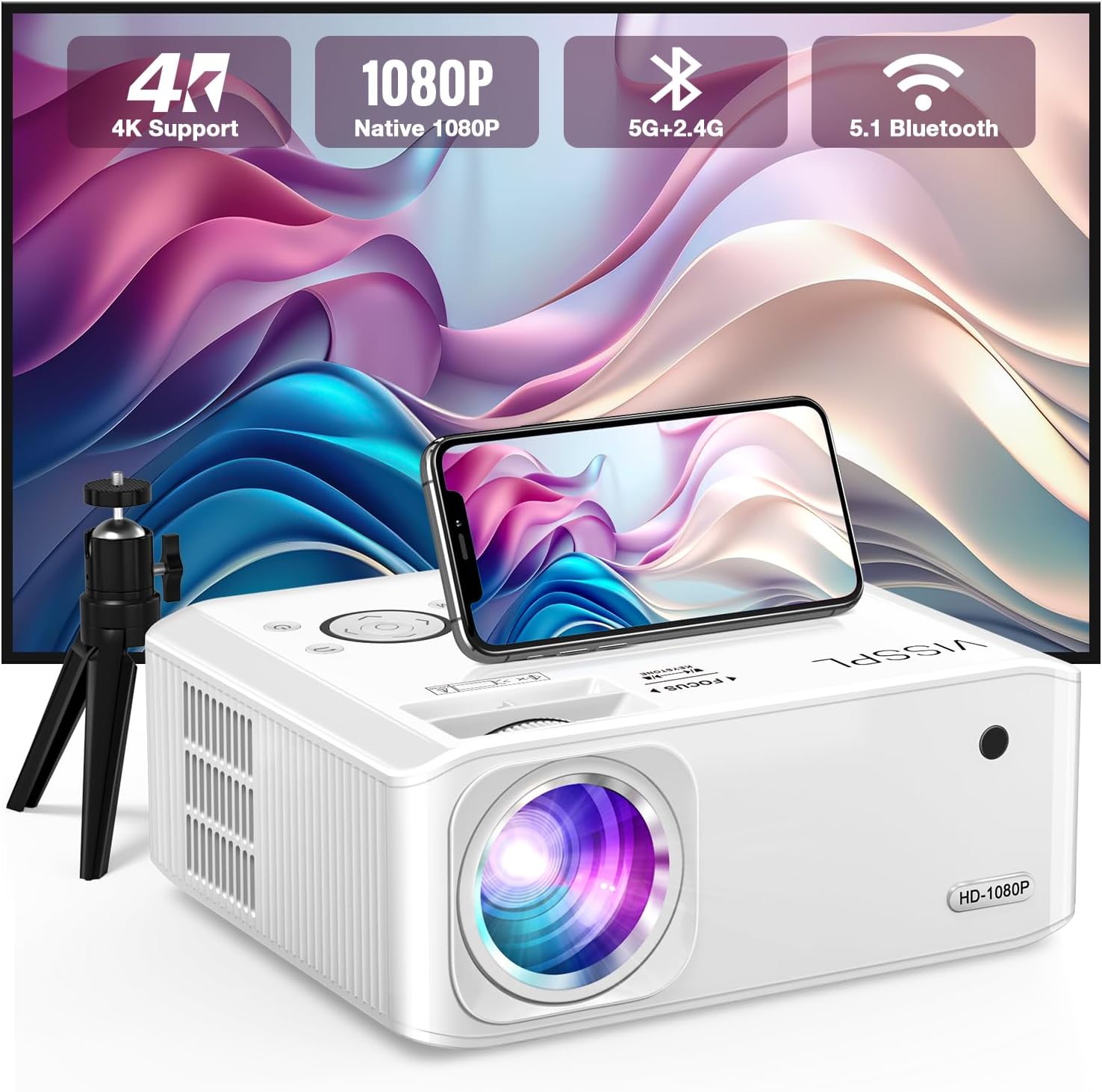
Figure 1: VISSPL V30 Projector Overview

Figure 2: Key Features of VISSPL V30 Projector
2. Package Contents
Verify that all items listed below are included in your package:
- VISSPL V30 Native 1080P Projector
- 100-inch Projector Screen
- Projector Tripod
- Remote Control
- Power Cord
- HDMI Cable
- AV Cable
- Projector Lens Cover
- User Manual (this document)
3. Setup
3.1 Physical Placement
Position the projector on a stable, flat surface or mount it using a compatible ceiling mount. Ensure adequate ventilation around the projector. The projection distance and screen size can be adjusted to fit your environment, supporting screen sizes from 40 to 400 inches.

Figure 3: Adjustable Projection Sizes
3.2 Power Connection
- Connect the power cord to the projector's power input port.
- Plug the other end of the power cord into a standard electrical outlet.
3.3 Initial Power On
Press the power button on the projector or the remote control to turn on the device. The indicator light will illuminate.
4. Operating Instructions
4.1 Focus and Keystone Adjustment
Adjust the focus ring on the projector lens until the image is clear. For image shape correction, use the digital ±50° 6D/4P keystone correction feature. This allows for precise adjustments from all four corners, vertically, horizontally, and rotationally, ensuring a square image regardless of projector placement. A one-click reset function is available for convenience.

Figure 4: Digital Keystone Correction and Zoom
The zoom function allows you to adjust the image size from 100% to 50% without physically moving the projector.
4.2 Connectivity
The VISSPL V30 projector offers multiple connectivity options:
- HDMI: Connect to laptops, gaming consoles (PS5, Switch), TV sticks, and other HDMI-enabled devices.
- USB: Two USB ports are available for media playback from USB drives or for connecting to PCs/laptops for presentations.
- AV: For older devices using composite video.
- Audio Output: Connect external audio systems.

Figure 5: Multi-Device Compatibility
4.3 Wireless Connectivity (WiFi & Bluetooth)
4.3.1 WiFi Screen Mirroring
The projector supports 5G+2.4G WiFi for seamless screen mirroring from Android, iOS, and Windows devices. Follow the on-screen instructions to connect your device.

Figure 6: WiFi Screen Mirroring Setup
Note: Due to HDCP copyright issues, direct playback of content from services like Netflix, Disney, or Hulu via screen mirroring is prohibited. For these services, use a TV Stick (not included) connected to the projector's HDMI port.
4.3.2 Bluetooth Audio
The integrated Bluetooth 5.1 chip allows for wireless connection to external Bluetooth speakers or headphones. This enhances the audio experience beyond the built-in stereo speaker.
- Ensure your Bluetooth audio device is in pairing mode.
- Navigate to the Bluetooth settings on the projector and select your device to pair.

Figure 7: Bluetooth Audio Connection
4.4 Media Playback and Presentations
The projector supports playback of various media formats via USB. It can also display office documents such as PPT presentations directly from a USB drive or when connected to a laptop.
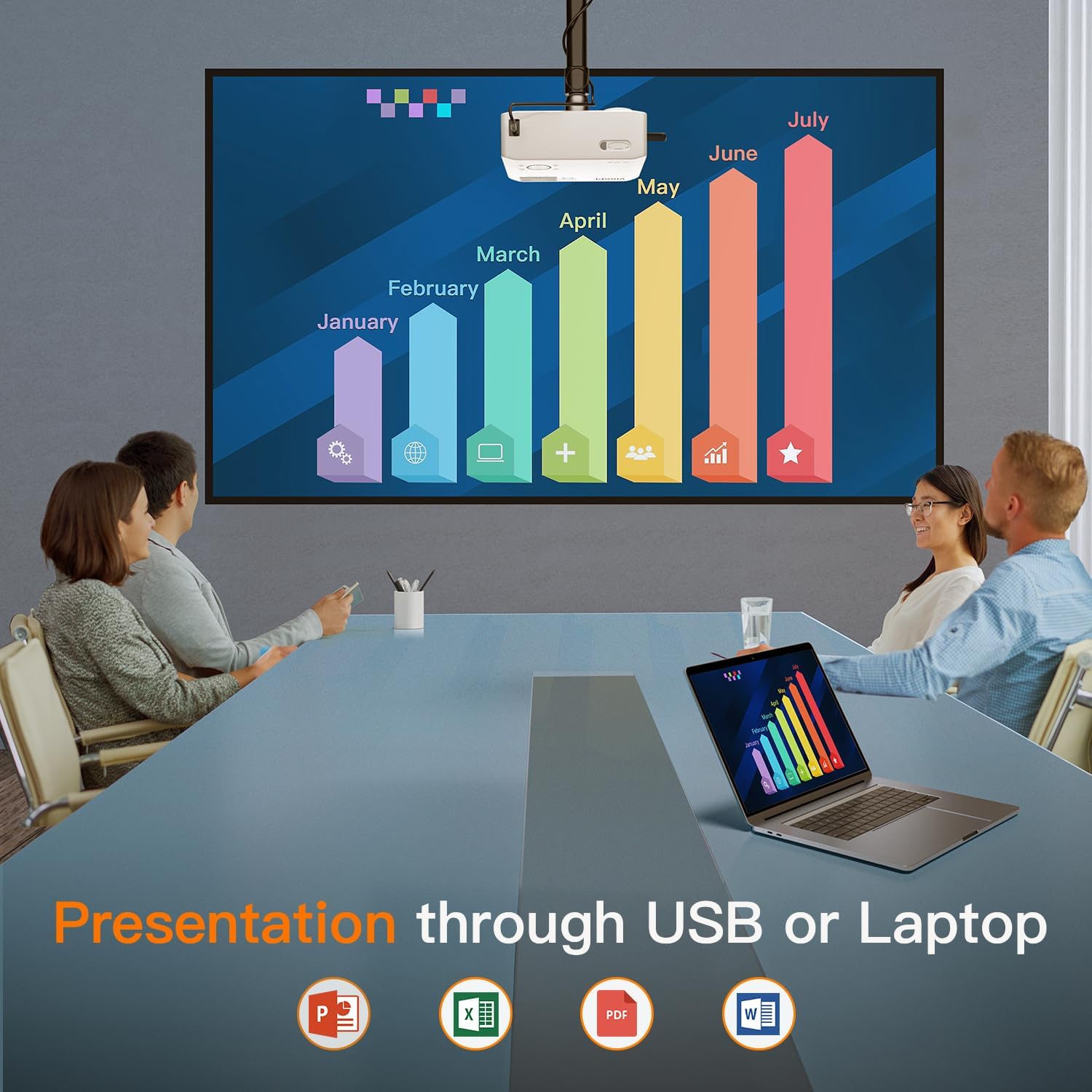
Figure 8: Business Presentation Capability
5. Maintenance
5.1 Cleaning
- Lens: Use a soft, lint-free cloth specifically designed for optical lenses. Avoid abrasive materials or harsh chemicals.
- Exterior: Wipe the projector's exterior with a soft, dry cloth. Do not use liquid cleaners directly on the device.
- Ventilation: Ensure the ventilation ports are clear of dust and obstructions to prevent overheating. The projector features a fully sealed optical core to minimize internal dust accumulation.
5.2 Storage
When not in use for extended periods, store the projector in a cool, dry, dust-free environment. Use the provided lens cover to protect the lens.
6. Troubleshooting
If you encounter issues with your VISSPL V30 projector, refer to the following common problems and solutions:
- No Image:
- Ensure the power cord is securely connected and the projector is turned on.
- Verify the input source is correctly selected (HDMI, USB, etc.).
- Check cable connections (HDMI, AV) for looseness or damage.
- Adjust focus and keystone correction.
- No Sound:
- Increase the volume on both the projector and the connected source device.
- If using Bluetooth, ensure the external speaker/headphone is paired and connected.
- Check audio cable connections if using wired external speakers.
- WiFi/Screen Mirroring Issues:
- Ensure both the projector and your device are connected to the same WiFi network.
- Restart both the projector and your device.
- Remember that streaming services like Netflix, Disney, and Hulu may not work directly via screen mirroring due to HDCP copyright protection. Use a TV Stick for these services.
- Image Distorted or Blurry:
- Adjust the focus ring on the lens.
- Use the digital keystone correction to square the image.
- Ensure the projector is placed on a stable surface and not vibrating.
For further assistance, please contact VISSPL customer support.
7. Specifications
| Feature | Detail |
|---|---|
| Brand | VISSPL |
| Model Number | V30 |
| Display Resolution | 1920 x 1080 (Native 1080P, 4K Supported) |
| Brightness | 15000L |
| Contrast Ratio | 15000:1 |
| Connectivity Technology | Bluetooth 5.1, HDMI, USB (x2), AV, Wi-Fi (5G+2.4G Hz) |
| Keystone Correction | Digital ±50° 6D/4P |
| Zoom Function | 100% to 50% |
| Projection Size | 40" - 400" |
| Speaker Type | Built-In Hi-Fi Stereo Speaker |
| Product Dimensions | 8.8 x 7.1 x 3.6 inches |
| Item Weight | 2.97 pounds |
| Color | Pearl White |
| Optical Engine | Fully Sealed Optical Core |
8. Warranty and Support
VISSPL provides comprehensive support for your V30 projector:
- Warranty: 2-year product replacement warranty.
- Technical Support: Lifetime technical support.
- Customer Service: 24/7 service and 100% satisfaction guarantee.
For any inquiries or assistance, please contact VISSPL customer support through the retailer where you purchased the product or visit the official VISSPL website for contact information.

