
1. Introduction
Thank you for purchasing the Innocn 39G1R 39-inch 2K WQHD 165Hz Curved Gaming HDR Monitor. This manual provides essential information for setting up, operating, maintaining, and troubleshooting your new monitor. Please read this manual thoroughly before use and keep it for future reference.
2. Safety Information
Observe the following safety precautions to prevent damage to the monitor or injury to yourself.
- Do not expose the monitor to rain, moisture, or extreme temperatures.
- Ensure proper ventilation around the monitor. Do not block ventilation openings.
- Use only the power adapter supplied with the monitor.
- Avoid placing heavy objects on the power cord.
- Disconnect the power plug from the outlet if the monitor will not be used for an extended period.
- Do not attempt to disassemble or repair the monitor yourself. Refer all servicing to qualified personnel.
3. Package Contents
Please check that all items are present in your package:
- Innocn 39G1R Monitor
- Monitor Stand (Base and Neck)
- Power Adapter and Cable
- DisplayPort Cable
- HDMI Cable
- User Manual
4. Product Overview
The Innocn 39G1R is a 39-inch curved gaming monitor designed for an immersive visual experience. It features a WQHD (2560x1440) resolution, a high 165Hz refresh rate, and HDR support. The VA panel offers a 3000:1 contrast ratio for deep blacks and vibrant colors. It also includes Adaptive-Sync/G-Sync compatibility and built-in speakers.


5. Setup
5.1 Assembling the Stand
- Carefully remove the monitor and stand components from the packaging.
- Attach the stand neck to the monitor's rear mounting point. Ensure it clicks securely into place or is fastened with screws if provided.
- Attach the stand base to the bottom of the stand neck. Tighten the thumb screw or screws to secure the base.
- Place the assembled monitor on a stable, flat surface.
5.2 VESA Mounting
The monitor supports VESA 100x100mm mounting. To mount the monitor on a wall or an alternative stand:
- Remove the original stand if it is already attached.
- Attach your VESA-compatible mount to the 100x100mm screw holes on the back of the monitor using appropriate screws (not included).
- Ensure the mount is securely fastened before releasing the monitor.
5.3 Connecting the Monitor
Connect the necessary cables to the corresponding ports on the back of the monitor and your computer or other devices.
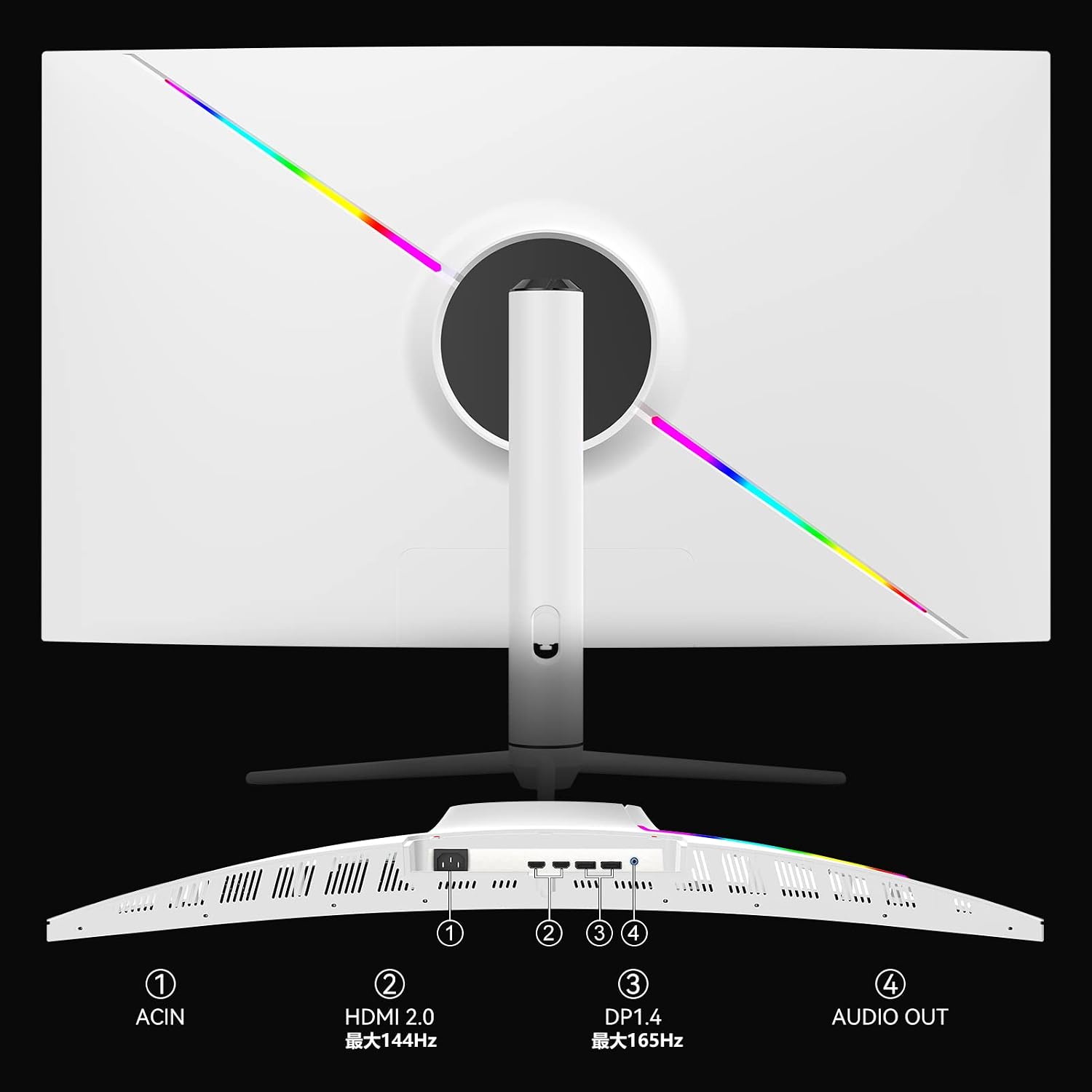
- Power Connection: Connect the power adapter to the monitor's power input and then plug it into a power outlet.
- DisplayPort (DP): For optimal performance and 165Hz refresh rate, connect a DisplayPort cable from your computer's graphics card to the monitor's DP 1.4 port.
- HDMI: Connect an HDMI cable from your computer or game console to one of the monitor's HDMI 2.0 ports. HDMI supports up to 144Hz refresh rate.
- Audio Out: Connect external speakers or headphones to the Audio Out port if desired. The monitor has built-in speakers, but external audio devices can be used for enhanced sound.
6. Operating Instructions
6.1 Power On/Off
Press the power button, usually located on the back or bottom of the monitor, to turn the monitor on or off. The power indicator light will illuminate when the monitor is on.
6.2 OSD Menu Navigation
The On-Screen Display (OSD) menu allows you to adjust various monitor settings. Navigate the OSD menu using the joystick or buttons typically found on the back or bottom of the monitor. Press the joystick/button to enter the menu, move it up/down/left/right to select options, and press again to confirm.
6.3 Adjusting Display Settings
- Resolution: Ensure your device is set to the monitor's native resolution of 2560x1440 (WQHD) for the clearest image.
- Refresh Rate: Adjust the refresh rate in your operating system's display settings. Use DisplayPort for 165Hz; HDMI supports up to 144Hz.
- HDR: Enable HDR in the OSD menu and your device's display settings for enhanced contrast and color. The monitor's brightness reaches 300-400 Nits with HDR On.
- Adaptive-Sync/G-Sync: Activate Adaptive-Sync in the OSD menu and enable G-Sync compatibility in your graphics card's control panel (if applicable) to eliminate screen tearing and stuttering during gaming.
- Blue Light Reduction: The monitor features TUV certified blue light reduction to minimize eye strain during prolonged use. This setting can be adjusted in the OSD menu.

7. Maintenance
7.1 Cleaning the Monitor
- Always unplug the monitor before cleaning.
- Use a soft, lint-free cloth slightly dampened with water or a mild, non-abrasive screen cleaner to wipe the screen.
- For the casing, use a soft, dry cloth. Avoid using harsh chemicals or abrasive materials.
7.2 Storage
If storing the monitor for an extended period, disconnect all cables, pack it in its original packaging if possible, and store it in a cool, dry place away from direct sunlight and extreme temperatures.
8. Troubleshooting
If you encounter issues with your monitor, refer to the following common problems and solutions:
| Problem | Possible Solution |
|---|---|
| No Power | Ensure the power cable is securely connected to the monitor and the power outlet. Check if the power outlet is functioning. |
| No Signal | Verify that the video cable (DP or HDMI) is correctly connected to both the monitor and your device. Select the correct input source via the OSD menu. |
| Flickering or Distorted Image | Check the video cable for damage. Ensure your graphics card drivers are up to date. Adjust the refresh rate in your device's display settings. Enable Adaptive-Sync/G-Sync if applicable. |
| No Sound from Speakers/Headphones | Check the volume settings on the monitor and your connected device. Ensure external speakers/headphones are properly connected to the Audio Out port. |
| Buttons Not Responding | Unplug the monitor's power cable, wait for 30 seconds, then plug it back in to reset the monitor. |
9. Specifications
| Feature | Specification |
|---|---|
| Brand | INNOCN |
| Model | 39G1R |
| Screen Size | 39 inches (38.5 inches viewable) |
| Resolution | 2560 x 1440 (WQHD) |
| Aspect Ratio | 16:9 |
| Panel Type | VA |
| Refresh Rate | 165 Hz (DisplayPort), 144 Hz (HDMI) |
| Response Time | 6 ms |
| HDR Support | Yes (300-400 Nits with HDR On) |
| Contrast Ratio | 3000:1 |
| Color Gamut | sRGB 99% |
| Connectivity | 1x DisplayPort 1.4, 2x HDMI 2.0, 1x Audio Out |
| VESA Mount | 100x100mm |
| Built-in Speakers | Yes |
| Dimensions (D x W x H) | 28.7 cm x 87.9 cm x 51.4 cm |
10. Warranty and Support
Innocn provides a 12-month warranty period for this product. If you encounter any issues or have questions regarding your Innocn 39G1R monitor, please contact our customer support team.
For support, please refer to the contact information provided with your purchase documentation or visit the official Innocn website. When contacting support, please have your model number (39G1R) and purchase details ready.

