
Introduction
Thank you for choosing the Perixx PERIMICE-802 Wireless Bluetooth Mouse. This manual provides essential information for setting up, operating, and maintaining your new mouse. Please read these instructions carefully before use to ensure optimal performance and longevity of your device.
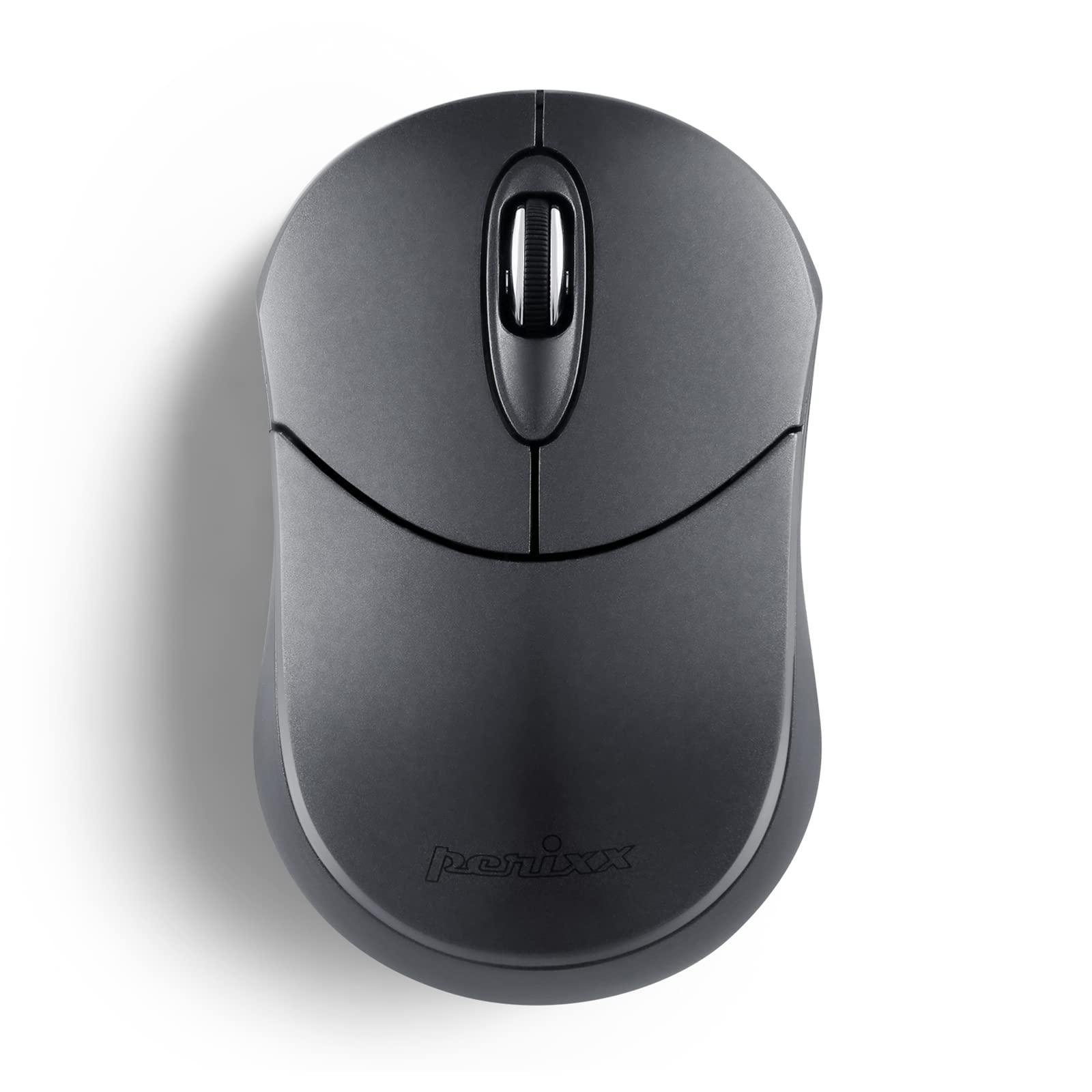
Image: The Perixx PERIMICE-802 Wireless Bluetooth Mouse in Graphite Gray, showcasing its compact and ergonomic design.
Package Contents
- Perixx PERIMICE-802 Wireless Bluetooth Mouse
- Instruction Manual
Note: 2 AAA batteries are required and not included in the package.

Image: Contents of the Perixx PERIMICE-802 package, including the mouse, its retail box, and the instruction manual.
Setup
1. Battery Installation
- Locate the battery compartment on the underside of the mouse.
- Gently slide the battery cover open.
- Insert two (2) AAA batteries, ensuring correct polarity (+/-).
- Close the battery cover securely.

Image: The bottom view of the mouse, indicating the battery compartment and the ON/OFF switch.
2. Bluetooth Pairing
- Turn on the mouse using the ON/OFF switch located on the bottom.
- Press and hold the pairing button on the bottom of the mouse for 3-5 seconds until the LED indicator starts blinking, indicating it is in pairing mode.
- On your device (PC, Laptop, Tablet, Smartphone), navigate to the Bluetooth settings.
- Enable Bluetooth and search for available devices.
- Select "PERIMICE-802" from the list of found devices.
- Follow any on-screen prompts to complete the pairing process. The LED indicator on the mouse will stop blinking once successfully paired.

Image: An illustration demonstrating the Bluetooth connectivity feature and highlighting the pairing button on the mouse's underside.
Operating Instructions
Basic Functions
- Left Button: Standard click function for selection and activation.
- Right Button: Accesses contextual menus and secondary functions.
- Scroll Wheel: Scrolls vertically through documents and web pages. Can also function as a middle click button.

Image: A hand comfortably resting on the Perixx PERIMICE-802 mouse, illustrating its ergonomic sculpted shape designed for palm support during use.
DPI (Dots Per Inch)
The PERIMICE-802 features a fixed optical sensor with 1000 DPI for smooth and precise tracking. This sensitivity is suitable for general computing tasks.

Image: The Perixx PERIMICE-802 mouse, emphasizing its 1000 DPI optical sensor for smooth and accurate cursor movement.
Power Saving Mode
To conserve battery life, the mouse will automatically enter a power-saving sleep mode after a period of inactivity. To wake the mouse, simply move it or click any button.

Image: A visual representation of the mouse's power-saving function, which helps extend battery life.
Maintenance
Cleaning
- Use a soft, dry cloth to clean the surface of the mouse.
- For stubborn dirt, slightly dampen the cloth with water or a mild cleaning solution. Avoid harsh chemicals.
- Do not immerse the mouse in water or allow liquids to enter the internal components.
Battery Replacement
When the mouse performance degrades or it stops responding, it is likely time to replace the batteries. Follow the battery installation steps outlined in the Setup section.
Troubleshooting
- Mouse not responding:
- Ensure the mouse is turned ON.
- Check and replace batteries if necessary.
- Re-pair the mouse with your device.
- Cannot pair the mouse:
- Make sure the mouse is in pairing mode (LED blinking).
- Ensure Bluetooth is enabled on your device.
- Move the mouse closer to your device.
- Remove any existing "PERIMICE-802" entries from your device's Bluetooth list and try pairing again.
- For Linux systems or devices without built-in Bluetooth, an additional Bluetooth adapter is required.
- Intermittent connection:
- Ensure there are no strong interference sources (e.g., Wi-Fi routers, other Bluetooth devices) nearby.
- Keep the operating range within 34.8 feet (10 meters).
- Check battery level.
Specifications
| Brand | Perixx |
| Model Name | PERIMICE-802 |
| Model Number | 12177 |
| Color | Graphite |
| Connectivity Technology | Bluetooth |
| Movement Detection | Optical |
| Mouse Sensitivity (DPI) | 1000 DPI |
| Button Quantity | 3 (Left, Right, Scroll Wheel) |
| Hand Orientation | Ambidextrous |
| Compatible Devices | PC, Laptop, Tablet, Smartphone |
| Operating System Support | Windows 7/8/10/11, macOS, iOS 13+, Android 4.0+, Linux |
| Wireless Range | Up to 34.8 feet (10 meters) |
| Power Source | Battery Powered (2 x AAA batteries, not included) |
| Battery Average Life | Up to 10 months (depending on usage) |
| Item Weight | 50 Grams |
| Item Dimensions (L x W) | 3.86" x 2.40" (98 x 61 mm) |

Image: The Perixx PERIMICE-802 mouse with its dimensions clearly marked, highlighting its mini and portable size.
Warranty and Support
Warranty Information
The Perixx PERIMICE-802 comes with a 12-month limited warranty for items directly sold by Perixx. This includes a 30-day return policy. Please retain your proof of purchase for warranty claims.
Customer Support
For technical assistance, troubleshooting, or warranty inquiries, please contact Perixx customer support through their official website or the contact information provided with your purchase.


