1. Introduction
Thank you for choosing the MUSTAR Digital Piano MDP-1300. This 88-key weighted keyboard is designed to provide an authentic piano playing experience with a wide range of features for beginners and professionals alike. Please read this manual thoroughly to ensure proper setup, operation, and maintenance of your instrument.
2. What's in the Box
Verify that all items listed below are included in your package:
- MUSTAR 88-Key Digital Piano Keyboard
- Double-X Shaped Stand
- Sustain Pedal
- Music Rest
- Portable Storage Bag
- Piano Dust Cloth
- AC Power Adapter
- User Manual (this document)

Image: The MUSTAR Digital Piano MDP-1300 shown with its included double-X shaped stand, sustain pedal, and portable carry case.
3. Setup
3.1. Assembling the Stand
- Unfold the double-X shaped stand.
- Adjust the stand to your desired height using the quick-release mechanism. Ensure the stand is stable before placing the piano.
3.2. Placing the Piano
- Carefully place the digital piano onto the assembled stand, ensuring it is securely seated.
3.3. Connecting Power
- Connect the AC power adapter to the DC 12V power input port on the rear of the piano.
- Plug the adapter into a standard electrical outlet.
3.4. Connecting Sustain Pedal
- Locate the Sustain pedal input port on the rear of the piano.
- Insert the sustain pedal cable firmly into the port.

Image: A close-up view of the sustain pedal positioned on the floor, connected to the digital piano stand.
3.5. Music Rest Installation
- Insert the music rest into the designated slot on the top panel of the piano.
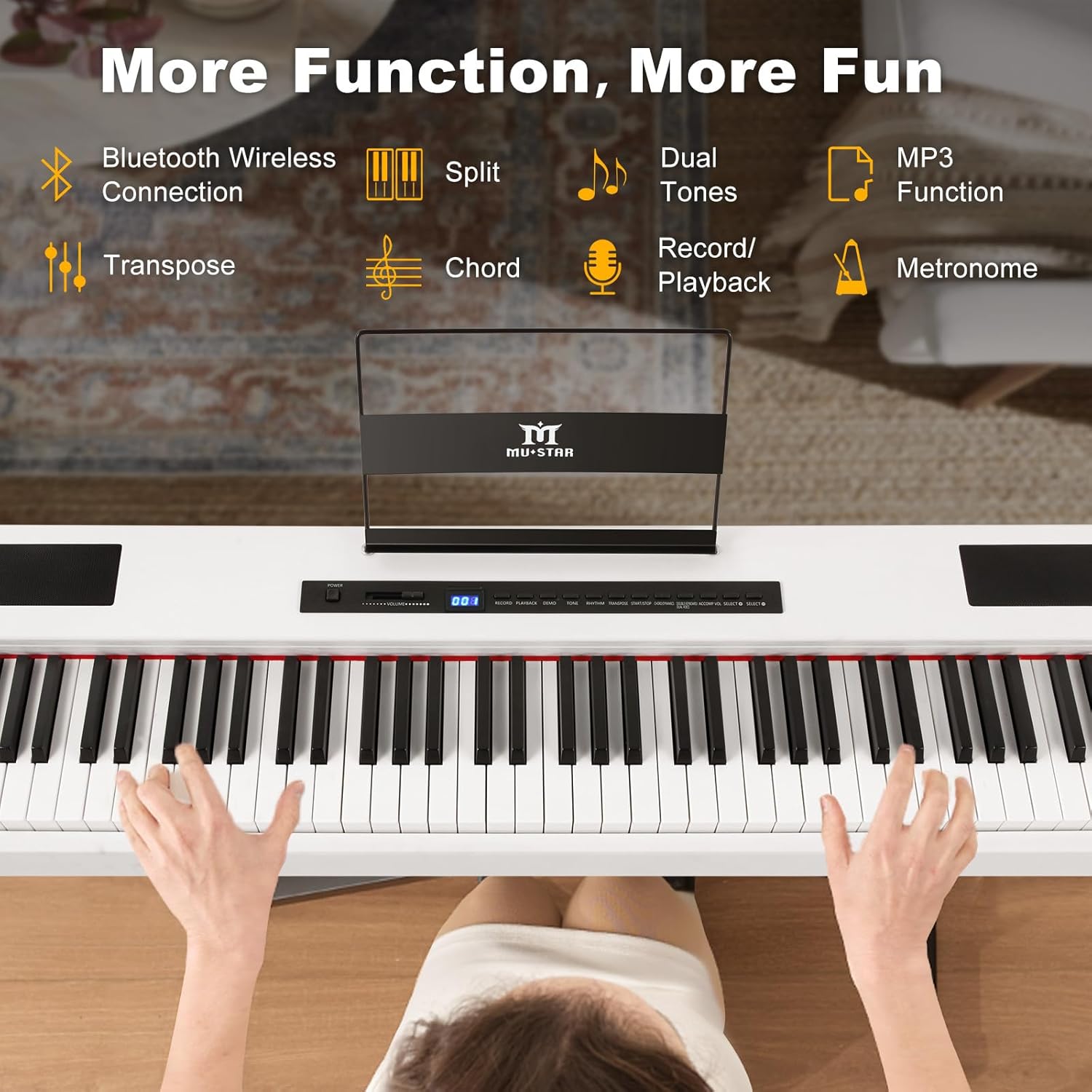
Image: A top-down perspective of the digital piano, showing the music rest in place and hands positioned on the keys.
3.6. Connection Diagram

Image: A visual diagram illustrating the connection points for DC power, earphone jack, audio out, audio in, USB MIDI, and pedals on the piano.
4. Operating Instructions
4.1. Power On/Off
- Press the 'Power' button on the control panel to turn the piano ON or OFF.
4.2. Volume Control
- Use the 'Volume' slider or knob on the control panel to adjust the output volume.
4.3. Selecting Tones
- The piano features 800 different tones. Use the 'Tone' selection buttons (e.g., '+' and '-') to browse and select desired instrument sounds.
4.4. Rhythm Functions
- Access 600 preset rhythms using the 'Rhythm' selection buttons.
4.5. Demo Songs
- The piano includes 80 demo songs. Press the 'Demo' button to listen to pre-recorded melodies.
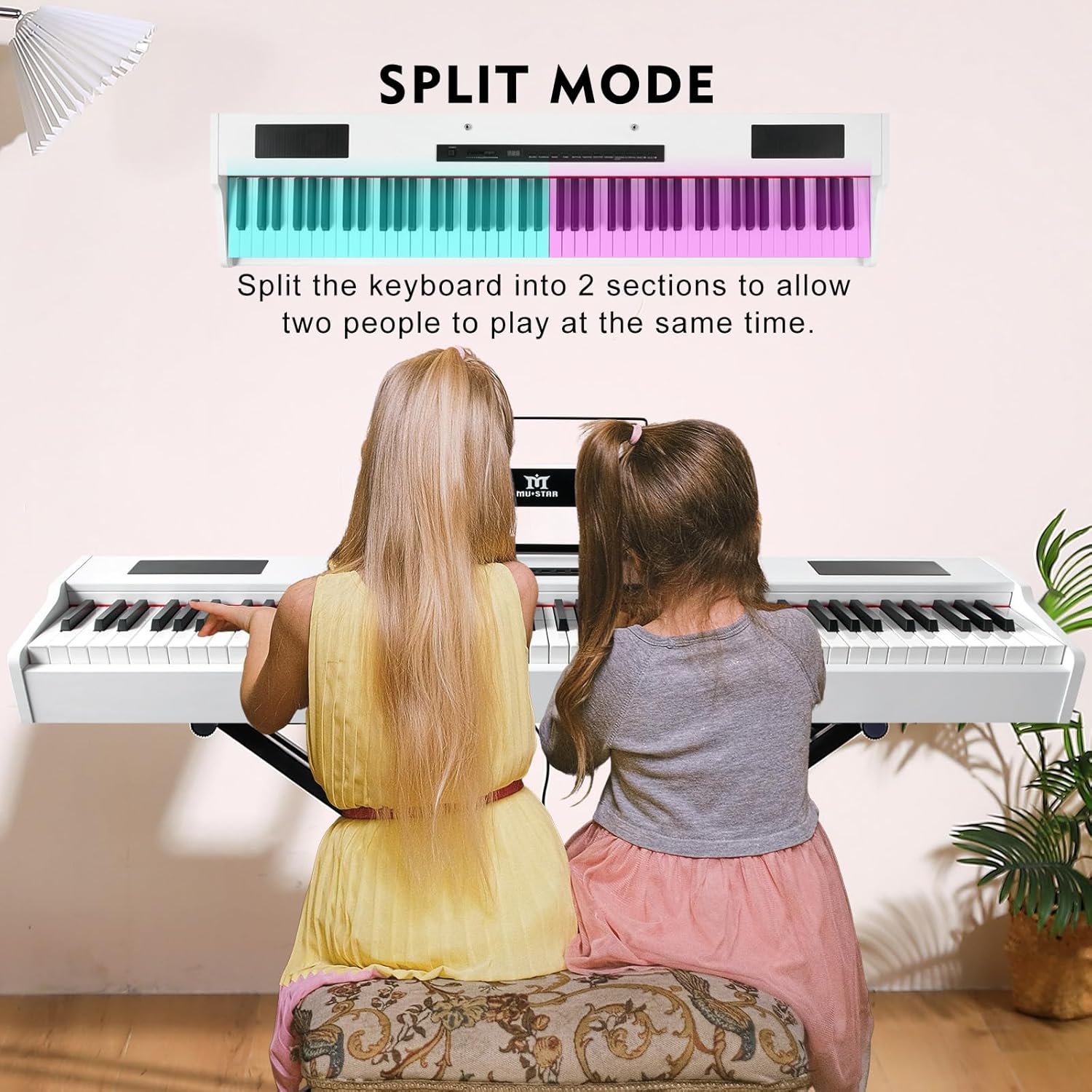
Image: The digital piano's control panel highlighting features such as Bluetooth, Split, Dual Tones, MP3 Function, Transpose, Chord, Record/Playback, and Metronome.
4.6. Weighted Hammer Action Keys
- The 88 graded hammer action keys respond to your touch, mimicking an acoustic piano. Play with more force for louder sounds and lighter for softer sounds.

Image: A close-up of the 88 fully weighted keys, with an overlay graphic demonstrating the 16 levels of touch sensitivity from low (ppp) to high (fff).
4.7. Record/Playback Function
- Press the 'Record' button to begin recording your performance. Press 'Playback' to listen to your recorded piece.
4.8. Headphone Use
- Connect headphones to the headphone jack on the rear panel for silent practice.
4.9. MIDI/Bluetooth Connectivity
- Use the MIDI USB port or Bluetooth to connect the piano to a smartphone or computer. This allows for app-based learning, additional sound libraries, and recording capabilities.

Image: The digital piano connected wirelessly to a tablet, showcasing various music learning applications like Garageband, Perfect Piano, and Pop Piano.
4.10. Split Mode
- Activate 'Split Mode' to divide the keyboard into two sections, allowing two players to play simultaneously or for practicing different sounds in each hand.
Image: Two young girls seated at the digital piano, playing simultaneously, illustrating the 'Split Mode' feature.
4.11. Transpose Function
- Use the 'Transpose' function to shift the pitch of the entire keyboard up or down in semitone steps.
4.12. Metronome
- Activate the 'Metronome' function to practice with a steady beat. Adjust the tempo as needed.
4.13. Vibrato/Sustain Effects
- Engage 'Vibrato' or 'Sustain' effects to add expressive qualities to your playing.
4.14. Dual Tone
- Combine two different tones to play simultaneously, creating richer and more complex sounds.
5. Media Demonstrations
5.1. Multiple Functional Modes Overview
Video: A demonstration of the piano's multiple functional modes, including Bluetooth connectivity, split keyboard, dual tones, MP3 function, transpose, chord, record/playback, and metronome.
5.2. Tones, Rhythms, and Demo Songs
Video: This video showcases the piano's extensive library of 80 demo songs, 600 preset rhythms, and 800 tones, highlighting the variety of sounds available.
5.3. Educational Features
Video: A brief overview of the piano's powerful educational features, including its ability to connect with learning apps and various practice modes.
6. Maintenance
6.1. Cleaning
- Use the provided piano dust cloth to gently wipe down the keys and surface of the piano. Avoid using harsh chemicals or abrasive materials.
6.2. Storage
- When not in use, cover the piano with the provided dust cloth to protect it from dust and debris.
- For transportation or long-term storage, use the portable storage bag to protect the instrument from bumps and scratches.

Image: A person carrying the digital piano in its black portable storage bag with a shoulder strap, emphasizing its portability and protection during transport.
6.3. Material
- The piano panels are constructed from FSC-Certified wood, ensuring responsible sourcing.
7. Troubleshooting
If you encounter any issues, please refer to the following common troubleshooting steps:
- No Sound: Ensure the power adapter is securely connected and the piano is turned ON. Check the volume level and ensure headphones are not plugged in if you intend to use the built-in speakers.
- Keys Not Responding: Verify the power is on and the piano is not in a 'sleep' or 'standby' mode. If connected via MIDI/Bluetooth, ensure the connection is stable.
- Connectivity Issues (Bluetooth/MIDI): Ensure Bluetooth is enabled on your external device and the piano is in pairing mode. For MIDI USB, check cable connections and driver installations if required by your computer.
8. Specifications
| Feature | Detail |
|---|---|
| Brand | MUSTAR |
| Model Name | MDP-1300 |
| Number of Keys | 88 |
| Key Type | Weighted Hammer Action |
| Product Dimensions | 11"D x 50"W x 30"H |
| Item Weight | 38 Pounds |
| Tones | 800 |
| Rhythms | 600 |
| Demo Songs | 80 |
| Speakers | Dual 20W Stereo Speakers |
| Connectivity | Bluetooth, USB, MIDI USB |
| Headphones Jack | 3.5mm Jack |
| Power Source | Corded Electric |
| Body Material | FSC-Certified Wood |
| Color | White |
| Skill Level | All |

Image: The digital piano with its stand, showing overall dimensions of 51 inches in length, 11 inches in depth, and 3.6 inches in height for the keyboard unit.
9. Warranty
This product is covered by a manufacturer's warranty against defects in material and workmanship for a period of one (1) year from the date of purchase. Please retain your proof of purchase for warranty claims.
10. Support
For further assistance, technical support, or warranty inquiries, please contact MUSTAR customer service through the retailer where the product was purchased.


