
1. Introduction
This manual provides detailed instructions for the installation, operation, and maintenance of your hizpo 9-inch touchscreen car radio. Please read this manual thoroughly before using the product to ensure proper functionality and safety. This unit is designed to enhance your driving experience with advanced navigation, entertainment, and connectivity features.

Image 1.1: hizpo 9-inch touchscreen car radio installed in a Ford Focus dashboard, displaying a navigation interface.
2. Compatibility
The hizpo car radio is compatible with the following Ford Focus models:
- Ford Focus Exi MT 2 3 Mk2 / Mk3 (Years: 2004, 2005, 2006, 2007, 2008, 2009, 2010, 2011)
Please verify your vehicle's center console design matches the product's form factor before installation.

Image 2.1: Comparison of a Ford Focus dashboard before and after the hizpo car radio installation.
3. Setup and Installation
Installation of the hizpo car radio requires basic automotive electrical knowledge. It is recommended to have the unit installed by a qualified professional. Ensure the vehicle's battery is disconnected before beginning installation.
3.1 Included Accessories
The package includes all necessary cables and adapters for standard installation:
- Power Cable
- RCA Harness (with 4G SIM Card Slot - 4G version only)
- RCA Harness (WiFi version only)
- Radio Antenna Adapter
- Rear Camera Input RCA Cable
- 4G LTE Antenna (4G version only)
- 4 Pin USB Cable
- 6 Pin USB Cable
- GPS Antenna
- External Microphone
- Mini Factory USB Adapter Cable

Image 3.1: All included accessories for the hizpo car radio.
3.2 Product Dimensions
The unit features a 9-inch screen. Refer to the image below for detailed dimensions to ensure proper fitment in your vehicle's dashboard.
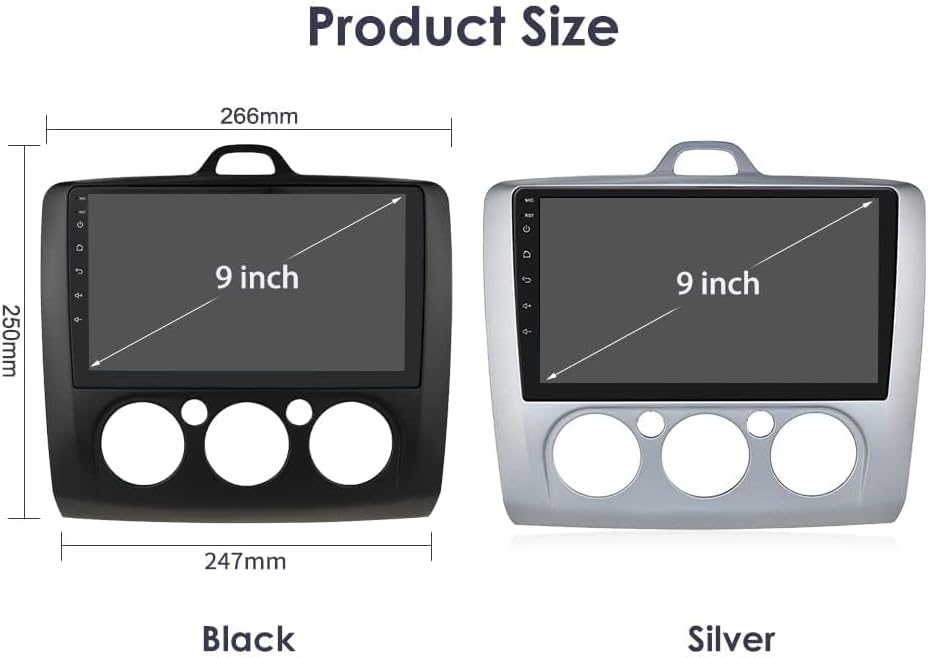
Image 3.2: Product dimensions for the 9-inch car radio unit.
4. Key Features
4.1 Display and Performance
- QLED FHD Resolution Screen: 9-inch capacitive touchscreen with 1280x720 resolution, supporting 1920x1080 pixel video for clear visuals.
- Operating System: Android 12.
- Processor: 8-core UPC 1.8 GHz (2* A75, 6* A5).
- Memory & Storage: 3GB RAM + 32GB internal storage.
4.2 Connectivity and Navigation
- Apple CarPlay & Android Auto: Supports both wireless and wired connections for seamless smartphone integration. Access navigation, calls, messages, and music.
- MirrorLink Function: Allows mirroring of your smartphone screen onto the car radio display.
- GPS Navigation: Integrated GPS module and external GPS antenna for online and offline map navigation. Pre-installed offline map data is available.
- Wireless Connectivity: Built-in WiFi and Bluetooth for internet access, hands-free calling, and audio streaming.
- 4G Support: (For 4G versions) Provides mobile data connectivity.

Image 4.1: Apple CarPlay and Android Auto functionality.

Image 4.2: GPS Navigation feature.
4.3 Audio and Multimedia
- Built-in DSP: Features BD37534FV for advanced sound effect adjustments, including surround sound and bass enhancement.
- FM Radio: Supports FM radio reception.
- Multimedia Support: Online video, TV, movies, music, and social applications.

Image 4.3: Built-in Digital Sound Processor (DSP) interface.
4.4 User Interface and Control
- Split Screen Function: Allows simultaneous use of two applications, such as navigation and music.
- Steering Wheel Control: Compatible with vehicle steering wheel controls for easy adjustment of music and volume.
- Backup Camera Display: Supports USB return camera input, automatically switching to rearview when reversing for improved safety.

Image 4.4: Split Screen functionality showing navigation and music.

Image 4.5: Steering Wheel Control setup interface.

Image 4.6: Backup Camera support.
5. Operating Instructions
5.1 Basic Operation
- Power On/Off: Press and hold the power button (usually located on the front panel) to turn the unit on or off.
- Touchscreen Navigation: Use your finger to tap icons, swipe through menus, and interact with applications.
- Volume Control: Adjust volume using the physical buttons or the on-screen controls.
5.2 Connecting Apple CarPlay / Android Auto
To use Apple CarPlay or Android Auto, follow these steps:
- For Wireless Connection:
- Ensure your smartphone's Bluetooth and Wi-Fi are enabled.
- Connect your phone to the car radio via Bluetooth.
- Open the "CarPlay" or "Android Auto" application on the car radio.
- Follow any on-screen prompts on your phone to complete the connection.
- For Wired Connection:
- Connect your smartphone to the car radio using a high-quality USB cable.
- Ensure your phone's Bluetooth is enabled.
- Open the "CarPlay" or "Android Auto" application on the car radio.
- Follow any on-screen prompts on your phone to complete the connection.

Image 5.1: Wireless and Wired CarPlay/Android Auto connection guide.
6. Maintenance
To ensure the longevity and optimal performance of your hizpo car radio, follow these maintenance guidelines:
- Screen Cleaning: Use a soft, lint-free cloth to gently wipe the touchscreen. For stubborn smudges, slightly dampen the cloth with water or a screen-safe cleaner. Avoid harsh chemicals or abrasive materials.
- Dust Removal: Regularly clean dust from the unit's vents and buttons using a soft brush or compressed air.
- Software Updates: Check for available software updates periodically to ensure the system runs efficiently and has the latest features and security patches.
- Avoid Extreme Temperatures: Do not expose the unit to extreme heat or cold for extended periods, as this can affect performance and lifespan.
7. Troubleshooting
If you encounter issues with your hizpo car radio, consider the following general troubleshooting steps:
- No Power: Check all power connections and fuses. Ensure the vehicle's ignition is on.
- No Sound: Verify volume settings, speaker connections, and audio source selection.
- Touchscreen Unresponsive: Try restarting the unit. If the issue persists, a factory reset might be necessary (refer to the system settings).
- GPS Signal Lost: Ensure the GPS antenna is properly connected and has a clear view of the sky.
- Bluetooth/Wi-Fi Connectivity Issues: Restart both the car radio and your connected device. Ensure devices are within range and not interfering with other signals.
- System Freezing/Crashing: Perform a system restart. If frequent, check for software updates or consider a factory reset.
For persistent issues, please contact customer support.
8. Specifications
| Feature | Specification |
|---|---|
| Model Number | 3GB+32GB |
| Screen Size | 9 inch |
| Screen Resolution | 1280x720 (QLED FHD) |
| Operating System | Android 12 |
| Processor | 8-Core UPC 1.8 GHz (2* A75, 6* A5) |
| RAM | 3GB |
| Internal Storage | 32GB |
| Connectivity Technology | Bluetooth, USB, Wi-Fi |
| Special Features | Touchscreen, Android Auto, Apple CarPlay, FM-tuner, Built-in Bluetooth, RDS |
| Compatible Devices | Smartphone |
| Audio Output Mode | Stereo |
| Surround Sound Configuration | 5.1 |
| Output Power | 50 Watt |
| Number of HDMI Ports | 2 |
| Supported Internet Services | WeChat, Twitter, Facebook, Skype, Gmail, Whatsapp |
| Control Method | Touch |
| Color | Black |
9. Warranty and Support
Your hizpo car radio comes with the following:
- 30-Day Refund Policy: Eligible for a refund within 30 days of purchase.
- 1-Year Warranty: The product is covered by a 1-year warranty from the date of purchase.
- After-sales Service: Dedicated support is available for any inquiries or issues you may encounter.
For warranty claims or technical assistance, please contact hizpo customer support through your retailer or the official hizpo website.

Image 9.1: hizpo Warranty and Support Information.


