Introduction
This manual provides detailed instructions for the installation, operation, and maintenance of your hizpo Android 12 Car Radio Stereo, Model 2SESC9001. This unit is specifically designed for Ford Fiesta models manufactured between 2009 and 2013. Please read this manual thoroughly before using the product to ensure proper functionality and safety.
Safety Information
- Always prioritize driving safety. Do not operate the unit in a manner that distracts you from the road.
- Installation should be performed by a qualified professional to prevent damage to the unit or your vehicle.
- Ensure all wiring is correctly connected and insulated to avoid short circuits or electrical hazards.
- Do not attempt to disassemble or modify the unit. This may void the warranty and cause damage.
- Keep the unit away from water, moisture, and extreme temperatures.
Package Contents
Verify that all items are present in the package:
- hizpo Android 12 Car Radio Stereo Unit
- Power Cable
- RCA Cable Harness
- Speaker
- Rear Camera Input RCA Cable
- GPS Antenna
- Canbus Decoder Box
- 2 USB Cables
- Factory USB Adapter
- External Microphone

Figure 1: Included components in the hizpo car stereo package.
Installation Guide
Professional installation is highly recommended for this car stereo system. Incorrect installation can lead to damage to the unit, vehicle electronics, or personal injury. The following is a general overview; consult a professional for specific vehicle wiring and mounting.
- Preparation: Disconnect the vehicle's battery before starting any electrical work.
- Remove Old Unit: Carefully remove the existing car radio and trim panels.
- Connect Wiring: Connect the power cable, RCA cables, GPS antenna, USB cables, and other necessary harnesses to the new hizpo unit. Ensure the Canbus decoder box is correctly integrated if your vehicle requires it for steering wheel controls or other factory features.
- Mount Unit: Securely mount the hizpo car stereo into the dashboard opening.
- Test Functionality: Reconnect the battery and perform initial tests before fully reassembling the dashboard.

Figure 2: The hizpo Android 12 Car Radio Stereo unit.
Initial Setup
After successful installation, follow these steps for initial setup:
- First Boot: Turn on your vehicle's ignition. The unit will power on and display the hizpo logo.
- Language and Time: Navigate through the initial setup wizard to select your preferred language, time zone, and date.
- Wi-Fi Connection: Go to Settings > Network & Internet > Wi-Fi to connect to an available Wi-Fi network for internet access and app updates.
- GPS Configuration: Ensure the GPS antenna is properly connected. The unit should automatically detect GPS signals for navigation.
Operating Instructions
Apple CarPlay and Android Auto
The unit supports both wireless Apple CarPlay and wired Android Auto. This allows seamless integration of your smartphone's features onto the car stereo display.
- For Apple CarPlay (Wireless): Connect your iPhone via Wi-Fi or Bluetooth to enable CarPlay.
- For Android Auto (Wired): Connect your Android phone using a USB cable to activate Android Auto.
- Once connected, you can access navigation, make calls, send messages, and play music directly from your phone's interface on the car stereo.
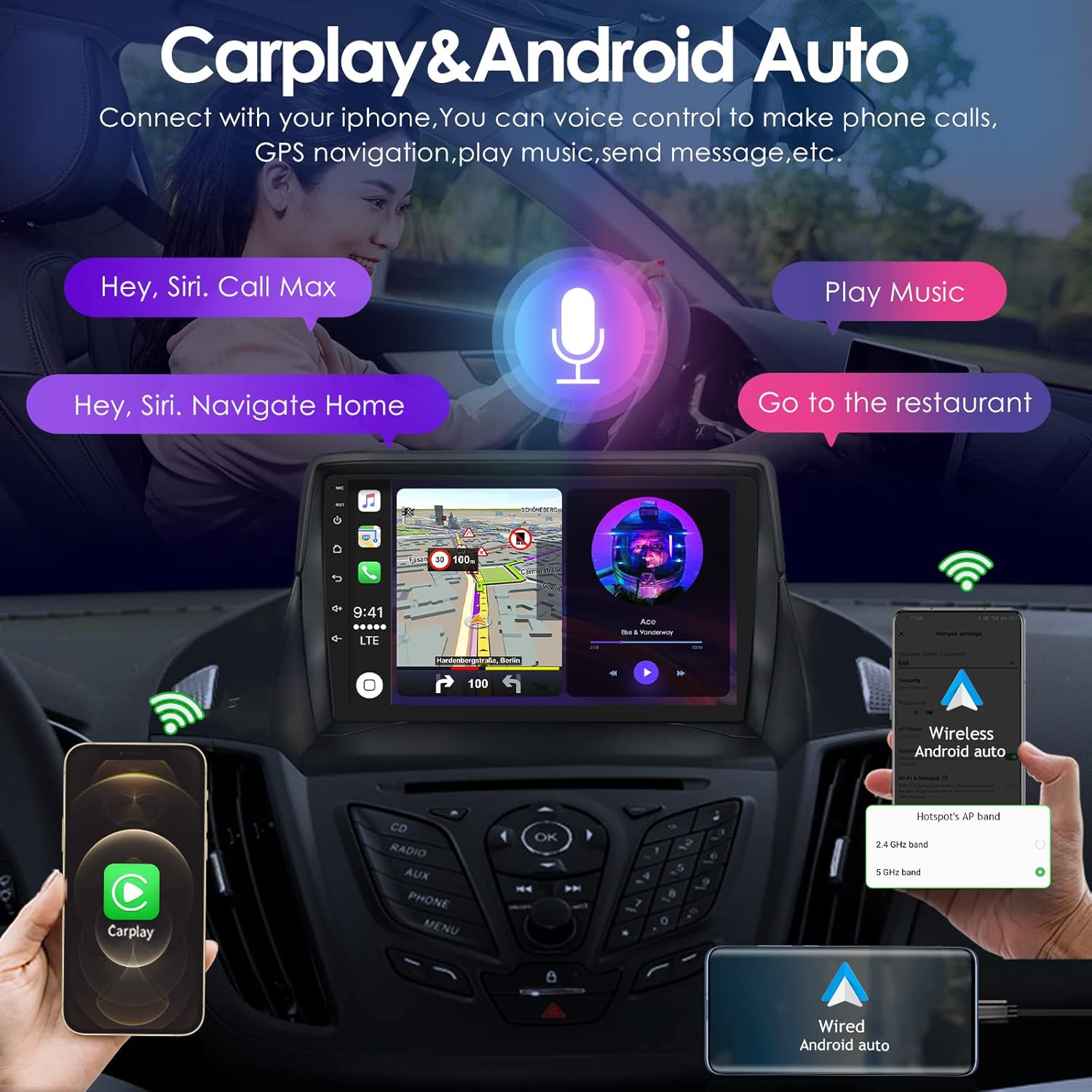
Figure 3: Apple CarPlay and Android Auto functionality.
Video 1: Demonstration of car stereo features, including CarPlay and Android Auto. Note: The video may show an Android 14 interface, but the core functionality applies to this Android 12 unit.
Bluetooth Connectivity
The built-in Bluetooth function allows for hands-free calling and wireless audio streaming.
- Pairing: Go to Settings > Bluetooth on the unit and enable Bluetooth. Search for available devices on your phone and select the car stereo to pair.
- Hands-Free Calls: Once paired, you can answer/make calls directly from the unit's screen. The built-in microphone captures your voice, and audio plays through your car speakers.
- Audio Streaming: Play music from your phone wirelessly through the car stereo.
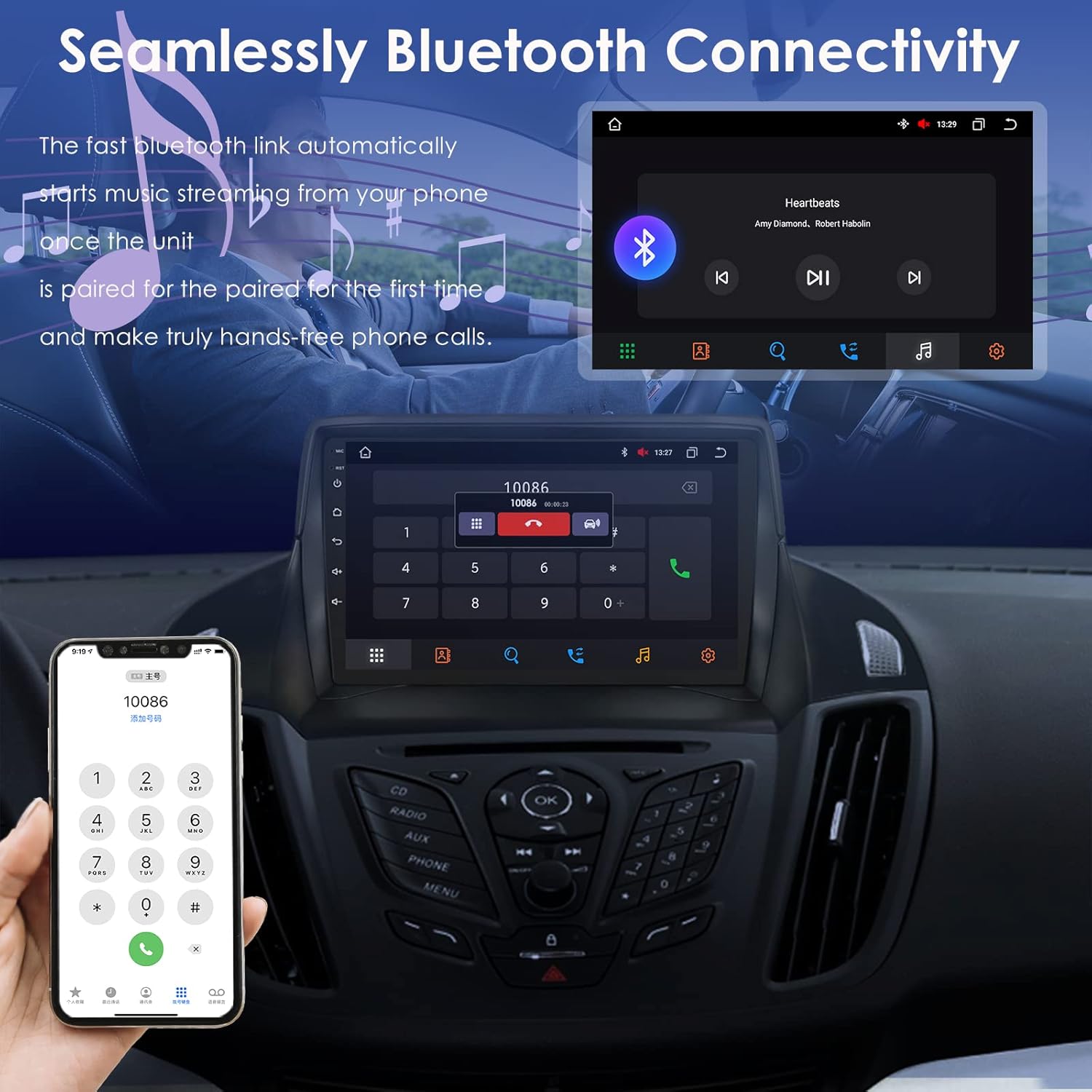
Figure 4: Bluetooth connectivity for calls and music.
GPS Navigation
The unit comes with pre-installed GPS navigation capabilities, supporting North America maps.
- Access the navigation application from the main menu.
- Enter your destination to receive turn-by-turn directions.
- The system supports real-time traffic updates when connected to the internet.
Radio Functionality
The unit includes an FM/AM radio tuner for listening to local broadcasts.
- Select the 'Radio' application from the main menu.
- Use the touchscreen to scan for stations, save presets, and switch between FM and AM bands.
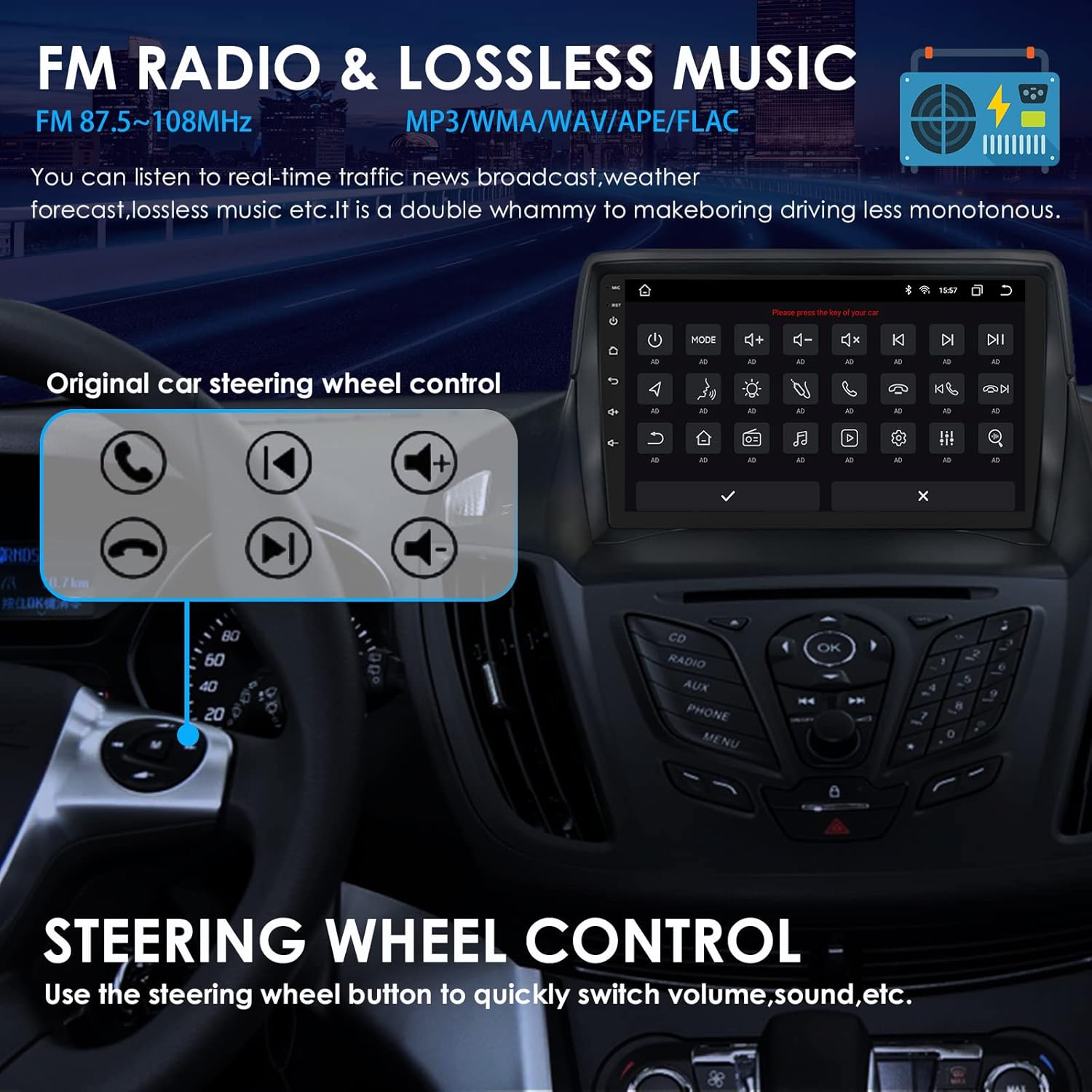
Figure 5: FM Radio interface.
Steering Wheel Control (SWC)
Integrate your vehicle's existing steering wheel controls with the hizpo unit for convenient operation.
- Go to Settings > Steering Wheel Study (or similar option).
- Follow the on-screen instructions to map your steering wheel buttons to specific functions on the car stereo (e.g., volume up/down, track skip, mode change).

Figure 6: Steering Wheel Control setup interface.
Rearview Camera System
The unit supports rearview camera input, enhancing parking safety by displaying blind spots.
- Connect a compatible rearview camera to the designated input.
- When the vehicle is shifted into reverse gear, the display will automatically switch to the rearview camera feed.

Figure 7: Rearview camera display in action.
Media Playback and Phone Link
The unit offers multiple options for media playback and phone mirroring.
- USB Playback: Connect a USB drive to play audio and video files. The unit supports up to 2TB external memory.
- AUX Input: Use the AUX input for connecting external audio devices.
- Phone Link: Supports iOS one-way screen mirroring and Android two-way interconnection, allowing you to display your phone's screen on the car stereo.
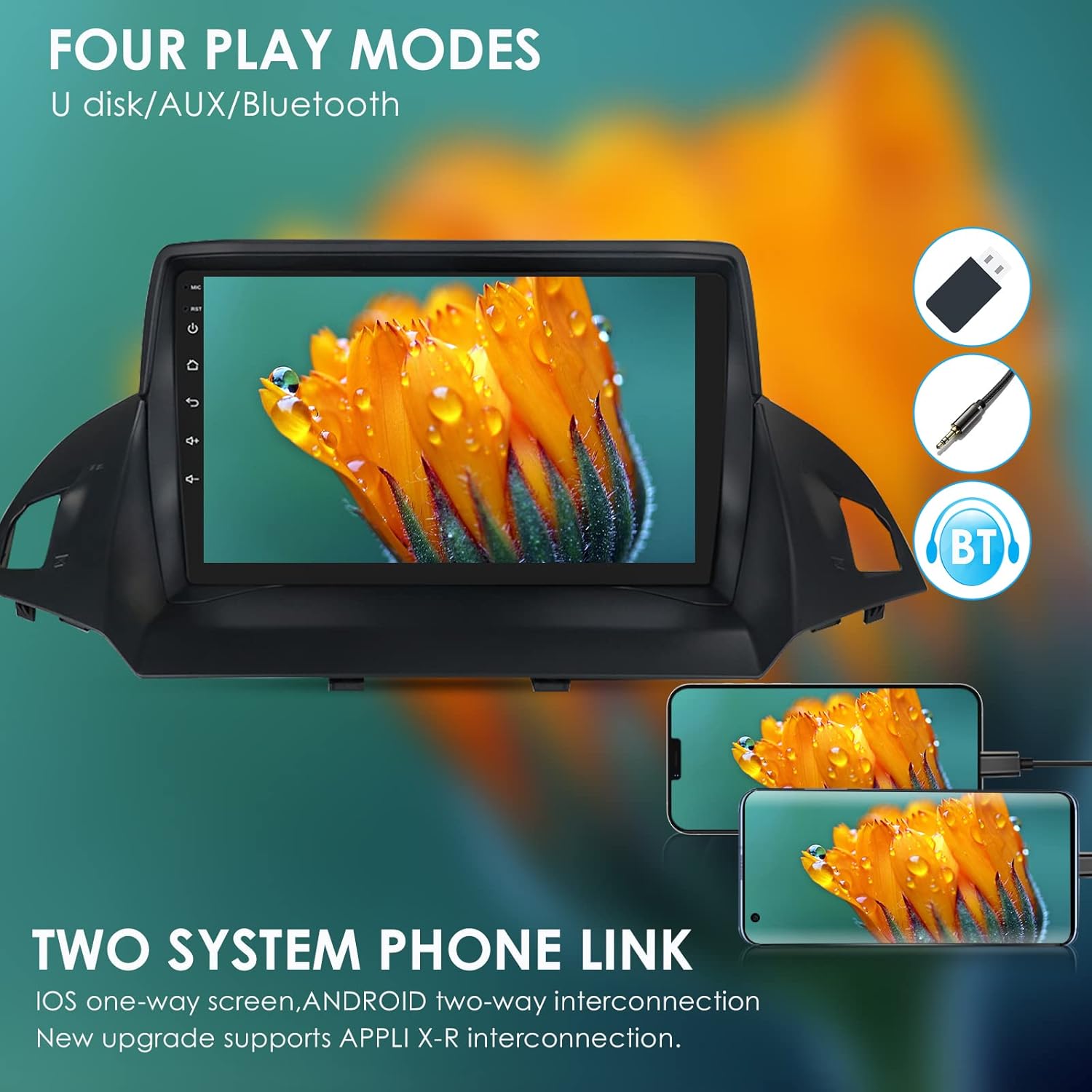
Figure 8: Various media playback and phone link options.
Digital Sound Processor (DSP)
The integrated DSP allows for advanced audio customization to optimize your listening experience.
- Access the DSP settings from the main menu.
- Adjust equalizer settings, bass enhancement, sound field positioning (driver, co-pilot, rear, full car modes), and bass filtering.
Figure 9: Digital Sound Processor (DSP) settings interface.
Display Modes (Day/Night)
The unit supports automatic or manual switching between day and night display modes for optimal visibility.
- Day Mode: Provides higher brightness for clear visibility in daylight conditions.
- Night Mode: Reduces screen brightness to prevent glare and eye strain during nighttime driving.
- Settings allow for automatic switching based on headlights or time of day.
Figure 10: Day and Night display modes.
Troubleshooting
| Problem | Possible Cause | Solution |
|---|---|---|
| Unit does not power on. | Incorrect wiring; blown fuse; vehicle battery issue. | Check power connections and fuses. Ensure vehicle battery is charged. Consult a professional. |
| No sound. | Volume too low; speaker wiring issue; incorrect audio output settings. | Increase volume. Check speaker connections. Verify audio settings in DSP. |
| GPS signal lost or inaccurate. | GPS antenna not properly connected or obstructed. | Ensure GPS antenna is securely connected and placed in an unobstructed location (e.g., dashboard). |
| Bluetooth connection issues. | Device not in pairing mode; interference; incorrect pairing process. | Ensure both devices are in pairing mode. Delete previous pairings and try again. Move closer to the unit. |
| Steering Wheel Controls not working. | Canbus not connected; SWC not configured. | Verify Canbus decoder box connection. Perform 'Steering Wheel Study' in settings. |
Specifications
| Feature | Detail |
|---|---|
| Model Name | 2SESC9001 |
| Operating System | Android 12 |
| CPU | 8 Core (Unisoc 7862), 1.8-2.0GHz |
| Memory | 4GB RAM + 32GB Internal Storage |
| Screen Size | 9 Inches |
| Display Type | QLED Touchscreen (1280*720 resolution) |
| Connectivity | Wi-Fi, Bluetooth 5.0 |
| Navigation | Built-in GPS (North America maps) |
| Audio Features | DSP, Speaker, Stereo Audio Output |
| Special Features | Apple CarPlay (Wireless), Android Auto (Wired), Steering Wheel Control (SWC), Rearview Camera Input |
| Mounting Type | Dashboard Mount |
| Item Weight | 5.24 pounds |
| Package Dimensions | 16.5 x 12.13 x 5.31 inches |
Warranty and Support
For warranty information, technical support, or service inquiries, please refer to the warranty card included with your product or contact hizpo customer service directly. Keep your purchase receipt as proof of purchase for warranty claims.