
cimetech M01-Negro
cimetech M01 Wireless Bluetooth Dual Mode Mouse User Manual
Model: M01-Negro | Brand: cimetech
1. Product Overview
The cimetech M01 Wireless Bluetooth Dual Mode Mouse offers versatile connectivity and ergonomic design for enhanced productivity. Featuring both Bluetooth 5.1 and 2.4G USB receiver modes, it allows seamless switching between two devices. Its silent click design ensures a quiet working environment, while the built-in rechargeable battery and intelligent power-saving features provide extended use. The mouse also includes adjustable DPI settings and vibrant RGB lighting to suit various user preferences and tasks.
2. What's Included
- cimetech M01 Rechargeable Bluetooth Mouse
- USB Charging Cable (Type-C)
- 2.4G USB Receiver (stored in the mouse's bottom compartment)
3. Key Features
3.1 Dual Mode Connectivity
The M01 mouse supports both Bluetooth 5.1 and 2.4G wireless connections, allowing you to connect to two different devices simultaneously and switch between them effortlessly. This feature enhances work efficiency and versatility.

Image: Dual Mode Wireless Mouse connected to laptop and tablet.
Video: Demonstrates the M01 mouse's 2.4G and Bluetooth 5.1 dual mode capabilities, showing seamless switching between devices.
3.2 Rechargeable Battery & Power Saving
Equipped with a long-lasting 450mAh lithium battery, the mouse can operate for over 500 hours on a single charge. It features a convenient Type-C charging port. To conserve energy, the mouse automatically enters a smart sleep mode after 10 minutes of inactivity and can be woken up by a simple click.

Image: Rechargeable Mouse with Auto Power-Saving features.
3.3 Silent Click Design
The noiseless click design ensures that your work or study environment remains undisturbed, making it ideal for quiet spaces like libraries, offices, or late-night use at home.

Image: Silent click feature, ensuring no disturbance to others.
3.4 Adjustable DPI & RGB Lighting
Customize your cursor speed with three adjustable DPI levels (1000-1200-1600 DPI) for precise control. The mouse also features cool rainbow RGB neon lights that randomly change colors, adding a vibrant aesthetic to your workspace. The LED lights can be turned on or off.

Image: 3 Level Adjustable DPI for precise cursor control.
3.5 Ergonomic & Portable Design
The sleek, ergonomic design provides a comfortable palm fit, reducing strain even after prolonged use. Its slim and lightweight profile (3.2x1.2x4.6 inches, 3.52 ounces) makes it highly portable, fitting easily into a computer bag for travel or on-the-go use.

Image: Comfortable Slim Shape for ergonomic use.
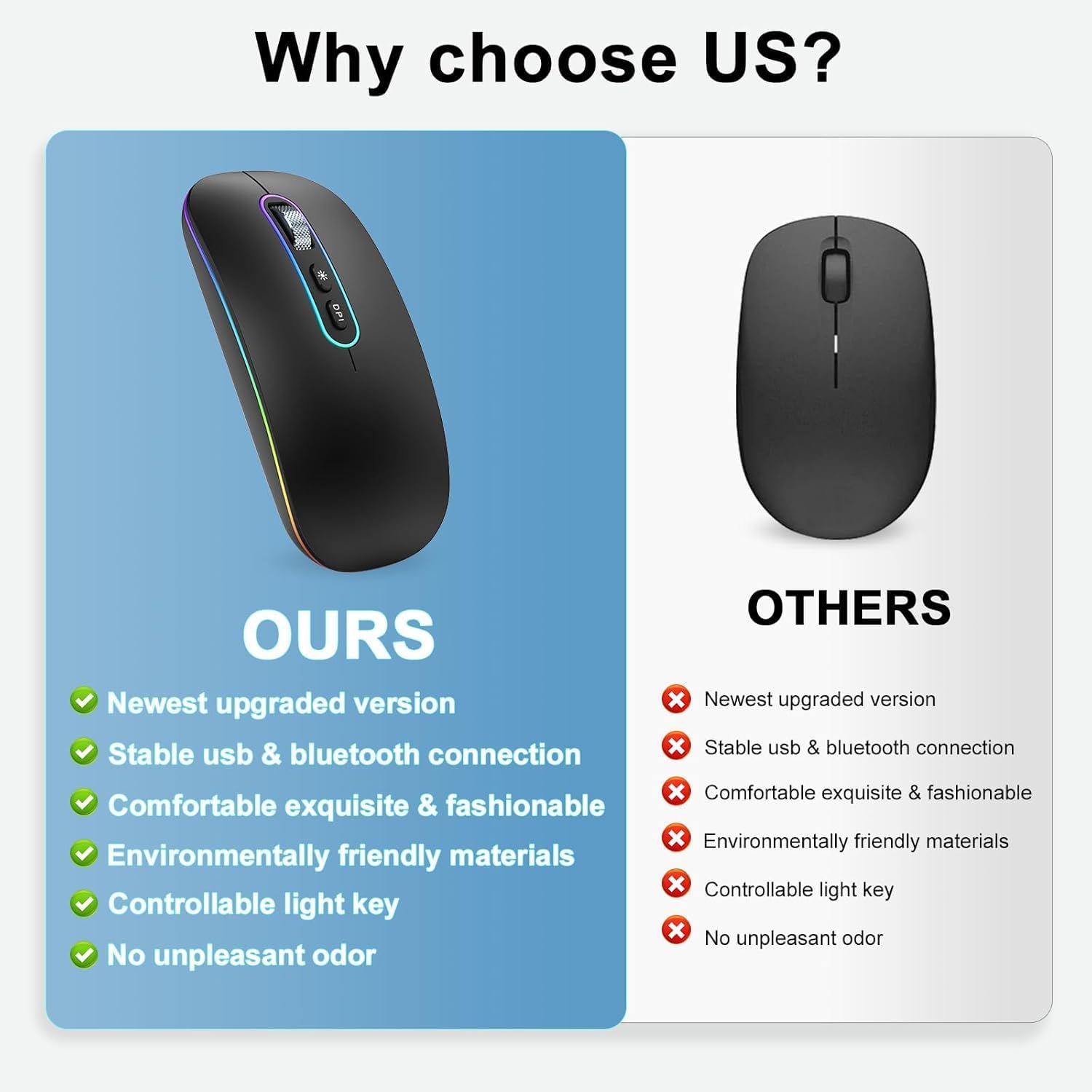
Image: Ultra Portable, Slim & Lightweight design.
3.6 Wide Compatibility
The mouse is widely compatible with various operating systems, including Windows 7/8/10/11/XP, iPadOS, macOS, Chrome OS, Android, Smart TV, Vista 7/8, and Linux. Its special surface coating provides a skin-like touch feeling, and the smooth bottom allows it to work well on diverse surfaces without a mouse pad.

Image: Mouse on a desk, demonstrating its versatility on different surfaces.
4. Setup Guide
4.1 2.4G Wireless Mode Setup
- Locate the 2.4G USB receiver stored in the bottom compartment of the mouse.
- Plug the Nano USB receiver into an available USB port on your computer or device.
- Slide the power switch on the bottom of the mouse to the '2.4G' position.
- The mouse will automatically connect to your device. No additional drivers are typically required.
4.2 Bluetooth 5.1 Mode Setup
- Slide the power switch on the bottom of the mouse to the 'BT' position.
- Press and hold the Bluetooth pairing button (usually a small circular button near the switch) for 3 seconds until the LED light on the mouse starts blinking, indicating it's in pairing mode.
- On your device (laptop, tablet, etc.), go to Bluetooth settings and turn Bluetooth on.
- Search for new devices. You should see 'BT5.1 Mouse' appear in the list.
- Select 'BT5.1 Mouse' to complete the pairing process. The LED light on the mouse will stop blinking and remain solid once connected.
5. Operation
5.1 Adjusting DPI (Cursor Speed)
The mouse has a dedicated 'DPI' button located on the top surface, below the scroll wheel. Press this button to cycle through the three DPI settings: 1000 DPI (for general use), 1200 DPI (for design work), and 1600 DPI (for gaming or faster cursor movement).
5.2 Controlling RGB LED Lights
The mouse features a 'Light Effect Switch' button (often marked with a sun or star icon) next to the DPI button. Press this button to turn the RGB lighting on or off. The lights will cycle through 7 different colors when active.
6. Charging & Battery Life
- To charge the mouse, connect the provided USB Type-C cable to the charging port at the front of the mouse and the other end to a USB power source (e.g., computer USB port, wall adapter).
- A full charge typically takes 2-3 hours.
- The mouse can be used while it is charging.
- A fully charged battery can last for over 500 hours of continuous use.
- The mouse will enter smart sleep mode after 10 minutes of inactivity to conserve battery. Click any button to wake it up.
7. Troubleshooting
7.1 Mouse Not Connecting / Unresponsive
- Ensure the mouse is powered on and the switch on the bottom is set to the correct mode (2.4G or BT).
- For 2.4G mode, ensure the USB receiver is securely plugged into a working USB port. Try a different USB port.
- For Bluetooth mode, ensure Bluetooth is enabled on your device and the mouse is properly paired. If already paired, try unpairing and re-pairing the mouse.
- Check the battery level. If the mouse is low on power, it may become unresponsive. Charge the mouse fully.
- Restart your computer/device.
7.2 Cursor Movement is Slow or Erratic
- Adjust the DPI setting using the 'DPI' button on the mouse. Higher DPI means faster cursor movement.
- Ensure the mouse is on a clean, smooth, and non-reflective surface.
- Check the battery level. Low battery can affect performance.
7.3 RGB Lights Not Working
- Press the 'Light Effect Switch' button to toggle the lights on/off.
- Ensure the mouse has sufficient battery charge.
8. Technical Specifications
| Feature | Detail |
|---|---|
| Model Number | M01-Negro |
| Connectivity Technology | Bluetooth 5.1, 2.4G Wireless |
| Movement Detection Technology | Optical |
| DPI Levels | 1000, 1200, 1600 |
| Battery Type | 1 Lithium Polymer battery (included) |
| Battery Capacity | 450mAh |
| Battery Life | Up to 500+ hours on a single charge |
| Charging Port | Type-C |
| Product Dimensions | 3.2 x 4.6 x 1.2 inches |
| Item Weight | 3.52 ounces |
| Compatibility | Win 7/8/10/11/XP, Windows, iPadOS, macOS, Chrome OS, Android, Smart TV, Vista 7/8, Linux |
9. Warranty & Support
For warranty information and technical support, please refer to the contact details provided on the product packaging or visit the official cimetech website. Keep your purchase receipt for warranty claims.
Ask a question about this manual
Ask about setup, troubleshooting, compatibility, parts, safety, or missing instructions. Manuals+ will review the question and use this page’s manual context to help answer it.