
Ajazz 96-Key Mechanical Gaming Keyboard
Ajazz 96-Key Mechanical Gaming Keyboard User Manual
Model: 96-Key Mechanical Keyboard (Grey Orang/Red Switch)
Brand: Ajazz
1. Introduction
Thank you for choosing the Ajazz 96-Key Mechanical Gaming Keyboard. This manual provides detailed instructions for setting up, operating, and maintaining your new keyboard. Designed for both gaming and typing, this keyboard features durable mechanical switches, customizable RGB backlighting, and an ergonomic design for extended comfort. Please read this manual thoroughly before use to ensure optimal performance and longevity of your device.
2. Key Features
- Red Mechanical Switches: Provides a smooth, linear keystroke experience, ideal for rapid actions in gaming and comfortable typing.
- 96-Key Layout: A compact yet functional layout that includes a numeric keypad and dedicated arrow keys, optimizing desk space without sacrificing essential functions.
- 10-Zone RGB Illumination: Features multiple preset backlight modes and customizable RGB lighting zones for personalized aesthetics.
- Ergonomic Design: Equipped with 2-level (4°/7°) adjustable stands, offering three ergonomic heights to suit various typing preferences and reduce wrist strain.
- Durable Construction: ABS keycaps made with a two-color injection molding process ensure legends never fade. The keyboard's base includes ripples to prevent sliding during intense use.
- Detachable USB-C Cable: Provides stable and reliable wired connectivity, compatible with Windows and macOS operating systems.
- Anti-Ghosting: All keys feature anti-ghosting technology, ensuring every keystroke is registered accurately, even during simultaneous presses.
3. Package Contents
Please check the package for the following items:
- Ajazz 96-Key Mechanical Gaming Keyboard
- Detachable USB-C to USB-A Cable
- Keycap Puller (may be included for maintenance)
- User Manual (this document)
4. Setup Guide
4.1 Connecting the Keyboard
- Locate the detachable USB-C cable provided with your keyboard.
- Connect the USB-C end of the cable to the USB-C port on the back or side of the keyboard.
- Connect the USB-A end of the cable to an available USB port on your computer (PC or Mac).
- The keyboard is plug-and-play; no additional drivers are required for basic functionality. Your operating system should automatically detect and configure the device.
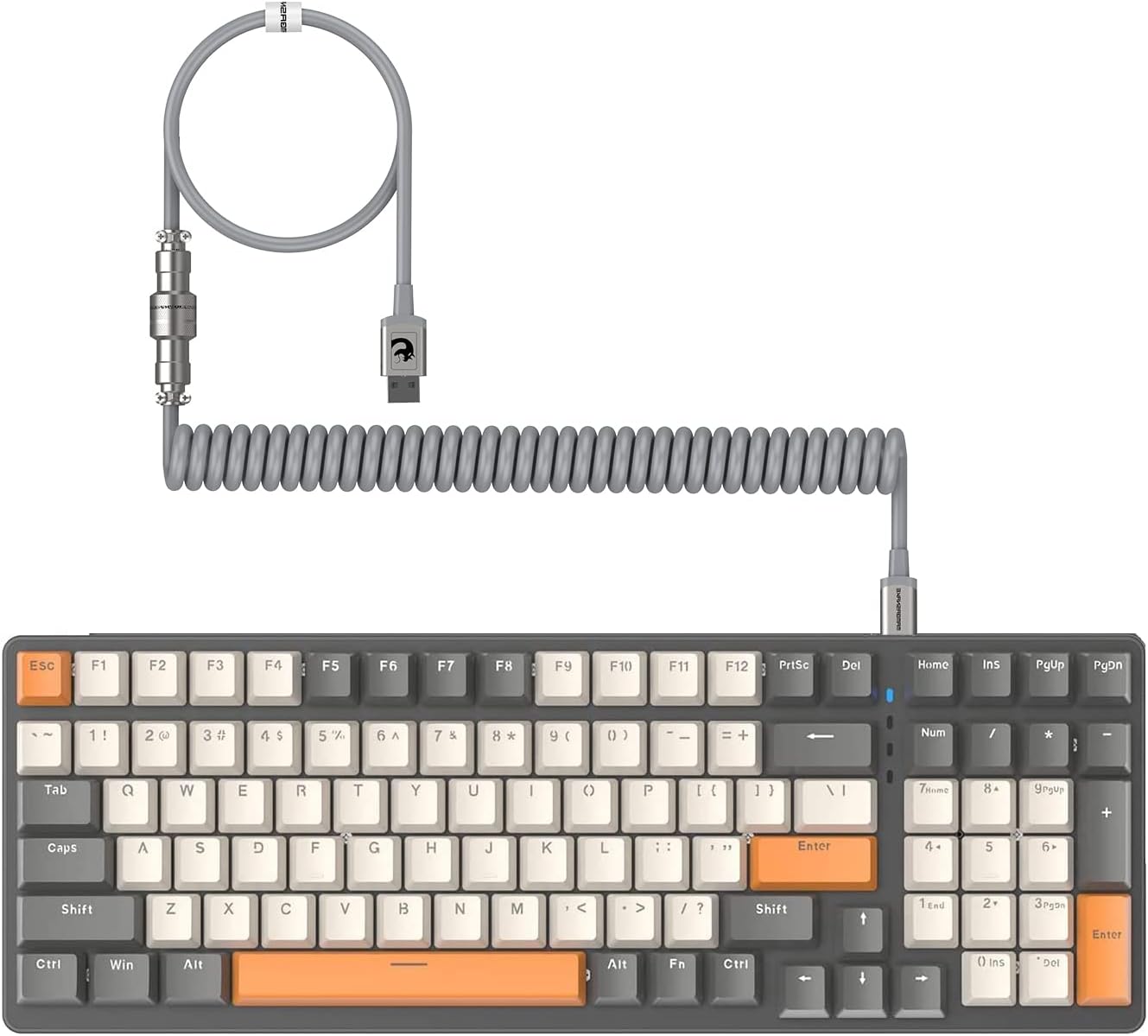
Image: The Ajazz 96-Key Mechanical Gaming Keyboard with its coiled USB-C cable connected, showing the full layout including the numeric keypad.

Image: A detailed diagram illustrating the Type-C to USB-A cable, highlighting the metal aviation connector for secure and reliable connection.
4.2 Adjusting Keyboard Height
The keyboard features two-level adjustable feet on the underside. Flip out the smaller feet for a 4° tilt, or both the smaller and larger feet for a 7° tilt, to find your preferred typing angle.
5. Operation
5.1 Basic Keyboard Functions
The keyboard operates as a standard QWERTY layout keyboard. All keys are anti-ghosting, ensuring accurate input even during rapid key presses.
5.2 RGB Backlighting Control
The Ajazz 96-Key Mechanical Gaming Keyboard features 10 preset backlight modes and customizable RGB illumination. Use the following key combinations to control the lighting:
- Change Backlight Mode: Press Fn + INS (Insert key, typically located above the arrow keys) to cycle through the 10 preset lighting modes.
- Adjust Brightness: Press Fn + ↑ (Up Arrow) to increase brightness. Press Fn + ↓ (Down Arrow) to decrease brightness.
- Adjust Lighting Speed: Press Fn + ← (Left Arrow) to slow down the lighting effect speed. Press Fn + → (Right Arrow) to speed up the lighting effect.

Image: The keyboard showcasing various RGB backlight modes, illustrating the 10 different lighting options available.

Image: A close-up of the keyboard highlighting the Fn key and arrow keys, indicating their use for controlling RGB lighting effects.
5.3 Function Keys (Fn Combinations)
The keyboard utilizes the Fn key in combination with other keys to access multimedia controls and system functions. Refer to the keycap legends for specific functions (e.g., F1-F12, volume controls, media playback).

Image: An overview of the mechanical keyboard highlighting its various features, including the functionality of the function keys.
6. Maintenance
6.1 Cleaning the Keyboard
- Disconnect the keyboard from your computer before cleaning.
- Use a can of compressed air to blow away dust and debris from between the keycaps.
- Wipe the keycaps and keyboard surface with a soft, slightly damp, lint-free cloth. Avoid using harsh chemicals or abrasive materials.
- For deeper cleaning, you may use the included keycap puller to carefully remove keycaps and clean the switches underneath. Ensure the keyboard is completely dry before reconnecting.

Image: A close-up view of the PBT keycaps and red mechanical switches, demonstrating the removable nature of the keycaps for cleaning or customization.
6.2 Cable Care
Handle the detachable USB-C cable with care. Avoid sharp bends or excessive pulling, especially at the connectors, to prevent damage.
7. Troubleshooting
| Problem | Possible Cause | Solution |
|---|---|---|
| Keyboard not responding | Loose cable connection, faulty USB port, system error. | Ensure the USB-C cable is securely connected to both the keyboard and the computer. Try a different USB port on your computer. Restart your computer. |
| Backlighting not working or stuck | Lighting mode off, brightness set to minimum, software conflict. | Press Fn + INS to cycle through modes. Press Fn + ↑ to increase brightness. Disconnect and reconnect the keyboard. |
| Keys not registering or ghosting | Dust/debris under keycap, switch malfunction, system lag. | Clean under the affected keycap using compressed air. Ensure the keyboard is connected directly to the computer, not through a hub. Test on another computer if possible. |
| Keyboard sliding on desk | Uneven surface, worn rubber feet. | Ensure the desk surface is clean and dry. Check the rubber feet on the keyboard's underside for wear; replace if necessary. |
8. Specifications
| Feature | Detail |
|---|---|
| Brand | Ajazz |
| Model | 96-Key Mechanical Gaming Keyboard |
| Number of Keys | 96 |
| Switch Type | Red Mechanical Switches |
| Keycap Material | ABS (Two-color injection molding) |
| Backlighting | RGB (10 preset modes, customizable) |
| Connectivity | Wired USB-C to USB-A |
| Compatible Devices | PC (Windows 2000/XP/VISTA/ME/7/10), MAC OS |
| Item Weight | 2.27 pounds (approx. 1.03 kg) |
| Package Dimensions | 17.24 x 7.13 x 1.77 inches (approx. 43.8 x 18.1 x 4.5 cm) |
| Special Features | Ergonomic, Backlit, Anti-Conflict (N-Key Rollover) |
9. Warranty and Support
Ajazz products are manufactured to high quality standards. For information regarding warranty coverage, technical support, or customer service, please refer to the official Ajazz website or contact your retailer. Keep your purchase receipt as proof of purchase for any warranty claims.
For further assistance, you may visit the Ajazz store online: Ajazz Official Store
Related documents96-Key Mechanical Gaming Keyboard


Ask a question about this manual
Ask about setup, troubleshooting, compatibility, parts, safety, or missing instructions. Manuals+ will review the question and use this page’s manual context to help answer it.