
BenQ EH620
Contents
BenQ EH620 Smart Windows Projector User Manual
Model: EH620 (9H.JPT77.34E)
1. Introduction
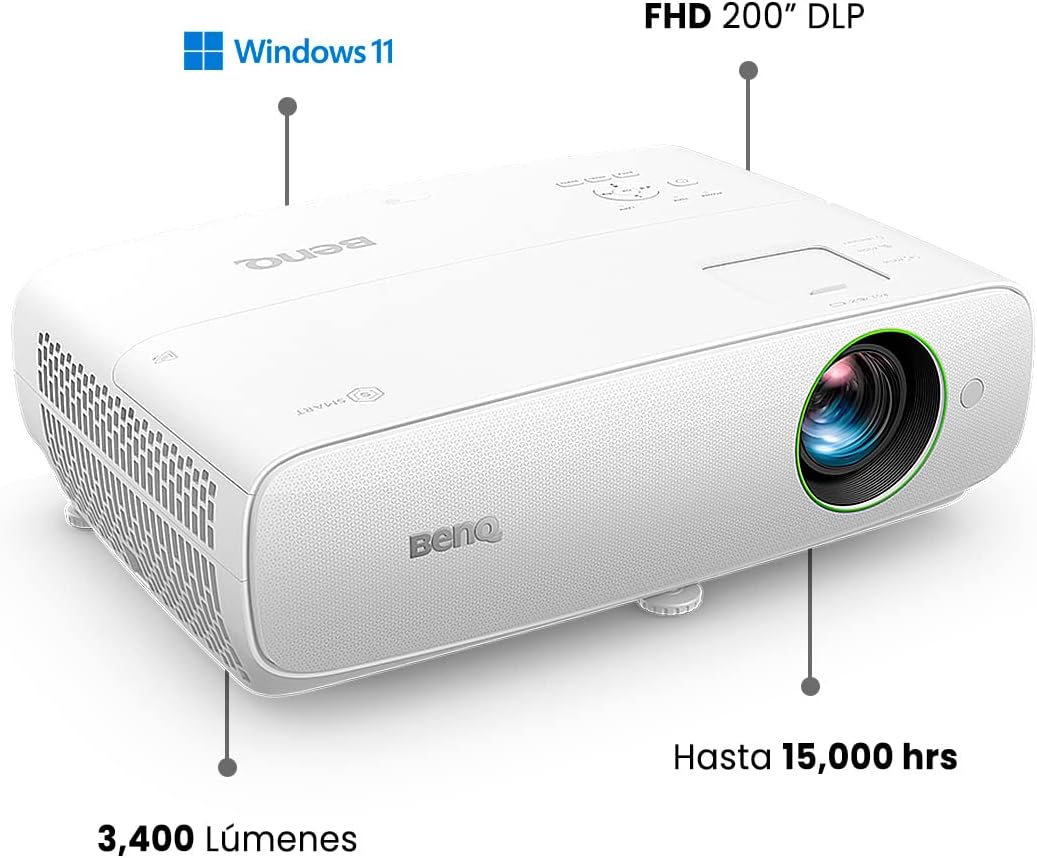
The BenQ EH620 is a smart Windows projector designed to transform conventional meeting rooms into modern cloud collaboration spaces. Featuring a built-in Windows 11 IoT Enterprise OS, this projector eliminates the need for external laptops and speakers, streamlining your setup. It comes preloaded with essential meeting applications and supports various wireless casting technologies, enabling seamless presentations and collaborative work.
2. Important Safety Instructions
Please read and follow all safety instructions carefully to ensure safe operation and prolong the life of your projector.
- Power Source: Use only the power cord and adapter supplied with the projector. Ensure the power outlet matches the voltage requirements.
- Ventilation: Do not block the ventilation openings. Allow adequate space around the projector for proper airflow to prevent overheating.
- Cleaning: Unplug the projector before cleaning. Use a soft, dry cloth. Do not use liquid or aerosol cleaners.
- Water and Moisture: Do not expose the projector to rain, moisture, or excessive humidity. Keep it away from liquids.
- Heat Sources: Do not place the projector near heat sources such as radiators, heat registers, stoves, or other apparatus that produce heat.
- Servicing: Do not attempt to service this product yourself. Refer all servicing to qualified service personnel.
- Lens Care: Avoid touching the projector lens directly. Use a soft, lint-free cloth specifically designed for optical lenses if cleaning is necessary.
3. Product Overview
3.1 Package Contents
Verify that all items are included in your package:
- BenQ EH620 Smart Windows Projector
- Power Cord
- Remote Control with Batteries
- Quick Start Guide
- Warranty Card
3.2 Projector Components

The front of the projector features the main projection lens and an infrared receiver for the remote control. The sleek white design integrates seamlessly into various environments.

The top panel includes essential control buttons for power, menu navigation (up, down, left, right, OK), back, and source selection. There are also indicators for power, temperature, and lamp status.

The rear panel provides a comprehensive array of connectivity options, including multiple HDMI ports, USB ports (for media playback and peripherals), a LAN port for network connectivity, and audio input/output jacks. Integrated 5W speakers are also located on the rear for audio output.
4. Setup
4.1 Placement
Place the projector on a stable, flat surface. Ensure there is sufficient space around the projector for proper ventilation. For optimal image quality, position the projector perpendicular to the projection surface (screen or wall).
4.2 Power Connection
- Connect the power cord to the projector's power inlet.
- Plug the other end of the power cord into a grounded electrical outlet.
4.3 Initial Power On
- Press the Power button on the projector's top panel or the remote control.
- The power indicator light will turn on, and the projector will begin its startup sequence.
- Follow the on-screen prompts for initial setup, including language selection and network configuration.
4.4 Network Connection
The EH620 supports both wired (LAN) and wireless (Wi-Fi) network connections.
- Wi-Fi: Navigate to the network settings in the projector's menu. Select your Wi-Fi network from the list and enter the password.
- LAN: Connect an Ethernet cable from your network router or switch to the LAN port on the projector.
5. Operating Instructions
5.1 Navigating the Interface
Use the remote control or the navigation buttons on the projector's top panel to move through the Windows 11 IoT Enterprise interface. The BenQ-exclusive Launcher interface organizes apps into three groups for quick access.
5.2 Connecting External Devices
The EH620 offers multiple connectivity options for external devices:
- HDMI: Connect laptops, Blu-ray players, or other HDMI-enabled devices to the HDMI ports. Use the 'Source' button to switch inputs.
- USB: Plug in USB drives for direct media playback or connect a wireless keyboard-mouse set and webcam for enhanced functionality.
- Audio: Use the audio input/output jacks to connect external audio systems if desired.
5.3 Wireless Casting
The projector supports various wireless casting technologies for seamless content sharing:
- Miracast: For Windows and Android devices.
- Airplay: For Apple iOS and macOS devices.
- Google Cast: For Chrome OS and Android devices.
- BenQ InstaShare: BenQ's proprietary wireless presentation solution.
You can share content or collaborate from up to 4-way split windows simultaneously on the big screen without extra apps or Wi-Fi dongles.

5.4 Using Built-in Applications
The EH620 comes with preloaded applications to facilitate meetings and presentations:
- Meeting Apps: Directly launch Google Meet, Skype for Business, and TeamViewer Meeting without needing a personal device.
- Browsers: Use built-in Edge and Chrome browsers to access presentation files from cloud storage like OneDrive and Microsoft Teams.

5.5 Audio Output
The projector features integrated 5W speakers, providing clear audio for presentations and video playback. You can also connect external audio systems via the audio output port for enhanced sound.
6. Maintenance
6.1 Cleaning the Projector
- Casing: Wipe the projector casing with a soft, dry, lint-free cloth. Do not use abrasive cleaners or solvents.
- Lens: Use a lens brush or compressed air to remove dust. For smudges, gently wipe with a lens cleaning cloth and a small amount of lens cleaning solution.
- Ventilation Vents: Periodically clean the ventilation vents with a soft brush or vacuum cleaner to prevent dust buildup, which can affect cooling.
6.2 Lamp Life
The BenQ EH620 projector is designed for long-lasting performance. Its light source offers an impressive lifespan of up to 15,000 hours, reducing the need for frequent lamp replacements.
7. Troubleshooting
If you encounter issues with your BenQ EH620 projector, refer to the table below for common problems and their solutions.
| Problem | Possible Cause | Solution |
|---|---|---|
| No image on screen | Projector not powered on; Incorrect input source; Cable not connected properly. | Ensure power is connected and unit is on. Press 'Source' button to cycle through inputs. Check HDMI/USB cable connections. |
| Image is blurry | Focus not adjusted; Projector too close/far from screen. | Adjust the focus ring on the lens. Reposition the projector to the recommended distance. |
| No audio | Volume too low; Muted; Incorrect audio output selected. | Increase volume. Check if muted. Ensure audio output is set to internal speakers or correct external device. |
| Cannot connect to Wi-Fi | Incorrect password; Out of range; Network issue. | Double-check Wi-Fi password. Move projector closer to router. Restart router and projector. |
| Remote control not working | Dead batteries; Obstruction between remote and projector. | Replace batteries. Ensure clear line of sight to the projector's IR receiver. |
8. Specifications
| Feature | Detail |
|---|---|
| Brand | BenQ |
| Model Number | 9H.JPT77.34E (EH620) |
| Display Resolution | 1920 x 1080 (1080p Full HD) |
| Brightness | 3400 ANSI Lumens |
| Display Technology | DLP |
| Operating System | Windows 11 IoT Enterprise |
| Connectivity Technology | Wi-Fi, HDMI, USB, LAN |
| Special Features | Wireless, Portable, Built-In Wi-Fi, Preloaded Meeting Apps |
| Item Weight | 9.24 pounds |
| Product Dimensions | 19.69 x 19.69 x 11.02 inches |
| Color | White |
| Lamp Life | Up to 15,000 hours |
9. Warranty and Support
9.1 Warranty Information
BenQ products are manufactured to the highest quality standards. This product is covered by a limited warranty. Please refer to the warranty card included in your package for specific terms, conditions, and duration of coverage. Keep your purchase receipt as proof of purchase for warranty claims.
9.2 Customer Support
For technical assistance, troubleshooting, or service inquiries, please contact BenQ Customer Support. You can find contact information, including phone numbers and online support resources, on the official BenQ website or in your product documentation.
BenQ Official Website: www.benq.com
Ask a question about this manual
Ask about setup, troubleshooting, compatibility, parts, safety, or missing instructions. Manuals+ will review the question and use this page’s manual context to help answer it.