
EINPARTS EPCR11
Contents
EINPARTS Multimedia Receiver EPCR11 User Manual
Model: EPCR11
1. Introduction
Thank you for choosing the EINPARTS Multimedia Receiver EPCR11. This manual provides detailed instructions for the installation, operation, and maintenance of your new car multimedia system. Please read this manual thoroughly before using the device to ensure proper and safe operation.
The EINPARTS EPCR11 is a high-performance 2-DIN multimedia receiver designed for automotive use, featuring a 7-inch display, Android 10 operating system, Bluetooth connectivity, GPS navigation, and various audio/video playback options.
Key Features:
- 7-inch display with 1024 x 600 resolution
- Android 10 Operating System
- 1 GB RAM and 16 GB storage capacity
- Integrated Bluetooth for hands-free calling and audio streaming
- Built-in GPS receiver for navigation
- WLAN connectivity
- Multiple connectivity options: AUX IN, USB, RCA
- 4 x 50W power output
2. Product Overview
Familiarize yourself with the components of your EINPARTS Multimedia Receiver EPCR11.
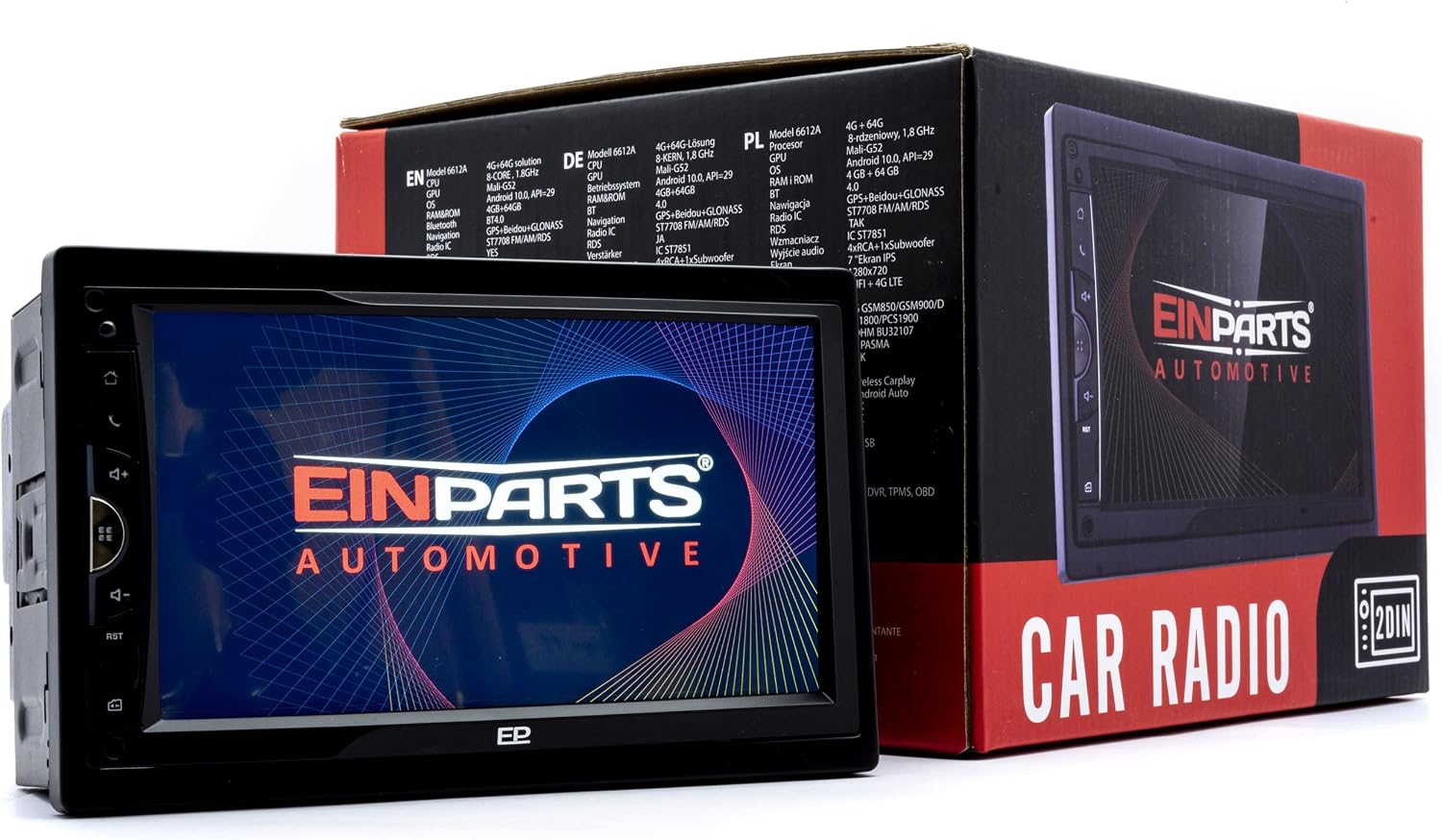
Figure 2.1: EINPARTS Multimedia Receiver EPCR11 and its retail packaging.

Figure 2.2: Front view of the multimedia receiver, showing the 7-inch display and control buttons.

Figure 2.3: Rear view of the multimedia receiver, highlighting the various connection ports for power, speakers, antenna, and auxiliary inputs.
3. Setup and Installation
Proper installation is crucial for the optimal performance and safety of your multimedia receiver. It is highly recommended to have the installation performed by a qualified professional.
3.1. Before Installation
- Disconnect the vehicle's negative battery terminal to prevent electrical shorts.
- Ensure you have all necessary tools and mounting hardware.
- Check the compatibility of the unit with your vehicle's dashboard and wiring harness.
3.2. Wiring Diagram (General)
The EPCR11 comes with a cable set. Refer to the specific wiring diagram provided with your product for detailed connections. A general overview of connections includes:
- Power: Connect the yellow wire to constant 12V, red wire to accessory 12V, and black wire to ground.
- Speakers: Connect speaker wires to the corresponding positive and negative terminals.
- Antenna: Connect the car's radio antenna.
- GPS Antenna: Connect the provided GPS antenna and mount it in a location with a clear view of the sky.
- AUX/USB: Connect external devices via AUX IN or USB ports.
- RCA Outputs: For connecting external amplifiers or subwoofers.
- Reverse Camera Input: If applicable, connect a reverse camera to the dedicated input.
3.3. Mounting the Unit
The EPCR11 is a 2-DIN unit. Secure it into your vehicle's dashboard opening using the provided mounting brackets and screws. Ensure it is firmly seated and does not obstruct any vehicle controls.
3.4. Initial Power-On
Once all connections are secure, reconnect the vehicle's negative battery terminal. Power on the unit. The system should boot up to the Android interface. Follow any on-screen prompts for initial setup, such as language selection and time zone.
4. Operating Instructions
This section details the basic operation of your EINPARTS Multimedia Receiver EPCR11.

Figure 4.1: Main interface of the EPCR11, showing navigation, phone, radio, and music icons.
4.1. Power On/Off
- Power On: The unit will power on automatically when the vehicle's ignition is turned on.
- Power Off: The unit will power off automatically when the vehicle's ignition is turned off. A short press on the power button (if available) may put the unit into standby mode.
4.2. Touchscreen Operation
The 7-inch display is a capacitive touchscreen. Use your finger to tap, swipe, and drag icons and menus. The interface is similar to a standard Android tablet.
4.3. Radio Function
- Tap the 'Radio' icon on the main screen to access the radio interface.
- Use the on-screen controls to scan for stations, save presets, and switch between FM/AM bands.
4.4. Bluetooth Connectivity
- Tap the 'Bluetooth' icon to enter the Bluetooth settings.
- Enable Bluetooth on your mobile device and search for available devices.
- Select 'EPCR11' from the list on your device and pair.
- Once paired, you can make/receive calls and stream audio from your phone.
4.5. USB/AUX Playback
- Insert a USB drive into the USB port or connect an audio device to the AUX IN port.
- Select the corresponding source (e.g., 'USB' or 'AUX') from the main menu or source selection.
- Browse and play media files.
4.6. Navigation (GPS)
- Tap the 'Navigation' icon. The unit comes with a built-in GPS receiver.
- Pre-installed navigation software or downloadable apps can be used for turn-by-turn directions.
- Ensure the GPS antenna is properly installed and has a clear view of the sky for optimal signal reception.
4.7. Android OS and Apps
- The unit runs on Android 10, allowing you to download and install various applications from the app store (if available and configured).
- Connect to Wi-Fi via the 'Settings' menu to access online features and app downloads.
5. Maintenance
Regular maintenance helps ensure the longevity and optimal performance of your multimedia receiver.
- Cleaning the Screen: Use a soft, lint-free cloth to gently wipe the touchscreen. For stubborn smudges, slightly dampen the cloth with water or a screen-cleaning solution. Do not use harsh chemicals or abrasive materials.
- General Cleaning: Keep the unit free from dust and debris. Use a soft brush or compressed air to clean vents and button areas.
- Software Updates: Periodically check for software updates through the system settings or the manufacturer's website to ensure you have the latest features and bug fixes.
- Temperature: Avoid exposing the unit to extreme temperatures outside its operating range (-40 °C to +50 °C).
6. Troubleshooting
If you encounter issues with your EINPARTS Multimedia Receiver EPCR11, refer to the following common problems and solutions.
| Problem | Possible Cause | Solution |
|---|---|---|
| Unit does not power on. | Incorrect wiring; Blown fuse; Vehicle battery issue. | Check power connections (yellow, red, black wires). Inspect vehicle fuses. Ensure vehicle battery is charged. |
| No sound from speakers. | Speaker wires disconnected; Volume too low; Mute function active; Incorrect audio source. | Check speaker connections. Increase volume. Deactivate mute. Select correct audio source. |
| Bluetooth connection fails. | Bluetooth not enabled; Device not in pairing mode; Interference. | Ensure Bluetooth is enabled on both devices. Put device in pairing mode. Move closer to the unit. Restart both devices. |
| GPS signal is weak or lost. | GPS antenna improperly installed or obstructed; Poor satellite coverage. | Ensure GPS antenna is mounted in a clear, unobstructed location. Move to an open area. |
| Touchscreen unresponsive. | System freeze; Dirt on screen. | Perform a soft reset (refer to manual for reset button location, often a small pinhole). Clean the screen. |
If the problem persists after trying these solutions, please contact EINPARTS customer support or a qualified service technician.
7. Technical Specifications
Detailed specifications for the EINPARTS Multimedia Receiver EPCR11.
| Feature | Specification |
|---|---|
| Model | EPCR11 |
| Operating Voltage | 12 V |
| Power Output | 4 x 50 W |
| Size | 2 DIN |
| Display Diagonal | 7 inches |
| Display Resolution | 1024 x 600 |
| Operating System | Android 10 |
| Memory (RAM) | 1 GB |
| Storage Capacity | 16 GB |
| Bluetooth | Yes |
| WLAN | Yes |
| GPS Receiver | Yes |
| Connectivity | AUX IN, USB (3 ports), RCA |
| Audio Output Mode | Stereo, Surround |
| Surround Sound Configuration | 5.1 |
| Video Encoding | H.264, H.265/HEVC |
| Operating Temperature | -40 °C to +50 °C |
| Color | Black |
| Included Accessories | Remote control, Cable set |
Ask a question about this manual
Ask about setup, troubleshooting, compatibility, parts, safety, or missing instructions. Manuals+ will review the question and use this page’s manual context to help answer it.