
1. Introduction
Thank you for purchasing the XTRONS 2DIN 10-inch Car Audio System (Model TL10Y). This manual provides essential information for the proper installation, operation, and maintenance of your new car audio system. Please read this manual thoroughly before use to ensure optimal performance and safety.
2. Safety Information
Always observe the following safety precautions to prevent injury or damage to the unit:
- Do not attempt to install or service this unit yourself. Refer to qualified personnel for installation and repairs.
- Ensure the vehicle's battery is disconnected before installation to prevent electrical short circuits.
- Do not operate the unit in a way that distracts you from driving. Always prioritize road safety.
- Avoid exposing the unit to extreme temperatures, direct sunlight for prolonged periods, or excessive moisture.
- Use only specified accessories and parts. Use of unauthorized parts may cause damage or malfunction.
3. Package Contents
Verify that all items are present in your package:
- XTRONS 2DIN 10-inch Car Audio System (Main Unit)
- Digital TV Tuner (Model JT2HD)
- Backup Camera (Model CAM005)
- 1 x Power Cable (Japanese car specific harness included)
- 2 x USB Cables
- 1 x External Microphone (3M)
- 2 x Mounting Brackets
- 8 x Mounting Screws
- 1 x Instruction Manual

Image: XTRONS 2DIN Car Audio System and its included accessories, such as power cables, USB cables, external microphone, mounting brackets, screws, and the instruction manual.
4. Product Overview
The XTRONS TL10Y is a versatile 2DIN car audio system designed to enhance your in-car entertainment and connectivity. It features a large 10-inch display and supports various modern functionalities.
Key Features:
- 10-inch High-Definition Display: A large 10-inch capacitive touchscreen with 1024x600 resolution, supporting 720p/1080p video playback.
- Adjustable Monitor: The monitor can slide up/down and rotate for optimal viewing angles, preventing obstruction of other dashboard functions.
- Full-Seg Digital TV Tuner: Integrated 4x4 high-sensitivity digital TV tuner for enjoying television broadcasts.
- Wired CarPlay & Android Auto: Seamless integration with your iPhone or Android smartphone for navigation, music, messages, and more. Supports phone charging while connected.
- Wired Mirror Link: Display your smartphone screen (Android/iOS) directly on the unit's large display.
- Bluetooth 5.0: For hands-free calling and high-quality audio streaming. Includes an external microphone for clear communication.
- RCA Full-Screen Output: Output all screen content to external monitors, allowing passengers to enjoy the same video or display.
- Dual USB Ports: Supports USB devices up to 32GB for media playback and charging.
- Steering Wheel Control Support: Compatible with your vehicle's existing steering wheel controls for convenient operation.
- Customizable UI & Button Illumination: Choose from two UI types and adjust button illumination colors.

Image: The main unit of the XTRONS 2DIN 10-inch Car Audio System, showcasing its large display and the included remote control, external microphone, and digital TV tuner.

Image: Illustration demonstrating the monitor's vertical sliding and rotational adjustment capabilities, highlighting its flexibility compared to fixed monitors.
5. Installation
Professional installation is recommended. Ensure the vehicle's battery is disconnected before beginning installation.
5.1 Wiring Diagram
Refer to the following diagram for proper wiring connections. The included power harness is designed for Japanese vehicles, simplifying the connection process.

Image: A comprehensive wiring diagram illustrating all necessary connections for the XTRONS car audio system, including power, speakers, USB, and video inputs/outputs.
Key Connections:
- Power: Connect ACC (Accessory), B+ (Battery Positive), and GND (Ground) wires.
- Speakers: Connect front left/right and rear left/right speaker outputs.
- USB Ports: Connect USB devices for media or CarPlay/Android Auto.
- Video Input/Output: For backup camera, external video sources, and external monitors.
- Steering Wheel Control: Connect to your vehicle's steering wheel control wires.
- Antenna: Connect the radio antenna and digital TV antenna.
6. Initial Setup
After successful installation, follow these steps for initial setup:
- Power On: Turn on your vehicle's ignition. The unit should power on automatically.
- Language Selection: Follow the on-screen prompts to select your preferred language.
- Time and Date: Set the correct time and date in the system settings.
- Radio Region: Select your geographical region for optimal radio reception.
- Monitor Adjustment: Adjust the monitor's position and angle for comfortable viewing.
7. Operating Instructions
7.1 Basic Functions
- Power On/Off: The unit typically powers on/off with the vehicle's ignition.
- Volume Control: Adjust volume using the on-screen controls or steering wheel buttons.
- Home Screen: Tap the home icon to return to the main menu.
7.2 CarPlay and Android Auto
Connect your smartphone via a USB cable to enable CarPlay (for iPhone) or Android Auto (for Android phones). This allows access to navigation, music, calls, and messages directly on the unit's screen.

Image: The XTRONS unit displaying the CarPlay interface (top) and the Android Auto interface (bottom), showing various app icons and phone connectivity.
7.3 Bluetooth Operation
Pair your smartphone with the unit via Bluetooth 5.0 for hands-free calling and audio streaming.
- Go to the Bluetooth menu on the unit.
- Enable Bluetooth on your smartphone and search for available devices.
- Select 'XTRONS' from the list and confirm pairing.

Image: The Bluetooth interface on the XTRONS unit, showing options for hands-free calls, phonebook access, and music playback.
7.4 Digital TV Tuner
The integrated 4x4 full-seg digital TV tuner allows you to watch TV broadcasts. Ensure the TV antenna is properly installed.

Image: The XTRONS unit displaying a digital television broadcast, with the external digital TV tuner box visible below the main unit.
7.5 Mirror Link
Use the Mirror Link function to display your smartphone's screen on the unit. Connect your phone via USB and follow the on-screen instructions in the 'Phonelink' app.
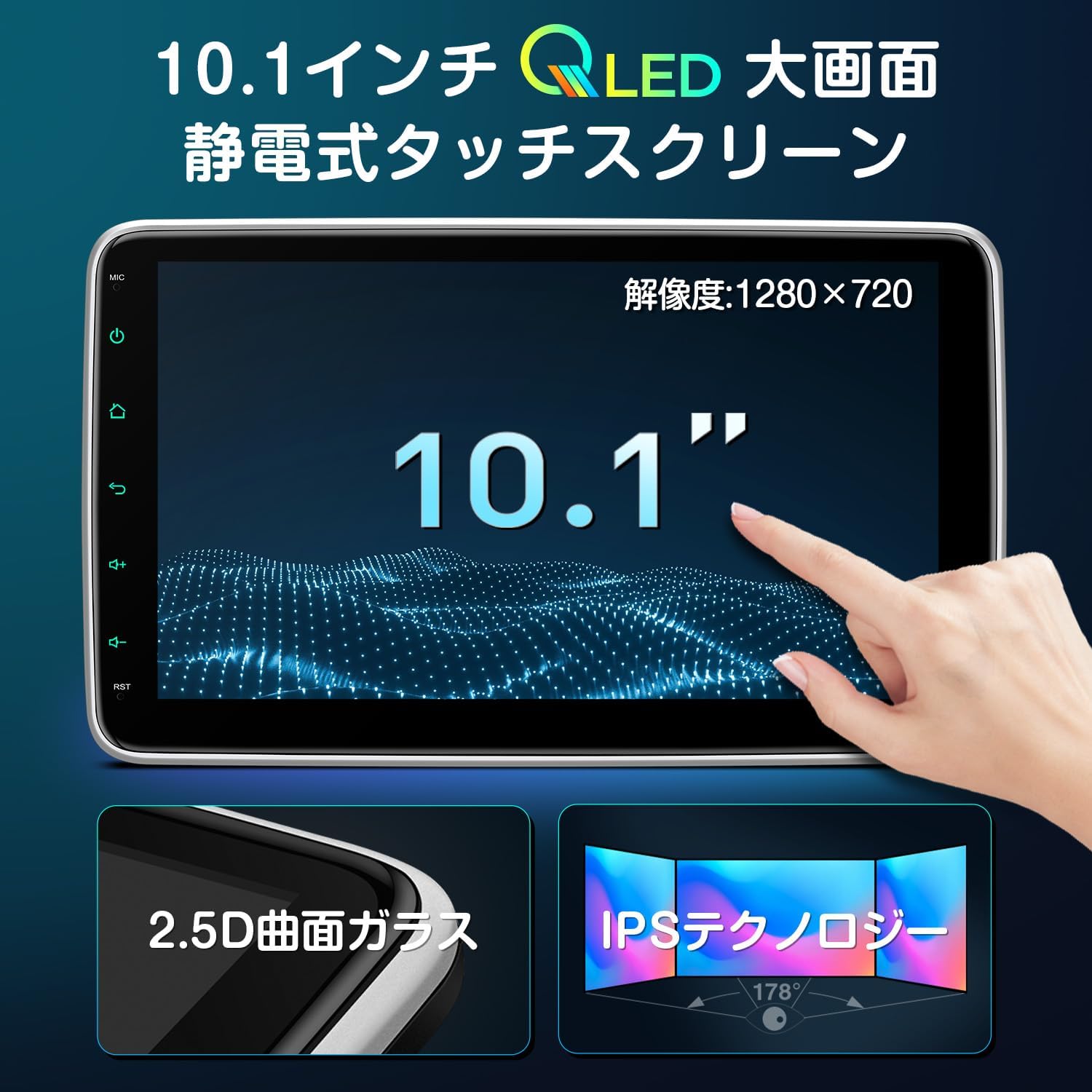
Image: A smartphone screen being mirrored onto the larger display of the XTRONS car audio system, showing a dynamic image.
7.6 RCA Output to External Monitors
The unit supports full-screen RCA output, allowing you to send video and display content to up to two external monitors, such as headrest displays.

Image: The XTRONS unit in a car dashboard, simultaneously displaying content on its screen and two external monitors mounted on the back of the front seats.
7.7 Radio Tuner
Access the built-in FM radio tuner. The unit supports FM frequencies from 76.0MHz to 90MHz.
7.8 Steering Wheel Control
If properly connected during installation, you can operate basic functions like volume, track change, and mode switching using your vehicle's steering wheel controls.
8. Maintenance
- Cleaning the Screen: Use a soft, lint-free cloth to gently wipe the screen. For stubborn marks, slightly dampen the cloth with water or a screen cleaner. Avoid harsh chemicals.
- General Cleaning: Keep the unit free from dust and debris. Use a soft brush or compressed air for vents and crevices.
- Software Updates: Check the official XTRONS website for any available software updates to ensure optimal performance and new features.
9. Troubleshooting
If you encounter issues, refer to the following common problems and solutions:
| Problem | Possible Cause | Solution |
|---|---|---|
| No power | Incorrect wiring; Blown fuse; Vehicle ignition off. | Check power connections; Replace fuse; Turn on ignition. |
| No sound | Volume too low; Mute activated; Speaker wiring incorrect. | Increase volume; Deactivate mute; Check speaker connections. |
| Bluetooth not connecting | Bluetooth off on phone/unit; Device not in pairing mode. | Ensure Bluetooth is on; Put device in pairing mode; Forget and re-pair device. |
| CarPlay/Android Auto not starting | Faulty USB cable; Phone not compatible; App not installed. | Try a different USB cable; Ensure phone compatibility; Install CarPlay/Android Auto app. |
| Poor TV reception | Weak signal; Antenna not properly installed/connected. | Check antenna connection and placement; Scan for channels again. |
If the problem persists, please contact XTRONS customer support.
10. Specifications
| Feature | Specification |
|---|---|
| Model Number | TL10Y (Main Unit) |
| Screen Size | 10 inches |
| Display Type | LCD, Capacitive Touchscreen |
| Resolution | 1024 x 600 |
| Video Playback Support | 720p / 1080p |
| Tuner Type | Full-Seg Digital TV (4x4 high sensitivity) |
| Radio Frequency (FM) | 76.0MHz - 90MHz |
| Bluetooth Version | 5.0 |
| USB Support | 2 ports, up to 32GB capacity |
| Audio Output Power | 4 x 45W |
| Operating Voltage | DC 12V (10.8V - 16V) |
| Product Dimensions (Main Unit) | 17.8 x 14.3 x 10 cm |
| Display Dimensions | 26.4 cm (W) x 15.6 cm (H) |
| Weight | 1.9 kg |
| Mounting Type | Dashboard Mount |
11. Warranty and Support
This XTRONS product comes with a 1-year warranty from the date of purchase.
For detailed instructions, an electronic version of the Japanese user manual is available for download at: https://xtrons.com/community/index.php/user-manuals-japanese/
If you have any questions, require technical assistance, or need to claim warranty service, please contact XTRONS customer support via email. Please refer to your purchase documentation for specific contact details.