
1. Introduction
This manual provides instructions for the UGREEN USB-C to Micro USB 3.0 Cable, Model 15231. This cable is designed to connect devices equipped with a USB-C port to external storage devices that utilize a Micro USB 3.0 port, such as external hard drives or hard drive enclosures. It facilitates high-speed data transfer and is built for durability.
Key Features:
- Connects USB-C devices to Micro USB 3.0 external storage.
- Supports data transfer speeds up to 5Gbps, backward compatible with USB 2.0 and USB 1.1 protocols.
- Compatible with various devices including Samsung Galaxy S5, Galaxy Note 3, and external hard drive enclosures.
- Features a durable nylon braided cable and robust connectors.
- Supports a maximum current of 3.0 Amperes at 5.0 Volts, with a power capacity of 100.0 Watts.
- USB-IF compliant with 29 pins.
2. Setup
Follow these steps to properly set up your UGREEN USB-C to Micro USB 3.0 Cable:
- Identify Ports: Locate the USB-C port on your host device (e.g., MacBook Pro, iPad, laptop, smartphone) and the Micro USB 3.0 port on your peripheral device (e.g., external hard drive, camera). The USB-C connector is reversible, while the Micro USB 3.0 connector is distinctively wider than standard Micro USB.
- Connect USB-C End: Insert the USB-C connector of the cable into the USB-C port of your host device. Ensure it is fully seated.
- Connect Micro USB 3.0 End: Insert the Micro USB 3.0 connector of the cable into the Micro USB 3.0 port of your peripheral device. Ensure a firm connection.
- Verify Connection: Your host device should recognize the connected peripheral device. You may see a notification or the device appearing in your file explorer/finder.

Figure 2.1: Close-up of USB-C and Micro USB 3.0 connectors.

Figure 2.2: Compatibility overview for USB-C and Micro USB 3.0 connectors.
3. Operating Instructions
Once the cable is connected, you can begin data transfer operations:
- Power On Devices: Ensure both your host device and the peripheral device are powered on and functioning correctly.
- Access Peripheral Device: On your host device, navigate to your file management system (e.g., File Explorer on Windows, Finder on macOS) to locate the connected external storage device.
- Transfer Data: You can now drag and drop files, copy and paste, or use other file management methods to transfer data between your host device and the peripheral. The cable supports data transfer rates up to 5Gbps, enabling quick transfers of large files.

Figure 3.1: Data transfer from laptop to external drive.
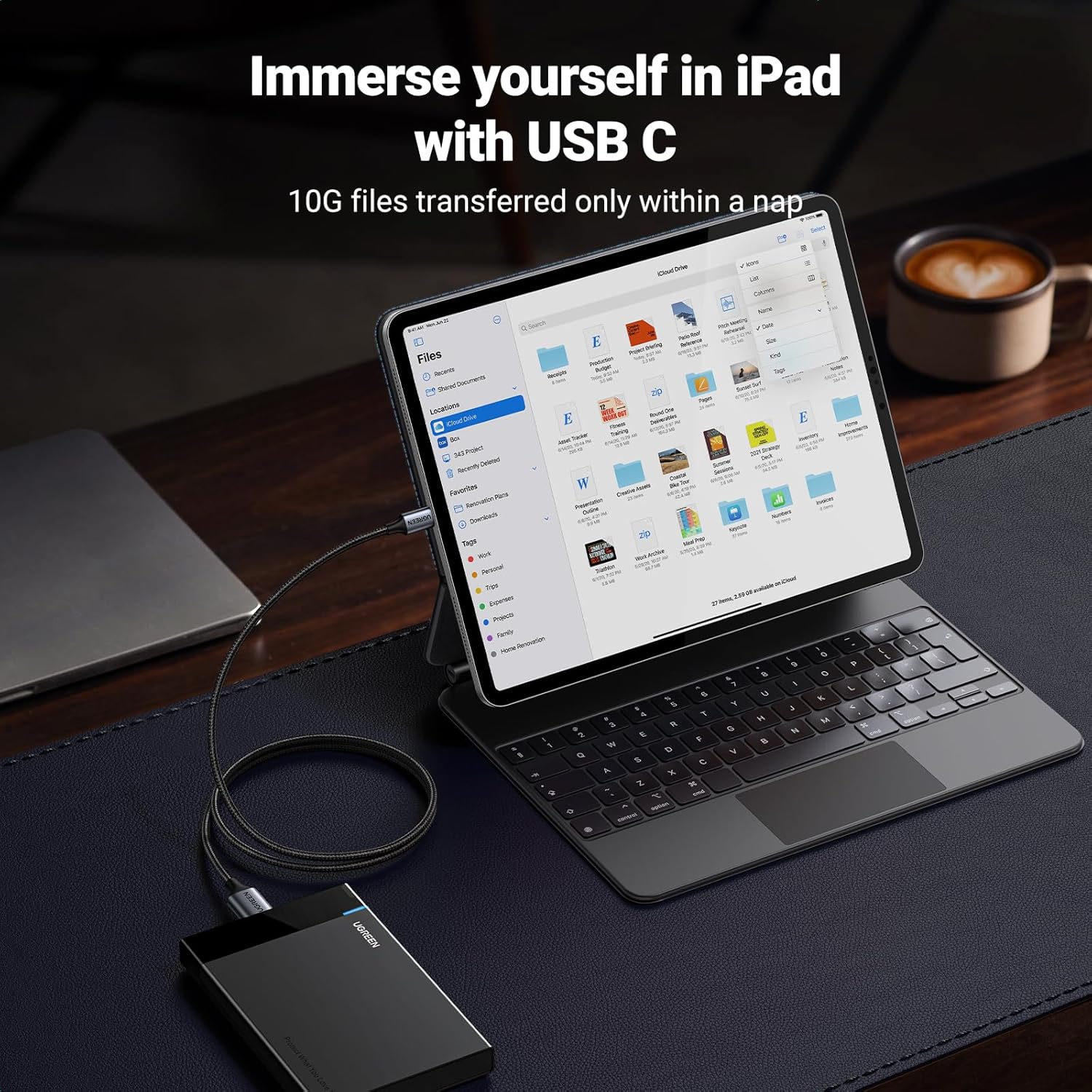
Figure 3.2: Connecting an iPad to an external drive for file access.

Figure 3.3: Transferring photos from a camera to a laptop.
4. Maintenance
To ensure the longevity and optimal performance of your UGREEN USB-C to Micro USB 3.0 Cable, follow these maintenance guidelines:
- Storage: Store the cable in a cool, dry place away from direct sunlight and extreme temperatures.
- Handling: Avoid sharp bends or kinks in the cable, especially near the connectors, as this can damage the internal wires. The nylon braided design enhances durability against wear and tear.
- Cleaning: Use a soft, dry cloth to clean the cable and connectors. Do not use liquid cleaners or solvents.
- Connector Care: Avoid forcing connectors into ports. Ensure correct orientation for the Micro USB 3.0 end. The USB-C end is reversible.

Figure 4.1: Durable nylon braided cable construction.
5. Troubleshooting
If you encounter issues with your UGREEN USB-C to Micro USB 3.0 Cable, consider the following troubleshooting steps:
- No Connection/Device Not Recognized:
- Ensure both ends of the cable are securely plugged into their respective ports.
- Try connecting the cable to a different USB-C port on your host device or a different Micro USB 3.0 port on your peripheral, if available.
- Restart both the host device and the peripheral device.
- Verify that the peripheral device is powered on, if it requires external power.
- Slow Data Transfer Speed:
- Ensure both your host device and peripheral device support USB 3.0 or higher speeds. If either device is USB 2.0, the transfer speed will be limited to USB 2.0 rates.
- Check if other applications or processes are heavily utilizing system resources, which can affect transfer speeds.
- Avoid using USB hubs if possible, or ensure the hub is a powered USB 3.0 hub.
- Intermittent Connection:
- Check for any physical damage to the cable or connectors.
- Ensure the ports on your devices are clean and free of debris.
- Try a different cable to rule out a cable defect.
6. Specifications
| Feature | Specification |
|---|---|
| Brand | UGREEN |
| Model Number | 15231 |
| Model Name | Cables Disco Duro |
| Cable Type | USB-C to Micro USB 3.0 |
| Connector Type | USB-C (Male) to Micro USB 3.0 (Male) |
| Data Transfer Rate | Up to 10 Gigabits per second (USB 3.1 Gen 2 compatible, though product description states 5Gbps, actual performance may vary based on connected devices) |
| Maximum Current | 3 Amperes |
| Maximum Voltage | 5 Volts |
| Power Capacity | 100 Watts |
| Number of Pins | 29 |
| Specifications Met | USB-IF |
| Outer Material | Polyvinyl Chloride (PVC) |
| Color | Grey |
| Length | 0.5 meters |
| Recommended Use | For indoor use, data transfer |
| Compatible Devices (USB-C) | MacBook Pro, Air, iPad Tablet, Smartphone, Charging Adapter, Laptop, PC |
| Compatible Devices (Micro USB 3.0) | Samsung Galaxy S5, Samsung Galaxy Note 3, External Hard Drives, Hard Drive Enclosures, Cameras |

Figure 6.1: Connector dimensions.
7. Warranty and Support
UGREEN products are designed for reliability and performance. For specific warranty information regarding your UGREEN USB-C to Micro USB 3.0 Cable (Model 15231), please refer to the warranty card included with your purchase or visit the official UGREEN website.
For technical support, product inquiries, or assistance with troubleshooting beyond the scope of this manual, please contact UGREEN customer service through their official channels. Contact details are typically available on the product packaging or the UGREEN website.


