
HEWLETT PACKARD AP-655
HP Aruba AP-655 Wireless Access Point User Manual
Model: AP-655
1. Introduction
This user manual provides comprehensive instructions for the installation, operation, and maintenance of the HP Aruba AP-655 Tri Band 802.11ax Wireless Access Point. Please read this manual thoroughly before using the device to ensure proper functionality and safety.
2. Product Overview
The HP Aruba AP-655 is a flagship wireless access point designed to meet the demanding needs of modern enterprises. It leverages the 6 GHz band to deliver peak performance and significantly greater capacity compared to previous Wi-Fi generations. With up to 1200 MHz of new channels, the AP-655 nearly triples capacity, effectively supporting bandwidth-intensive applications like high-definition video, a growing number of client and IoT devices, and increased cloud usage. This model features unique ultra tri-band filtering to minimize channel interference and dual configurable 5 Gbps Ethernet ports for enhanced resiliency and secure connectivity.
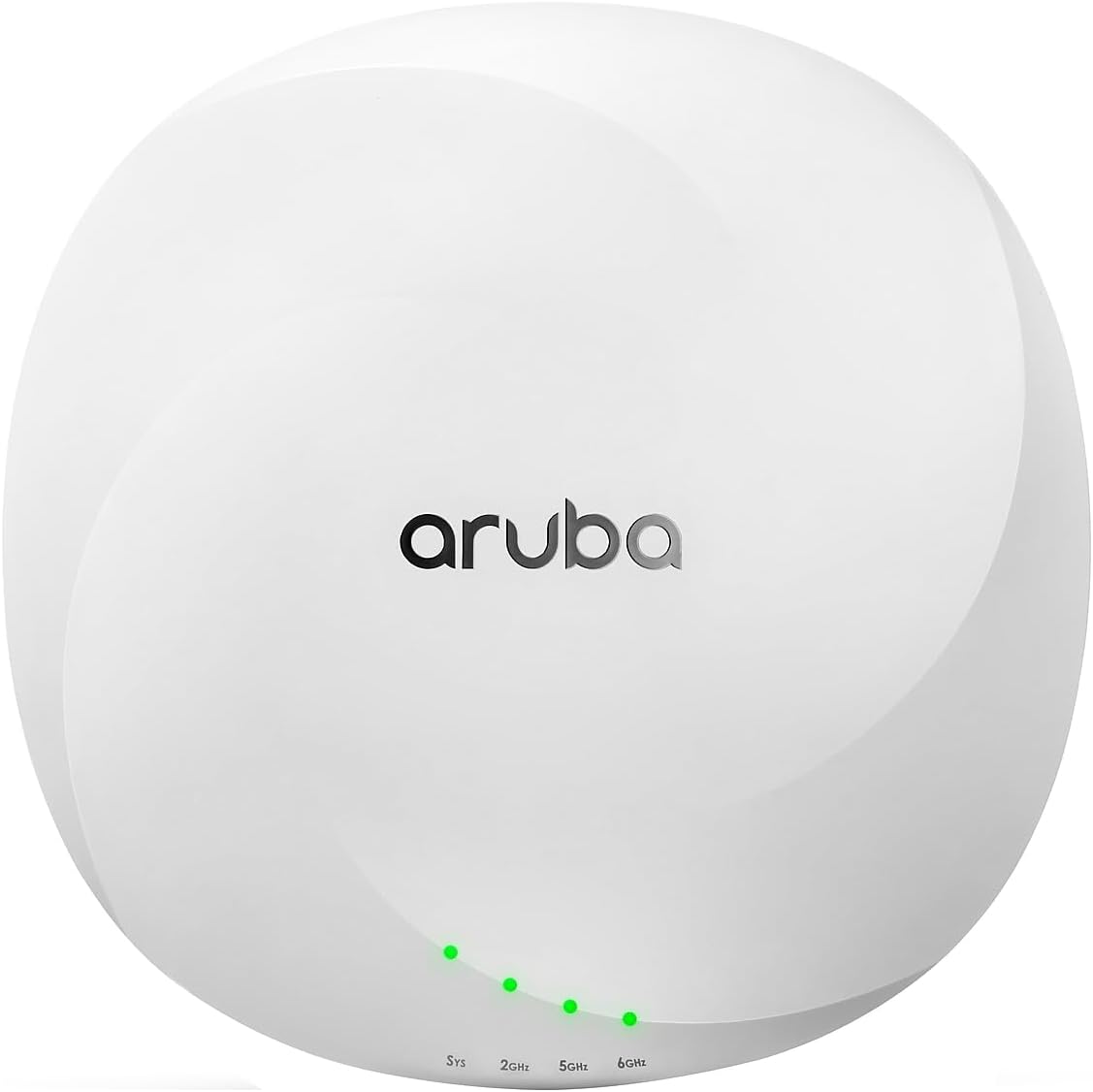
Figure 2.1: Front view of the HP Aruba AP-655 Wireless Access Point. The device is white and circular, featuring the 'aruba' logo prominently on the top surface. Below the logo, four small green LED indicator lights are visible, labeled 'Sys', '2GHz', '5GHz', and '6GHz', indicating system status and band activity.
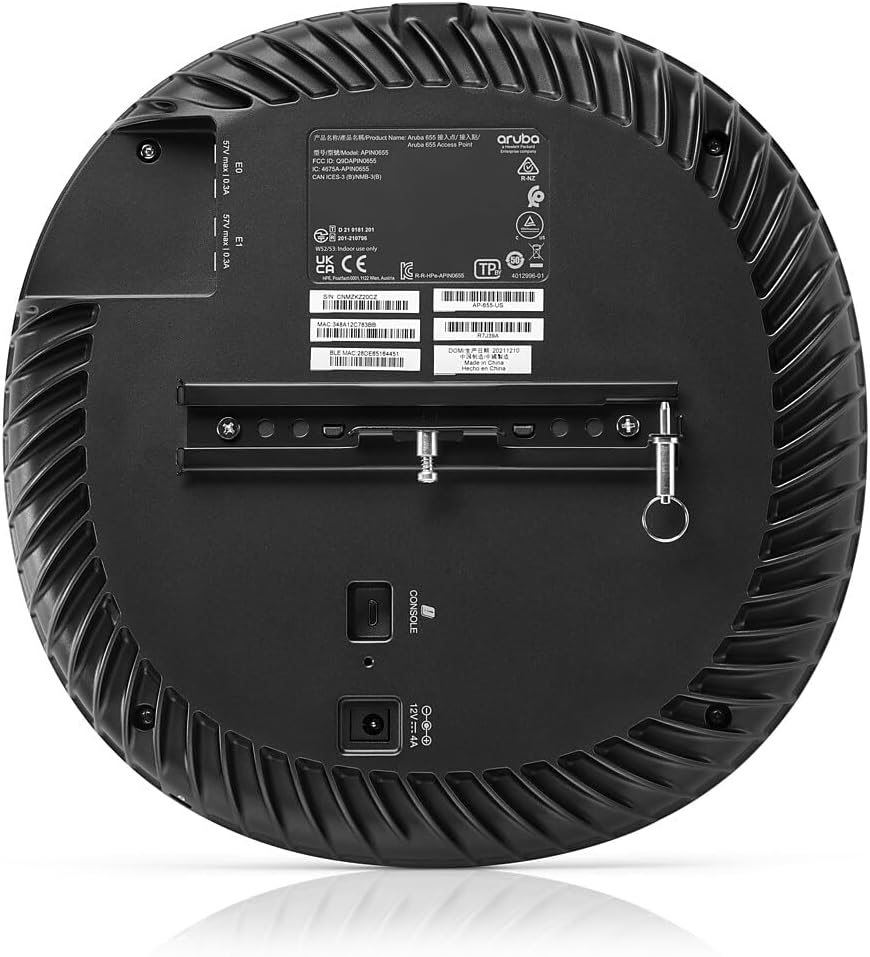
Figure 2.2: Rear view of the HP Aruba AP-655 Wireless Access Point. This view displays the back panel with ventilation grilles, product labels, and various connection ports. A mounting bracket is attached, and ports for console, power (12V === 4A), and two Ethernet ports (E0, E1) are visible, along with regulatory information.
3. Key Features
- Comprehensive Tri-Band Coverage: Supports 2.4GHz, 5GHz, and 6GHz bands, delivering a combined peak data rate of up to 7.8Gbps.
- 4x4 MIMO Radios: Ensures peak performance and increased capacity through MU-MIMO and OFDMA (uplink and downlink for both).
- Extended 6GHz Channels: Offers up to seven 160MHz channels in the 6GHz band, ideal for low-latency, bandwidth-hungry applications such as high-definition video and augmented/virtual reality.
- Unique Ultra Tri-Band Filtering: A unique feature that allows 5GHz and 6GHz bands to operate without restrictions or interference.
- High Availability: Equipped with configurable 5 Gbps dual Ethernet ports for seamless failover of both Ethernet connectivity and power, ensuring business continuity.
- Built-in GPS Receivers: Intelligent software enables APs to self-locate and serve as reference points for accurate indoor location measurements.
4. Package Contents
The standard package for the HP Aruba AP-655 Wireless Access Point typically includes the following components. Please verify all items upon unboxing.
- HP Aruba AP-655 Wireless Access Point Unit
- Mounting Bracket (if applicable)
- Quick Start Guide
- Safety and Regulatory Information
- Note: Power adapter and Ethernet cables may be sold separately depending on the region or specific bundle. Please check your purchase details.
5. Setup Guide
5.1. Site Preparation
- Location: Choose a central location for optimal Wi-Fi coverage, away from obstructions and sources of interference (e.g., microwave ovens, cordless phones).
- Power: Ensure a suitable power source is available (PoE+ or 12V DC adapter).
- Network Connectivity: Plan for Ethernet cable routing to your network switch or router.
5.2. Mounting the Access Point
The AP-655 can be mounted on a ceiling or wall. Use the provided mounting bracket and hardware.
- Attach the mounting bracket to the desired surface using appropriate screws.
- Align the AP-655 with the bracket and twist to lock it into place.
5.3. Connecting the Access Point
- Connect an Ethernet cable from your network switch (with PoE+ support) to one of the 5 Gbps Ethernet ports (E0 or E1) on the AP-655.
- Alternatively, if not using PoE+, connect a 12V DC power adapter (sold separately) to the power input port.
- The system LED (Sys) will illuminate to indicate power and operational status.
5.4. Initial Configuration
Initial configuration is typically performed via a network controller (e.g., Aruba Central, Mobility Conductor) or through a local console connection. Refer to the Aruba documentation for detailed software configuration steps.
6. Operating Instructions
6.1. LED Indicators
The AP-655 features several LED indicators to provide status information:
- Sys LED: Indicates system status (e.g., booting, operational, error).
- 2GHz LED: Indicates activity on the 2.4 GHz radio band.
- 5GHz LED: Indicates activity on the 5 GHz radio band.
- 6GHz LED: Indicates activity on the 6 GHz radio band.
Refer to the Aruba documentation for specific LED behavior and troubleshooting codes.
6.2. Network Operation
Once configured, the AP-655 will broadcast Wi-Fi networks (SSIDs) on the 2.4 GHz, 5 GHz, and 6 GHz bands. Client devices can connect to these networks using standard Wi-Fi protocols. The AP-655 intelligently manages client connections across the available bands for optimal performance.
7. Maintenance
7.1. Cleaning
To maintain optimal performance, periodically clean the exterior of the access point with a soft, dry cloth. Do not use liquid cleaners or aerosol sprays.
7.2. Firmware Updates
Regularly check for and apply firmware updates provided by Hewlett Packard Enterprise (Aruba). Firmware updates often include performance enhancements, security patches, and new features. These updates are typically managed through your Aruba network controller.
7.3. Environmental Considerations
Ensure the access point is operated within its specified environmental conditions (temperature, humidity) to prevent damage and ensure longevity.
8. Troubleshooting
| Problem | Possible Cause | Solution |
|---|---|---|
| No power / Sys LED off | No power from PoE+ switch or power adapter; faulty cable. | Verify PoE+ is enabled on the switch port or check power adapter connection. Test with a different Ethernet cable or power source. |
| Poor Wi-Fi signal or slow speeds | Interference; AP placement; too many clients; outdated firmware. | Relocate AP away from interference sources. Ensure optimal placement. Check client count. Update firmware. |
| Clients cannot connect to Wi-Fi | Incorrect Wi-Fi settings (SSID, password); AP not broadcasting. | Verify SSID and password. Check AP configuration via controller. Ensure AP is operational (Sys LED). |
| 6GHz band not visible | Client device does not support Wi-Fi 6E; 6GHz radio disabled. | Ensure client device is Wi-Fi 6E compatible. Verify 6GHz radio is enabled in AP configuration. |
9. Specifications
| Attribute | Detail |
|---|---|
| Model Number | AP-655 |
| Product Dimensions | 11.3 x 11.1 x 3.7 inches |
| Item Weight | 5.02 pounds |
| Wireless Technology | 802.11ax (Wi-Fi 6E) Tri-Band (2.4GHz, 5GHz, 6GHz) |
| Max Data Rate | Up to 7.8 Gbps combined peak datarate |
| MIMO Configuration | 4x4 MIMO radios |
| Ethernet Ports | Dual configurable 5 Gbps Ethernet ports |
| Manufacturer | Hewlett Packard |
| First Available Date | September 20, 2022 |
10. Warranty and Support
10.1. Warranty Information
Hewlett Packard Enterprise (HPE) products, including Aruba access points, typically come with a limited hardware warranty. The exact terms and duration of the warranty may vary by region and product. Please refer to the warranty card included with your product or visit the official HPE/Aruba website for detailed warranty information.
10.2. Technical Support
For technical assistance, product documentation, and software downloads, please visit the official Aruba support portal. You may need your product serial number for support inquiries.
- Aruba Support Portal: www.arubanetworks.com/support-services/
- HPE Support: www.hpe.com/us/en/support.html
Before contacting support, it is recommended to review the troubleshooting section of this manual and the online knowledge base for common issues and solutions.
Related documentsAP-655


Ask a question about this manual
Ask about setup, troubleshooting, compatibility, parts, safety, or missing instructions. Manuals+ will review the question and use this page’s manual context to help answer it.