
1. Introduction
Thank you for choosing the UNITED LED40HS82A11 40-inch Full HD Smart Android TV. This television combines a vibrant Full HD display with the power of Android 11, offering a seamless entertainment experience. With built-in Chromecast and Airplay, Wi-Fi, Ethernet, and support for various digital broadcasting standards (DVB/T2/S2/C, MPEG-4, HEVC Main 10), your new TV is designed for versatile use, from watching movies and playing games to browsing the internet.
This manual provides essential information for setting up, operating, and maintaining your television. Please read it thoroughly before using the product and keep it for future reference.

Image 1.1: Front view of the UNITED LED40HS82A11 TV with Android TV interface.
2. Safety Information
Before operating your TV, please read all safety instructions carefully. Improper use can result in electric shock, fire, or damage to the appliance.
- Power Supply: Ensure the TV is connected to an AC 100-240V, 50/60Hz power supply. Do not overload power outlets.
- Ventilation: Do not block ventilation openings. Allow adequate space around the TV for proper airflow.
- Water and Moisture: Do not expose the TV to rain or moisture. Do not place objects filled with liquids, such as vases, on the TV.
- Heat Sources: Keep the TV away from heat sources such as radiators, heat registers, stoves, or other appliances that produce heat.
- Cleaning: Unplug the TV from the wall outlet before cleaning. Use a soft, dry cloth. Do not use liquid cleaners or aerosol cleaners.
- Servicing: Do not attempt to service this product yourself. Refer all servicing to qualified service personnel.
- Children: Supervise children to ensure they do not play with the TV.
3. Package Contents
Please check that the following items are included in your TV package:
- UNITED LED40HS82A11 40-inch Full HD Smart Android TV
- Remote Control (with 2x AAA 1.5V batteries)
- Power Cord
- TV Stand (2 pieces) and Screws
- MiniAV Adapter Cable
- User Manual (this document)
If any items are missing or damaged, please contact your retailer.
4. Setup
4.1 Attaching the Stand
- Carefully place the TV face-down on a soft, flat surface (e.g., a blanket or foam) to prevent screen damage.
- Align the stand legs with the corresponding slots on the bottom of the TV.
- Secure each stand leg with the provided screws. Ensure they are tightened firmly.
- Carefully lift the TV to an upright position and place it on a stable, level surface.
4.2 Wall Mounting (Optional)
This TV is compatible with VESA standard wall mounts. The VESA mounting pattern for this model is typically 200x200mm. Please consult a professional for wall mounting to ensure proper installation and safety. Wall mount bracket and screws are not included.
4.3 Connecting External Devices
Your TV offers various connectivity options for external devices.
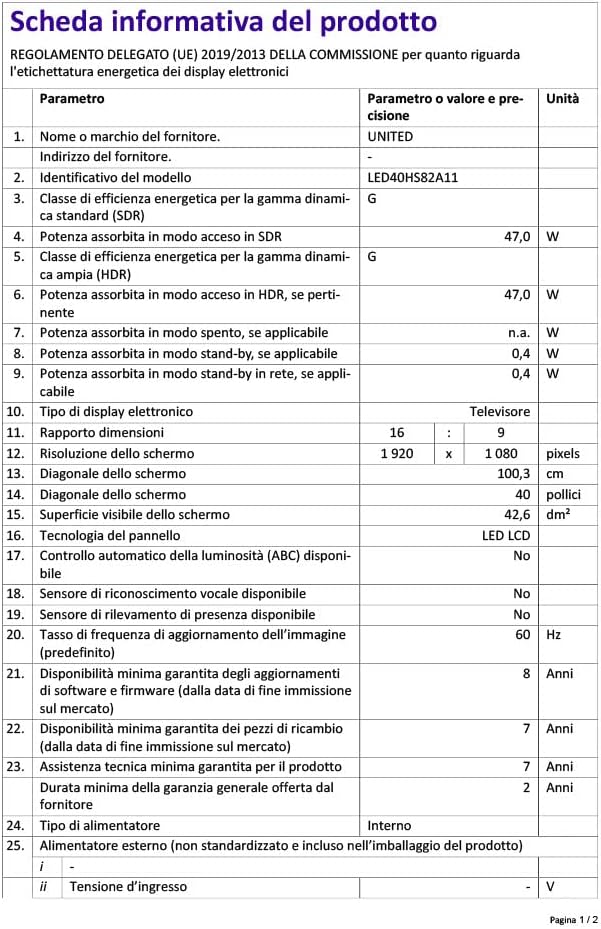
Image 4.1: Rear view of the TV with port layout.
- HDMI: Connect Blu-ray players, game consoles, set-top boxes, or other HDMI-enabled devices. The TV supports multiple HDMI inputs.
- USB: Connect USB storage devices (e.g., flash drives) to play media files. The TV has 1 USB port.
- MiniAV: Use the provided MiniAV adapter cable to connect older devices with composite video and stereo audio outputs.
- Headphone Output: Connect headphones for private listening.
4.4 Antenna/Cable Connection
Connect your terrestrial antenna (DVB-T/T2) or satellite dish (DVB-S/S2) cable to the appropriate input on the back of the TV. For cable TV (DVB-C), connect the cable to the antenna input.
4.5 Network Connection (Wi-Fi & Ethernet)
Your TV can connect to the internet via Wi-Fi or an Ethernet cable.
- Wi-Fi: During the initial setup or via the settings menu, select your Wi-Fi network and enter the password.
- Ethernet: Connect an Ethernet cable from your router to the LAN port on the back of the TV.
5. First-Time Setup
- Power On: After connecting all necessary cables, plug the power cord into an electrical outlet. Press the power button on the remote control or on the TV.
- Initial Configuration: The TV will guide you through the initial setup process.
- Language Selection: Choose your preferred language.
- Network Setup: Connect to your Wi-Fi network or use an Ethernet connection.
- Google Account: Sign in with your Google account to access the Google Play Store, personalized recommendations, and other Android TV features.
- Channel Scan: The TV will prompt you to scan for available channels based on your antenna/cable connection.
- Privacy Settings: Review and adjust privacy settings as desired.
- Setup Complete: Once all steps are finished, your TV is ready for use.
6. Operating Your TV
6.1 Remote Control Functions
The remote control allows you to navigate the TV's features. Familiarize yourself with the buttons:
- Power: Turns the TV on/off.
- Input: Selects the input source (HDMI, AV, TV).
- Navigation Buttons (Up/Down/Left/Right): Move through menus and options.
- OK/Enter: Confirms selections.
- Back: Returns to the previous screen.
- Home: Accesses the Android TV home screen.
- Volume Up/Down: Adjusts the volume.
- Channel Up/Down: Changes TV channels.
- Google Assistant: Activates voice commands.
- App Buttons: Direct access to popular streaming applications.
6.2 Navigating Android TV Interface
The Android TV home screen provides access to your installed apps, live TV, and recommended content. Use the navigation buttons on your remote to browse categories like Search, Home, Discover, and Apps.

Image 6.1: Android TV home screen with various applications.
6.3 Input Source Selection
Press the Input button on your remote control to switch between connected devices (e.g., HDMI 1, HDMI 2, AV) and the built-in TV tuner.
6.4 Channel Tuning
If you connected an antenna or cable, you can access live TV channels. Use the Channel Up/Down buttons to change channels. To perform a new channel scan or adjust channel settings, go to the TV's settings menu.
6.5 Using Smart Features
- Apps: Download and install a wide range of applications from the Google Play Store.
- Chromecast Built-in: Cast content (videos, photos, music) from your compatible smartphone, tablet, or computer directly to your TV. Look for the Chromecast icon in supported apps.
- Airplay: For Apple device users, Airplay allows you to stream content or mirror your screen to the TV.
- Internet Browsing: Use a web browser app to surf the internet.
7. Maintenance
7.1 Cleaning the TV
- Always unplug the TV before cleaning.
- Use a soft, dry, lint-free cloth to wipe the screen and cabinet.
- For stubborn marks on the screen, lightly dampen the cloth with water or a specialized screen cleaner (do not spray directly onto the screen).
- Avoid using abrasive cleaners, waxes, or solvents as they can damage the TV's finish.
7.2 Software Updates
Your Android TV may receive software updates to improve performance and add new features. It is recommended to keep your TV connected to the internet to receive these updates automatically. You can also check for updates manually in the TV's settings menu.
8. Troubleshooting
If you encounter issues with your TV, refer to the following common problems and solutions:
- No Power:
- Check if the power cord is securely plugged into the TV and the wall outlet.
- Ensure the wall outlet is working by plugging in another device.
- Try pressing the power button on the TV itself, not just the remote.
- No Picture, But Sound is Present:
- Ensure the correct input source is selected.
- Check the cable connections to external devices.
- Try restarting the TV and the connected device.
- No Sound, But Picture is Present:
- Check the volume level and ensure the TV is not muted.
- Verify audio settings in the TV menu and on the external device.
- Try a different HDMI cable or input.
- Remote Control Not Working:
- Replace the batteries in the remote control.
- Ensure there are no obstructions between the remote and the TV's IR sensor.
- Point the remote directly at the TV.
- Wi-Fi Connection Issues:
- Restart your router and modem.
- Check if the Wi-Fi password entered is correct.
- Move the TV closer to the router or use an Ethernet cable for a stable connection.
For more complex issues, please contact customer support.
9. Specifications
Here are the technical specifications for the UNITED LED40HS82A11 TV:
| Feature | Specification |
|---|---|
| Brand | UNITED |
| Model Name | LED40HS82A11 |
| Screen Size | 40 inches |
| Display Resolution | Full HD (1920 x 1080 pixels) |
| Operating System | Android 11 |
| Connectivity Technology | Wi-Fi, Ethernet, Bluetooth, HDMI, USB |
| Special Features | Smart TV, Flat Screen, Chromecast Built-in, Airplay, Pre-installed Apps |
| Tuners | DVB/T2/S2/C |
| Video Decoding | MPEG-4, HEVC Main 10 |
| Refresh Rate | 60 Hz |
| Aspect Ratio | 16:9 |
| USB Ports | 1 |
| Compatible Devices | Headphones |
| Color | Black |
| Manufacturer | CHANGHONG EUROPE ELECTRIC S.R.O. |
Image 9.1: EU Energy Label for LED40HS82A11.
For detailed product information, including energy consumption data, please refer to the official EU EPREL database via the QR code on the energy label or by visiting https://eprel.ec.europa.eu/qr/1068369.
10. Warranty and Support
For warranty information, please refer to the warranty card included with your product or contact your retailer. The manufacturer, CHANGHONG EUROPE ELECTRIC S.R.O., provides general support for this product.
Please note that information regarding software update guarantees and spare parts availability is not explicitly provided for this model. For any technical assistance or service inquiries, please contact the customer support channels provided by your point of purchase.


