
1. Introduction
This manual provides detailed instructions for the installation, operation, and maintenance of your JK Vision CareCam Pro PTX 360° Smart PTZ WiFi Outdoor Security Camera. Please read this manual thoroughly before using the product to ensure correct usage and optimal performance. Keep this manual for future reference.
2. Product Features
The JK Vision CareCam Pro PTX 360° is a versatile outdoor security camera designed for comprehensive surveillance. Key features include:
- High-Definition Video: 1080P Full HD (2-megapixel) resolution for clear imaging.
- Advanced Zoom: 10X hybrid optical zoom for detailed viewing of distant objects.
- Pan/Tilt Functionality: 360° horizontal and 90° vertical rotation for wide area coverage.
- Enhanced Night Vision: 10m/33ft night vision capability with infrared array and four light sources for day and night full-color monitoring.
- Smart Detection: Human and motion detection with smart tracking to automatically follow moving subjects.
- Two-Way Audio: Built-in high-definition loudspeaker for real-time two-party communication.
- Efficient Storage: H.265 video compression reduces bandwidth and storage consumption by 50% compared to H.264. Supports local recording.
- Remote Access: Multi-device and cross-platform support via the CareCam app for remote viewing and control.
- Weatherproof Design: Suitable for outdoor installation.
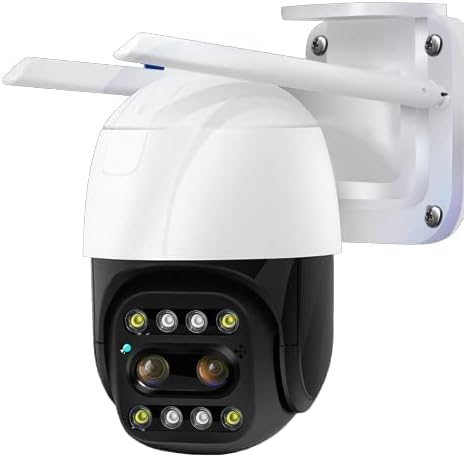
Figure 2.1: Overview of the JK Vision CareCam Pro PTX 360° camera.
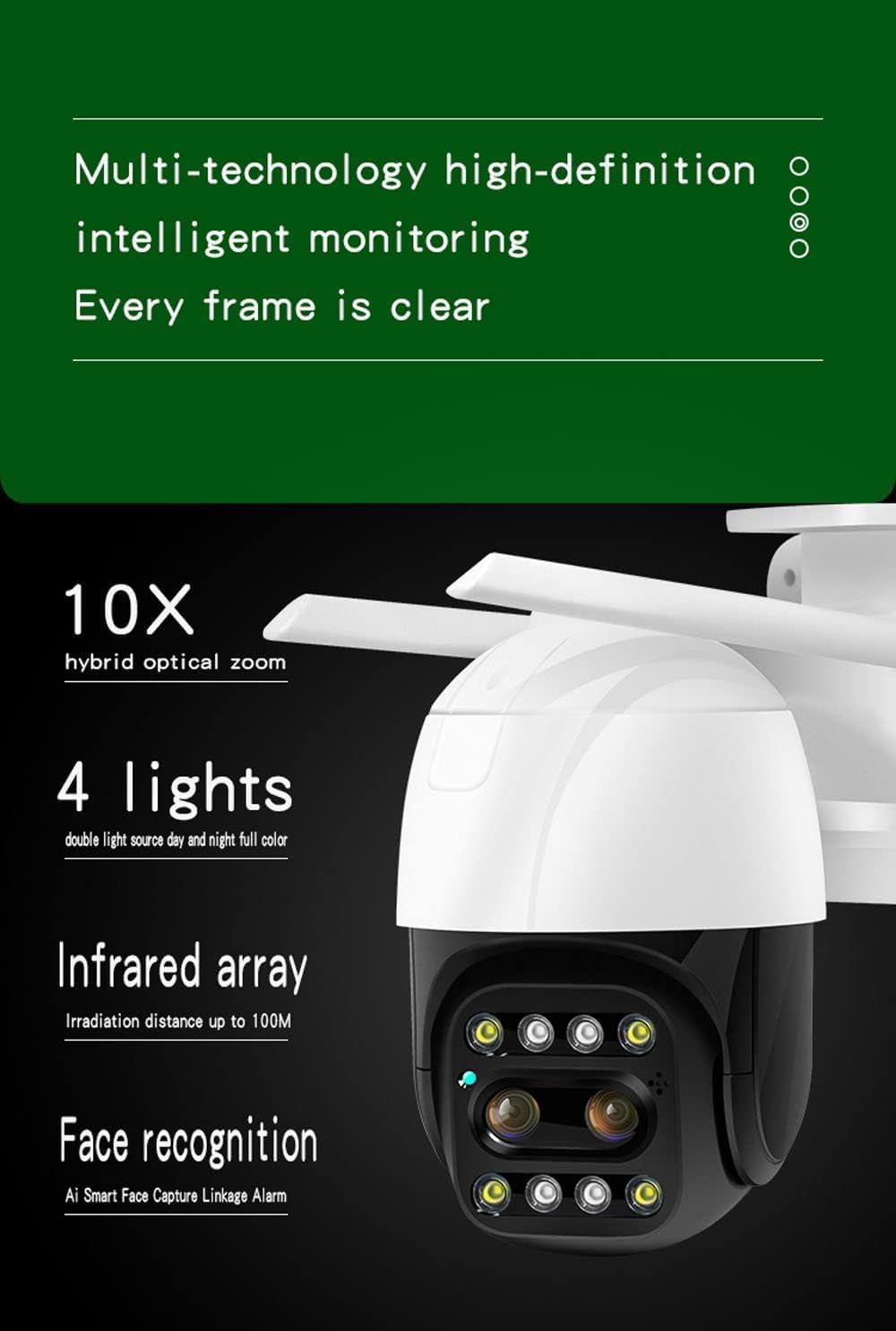
Figure 2.2: Detailed view of camera features including zoom, lighting, and infrared capabilities.

Figure 2.3: The camera's weatherproof construction for outdoor use.
3. Package Contents
Please check the package contents upon unboxing. If any items are missing or damaged, contact customer support.
- JK Vision CareCam Pro PTX 360° Camera
- Power Adapter
- Mounting Screws and Wall Plugs
- User Manual (this document)
4. Setup Guide
4.1. Initial Power-Up
- Unpack the camera and all accessories.
- Connect the power adapter to the camera's power input port.
- Plug the power adapter into a suitable electrical outlet. The camera will power on and initiate its self-test.
4.2. App Installation and Account Creation
- Download the CareCam app from your mobile device's app store (Android or iOS).
- Open the CareCam app and follow the on-screen instructions to create a new user account or log in if you already have one.
4.3. Connecting to Wi-Fi
- In the CareCam app, tap the '+' icon to add a new device.
- Select your camera model or scan the QR code usually found on the camera or its packaging.
- Follow the app's prompts to connect the camera to your 2.4GHz Wi-Fi network. Ensure your mobile device is connected to the same Wi-Fi network during setup.
- Once connected, the camera's status indicator light will change, and the app will confirm successful pairing.
4.4. Mounting the Camera
Choose a suitable outdoor location that provides the desired viewing angle and is within range of your Wi-Fi signal and power source. The camera can be embedded or wall-mounted.
- Mark the drilling points on the wall or mounting surface using the camera's base as a template.
- Drill holes and insert the wall plugs if mounting on masonry.
- Secure the camera's mounting bracket to the surface using the provided screws.
- Attach the camera securely to the mounting bracket.
5. Operating Instructions
5.1. Live View and Pan/Tilt Control
Open the CareCam app and select your camera to access the live view. Use the on-screen controls to:
- Pan: Swipe horizontally on the live view to rotate the camera 360°.
- Tilt: Swipe vertically on the live view to adjust the camera's vertical angle up to 90°.

Figure 5.1: Omnidirectional perspective with 360° horizontal and 90° vertical rotation.
5.2. Zoom Functionality
The camera features 10X hybrid optical zoom. Pinch in or out on the live view screen in the CareCam app to adjust the zoom level. This allows for detailed inspection of specific areas.

Figure 5.2: Examples of 10X hybrid optical zoom capabilities.
5.3. Motion Detection and Smart Tracking
The camera can detect human movement and automatically track the subject. To configure:
- Navigate to the camera settings in the CareCam app.
- Locate the 'Motion Detection' or 'Smart Tracking' options.
- Enable these features and adjust sensitivity levels as needed. You can also set specific detection zones.
- The camera can send real-time push notifications to your device upon detection.
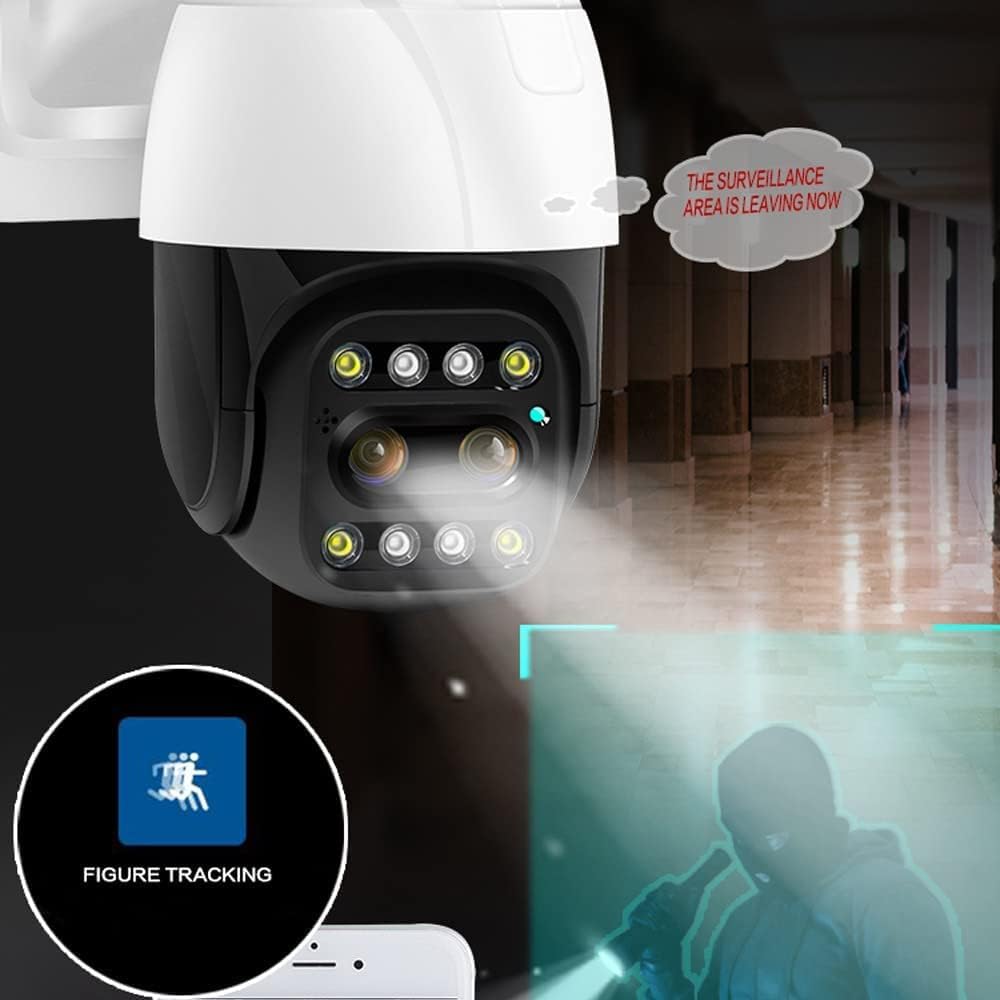
Figure 5.3: Camera demonstrating figure tracking and motion detection.
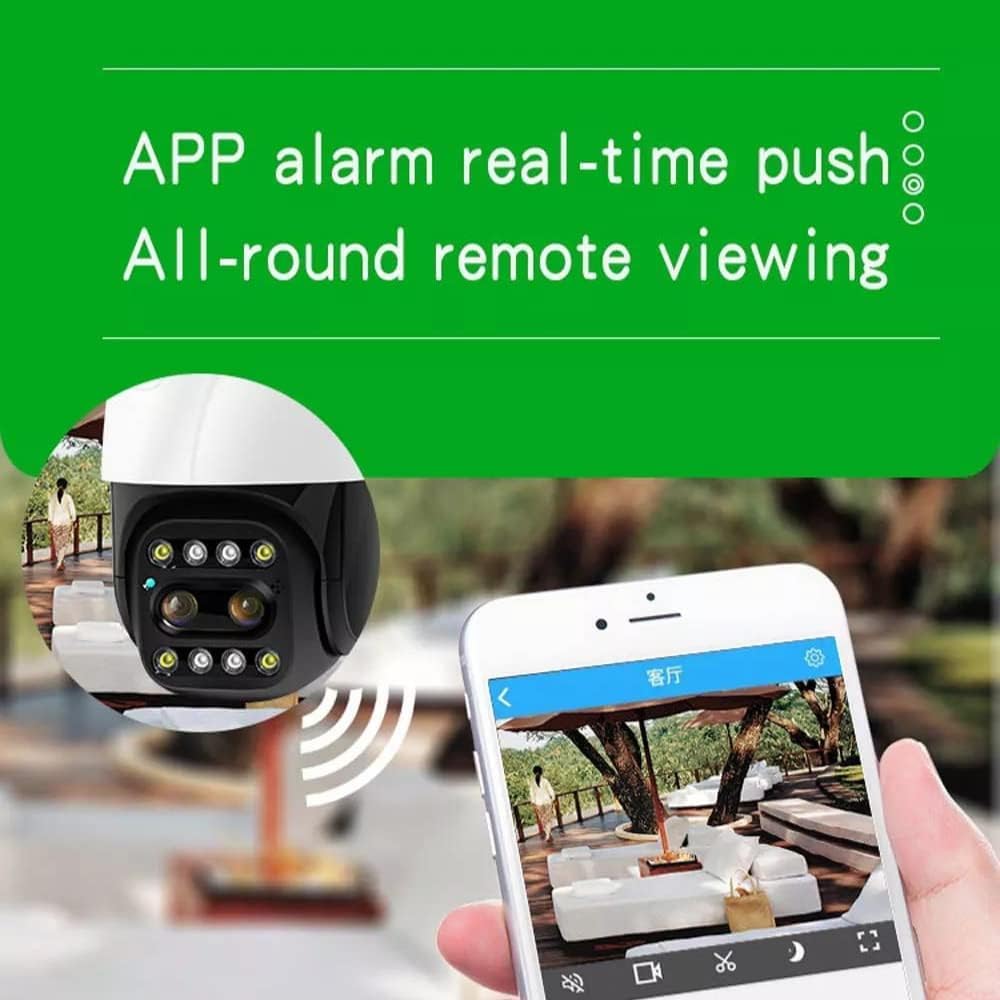
Figure 5.4: Real-time push notifications and remote viewing via the CareCam app.
5.4. Two-Way Audio
The camera supports two-way audio communication. To use this feature:
- In the live view interface of the CareCam app, tap the microphone icon to speak through the camera's loudspeaker.
- Tap the speaker icon to listen to audio from the camera's vicinity.

Figure 5.5: Two-way audio communication feature.
5.5. Recording and Storage
The camera supports local recording. Insert a compatible microSD card (not included) into the designated slot on the camera. Recordings can be accessed and managed through the CareCam app. The H.265 compression technology optimizes storage space.
6. Maintenance
Regular maintenance ensures the longevity and optimal performance of your camera.
- Cleaning: Gently wipe the camera lens and body with a soft, dry cloth. Do not use harsh chemicals or abrasive cleaners.
- Environmental Conditions: Ensure the camera is installed in an environment within its operating temperature and humidity ranges. While weatherproof, avoid direct exposure to extreme weather conditions if possible.
- Firmware Updates: Periodically check the CareCam app for available firmware updates to ensure your camera has the latest features and security enhancements.
7. Troubleshooting
If you encounter issues with your camera, refer to the following common problems and solutions:
- Camera Not Connecting to Wi-Fi:
- Ensure your Wi-Fi network is 2.4GHz. The camera does not support 5GHz networks.
- Check that the Wi-Fi password entered is correct.
- Move the camera closer to your Wi-Fi router to improve signal strength.
- Restart the camera and your router.
- No Live View/Offline Status:
- Verify the camera is powered on and connected to a stable Wi-Fi network.
- Check your internet connection.
- Restart the CareCam app.
- Poor Video Quality:
- Ensure the camera lens is clean and free from obstructions.
- Check your Wi-Fi signal strength; a weak signal can affect video streaming quality.
- Adjust video resolution settings in the CareCam app if available.
- Motion Detection Not Working:
- Verify that motion detection is enabled in the app settings.
- Adjust the sensitivity level.
- Ensure there are no objects constantly moving in the detection zone that might trigger false alarms or desensitize the system.
8. Specifications
| Feature | Specification |
|---|---|
| Model Number | ALR |
| Video Capture Resolution | 1080p (2 Megapixel) |
| Wireless Communication Technology | Wi-Fi (2.4GHz) |
| Viewing Angle | 360 Degrees (Horizontal Pan) |
| Vertical Rotation | 90 Degrees (Vertical Tilt) |
| Zoom | 10X Hybrid Optical Zoom |
| Night Vision Range | 10m / 33ft |
| Light Source Type | Infrared |
| Storage Compression | H.265 |
| Indoor/Outdoor Usage | Indoor, Outdoor |
| Power Source | Corded Electric |
| Compatible Devices | Desktop, Laptop, Android, iOS |
| Item Dimensions (L x W x H) | 30 x 25 x 20 cm |
| Item Weight | 750 g |
| Manufacturer | JK Vision |
9. Warranty and Support
For warranty information and technical support, please refer to the warranty card included with your product or visit the official JK Vision website. Keep your purchase receipt as proof of purchase for warranty claims.