
Introduction
The wiiyii G4S Digital GPS Speedometer is a multifunctional head-up display designed to enhance driving safety by presenting essential vehicle data directly in the driver's line of sight. This device utilizes a GPS module to accurately display vehicle speed, driving direction, and other relevant information, reducing the need to look down at the instrument panel. It is universally compatible with all vehicles, connecting via a USB cable for plug-and-play operation.
What's in the Box
- G4S Head-Up Display Unit
- Micro USB Cable
- Non-slip Mat
- Rotary Suction Cup Holder
- User Manual

Figure 1: Included accessories for the wiiyii G4S Digital GPS Speedometer.
Setup and Installation
- Placement: Choose a suitable location on your dashboard that does not obstruct your view of the road. The compact design allows for flexible placement.
- Mounting:
- Use the provided non-slip mat to secure the HUD unit directly on the dashboard.
- Alternatively, attach the rotary suction cup holder to the unit and then to your windshield or dashboard for adjustable positioning.
- Power Connection: Connect the Micro USB cable to the HUD unit and plug the other end into a USB power source in your vehicle. The device is plug-and-play and will power on automatically with vehicle ignition.
- Initial GPS Signal Acquisition: Upon first power-on, the device will search for a GPS signal. This may take a few moments. Ensure the device has a clear view of the sky for optimal signal reception.

Figure 2: The G4S HUD unit installed on a car dashboard, showing speed and compass.
Video 1: Demonstration of the wiiyii G4S Digital GPS Speedometer's installation and various display modes while driving.
Operating Instructions
The G4S unit features a dial button for navigation and selection. Rotate the dial to scroll through options and press it to confirm a selection.

Figure 3: Overview of the G4S display elements and functions.
Display Modes
The G4S can display various data points. Use the dial button to switch between different display modes:
- Vehicle Speed: Displays current speed in MPH or KPH.
- Driving Direction: Shows compass direction (N, NE, E, SE, S, SW, W, NW).
- Number of Satellites: Indicates the strength and number of GPS satellites connected.
- Time: Displays current time.
Automatic Power On/Off
The HUD unit is designed to automatically power on when your vehicle starts and power off when the ignition is turned off, helping to protect your vehicle's battery.
Settings and Calibration
To access the settings menu, press and hold the dial button. Rotate the dial to navigate through the settings options (P1, P2, P3, etc.). Press the dial to select an option, then rotate to adjust the value, and press again to confirm.
- P1: Speed Calibration (Default 100): This setting allows you to fine-tune the speed display if it reads inaccurately compared to your vehicle's speedometer or another GPS device. Adjust the value up or down (e.g., 99 for slightly slower reading, 101 for slightly faster).
- P2: Overspeed Alarm (Default 150): Set a maximum speed limit. If your vehicle exceeds this speed, the HUD will trigger an alarm. Adjust the value to your desired speed limit.
- P3: Fatigue Driving Reminder (Default 8 hours): Set a duration after which the HUD will remind you to take a break. Adjust the value in hours.
- P4: Brightness Mode (Default 9): Adjust the display brightness. Options typically range from 1 (dimmest) to 9 (brightest).
- P5: Speed Unit (Default MPH): Switch between Miles Per Hour (MPH) and Kilometers Per Hour (KPH).
- P6: Time Adjustment: Adjust the displayed time.
- P7: Factory Reset: Resets all settings to their default values.

Figure 4: The G4S unit displaying an overspeed alarm.

Figure 5: Automatic photosensitive adjustment of the display brightness for optimal visibility.
Features
- Multifunctional Display: Shows vehicle speed, driving direction, number of satellites, and time.
- Green Eye Protection: Large, green font design for easy readability and reduced eye strain, especially during long drives.
- Universal Compatibility: Works with all vehicles via USB connection, including cars, trucks, electric, and hybrid automobiles.
- Automatic Brightness Adjustment: Built-in light sensing system automatically adjusts screen brightness to ambient light conditions.
- Performance Testing: Capable of testing 0-100 km/h acceleration and driving distance for vehicle performance monitoring.
Troubleshooting
| Problem | Possible Cause | Solution |
|---|---|---|
| No display/No power | USB cable not connected or faulty; vehicle ignition off. | Ensure USB cable is securely connected and vehicle ignition is on. Try a different USB port or cable. |
| Inaccurate speed display | Speed calibration setting (P1) is incorrect. | Adjust the P1 setting in the menu to fine-tune the speed. Compare with a known accurate speed source (e.g., another GPS device). |
| No GPS signal | Device placement obstructs satellite view; poor weather conditions. | Relocate the device to a position with a clearer view of the sky. Wait for better signal conditions. |
| Display too dim/bright | Brightness setting (P4) is incorrect or automatic adjustment is not optimal. | Adjust the P4 setting in the menu to your preferred brightness level. |
Specifications
- Brand: wiiyii
- Model: G4S
- Material: Plastic
- Item Weight: 190 Grams (6.7 ounces)
- Item Dimensions (L x W x H): Approximately 52mm x 52mm x 14mm (2.05 inches x 2.05 inches x 0.55 inches)
- Power Input: USB 5V
- Certifications: CE, FCC, RoHS
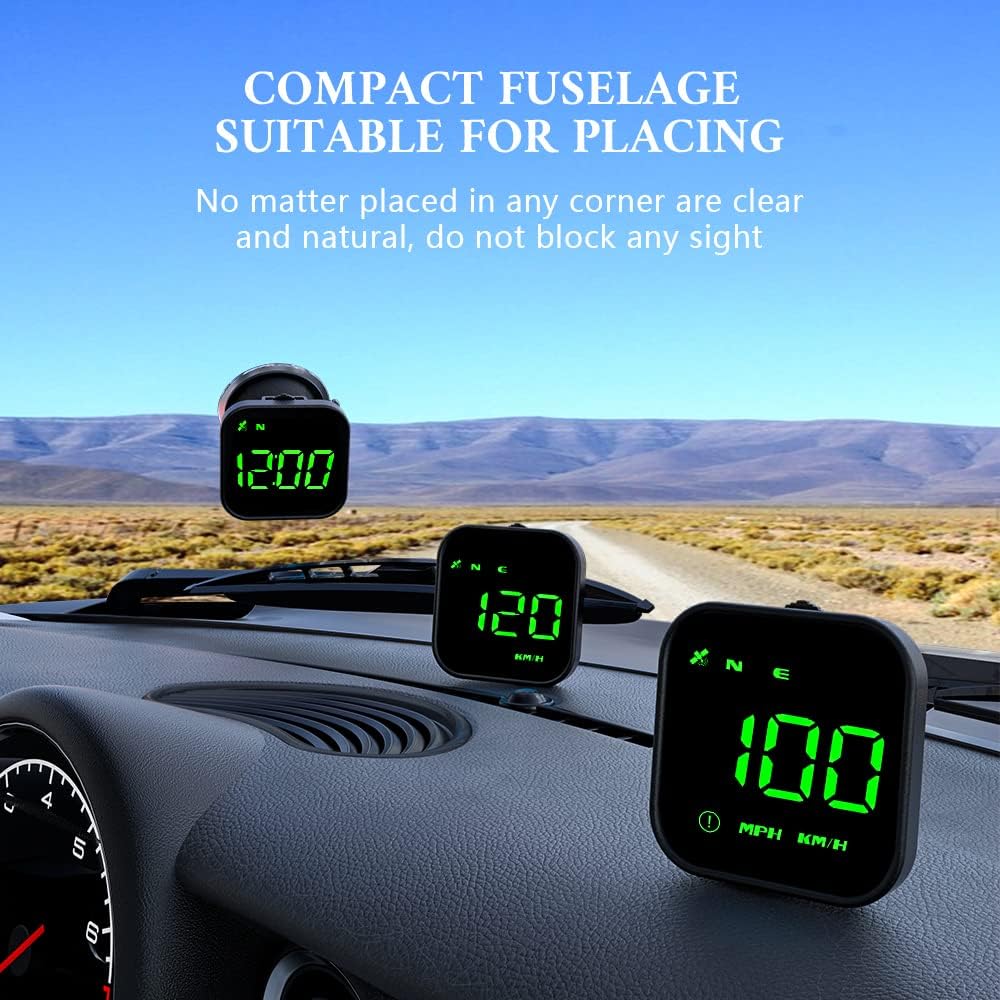
Figure 6: Dimensions and key components of the G4S HUD unit.
Warranty and Support
For more details about the product, including warranty information and technical support, please consult the merchant. Contact information is available on our seller page. We are committed to providing timely assistance.