
TOMZON T4W
TOMZON T4W Drone User Manual
Model: T4W
Introduction
Thank you for choosing the TOMZON T4W Foldable Camera Drone. This manual provides essential information for the safe operation, setup, and maintenance of your drone. Please read this manual thoroughly before operating the drone to ensure proper use and to avoid damage or injury.
The TOMZON T4W is a beginner-friendly FPV drone equipped with a 2K camera, offering features such as Altitude Hold, Headless Mode, One Key Fly, and various intelligent flight functions like Circle Fly, Self Spin, Trajectory Fly, and Gravity Mode. Its foldable design and included handbag make it highly portable.
Safety Guidelines
Always prioritize safety when operating the drone. Failure to follow these guidelines may result in injury, damage to the drone, or property damage.
- Operate the drone in open areas, away from people, animals, buildings, and obstacles.
- Do not fly near airports or restricted airspace. Check local regulations before flying.
- Maintain a safe distance from the drone during operation.
- Ensure all propellers are securely attached and undamaged before each flight.
- Do not operate the drone in strong winds, rain, or other adverse weather conditions.
- Keep hands and face away from rotating propellers.
- Supervise children when they are operating the drone.
- Only use original TOMZON parts and accessories.
- Do not attempt to modify the drone or its components.
- Be aware of the drone's battery level and the Low-Power/Signal Alarm to prevent unexpected landings.
Package Contents
Verify that all items are present in the package:
- TOMZON T4W Foldable Drone
- Remote Controller
- Rechargeable Drone Batteries (x2)
- USB Charging Cable
- Spare Propellers
- Propeller Guards (optional)
- Screwdriver
- User Manual (this document)
- Portable Handbag

Image: The TOMZON T4W drone, its remote controller with a smartphone attached, two drone batteries, and the included portable handbag, illustrating the complete package contents.
Product Overview
Drone Components
- Foldable Arms: Allow for compact storage and portability.
- Propellers: Four main propellers for lift and thrust.
- Motors: Power the propellers.
- 2K Camera: Front-mounted camera with 90° adjustable lens for capturing photos and videos.
- Battery Compartment: Located at the rear of the drone.
- Indicator Lights: Provide status information during flight and operation.
- TF Card Slot: Supports 4-128G TF cards for direct storage of media (TF card not included).
Remote Controller
- Control Sticks: Left stick for throttle/yaw, right stick for forward/backward/left/right movement.
- Phone Holder: Adjustable clamp to secure your smartphone for FPV viewing.
- One Key Take-off/Landing Button: Simplifies initial flight and landing.
- Speed Switch Button: Toggles between 3 flight speeds.
- Headless Mode Button: Activates headless flight.
- Photo/Video Button: Captures images or starts/stops video recording.
- Calibration Button: For gyroscope calibration.
Setup
1. Charging the Batteries
Before first use, fully charge both drone batteries and the remote controller battery (if applicable). Use the provided USB charging cable. The indicator light on the charger will change when charging is complete.
2. Installing Drone Battery
- Unfold the drone arms.
- Insert a fully charged battery into the battery compartment at the rear of the drone until it clicks into place.
3. Propeller Installation (if needed)
If propellers are not pre-installed, attach them according to the markings (A and B) on the propellers and drone arms. Ensure they are securely fastened.
4. Installing Remote Controller Batteries
Open the battery compartment on the back of the remote controller and insert the required batteries (usually AA, not included) according to polarity markings.
5. Downloading the APP
Search for the official TOMZON drone app (refer to the packaging or quick start guide for the exact app name) on your smartphone's app store (iOS App Store or Google Play Store) and install it. This app is required for FPV viewing and advanced flight functions.
6. Pairing the Drone and Remote Controller
- Place the drone on a flat, level surface.
- Power on the drone by pressing the power button. The drone's indicator lights will flash.
- Power on the remote controller.
- Push the left control stick (throttle) all the way up, then all the way down. The drone's indicator lights will become solid, indicating successful pairing.
7. Connecting to Wi-Fi (FPV)
- After pairing, go to your smartphone's Wi-Fi settings.
- Connect to the Wi-Fi network named "TOMZON-T4W-XXXXXX" (or similar, check drone label).
- Open the TOMZON drone app. You should see the live FPV feed from the drone's camera.
Operating the Drone
Basic Flight Controls
- One Key Take-off: Press the One Key Take-off button on the remote controller. The drone will automatically ascend to a certain height and hover.
- Throttle (Left Stick Up/Down): Controls the drone's altitude.
- Yaw (Left Stick Left/Right): Rotates the drone horizontally.
- Forward/Backward (Right Stick Up/Down): Moves the drone forward or backward.
- Left/Right Sideways Flight (Right Stick Left/Right): Moves the drone left or right sideways.
- One Key Landing: Press the One Key Landing button. The drone will slowly descend and land automatically.
Advanced Flight Features

Image: Visual representation of the drone's three adjustable speed modes, the simplicity of one-key start, the functionality of headless mode, and the stability provided by altitude hold.
- Altitude Hold: The drone maintains a consistent altitude, making it easier to control and capture stable footage. This feature is automatically active.
- Headless Mode: When activated, the drone's orientation becomes irrelevant. The drone will move relative to the pilot's position, regardless of which way the drone's front is facing. Press the Headless Mode button to activate/deactivate.
- 3 Speeds Adjust: Press the Speed Switch button on the remote controller to cycle through low, medium, and high-speed modes, suitable for different skill levels and wind conditions.
Intelligent Flight Functions (via APP)

Image: The TOMZON T4W drone executing a 'Circle Fly' stunt, orbiting around a central point in a desert landscape, demonstrating its automated flight capabilities.
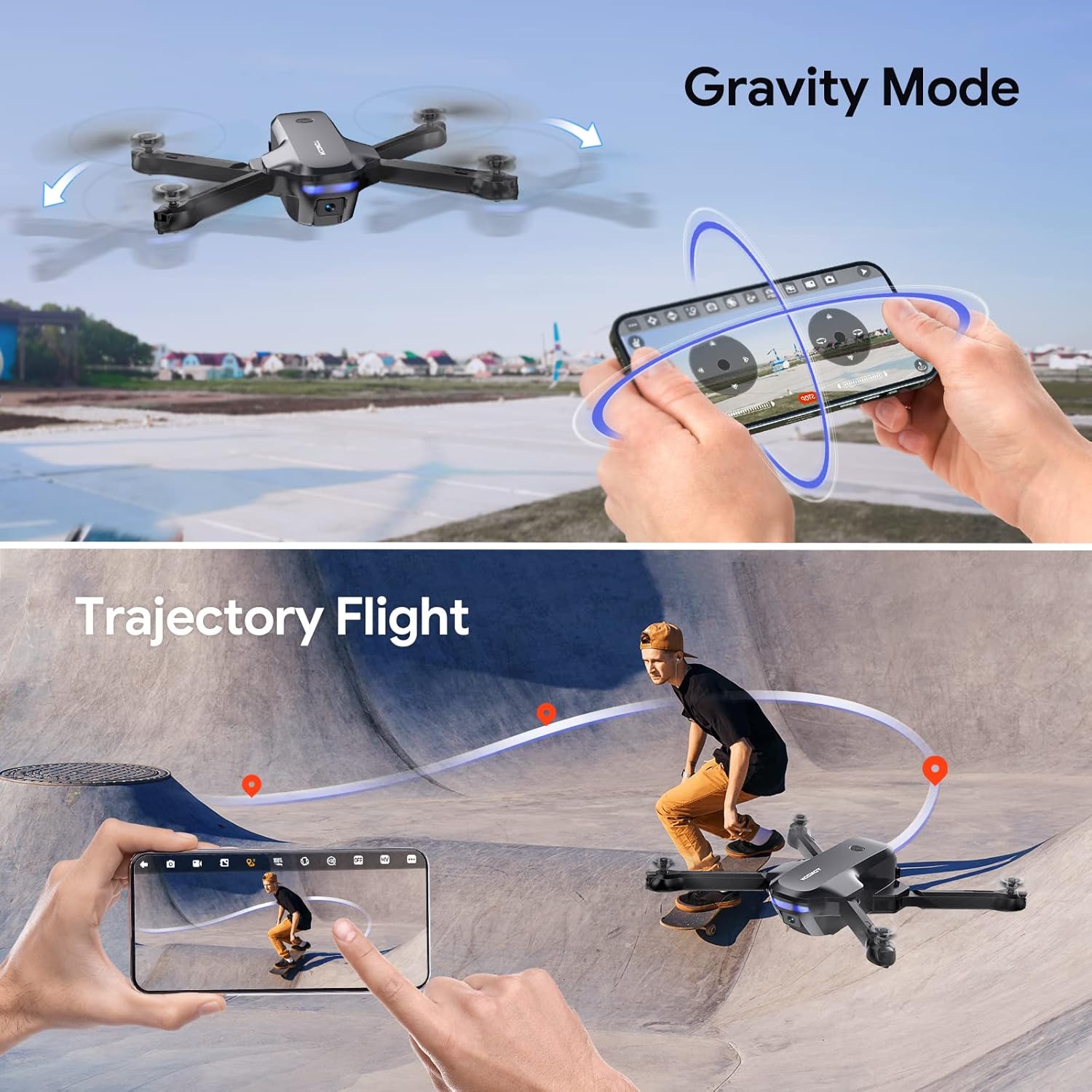
Image: Two distinct intelligent flight modes: 'Gravity Mode' where the drone responds to phone tilting, and 'Trajectory Flight' where the drone follows a pre-drawn path on the app screen.
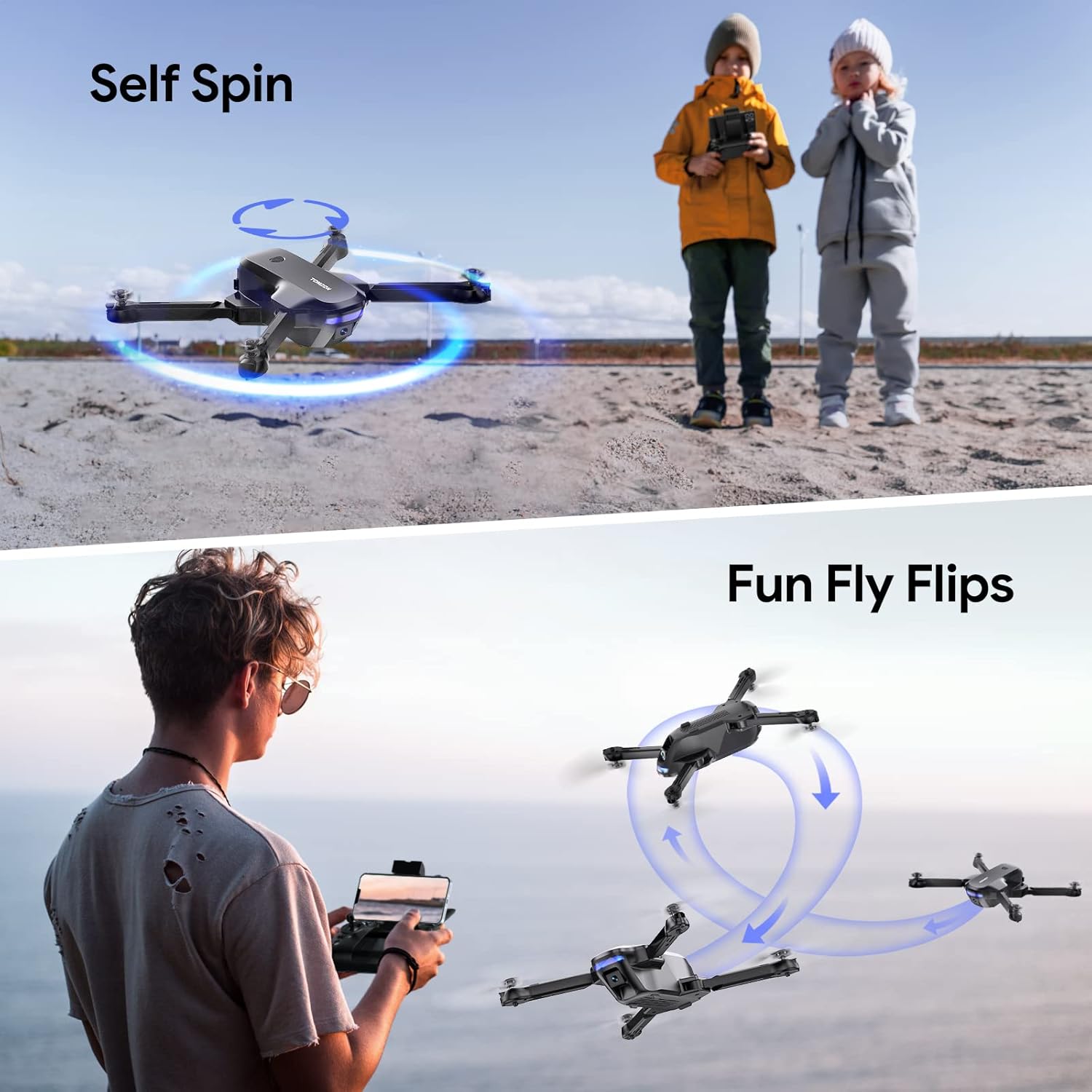
Image: The drone performing a 'Self Spin' maneuver, rotating in place, and a sequence of 'Fun Fly Flips', showing the drone executing 360-degree rolls in the air.
- Circle Fly: In the app, select Circle Fly mode. The drone will automatically fly in a circular path around a designated point.
- Self Spin: Activate Self Spin mode in the app, and the drone will rotate in place, providing a dynamic view.
- Trajectory Flight: Draw a desired flight path on your smartphone screen within the app. The drone will follow this trajectory automatically.
- Gravity Mode: Control the drone's movement by tilting your smartphone. This mode uses the phone's internal gyroscope.
- 3D Flips: While flying, press the 3D Flips button on the remote controller (or activate in app) and push the right stick in a direction to perform a 360° roll. Ensure sufficient altitude before attempting.
Camera Operation and FPV
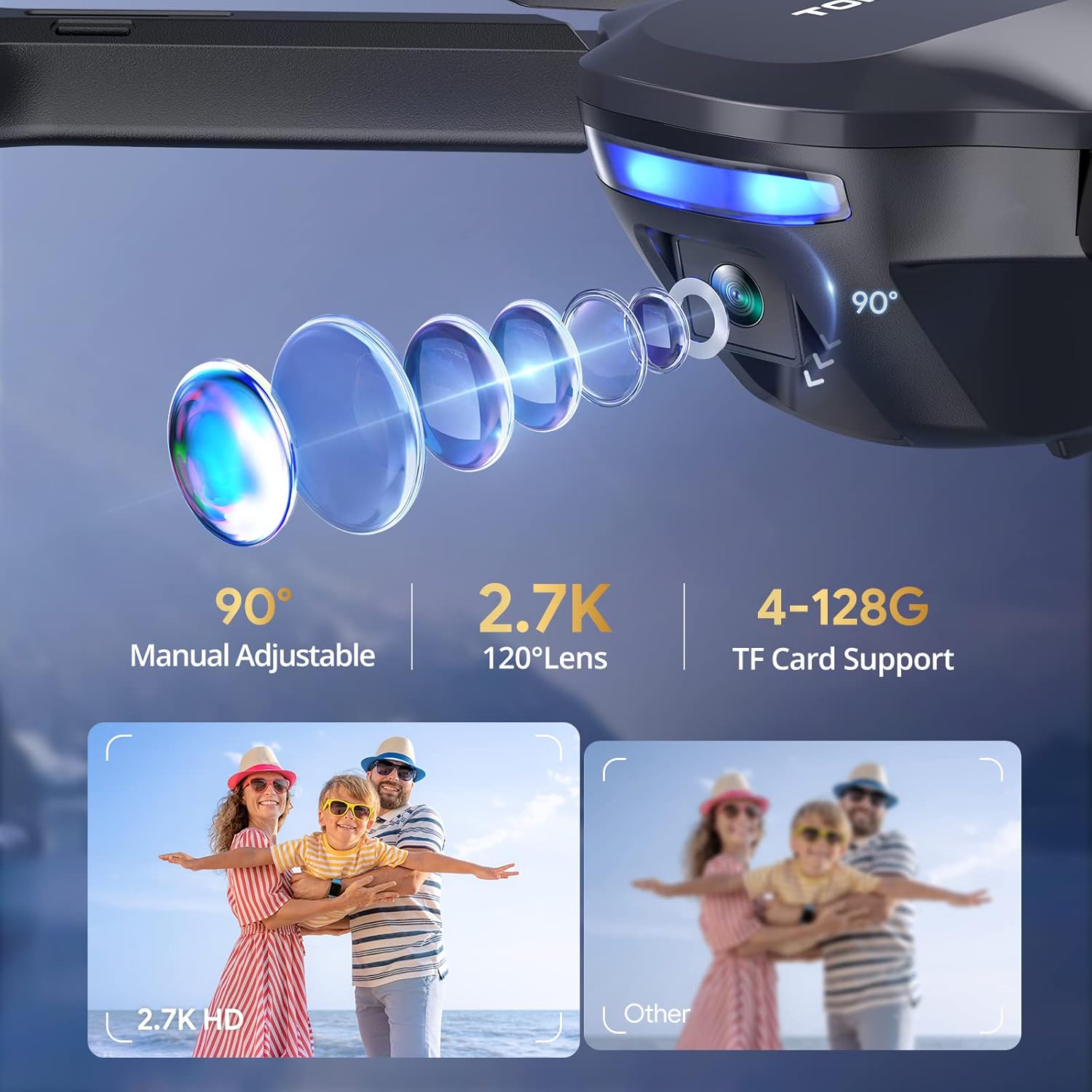
Image: Close-up view of the drone's camera, highlighting its 90-degree manual adjustability, 2.7K resolution with a 120-degree wide-angle lens, and support for 4-128GB TF cards for media storage.
The TOMZON T4W is equipped with a 2K UHD camera for high-resolution photo and video capture, and FPV (First Person View) transmission to your smartphone.
- FPV Transmission: Once connected to the drone's Wi-Fi and the app is open, you will see a live video feed from the drone's camera on your smartphone screen. The image transmission range is approximately 263 feet.
- Adjustable Camera Lens: The camera lens can be manually adjusted 90 degrees to capture different angles.
- Photo/Video Capture: Use the dedicated buttons on the remote controller or the controls within the app to take photos or start/stop video recording.
- TF Card Support: For clearer video and image storage, insert a 4-128G TF card (not included) into the drone's TF card slot. Media will be saved directly to the card.
Maintenance
- Cleaning: Use a soft, dry cloth to clean the drone and remote controller. Do not use harsh chemicals or solvents.
- Propellers: Regularly inspect propellers for cracks, bends, or damage. Replace damaged propellers immediately using the provided spare parts.
- Motors: Keep motors free from dust and debris. Avoid operating in sandy or dusty environments.
- Battery Care: Store batteries in a cool, dry place. Do not overcharge or over-discharge batteries. If storing for extended periods, charge them to about 50% capacity.
- Storage: When not in use, fold the drone arms and store the drone and all accessories in the portable handbag to protect them from damage.
Troubleshooting
| Problem | Possible Cause | Solution |
|---|---|---|
| Drone does not respond to controller. | Not paired; Low battery on drone or controller; Out of range. | Re-pair the drone and controller; Charge batteries; Fly within range (328FT). |
| Drone drifts during flight. | Gyroscope not calibrated; Uneven surface during take-off; Wind interference. | Perform gyroscope calibration on a flat surface; Fly in calm conditions. |
| FPV feed is laggy or disconnected. | Weak Wi-Fi signal; Too far from drone; Interference. | Ensure strong Wi-Fi connection; Fly within image transmission range (263FT); Avoid areas with strong Wi-Fi interference. |
| Drone does not take off. | Low battery; Propellers installed incorrectly; Not paired. | Charge drone battery; Check propeller installation (A/B markings); Ensure successful pairing. |
| Low-Power/Signal Alarm sounds. | Drone battery is low; Drone is losing signal with controller. | Land the drone immediately and replace/recharge battery; Fly closer to the controller. |
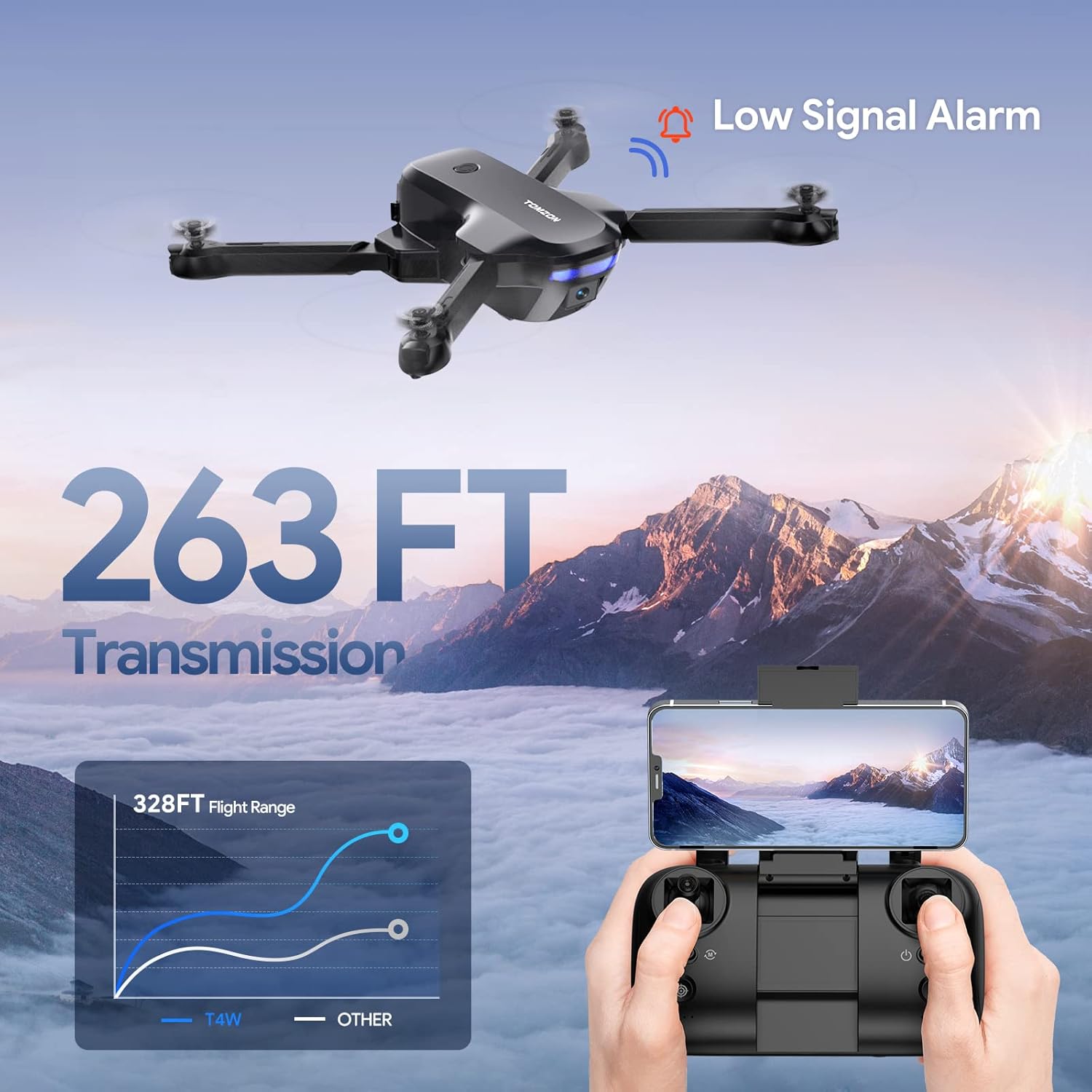
Image: Diagram illustrating the drone's flight range (328FT) and image transmission range (263FT), along with a visual cue for the low signal alarm, emphasizing operational limits and safety warnings.
Specifications
| Feature | Detail |
|---|---|
| Brand | TOMZON |
| Model Name | T4W |
| Camera Resolution | 2K UHD (2.7K mentioned in feature bullets, 2K in title) |
| Camera Lens | 120° Wide Angle, 90° Adjustable |
| Flight Time | Up to 36 minutes (with 2 batteries) |
| Control Range | Approx. 328 FT (100 meters) |
| Image Transmission Range | Approx. 263 FT (80 meters) |
| Weight | 948 g |
| Dimensions | 21.08 x 21.08 x 5.08 cm |
| TF Card Support | 4-128G (TF card not included) |
| Special Features | Altitude Hold, Headless Mode, One Key Fly, 3 Speeds, Circle Fly, Self Spin, Trajectory Flight, Gravity Mode, 3D Flips, Low-Power/Signal Alarm, Portable Handbag |
Warranty and Support
For warranty information and technical support, please refer to the warranty card included in your product packaging or visit the official TOMZON website. Keep your purchase receipt as proof of purchase.
If you encounter any issues not covered in this manual, please contact TOMZON customer service for assistance.
Ask a question about this manual
Ask about setup, troubleshooting, compatibility, parts, safety, or missing instructions. Manuals+ will review the question and use this page’s manual context to help answer it.