1. Introduction
This manual provides detailed instructions for the installation, configuration, and operation of your GIGABYTE X670E AORUS Master AMD AM5 ATX Motherboard. Please read this manual thoroughly before installing your motherboard to ensure correct setup and optimal performance. This motherboard is designed to support AMD Ryzen 7000 Series Processors and DDR5 memory modules.

Image 1.1: GIGABYTE X670E AORUS Master Motherboard and its retail packaging.
2. Safety Information
Always observe the following safety precautions when handling computer components:
- Disconnect the power cord from the wall outlet before touching any components.
- Wear an anti-static wrist strap or frequently touch a grounded metal object to discharge static electricity.
- Handle components by their edges; avoid touching pins or circuitry.
- Keep the motherboard away from moisture and extreme temperatures.
- Ensure proper ventilation within your PC case to prevent overheating.
3. Package Contents
Verify that all items are present in your motherboard package. If any items are missing or damaged, contact your retailer.
- GIGABYTE X670E AORUS Master Motherboard
- User Manual / Quick Installation Guide
- Driver CD/USB drive
- SATA cables
- Wi-Fi antenna
- M.2 screws and standoffs
- Other accessories (may vary by region)
4. Motherboard Layout
Familiarize yourself with the various components and connectors on your motherboard. Refer to the image below for a visual guide.
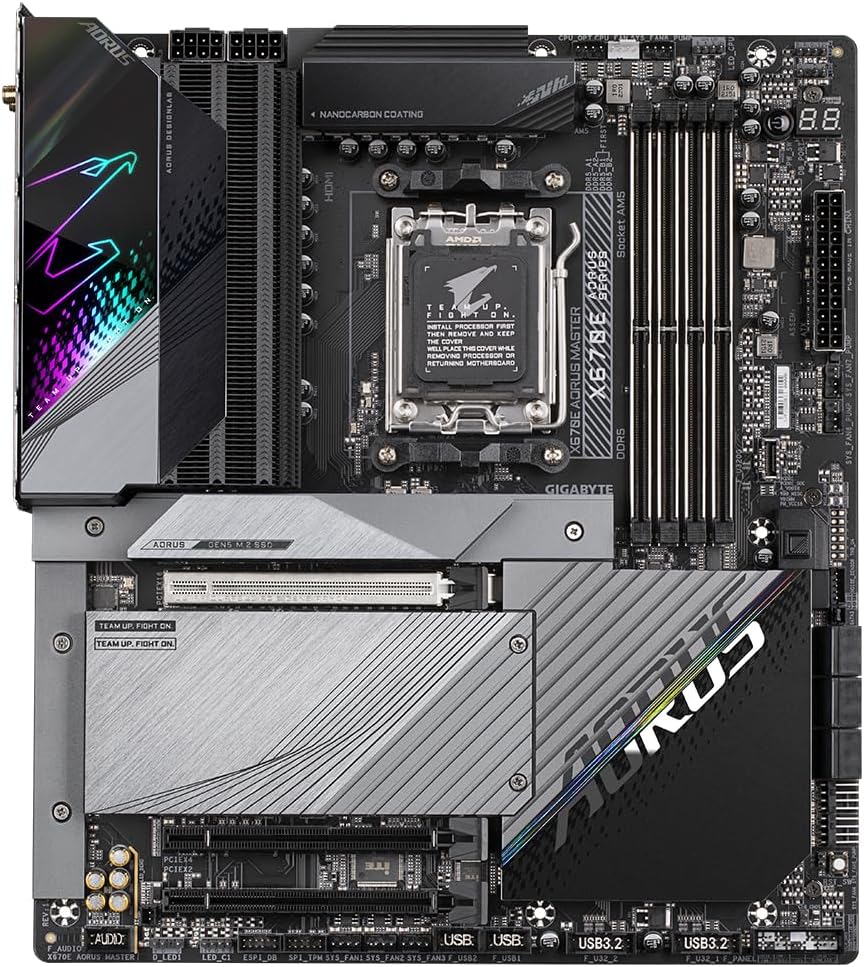
Image 4.1: Top-down view of the GIGABYTE X670E AORUS Master Motherboard, highlighting key component locations such as the CPU socket, DDR5 DIMM slots, PCIe expansion slots, and M.2 connectors.
4.1. Key Components
- CPU Socket (Socket AM5): For AMD Ryzen 7000 Series Processors.
- DDR5 DIMM Sockets: Four slots supporting up to 128 GB of DDR5 memory.
- PCI Express x16 Slots: Multiple slots for graphics cards and other expansion cards (PCIe 5.0, 4.0, 3.0).
- M.2 Connectors: For high-speed NVMe SSDs.
- SATA 6Gb/s Connectors: For traditional SATA storage devices.
- USB Headers: Internal headers for front panel USB ports.
- Power Connectors: 24-pin ATX and 8-pin/4-pin CPU power connectors.
- Rear I/O Panel: External ports for peripherals.

Image 4.2: Rear I/O panel of the GIGABYTE X670E AORUS Master Motherboard, featuring various USB ports (including USB 3.2 Gen 2 Type-A and Type-C), DisplayPort, HDMI, 2.5G Ethernet, Wi-Fi antenna connectors, and audio jacks.
5. Setup and Installation
Follow these steps carefully to install your motherboard and essential components.
5.1. CPU Installation
- Open the CPU socket lever.
- Align the CPU with the socket, ensuring the golden triangle on the CPU matches the triangle on the socket.
- Gently place the CPU into the socket without forcing it.
- Close the socket lever to secure the CPU.
- Install the CPU cooler according to its manufacturer's instructions.
5.2. Memory (RAM) Installation
- Open the clips at both ends of the DDR5 DIMM sockets.
- Align the memory module with the socket, matching the notch on the module with the key in the socket.
- Press down firmly on both ends of the memory module until the clips snap into place.
- For dual-channel configuration, refer to your motherboard's specific slot recommendations (usually alternating slots).
5.3. Storage Device Installation
5.3.1. M.2 SSD Installation
- Locate the M.2 slots on the motherboard. Some may be under heatsinks.
- Remove the M.2 heatsink if present.
- Insert the M.2 SSD into the slot at an angle.
- Push down the SSD and secure it with the provided M.2 screw or standoff.
- Reinstall the M.2 heatsink if applicable.
5.3.2. SATA Device Installation
- Connect one end of the SATA data cable to a SATA 6Gb/s connector on the motherboard.
- Connect the other end of the SATA data cable to your SATA HDD/SSD.
- Connect a SATA power cable from your power supply unit (PSU) to the SATA device.
5.4. Expansion Card Installation (e.g., Graphics Card)
- Open the latch on the desired PCI Express x16 slot.
- Align the expansion card with the slot and press down firmly until it is fully seated and the latch snaps into place.
- Secure the card to the PC case with a screw.
- Connect any necessary PCIe power cables from your PSU to the graphics card.
5.5. Power Connections
- Connect the 24-pin ATX main power connector from your PSU to the motherboard.
- Connect the 8-pin (or 4+4-pin) CPU power connector(s) from your PSU to the motherboard.
5.6. Front Panel and Peripheral Connections
- Connect the front panel headers (power switch, reset switch, HDD LED, power LED) to their respective pins on the motherboard. Refer to the motherboard manual for exact pin assignments.
- Connect front panel USB and audio headers.
- Install the Wi-Fi antenna to the rear I/O panel connectors.
6. Operating System Installation
After assembling your hardware, you can proceed with installing your preferred operating system (e.g., Windows, Linux).
- Prepare a bootable USB drive or DVD with your operating system installer.
- Connect the bootable media to your system.
- Power on your computer and repeatedly press the DEL key to enter the BIOS/UEFI setup, or F12 for the boot menu.
- Set the boot priority to your installation media.
- Follow the on-screen instructions to install the operating system.
7. BIOS Setup
The BIOS (Basic Input/Output System) or UEFI (Unified Extensible Firmware Interface) is firmware that initializes hardware during the booting process and provides runtime services for the operating system. You can access the BIOS setup utility to configure various system settings.
- To enter BIOS Setup, power on the system and press the DEL key repeatedly during the POST (Power-On Self-Test) process.
- Common settings include boot order, date/time, fan control, and overclocking options.
- Save changes before exiting the BIOS.
8. Drivers and Utilities
After installing the operating system, it is crucial to install the latest drivers for your motherboard components to ensure proper functionality and performance.
- Insert the provided driver CD/USB drive or download the latest drivers from the official GIGABYTE website.
- Install chipset drivers, audio drivers, LAN drivers, Wi-Fi drivers, and any other necessary device drivers.
- GIGABYTE also provides utility software for system monitoring, fan control, and RGB lighting customization.
9. Maintenance
Regular maintenance helps prolong the life and stability of your system.
- Cleaning: Periodically clean dust from inside your PC case, especially from fans and heatsinks, using compressed air. Ensure the system is powered off and unplugged.
- BIOS Updates: Check the GIGABYTE website for the latest BIOS updates. BIOS updates can improve compatibility, stability, and performance. Follow the update instructions carefully to avoid system damage.
- Driver Updates: Keep your drivers updated to ensure optimal performance and compatibility with new software and hardware.
10. Troubleshooting
This section addresses common issues you might encounter.
| Problem | Possible Cause | Solution |
|---|---|---|
| System does not power on. | Loose power cables, faulty PSU, incorrect front panel connections. | Check all power connections (24-pin ATX, CPU power). Verify front panel power switch connection. Test PSU if possible. |
| No display on monitor. | Graphics card not seated correctly, monitor cable loose, incorrect display output. | Ensure graphics card is fully seated and powered. Check monitor cable connections. Try different display outputs or integrated graphics if available. |
| System reboots unexpectedly or crashes. | Overheating, unstable overclock, faulty RAM, driver issues. | Check CPU/GPU temperatures. Reset BIOS to default settings. Test RAM modules individually. Update drivers. |
| Operating system not detected. | Incorrect boot order, faulty storage device, OS not installed. | Verify boot order in BIOS. Check SATA/M.2 connections. Reinstall OS if necessary. |
11. Specifications
Below are the detailed technical specifications for the GIGABYTE X670E AORUS Master Motherboard.
| Feature | Detail |
|---|---|
| CPU Socket | AMD Socket AM5, supports AMD Ryzen 7000 Series Processors |
| Chipset | AMD X670 |
| Memory | 4 x DDR5 DIMM sockets, up to 128 GB (32 GB single DIMM capacity), Dual Channel, supports DDR5 6600(OC) / 6400(OC) / 6200(OC) / 6000(OC) / 5600(OC) / 5200 / 4800 / 4400 MT/s, AMD EXPO & XMP support |
| Onboard Graphics | 1 x DisplayPort (3840x2160@144 Hz), 1 x USB Type-C (DisplayPort video output, 3840x2160@144 Hz), 1 x HDMI (4096x2160@60 Hz) |
| Expansion Slots | 1 x PCIe x16 (PCIe 5.0, x16 mode), 1 x PCIe x16 (PCIe 4.0, x4 mode), 1 x PCIe x16 (PCIe 3.0, x2 mode, shares bandwidth with SATA3 4/5) |
| Storage Interfaces | 4 x M.2 connectors, 6 x SATA 6Gb/s connectors |
| USB Ports (Rear Panel) | 1 x USB Type-C (USB 3.2 Gen 2), 2 x USB 3.2 Gen 2 Type-A, 8 x USB 3.2 Gen 1 Type-A, 2 x USB 2.0/1.1 |
| Form Factor | E-ATX Form Factor; 30.5cm x 26.9cm (12.01 x 10.59 inches) |
| Item Weight | 5.08 pounds |
| Platform | Windows |
12. Warranty and Support
For warranty information, technical support, and driver downloads, please visit the official GIGABYTE website. You can also find FAQs and troubleshooting guides there.
GIGABYTE Official Website: www.gigabyte.com
Please retain your proof of purchase for warranty claims.


