
Metra CS-HDEXT4KPOEU
Metra CS-HDEXT4KPOEU 4K HDMI Extender User Manual
Model: CS-HDEXT4KPOEU
1. Introduction
This manual provides detailed instructions for the installation, operation, and maintenance of the Metra CS-HDEXT4KPOEU 4K HDMI Extender. Please read this manual thoroughly before using the product to ensure proper functionality and to prevent damage.
2. Product Overview
The Metra CS-HDEXT4KPOEU is a high-performance HDMI extender designed to transmit 4K/60 HDR signals up to 164 feet (50 meters) and 1080p signals up to 229 feet (70 meters) over a single CAT-6/6A/7 network cable. It features zero latency and bi-directional IR support, making it suitable for various applications including home entertainment, monitor systems, and conferences.

Figure 2.1: Metra CS-HDEXT4KPOEU HDMI Extender Kit. This image displays the complete kit, including the transmitter unit, receiver unit, two power adapters, and IR emitter/receiver cables.
3. Package Contents
Verify that all items listed below are present in your package:
- 1x HDMI Extender Transmitter Unit
- 1x HDMI Extender Receiver Unit
- 2x Power Adapters (DC 5V)
- 1x IR Emitter Cable
- 1x IR Receiver Cable
- 1x User Manual (this document)

Figure 3.1: Top-down view of the Metra CS-HDEXT4KPOEU components. This image shows the transmitter and receiver units, along with their respective power adapters and IR cables, laid out from a top perspective.
4. Product Features
- Extends HDMI 4K/60 HDR signals up to 164 ft. (50 m) over single CAT-6/6A/7 network cable.
- Extends 1080p signals up to 229 ft. (70 m) over single CAT-6/6A/7 network cable.
- Zero latency for real-time signal transmission.
- Receiver can extract digital audio from transmitter through S/PDIF port.
- Supports audio formats including Dolby TrueHD 7.1 and Dolby Digital 5.1.
- Bi-directional IR support for remote control of source or display.
- Power over Cable (PoC) functionality, requiring power on only one side (transmitter).
5. Setup and Installation
Follow these steps to properly set up your HDMI extender:
- Identify Units: Locate the Transmitter (Tx) unit and the Receiver (Rx) unit. The Tx unit has an HDMI input and a CAT6 output. The Rx unit has a CAT6 input and an HDMI output.
- Connect Source to Transmitter: Connect your HDMI source device (e.g., Blu-ray player, gaming console) to the HDMI INPUT port on the Transmitter (Tx) unit using a high-quality HDMI cable.
- Connect Display to Receiver: Connect your HDMI display device (e.g., TV, projector) to the HDMI OUTPUT port on the Receiver (Rx) unit using a high-quality HDMI cable.
- Connect CAT Cable: Connect a single CAT-6/6A/7 network cable (not included) between the CAT6 OUT port on the Transmitter (Tx) unit and the CAT6 IN port on the Receiver (Rx) unit. Ensure the cable is properly terminated and meets the specified category for optimal performance.
- Connect IR Cables (Optional):
- For controlling the source device from the display location: Connect the IR Receiver cable to the IR IN port on the Receiver (Rx) unit. Position the IR receiver eye where it can receive signals from your remote control. Connect the IR Emitter cable to the IR OUT port on the Transmitter (Tx) unit and place the emitter eye near the IR sensor of your source device.
- For controlling the display device from the source location: Connect the IR Receiver cable to the IR IN port on the Transmitter (Tx) unit. Position the IR receiver eye where it can receive signals from your remote control. Connect the IR Emitter cable to the IR OUT port on the Receiver (Rx) unit and place the emitter eye near the IR sensor of your display device.
- Apply Power: Connect one of the provided 5V DC power adapters to the DC 5V port on the Transmitter (Tx) unit. Due to Power over Cable (PoC) functionality, only the Transmitter requires external power.
- Power On: Power on all connected devices (source, extender units, display).
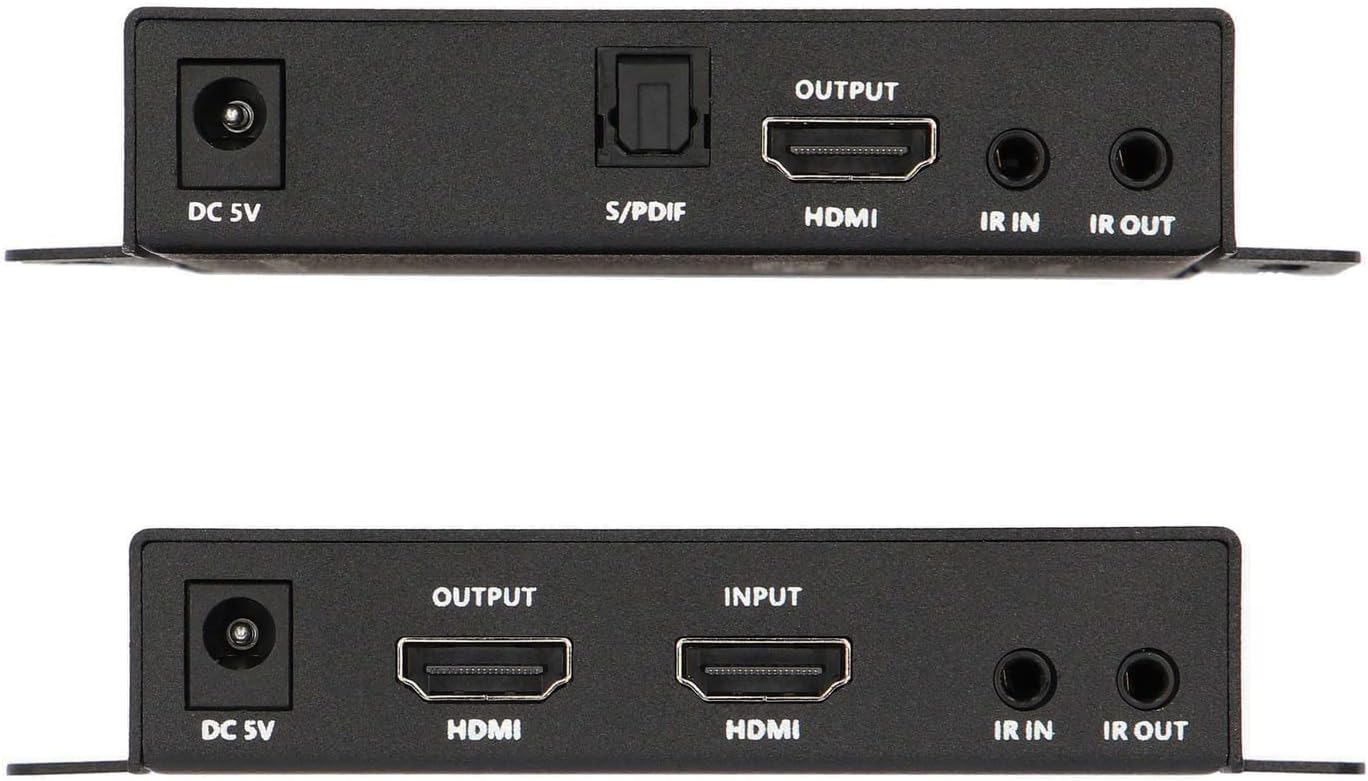
Figure 5.1: Rear view of the Metra CS-HDEXT4KPOEU Transmitter and Receiver units. This image highlights the various ports on the back of each unit, including DC 5V power input, S/PDIF (on receiver), HDMI input/output, and IR IN/OUT ports.

Figure 5.2: Front view of the Metra CS-HDEXT4KPOEU Transmitter and Receiver units. This image shows the CAT6 IN/OUT ports, reset buttons, and 4K 60Hz HDR indicator lights on the front panel of both units.
6. Operating Instructions
Once the setup is complete, the extender system should operate automatically. Ensure all connections are secure and power is supplied to the transmitter unit.
- Signal Transmission: The extender will automatically detect and transmit the HDMI signal from the source to the display.
- Indicator Lights: Observe the 4K 60Hz HDR indicator lights on both the Transmitter and Receiver units. A lit indicator typically signifies a successful signal connection and active operation.
- IR Control: Use your original remote control at either the source or display location. The IR extender cables will relay the commands to the respective device. Ensure the IR emitter is directly aligned with the device's IR sensor.
- Audio Extraction (Receiver): If desired, connect an audio system to the S/PDIF OUT port on the Receiver unit to extract digital audio from the HDMI signal.
7. Maintenance
The Metra CS-HDEXT4KPOEU is designed for reliable operation with minimal maintenance. Follow these guidelines to ensure longevity:
- Cleaning: Use a soft, dry cloth to clean the units. Do not use liquid cleaners or aerosols.
- Ventilation: Ensure the units have adequate ventilation. Do not block the ventilation holes.
- Environment: Store and operate the units in a cool, dry environment, away from direct sunlight, heat sources, and excessive moisture.
- Cable Management: Ensure all cables are neatly organized and not under strain to prevent damage to ports or cables.
8. Troubleshooting
If you encounter issues with your Metra CS-HDEXT4KPOEU, refer to the following troubleshooting steps:
| Problem | Possible Cause | Solution |
|---|---|---|
| No video or audio output. |
|
|
| Poor video quality (flickering, distortion). |
|
|
| IR control not working. |
|
|
9. Specifications
| Feature | Detail |
|---|---|
| Model Number | CS-HDEXT4KPOEU |
| Brand | Metra |
| Max Resolution / Distance (CAT-6/6A/7) | 4K/60 HDR up to 164 ft. (50 m) |
| Max Resolution / Distance (CAT-6/6A/7) | 1080p up to 229 ft. (70 m) |
| Latency | Zero |
| Audio Support | Dolby TrueHD 7.1, Dolby Digital 5.1, S/PDIF audio extraction |
| IR Support | Bi-directional |
| Power Supply | DC 5V (PoC - power on one side) |
| Dimensions | 9.5 x 7 x 3.25 inches (Product Dimensions) |
| Item Weight | 3 pounds |
| UPC | 086429419722 |
10. Warranty and Support
For warranty information and technical support, please contact Metra customer service. Keep your purchase receipt as proof of purchase for warranty claims.
Manufacturer: METRA- ETHEREAL
For the most up-to-date support information, please refer to the official Metra website or contact their customer service department directly.
Ask a question about this manual
Ask about setup, troubleshooting, compatibility, parts, safety, or missing instructions. Manuals+ will review the question and use this page’s manual context to help answer it.