
1. Introduction
The ASHATA 5 Keys Programmable Keypad is a compact, versatile input device designed for various applications including office work, gaming, music production, media control, industrial control, and laboratory use. It features both wired USB and wireless Bluetooth dual-mode connectivity, allowing for flexible integration into your workflow. All five keys are fully programmable, enabling users to assign single functions or complex shortcut key combinations.

Top-down view of the ASHATA 5 Keys Programmable Keypad, illustrating the layout of its five programmable black silicone keys.
2. Package Contents
Please verify that all items are present in your package:
- 1 x ASHATA 5 Keys Programmable Keypad
- 1 x USB-A to USB-C Data Cable
- 4 x Foot Pads

The package contents are shown here: the ASHATA 5 Keys Programmable Keypad, a white USB-A to USB-C data cable, and four circular black foot pads for stability.
3. Setup
3.1. Initial Connection
The keypad supports both wired USB and wireless Bluetooth connections. You can connect the keypad to your computer or compatible device using either method.
Wired Connection:
- Connect the USB-C end of the provided data cable to the port on the side of the keypad.
- Connect the USB-A end of the data cable to an available USB port on your computer.
- The keypad should be recognized automatically by your operating system.
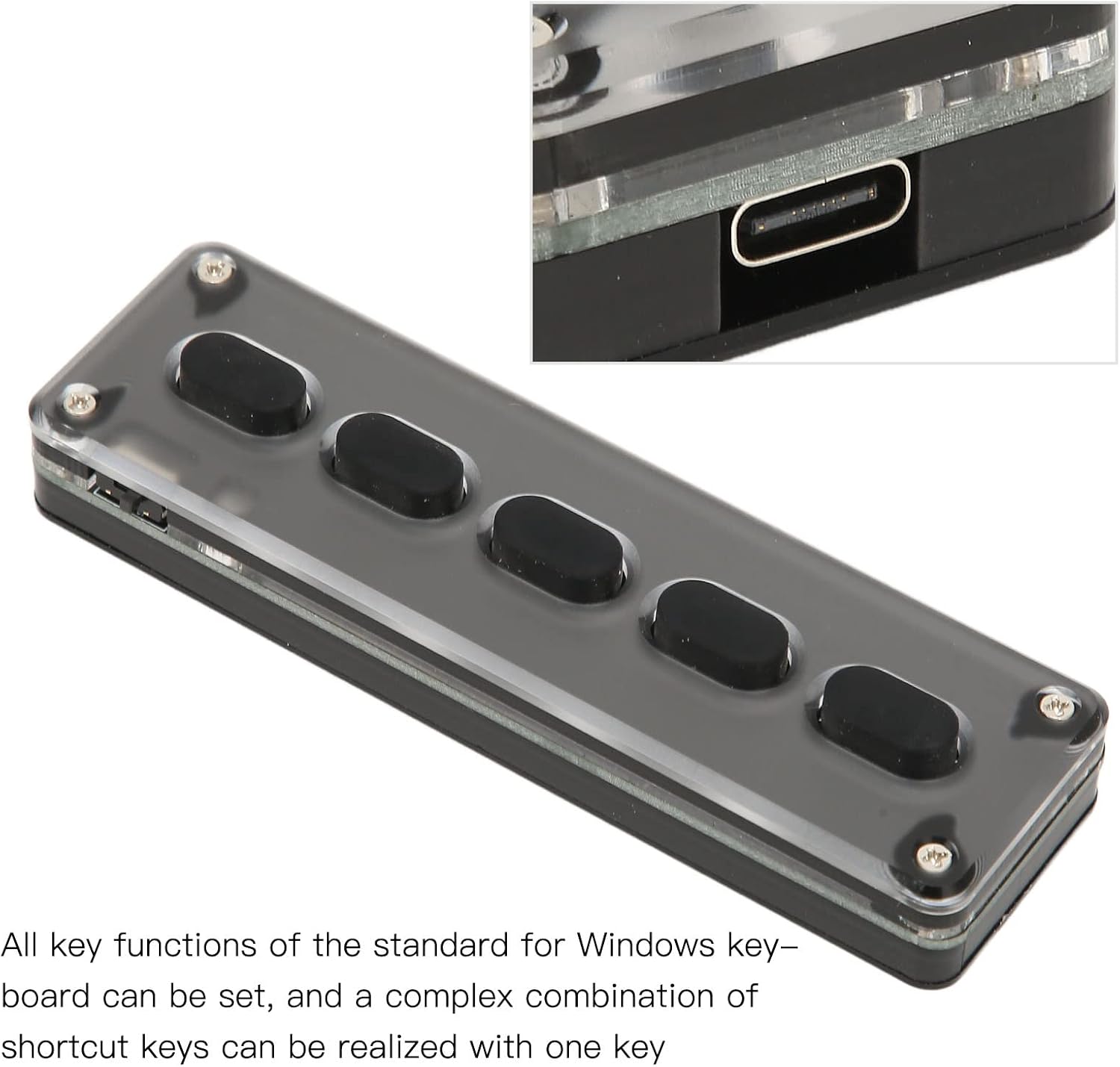
This image displays the ASHATA 5 Keys Programmable Keypad, highlighting the USB-C port located on the side, used for wired connection and charging.
Bluetooth Connection:
- Ensure the keypad is charged or connected via USB initially.
- Activate Bluetooth on your computer or device.
- Put the keypad into Bluetooth pairing mode (refer to the device's small indicator light or button, if present, for specific instructions).
- Search for available Bluetooth devices on your computer/device and select the ASHATA keypad to pair.
3.2. Programming Software
To program the keys, dedicated software is required. This software is typically provided by the manufacturer or seller. Please contact the seller directly to obtain the correct programming software for your keypad model. Installation instructions for the software will be provided with the software package.
4. Operating Instructions
4.1. Key Programming
The primary function of this keypad is its programmability. Once the programming software is installed and running on your computer, follow these general steps:
- Open the programming software.
- Select the key you wish to program (e.g., "KEY 1").
- Use the on-screen interface within the software to assign a function. This can be a single key press, a combination of keys (e.g., Ctrl+C), or a macro.
- After assigning the desired function, locate and click the "Download" or "Apply" button within the software to transfer the programming to the keypad.
- Repeat this process for each of the five keys as needed.
Note: The specific interface and terminology within the programming software may vary. Refer to the software's own instructions for detailed guidance.
4.2. Multi-Device Connection
The keypad can operate simultaneously with another keyboard on the same computer without interference, allowing for expanded control options.
5. Maintenance
To ensure the longevity and optimal performance of your ASHATA 5 Keys Programmable Keypad, follow these simple maintenance guidelines:
- Cleaning: Use a soft, dry cloth to wipe the surface of the keypad. For stubborn dirt, a slightly damp cloth with mild soap can be used, ensuring no liquid enters the device.
- Storage: Store the keypad in a cool, dry place away from direct sunlight and extreme temperatures.
- Handling: Avoid dropping the keypad or subjecting it to strong impacts. Do not attempt to disassemble the device, as this may void any potential warranty.
6. Troubleshooting
If you encounter issues with your ASHATA 5 Keys Programmable Keypad, please refer to the following common problems and solutions:
| Problem | Possible Cause | Solution |
|---|---|---|
| Keypad not recognized (Wired) | Loose cable connection, faulty USB port, driver issue. | Ensure the USB cable is securely connected. Try a different USB port on your computer. Test with another computer if possible. |
| Keypad not pairing (Bluetooth) | Keypad not in pairing mode, Bluetooth disabled on device, compatibility issue. | Ensure Bluetooth is enabled on your device. Put the keypad into pairing mode. Some devices (e.g., Chromecast with Google TV) may have compatibility limitations. |
| Keys not performing assigned functions | Programming not saved, incorrect programming, software issue. | Ensure you clicked "Download" or "Apply" in the programming software. Double-check the assigned functions. Reinstall the programming software if necessary. |
| No programming software available | Software not included in package. | Contact the seller directly to obtain the correct programming software. |
7. Specifications
| Feature | Detail |
|---|---|
| Model | B0BFJPTJWS |
| Connectivity Technology | Bluetooth, USB (Wired) |
| Number of Keys | 5 (Programmable) |
| Material | Silicone |
| Color | Black |
| Item Weight | 4.1 ounces |
| Package Dimensions | 5.31 x 2.36 x 1.81 inches |
| Compatible Devices | Laptop (and other compatible devices) |
| Recommended Uses | Office, Gaming, Music, Media, Industrial Control, Laboratory |
8. Warranty & Support
8.1. Warranty Information
Specific warranty details for the ASHATA 5 Keys Programmable Keypad are not provided in this manual. For information regarding warranty coverage, duration, and terms, please refer to the product packaging, any included warranty cards, or contact the seller or manufacturer directly.
8.2. Customer Support
If you require further assistance, have questions not covered in this manual, or need technical support, please contact the seller through the platform where the product was purchased. They can provide guidance on programming software, troubleshooting, and other product-related inquiries.
