
Introduction
The Logitech MX Brio Ultra HD 4K Webcam is designed to elevate your video communication and content creation. Featuring sharp 4K resolution, AI image enhancement, and advanced audio capabilities, it ensures you look and sound your best in any setting. This manual will guide you through the setup, operation, and maintenance of your new webcam.

Image: The Logitech MX Brio webcam in Pale Grey, showcasing its sleek design and prominent lens.
What's in the Box
Upon unboxing your Logitech MX Brio, you will find the following components:
- Logitech MX Brio Webcam
- USB-C to USB-C Cable (1.5m)
- User Documentation
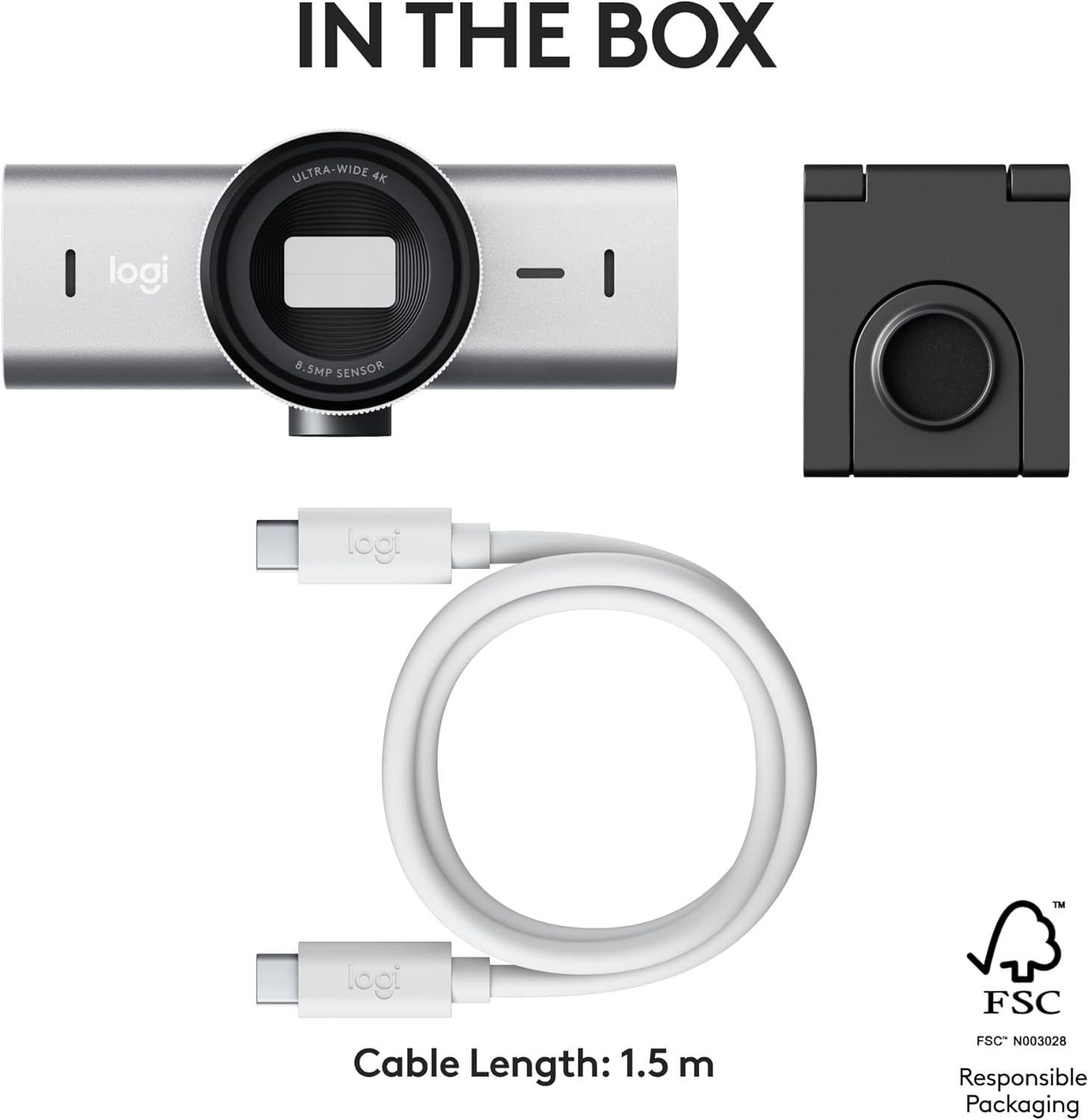
Image: A visual representation of the Logitech MX Brio webcam and its accessories included in the product packaging.
Unboxing Video
Video: An official unboxing video for the Logitech MX Brio webcam, demonstrating the contents and initial presentation of the product.
Setup
Follow these steps to set up your Logitech MX Brio webcam:
- Mounting the Webcam: Place the webcam securely on top of your monitor or laptop screen using its integrated magnetic mount. Ensure it is stable and positioned to capture your desired view.
- Connecting to Your Computer: Connect the included USB-C cable from the webcam to an available USB-C port on your computer. The webcam is compatible with Windows, macOS, Chrome OS, and Linux.
- Software Installation (Logitech Options+): For full customization and control over your webcam's features, download and install the Logitech Options+ software from the official Logitech website. This software allows you to adjust settings such as field of view, exposure, image quality, and more.

Image: The Logitech MX Brio webcam mounted on a computer monitor, demonstrating a typical setup for video calls and streaming.

Image: The Logitech Options+ software interface, providing controls for customizing the MX Brio webcam's settings.
Features
The Logitech MX Brio is equipped with several advanced features to enhance your video experience:
- Ultra HD 4K Resolution: Capture video in stunning 4K at 30fps or 1080p at 60fps, ensuring sharp and detailed image quality.
- AI-Enhanced Image Quality: Benefit from auto-exposure, auto white balance, noise reduction, and autofocus for improved face visibility and finer image details, especially in challenging lighting conditions.
- Dual Noise-Reducing Microphones: Integrated omnidirectional microphones with AI-powered noise reduction minimize background sound, ensuring your voice is heard clearly.
- Show Mode: Easily share physical work or notes on your desk by tilting the webcam down. The image automatically flips for correct orientation.
- Built-in Privacy Shutter: A simple rotation of the integrated webcam cover physically blocks the lens, providing immediate privacy.
- Customizable Controls: Utilize Logitech Options+ to precisely adjust lighting, white balance (ISO, Shutter Speed, Temperature, Tint, Vibrance), and field of view (65°, 78°, 90°).
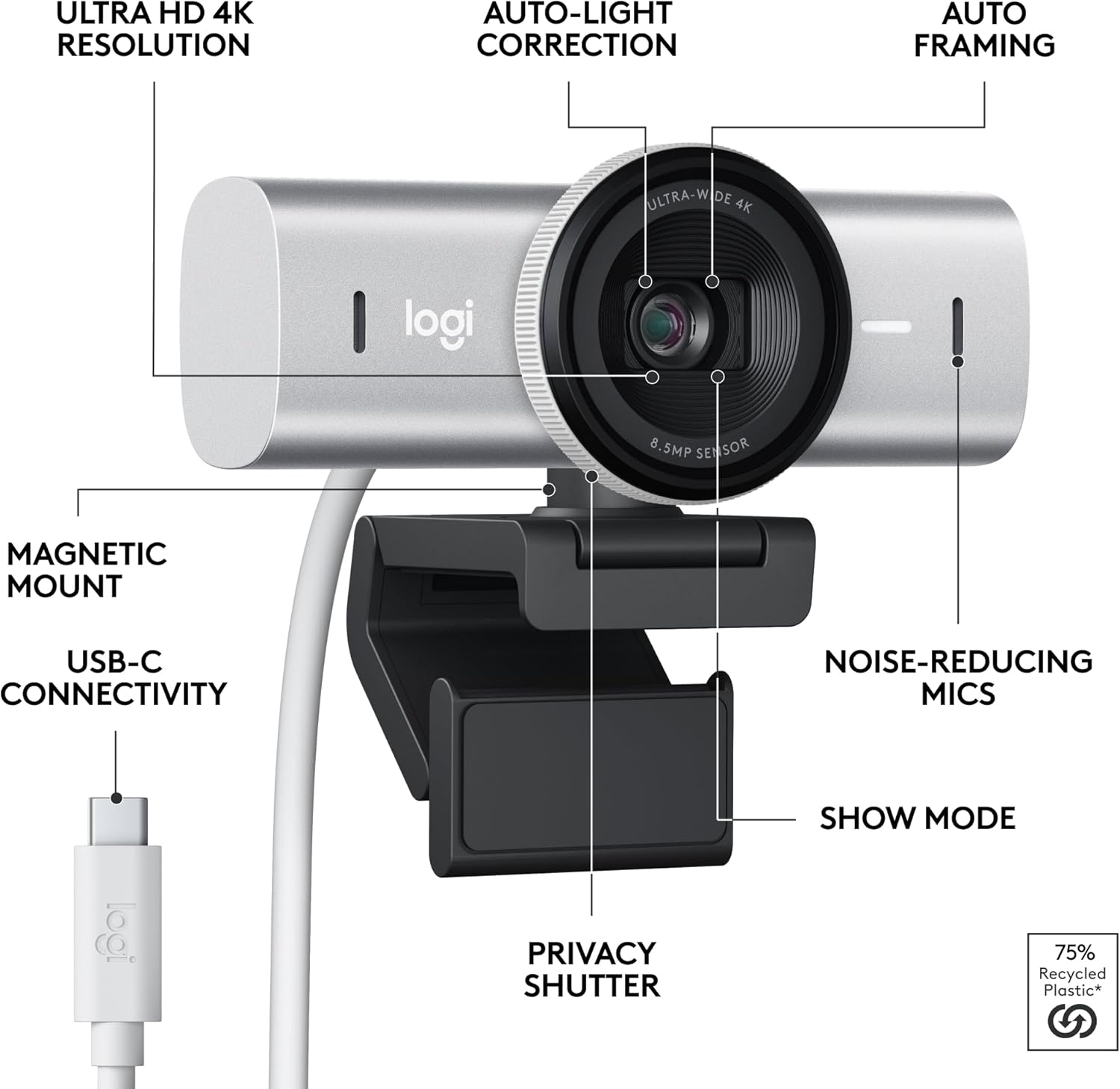
Image: An annotated diagram illustrating the various features and components of the Logitech MX Brio webcam.

Image: A visual example of the AI-enhanced image quality, showing improved face visibility and detail in challenging light conditions.

Image: The webcam positioned on a monitor, with graphic overlays representing sound waves, emphasizing the noise-reducing microphone feature.

Image: A hand demonstrating the use of the built-in privacy shutter, rotating it to block the webcam's lens.
Operating Instructions
Once set up, the Logitech MX Brio is ready for use with your preferred video conferencing or streaming applications. For optimal performance and access to advanced features, utilize the Logitech Options+ software.
Using Show Mode
Show Mode allows you to quickly share physical objects or documents on your desk during a video call:
- During a video call, gently tilt the Logitech MX Brio webcam downwards towards your desk.
- The webcam's image will automatically flip to correctly orient your desk view for participants.
- Tilt the webcam back up to return to your face view.

Image: A user demonstrating Show Mode by tilting the webcam to display content on their desk during a video call.
Customizing with Logitech Options+
Logitech Options+ provides granular control over your webcam's settings:
- Field of View: Select between 65°, 78°, or 90° to frame your shot perfectly.
- Exposure Settings: Manually adjust shutter speed, ISO, and exposure compensation, or enable Auto Exposure for automatic adjustments.
- Image Adjustments: Fine-tune brightness, contrast, saturation, and white balance to achieve your desired look.
- Focus Control: Switch between autofocus and manual focus for precise control over what's sharp in your video.

Image: A user adjusting the video settings of their MX Brio webcam through the Logitech Options+ software interface.
Maintenance
To ensure the longevity and optimal performance of your Logitech MX Brio webcam, follow these maintenance guidelines:
- Cleaning the Lens: Use a soft, lint-free cloth specifically designed for optics to gently wipe the webcam lens. Avoid abrasive materials or harsh chemicals.
- Cleaning the Body: Wipe the webcam's body with a soft, damp cloth. Do not submerge the device in water or use excessive moisture.
- Storage: When not in use, store the webcam in a clean, dry place away from extreme temperatures and direct sunlight. Utilize the built-in privacy shutter to protect the lens.
Troubleshooting
If you encounter issues with your Logitech MX Brio webcam, try the following troubleshooting steps:
- Webcam Not Detected: Ensure the USB-C cable is securely connected to both the webcam and your computer. Try a different USB-C port or a different cable if available. Restart your computer.
- Poor Image Quality: Check your lighting conditions. Ensure the lens is clean. Adjust settings in Logitech Options+ (exposure, white balance, focus) to optimize the image.
- No Audio/Poor Audio: Verify that the MX Brio is selected as the audio input device in your operating system's sound settings and in your video conferencing application. Check for any physical obstructions to the microphones.
- Software Issues: Ensure your Logitech Options+ software is up to date. If problems persist, try reinstalling the software.
For further assistance, refer to the Logitech support website or contact customer service.
Specifications
| Specification | Detail |
|---|---|
| Model Number | 960-001550 |
| Product Dimensions | 2.1 x 3.9 x 2.4 inches |
| Item Weight | 13.4 ounces |
| Video Capture Resolution | 4K (30fps), 1080p (60fps) |
| Photo Sensor Technology | CMOS |
| Connectivity Technology | USB-C |
| Microphones | Dual omnidirectional, noise-reducing |
| Compatibility | Windows, macOS, Chrome OS, Linux |
Warranty and Support
Logitech products are backed by a limited hardware warranty. For specific warranty terms and conditions applicable to your region, please refer to the warranty information included with your product or visit the official Logitech website.
For technical support, FAQs, and additional resources, please visit the Logitech support page for the MX Brio webcam:


