
Introduction
Thank you for choosing the Abask Q40 1080P Dashcam. This device is designed to provide reliable video recording for your vehicle, enhancing driving safety and providing evidence in unforeseen events. This manual will guide you through the setup, operation, and maintenance of your dashcam.
Package Contents
Please verify that all items listed below are included in your package:
- 1x Abask Q40 Car Camera
- 1x Suction cup mount
- 1x Car charger with 3.5m USB cable
- 1x 32GB SD card (pre-inserted in the camera)
- 1x Mini-B USB cable (0.6m)
- 1x User manual

Image: Contents of the Abask Q40 Dashcam package, showing the main camera unit, suction cup mount, car charger, Mini-B USB cable, and a 32GB SD card.
Setup
- Insert SD Card: The 32GB SD card is pre-inserted. If replacing, ensure the camera is off before inserting or removing the card.
- Mounting: Attach the suction cup mount to your windshield. Ensure the surface is clean and dry for optimal adhesion. Secure the dashcam onto the mount. Position the camera to have a clear view of the road ahead without obstructing your driving view.
- Power Connection: Connect the car charger to your vehicle's cigarette lighter socket and the Mini-B USB cable to the dashcam's power port. The dashcam will automatically power on and begin recording when the vehicle's engine starts.
Image: Diagram illustrating the easy installation process of the Abask Q40 Dashcam, showing the camera attached to the windshield via a suction cup mount and connected to the car's power source.
Operating Instructions
Basic Operation
- Automatic Recording: The dashcam automatically starts recording when the vehicle engine is turned on and stops when the engine is turned off.
- Screen Display: The 4-inch Super IPS screen displays real-time footage. You can review recordings directly on the screen.
- Menu Navigation: Use the physical buttons on the dashcam to navigate through settings and playback options. Refer to the on-screen prompts for specific functions.
Key Features
1080P Full HD Recording
The dashcam captures video in 1080P Full HD at 30 frames per second, ensuring clear and detailed recordings of the road. The 170° ultra-wide view angle covers multiple lanes, capturing more details.

Image: Visual representation of the Abask Q40 Dashcam's 1080P Full HD recording capability and 170-degree wide-angle view, capturing a broad perspective of the road ahead.
Super Night Vision with WDR
Equipped with an F1.8 aperture and WDR (Wide Dynamic Range) technology, the dashcam provides clear and sharp recordings even in low-light conditions or at night. This feature prevents overexposure and ensures color accuracy.

Image: Illustration of the Abask Q40 Dashcam's Super Night Vision feature, demonstrating its ability to capture clear images and videos in low-light conditions using F1.8 aperture and WDR technology.
G-Sensor (Emergency Accident Lock)
The built-in G-sensor automatically detects sudden shakes or collisions. When triggered, it locks the current video footage to prevent it from being overwritten, securing critical evidence of an accident.
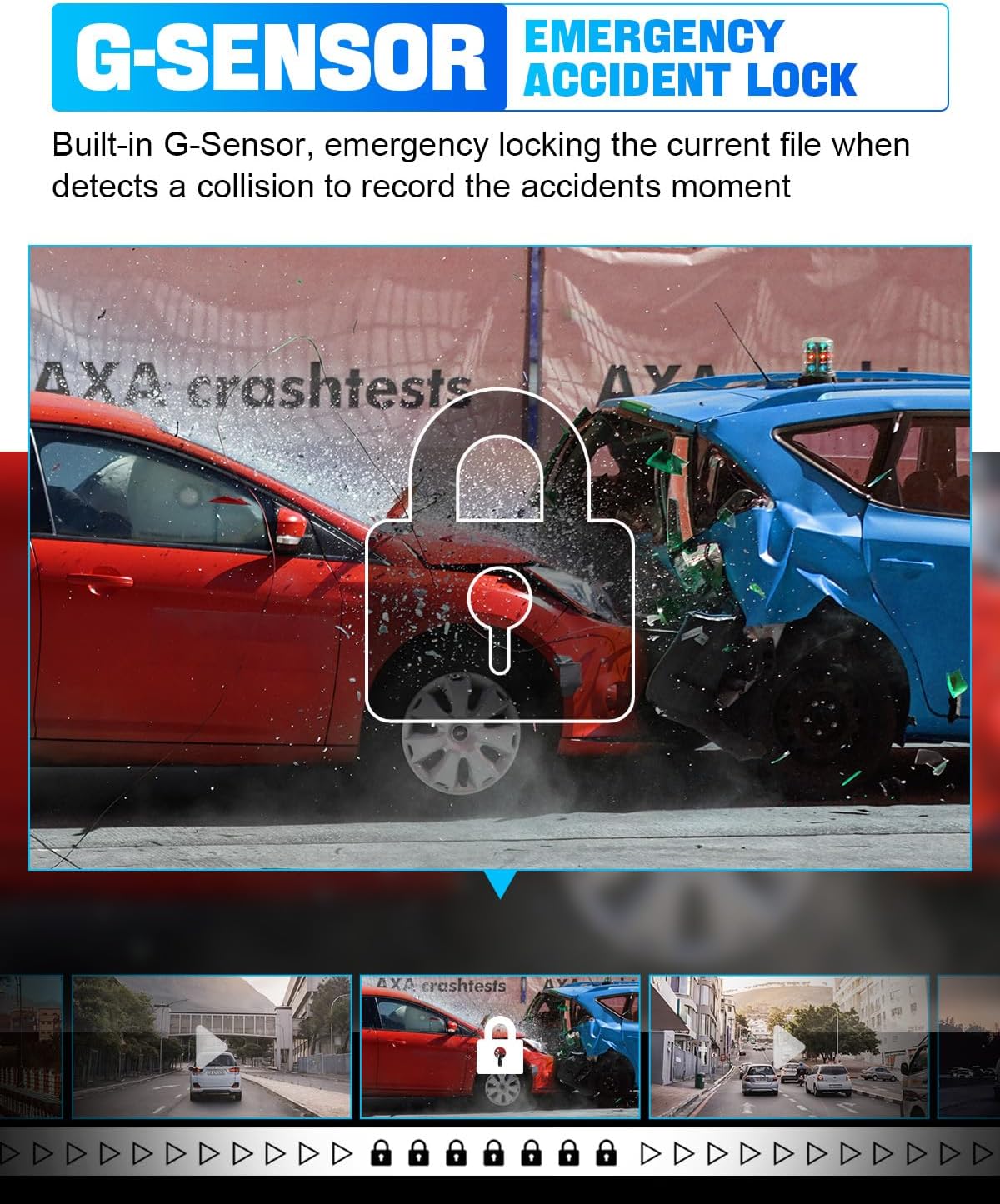
Image: Depiction of the G-Sensor (Emergency Accident Lock) feature, showing two cars colliding and a lock icon indicating that the video footage is being protected.
Loop Recording
This feature ensures continuous recording by automatically overwriting the oldest unprotected files when the memory card is full. This eliminates the need to manually clear storage space.

Image: Illustration of the 32GB Loop Recording function, demonstrating how the dashcam automatically manages storage by overwriting older, unprotected video files to ensure continuous recording.
Parking Monitoring (24H)
When the vehicle is parked, the dashcam can detect vibrations and automatically start recording. This provides surveillance for your vehicle even when you are away. Note: This feature requires an ACC hardwire kit (not included) to connect the camera directly to the car battery for continuous power.

Image: Visual explanation of the 24H Parking Monitoring feature, depicting a scenario where a parked car is bumped, and the dashcam automatically records the event.
Reversing View Assistance
The dashcam supports a full-screen reversing view with a parking grid, aiding in safer and easier reversing and parking maneuvers. Note: This feature requires the purchase of a separate rear camera (ASIN: B0BN2828XM).

Image: Screenshot of the Abask Q40 Dashcam's screen displaying the Reversing View with an overlaid parking grid, designed to assist with parking and reversing.
Motion Detection
When enabled, the dashcam will automatically start recording if it detects movement in front of the lens while parked. This feature also requires continuous power supply.
Maintenance
- Cleaning: Use a soft, dry cloth to clean the camera lens and screen. Avoid using abrasive cleaners or solvents.
- SD Card: Periodically format the SD card (at least once a month) within the dashcam's settings to maintain optimal performance and prevent data corruption. Back up any important files before formatting.
- Firmware Updates: Check the official Abask website for any available firmware updates to ensure your dashcam operates with the latest features and improvements.
Troubleshooting
| Problem | Solution |
|---|---|
| Dashcam does not power on. |
|
| Recording stops unexpectedly. |
|
| Video footage is blurry or unclear. |
|
| Suction cup mount keeps falling off. |
|
Specifications
| Feature | Detail |
|---|---|
| Brand | ABASK |
| Model | Q40 |
| Screen Size | 4 Inches (Super IPS) |
| Video Resolution | 1080P Full HD @ 30fps |
| Lens Angle | 170° Wide Angle (6-element glass lens) |
| Aperture | F1.8 |
| Special Features | WDR, G-Sensor, Loop Recording, Motion Detection, Parking Monitoring, Reversing View Assistance (with optional rear camera) |
| Storage | Supports Micro SD card (32GB card included) |
| Connectivity | USB |
| Mounting Type | Suction cup mount |
| Power Source | Car charger (12V/24V) |
Warranty and Support
Abask is committed to providing high-quality products and customer satisfaction. While specific warranty details are not provided in this manual, Abask offers dedicated customer assistance and 24/7 technical support.
For any questions, technical issues, or support needs, please contact Abask customer service through their official channels or the retailer where the product was purchased.


