
Introduction
Thank you for choosing the Estink Mt7921 NGFF M.2 Card. This high-speed wireless network card is designed to provide stable and efficient connectivity for your desktop system. Supporting 2.4GHz and 5GHz dual-band frequencies and the 802.11ax protocol, it offers a transfer rate of up to 1800Mbps. This manual provides detailed instructions for installation, operation, and troubleshooting to ensure optimal performance.
Key Features
- Dual-Band Support: Operates on both 2.4GHz and 5GHz frequencies, supporting the 802.11ax protocol for stable and efficient wireless communication.
- High-Speed Transmission: Achieves speeds up to 1800Mbps, ensuring fast and reliable data transfer.
- Plug and Play: Designed for easy installation and immediate use with compatible systems.
- Wide System Compatibility: Fully supports Windows 10 and Windows 11 operating systems.
- Durable Design: Features an excellent PCB (Printed Circuit Board) to resist corrosion and wear, ensuring long-term stable performance.
- Compact Size: Small and compact form factor, making it easy to install in various desktop configurations.
Package Contents
Please verify that all items are present and in good condition upon opening the package.
- 1 x Estink Mt7921 NGFF M.2 Network Card
- 1 x Gasket
- 1 x Screw
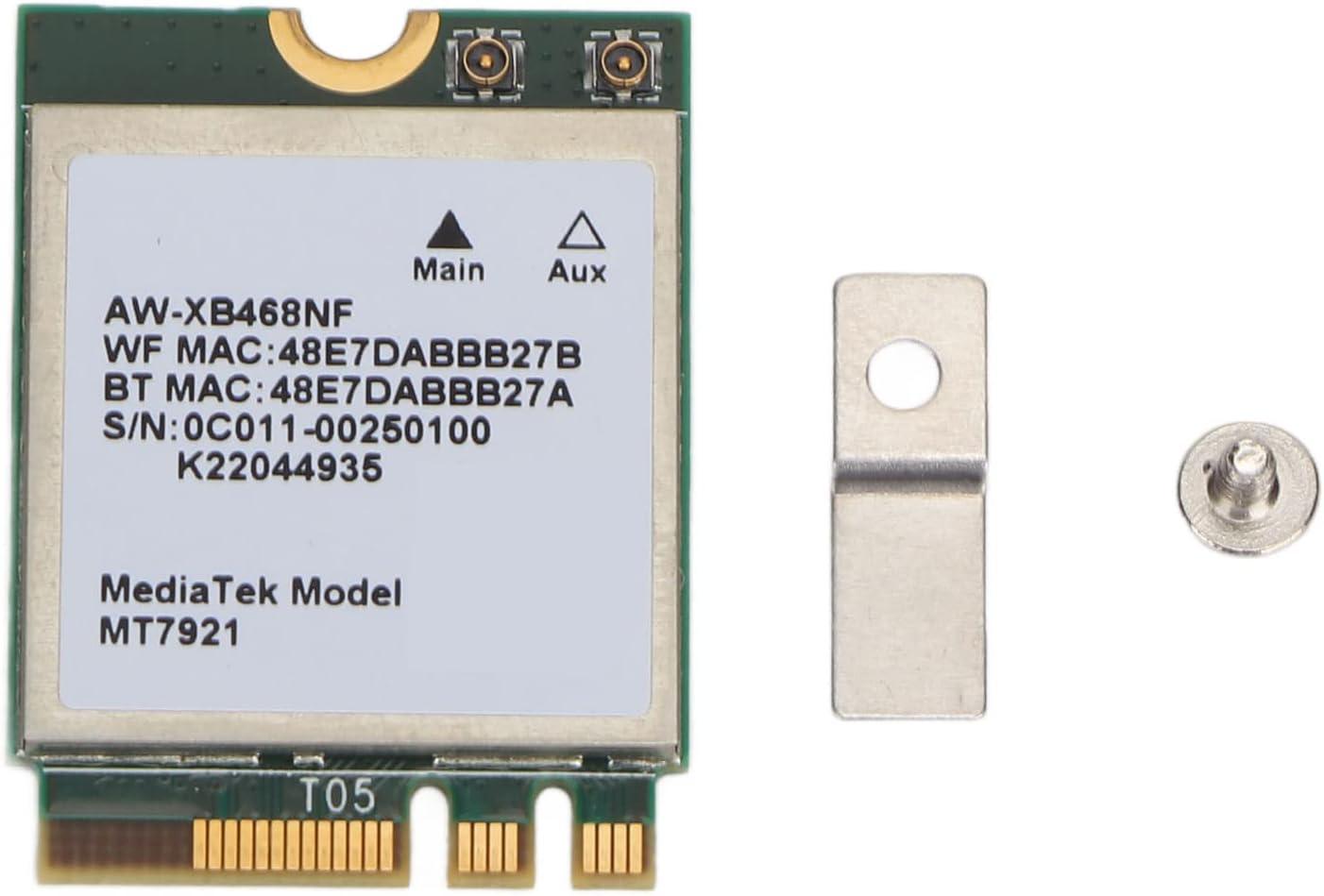
Image: The Estink Mt7921 NGFF M.2 Network Card shown alongside its accompanying gasket and screw, which are included for installation.
Setup and Installation
The Estink Mt7921 NGFF M.2 Card is designed for straightforward installation. Please follow these steps carefully.
- Power Off Your System: Before beginning installation, ensure your computer is completely powered off and disconnected from the power source.
- Open Computer Case: Carefully open your computer's case to access the motherboard.
- Locate M.2 Slot: Identify an available NGFF M.2 slot on your motherboard. These slots are typically labeled and are designed for compact expansion cards.
- Insert Network Card: Gently insert the Estink Mt7921 NGFF M.2 Card into the M.2 slot at a slight angle. Apply even pressure until it is fully seated.
- Secure the Card: Once seated, push the card down towards the motherboard. Use the provided screw and gasket to secure the card in place. The gasket helps to ensure a snug fit and prevent damage.
- Close Computer Case: Carefully close your computer's case and reconnect all cables.
- Power On and Verify: Power on your computer. The system should automatically detect the new network card. For Windows 10 and 11, it is typically plug and play, meaning drivers should install automatically.
- Driver Installation (if necessary): If the card is not automatically recognized or if you experience connectivity issues, you may need to manually install drivers. Check the manufacturer's website for the latest drivers for the MediaTek MT7921 chipset.

Image: A detailed view of the Estink Mt7921 NGFF M.2 Card, highlighting its M.2 interface for easy insertion into compatible slots.
Operating Instructions
Once installed, the Estink Mt7921 NGFF M.2 Card functions as your computer's primary wireless adapter. Here's how to use it:
- Connect to Wi-Fi:
- On Windows 10/11, click the Wi-Fi icon in the system tray (usually bottom-right corner).
- Select your desired wireless network from the list of available networks.
- Enter the network security key (password) if prompted.
- Click "Connect."
- Network Performance: The card automatically selects the optimal band (2.4GHz or 5GHz) based on network availability and signal strength. For higher speeds and less interference, connect to a 5GHz network if available.
- Bluetooth Functionality: (Note: While the card supports Wi-Fi, verify if your specific model and system configuration enable Bluetooth functionality through this card. Some M.2 Wi-Fi cards also integrate Bluetooth.)

Image: The network card displayed with key operational specifications, including its dual-band capability and high-speed data transfer rate.
Maintenance
The Estink Mt7921 NGFF M.2 Card requires minimal maintenance. Follow these guidelines to ensure its longevity and optimal performance:
- Keep Drivers Updated: Periodically check for updated drivers from the manufacturer's website (MediaTek or Estink) to ensure compatibility and performance improvements.
- Maintain Clean Environment: Ensure your computer's internal environment is free from excessive dust, which can accumulate on components and affect performance. Regular cleaning of your computer case is recommended.
- Avoid Physical Damage: Handle the card with care during installation or removal. Avoid bending or applying excessive force to the PCB.
Troubleshooting
If you encounter issues with your Estink Mt7921 NGFF M.2 Card, refer to the following common troubleshooting steps:
| Problem | Possible Cause | Solution |
|---|---|---|
| Card not detected by system. |
|
|
| No Wi-Fi networks found. |
|
|
| Slow Wi-Fi speeds. |
|
|
| Frequent disconnections. |
|
|
Specifications
Detailed technical specifications for the Estink Mt7921 NGFF M.2 Card:
| Feature | Detail |
|---|---|
| Model | Estink9y056dx72h1487 (MediaTek MT7921) |
| Interface Type | NGFF M.2 |
| Wireless Protocol | 802.11ax (Wi-Fi 6) |
| Frequency Bands | 2.4GHz, 5GHz |
| Max Speed | 1800Mbps |
| System Support | Windows 10, Windows 11 |
| Material | PCB (Printed Circuit Board) |
| Dimensions (Approx.) | 2.76 x 1.73 x 0.28 inches (Package Dimensions) |
| Item Weight | 0.704 ounces (0.02 Kilograms) |

Image: The Estink Mt7921 NGFF M.2 Card, showcasing its design and build quality.
Warranty and Support
Estink is committed to providing high-quality products and customer satisfaction. For warranty information or technical support, please refer to the following:
- Warranty: Specific warranty terms may vary by region and retailer. Please retain your proof of purchase for warranty claims.
- Technical Support: For further assistance, troubleshooting, or driver downloads, please visit the official Estink website or contact their customer support channels.
- Online Resources: You can often find additional support and community forums by searching for "Estink Mt7921 support" online.

Image: The official Estink brand logo.