
1. Introduction
Thank you for choosing the XTREMTEC Slim Wireless Keyboard and Mouse Combo. This 2.4G USB set offers a quiet, low-profile, and ergonomic design for comfortable and efficient use across various devices. This manual provides detailed instructions to help you set up, operate, and maintain your new wireless combo.
2. Product Features
- Retro Round Key Design: Vintage typewriter-inspired rounded keycaps provide a unique aesthetic and comfortable typing experience.
- Ultra-Thin & Lightweight: The keyboard features a slim, low-profile layout made of durable ABS material, making it easy to carry. The thinnest part is approximately 0.15 inches (4mm).
- Whisper-Quiet Operation: Noise-reduced scissor-switch keys on the keyboard and a noiseless optical mouse ensure a quiet working environment.
- Durable Keys: Keys are designed for up to 3 million presses and feature UV coating for anti-scratch and anti-fading lettering.
- Plug and Play Wireless Connectivity: A single 2.4G nano USB receiver connects both the keyboard and mouse instantly. Includes a USB-C adapter for broader compatibility.
- Long Battery Life & Auto-Sleep: Both devices enter an auto-sleeping mode after 5-10 seconds of inactivity to conserve energy.
- DPI Adjustable Mouse: The ergonomic mouse allows for DPI adjustment between 3 different levels with a single click, and includes a 'Back to previous page' button.
- Wide Compatibility: Compatible with Windows XP, Vista, 7, 8, 10, Mac iOS, PCs, Laptops, Smart TVs, desktop computers, notebooks, smartphones, and tablets.
3. Package Contents
- Wireless Keyboard
- Wireless Mouse
- 2.4G Nano USB Receiver (stored inside keyboard or mouse)
- USB-C to USB-A Adapter
- Silicone Keyboard Cover
- Cleaning Brush
- Small Notepad
- User Manual
4. Setup Instructions
4.1. Battery Installation
The keyboard and mouse require batteries (not included). Please refer to the device for specific battery type (e.g., AA/AAA) and quantity. Typically, the keyboard requires 2 AAA batteries and the mouse requires 1 AA battery.
- Locate the battery compartment on the underside of the keyboard and mouse.
- Insert the required batteries, ensuring correct polarity (+/-).
- Close the battery compartment covers securely.
4.2. Connecting the USB Receiver
The 2.4G nano USB receiver is stored either in the keyboard's battery compartment or the mouse's battery compartment for safekeeping.
- Remove the nano USB receiver from its storage slot.
- Plug the USB receiver into an available USB-A port on your computer. If your device only has USB-C ports, use the provided USB-C to USB-A adapter.
- The system will automatically detect and install the necessary drivers. This is a plug-and-play process, requiring no manual driver installation.
4.3. Powering On
- Locate the ON/OFF switch on the back or bottom of both the keyboard and the mouse.
- Slide the switches to the 'ON' position.
- The keyboard and mouse should now be ready for use.

Image: The 2.4G USB receiver connects the keyboard and mouse to your computer.
Video: XTREMTEC Slim Wireless 2.4G Keyboard and Mouse Combo demonstration, highlighting the plug-and-play setup.
5. Operating Instructions
5.1. Keyboard Usage
The keyboard features retro-rounded, scissor-switch keys designed for quiet and comfortable typing. The ergonomic tilt design further enhances typing comfort.
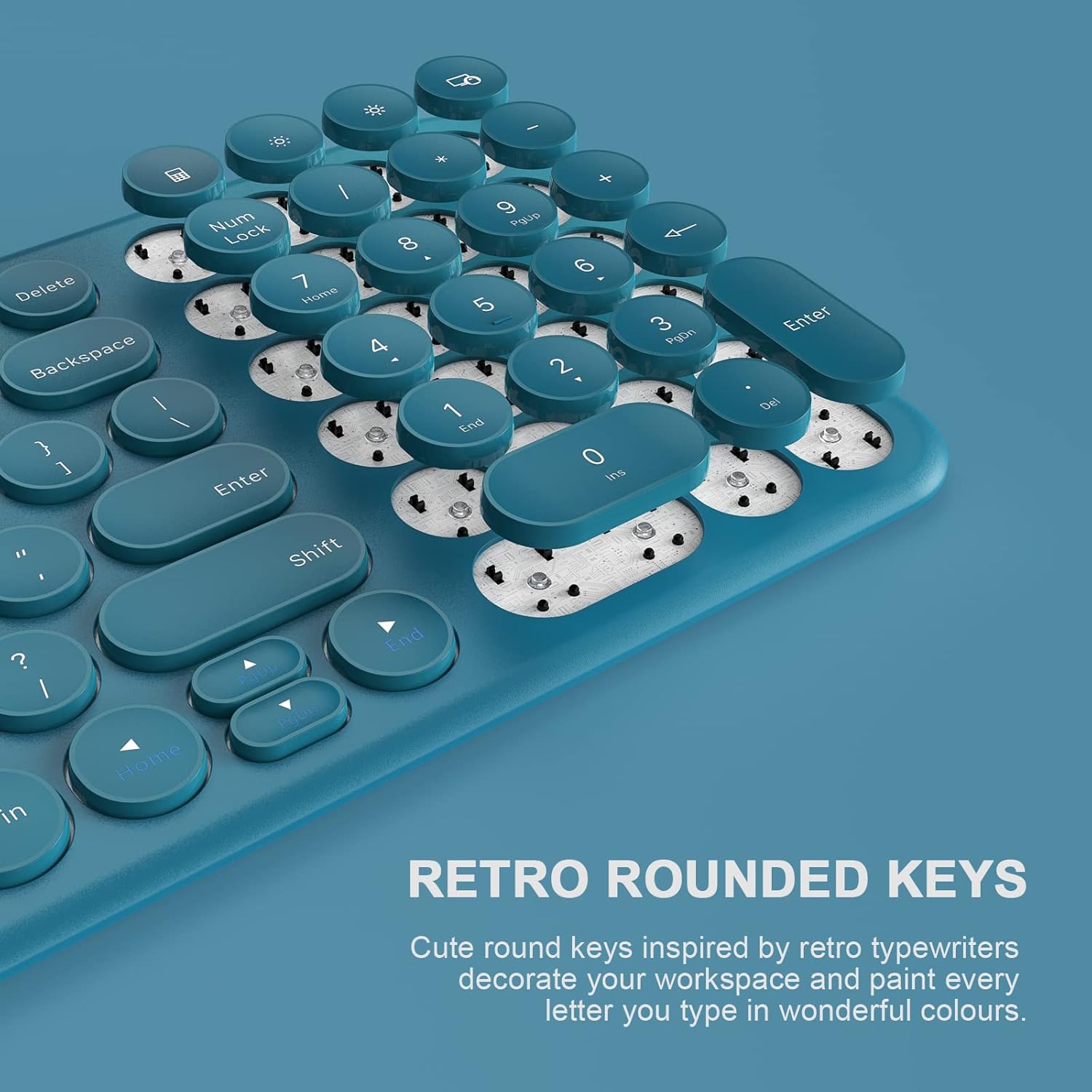
Image: Close-up view of the retro rounded keys on the XTREMTEC keyboard.
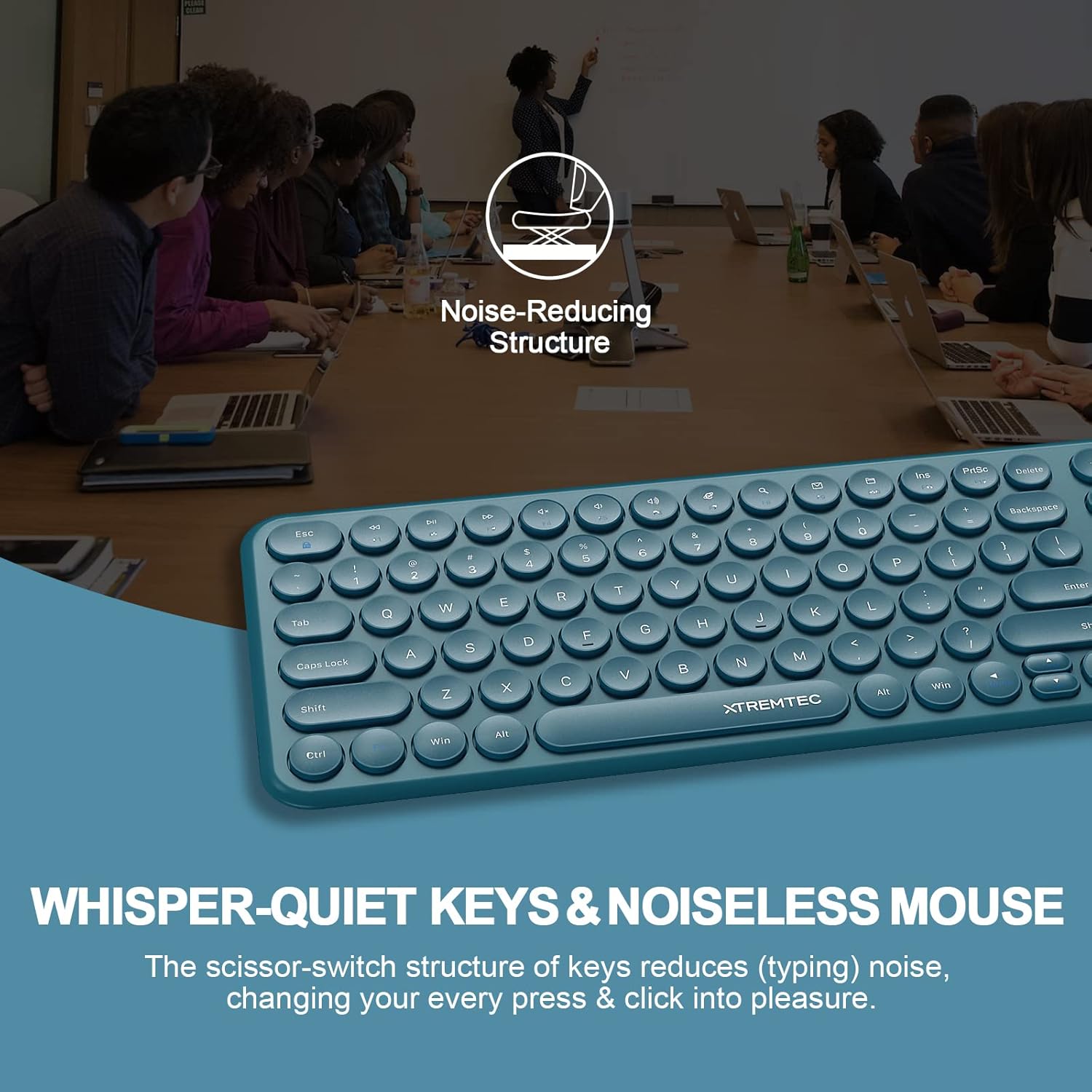
Image: The whisper-quiet keys and noiseless mouse are ideal for quiet environments.
5.2. Mouse Usage
The ergonomic mouse provides a comfortable grip and noiseless clicks. It includes a scroll wheel and additional buttons for enhanced functionality.
- DPI Adjustment: Press the DPI button on the mouse to cycle through 3 different sensitivity levels (e.g., 800, 1200, 1600 DPI) to suit your preference.
- Back Button: Use the dedicated 'Back to previous page' button for quick navigation in web browsers or file explorers.
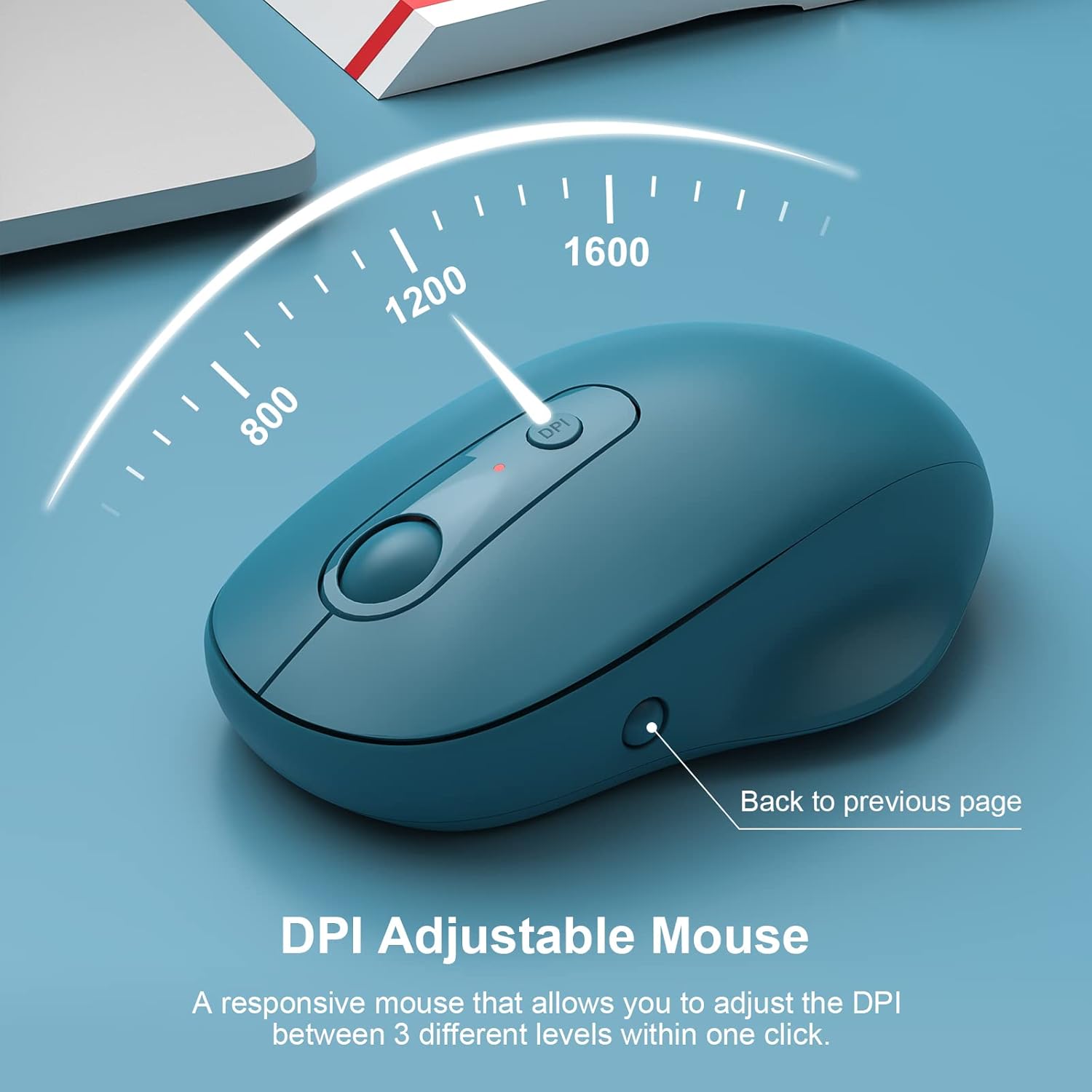
Image: The mouse features adjustable DPI settings for personalized sensitivity.
5.3. Multimedia Shortcuts
The keyboard includes 15 combinations of multimedia shortcuts for quick access to various functions. These are typically accessed by holding the Fn key and pressing the corresponding function key (F1-F12).

Image: The keyboard offers 15 multimedia shortcuts for quick access to common functions.
6. Maintenance
6.1. Cleaning
To keep your keyboard and mouse clean and extend their lifespan:
- Use the provided cleaning brush to remove dust and debris from between the keys.
- Wipe the surfaces of the keyboard and mouse with a soft, damp cloth. Avoid harsh chemicals.
- Utilize the included silicone keyboard cover to protect against dust, spills, and scratches when not in use.
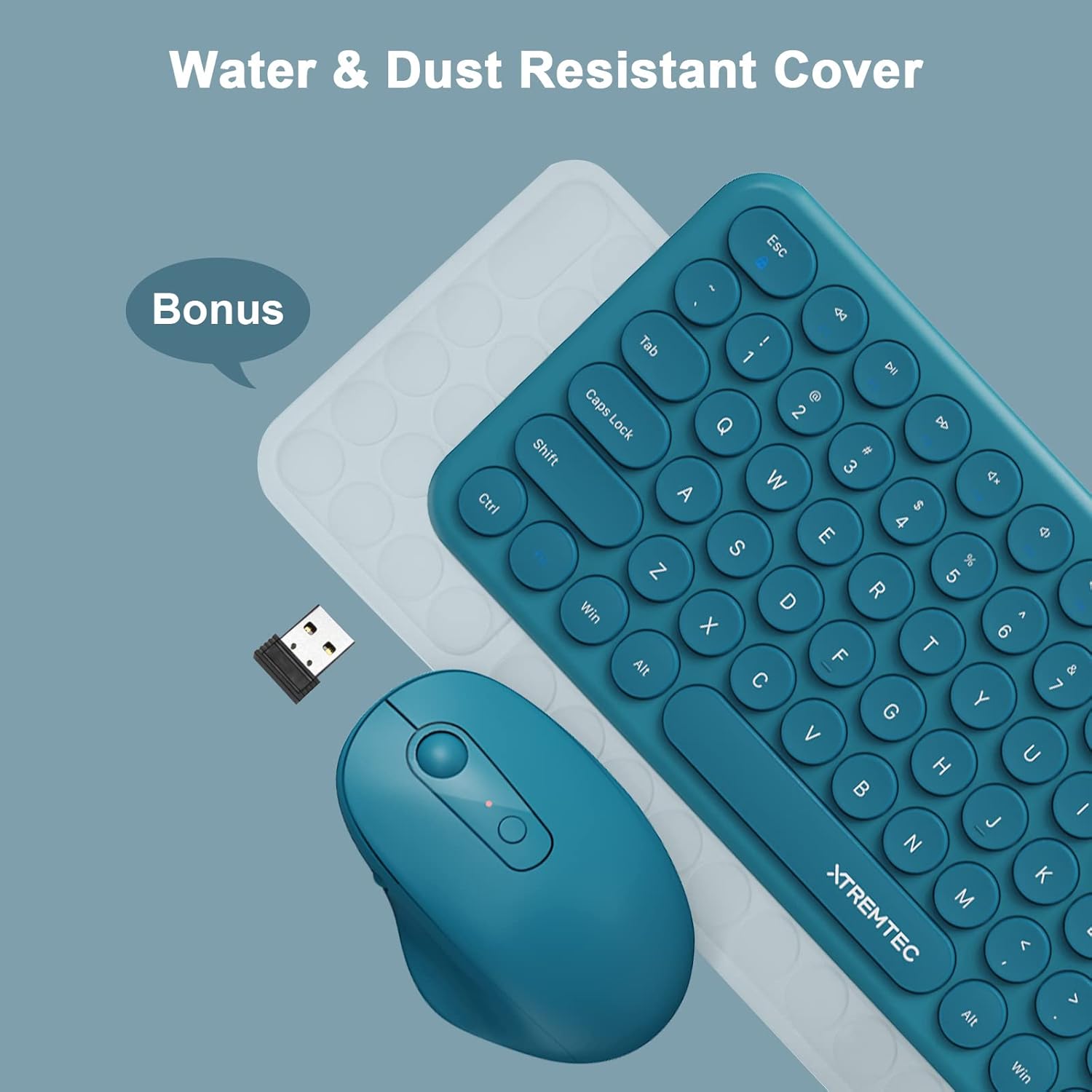
Image: The included silicone cover provides water and dust resistance for the keyboard.
6.2. Battery Replacement
When the devices stop responding or the indicator light flashes, it's time to replace the batteries. Refer to section 4.1 for battery installation instructions.

Image: The auto-sleep feature helps extend battery life for both the keyboard and mouse.
7. Troubleshooting
- No Response: Ensure both the keyboard and mouse are powered on and have fresh batteries. Re-insert the USB receiver into a different USB port on your computer.
- Intermittent Connection: Move the devices closer to the USB receiver. Avoid placing the receiver near strong electromagnetic interference sources.
- Keys Not Registering: Check for any debris under the keys and clean if necessary. Ensure the silicone cover is properly aligned or remove it temporarily to test.
- Mouse Cursor Jumps/Is Erratic: Ensure the mouse is used on a clean, non-reflective surface. Adjust DPI settings if needed.
8. Specifications
| Product Dimensions | 14.35 x 4.35 x 1.36 inches |
| Item Weight | 15.8 ounces |
| Model Number | K101A |
| Brand | XTREMTEC |
| Connectivity Technology | 2.4G USB Wireless Technology |
| Compatible Devices | Mac OS, Windows, PC, Desktop computer, Laptop, Personal Computer, Smartphone, Tablet |
| Special Feature | Ergonomic, Quiet Keys |
| Batteries | 2 AA batteries required (for the combo, specific types for each device may vary, typically 2 AAA for keyboard, 1 AA for mouse) |
9. Customer Support
For any questions, technical assistance, or warranty inquiries, please contact XTREMTEC customer support through the retailer's platform or visit the official XTREMTEC website.


