
1. Overview
The Samsung Galaxy S22 Ultra 5G is a high-performance smartphone designed for advanced multimedia capabilities and productivity. It integrates a powerful camera system, a vibrant display, and the versatile S Pen for an enhanced user experience.
Key features include:
- 8K Super Steady Video: Capture high-resolution videos with enhanced stability.
- Nightography & Portrait Mode: Optimized camera features for clear low-light photos and professional-looking portraits.
- 108MP Photo Resolution: High-detail photography with a 108-megapixel main camera.
- Bright Dynamic AMOLED 2X Display: A 6.8-inch Quad HD+ screen with Vision Booster for optimal viewing in various lighting conditions.
- Embedded S Pen: Integrated stylus for precise control, note-taking, and creative tasks.
- Durable Design: Constructed with a robust aluminum frame and Gorilla Glass for enhanced durability.
2. What's in the Box
Upon unboxing your Samsung Galaxy S22 Ultra 5G, you should find the following items:
- Samsung Galaxy S22 Ultra 5G Device
- USB-C to USB-C Cable
- SIM Ejector Tool
- Quick Start Guide & Terms and Conditions
Video Description: This video provides an unboxing and initial overview of the Samsung Galaxy S22 Ultra, showcasing the contents of the box including the phone, SIM ejector tool, USB-C cable, and quick start guide. It also highlights the phone's display and physical features.
3. Device Layout
Familiarize yourself with the physical components of your Samsung Galaxy S22 Ultra 5G:
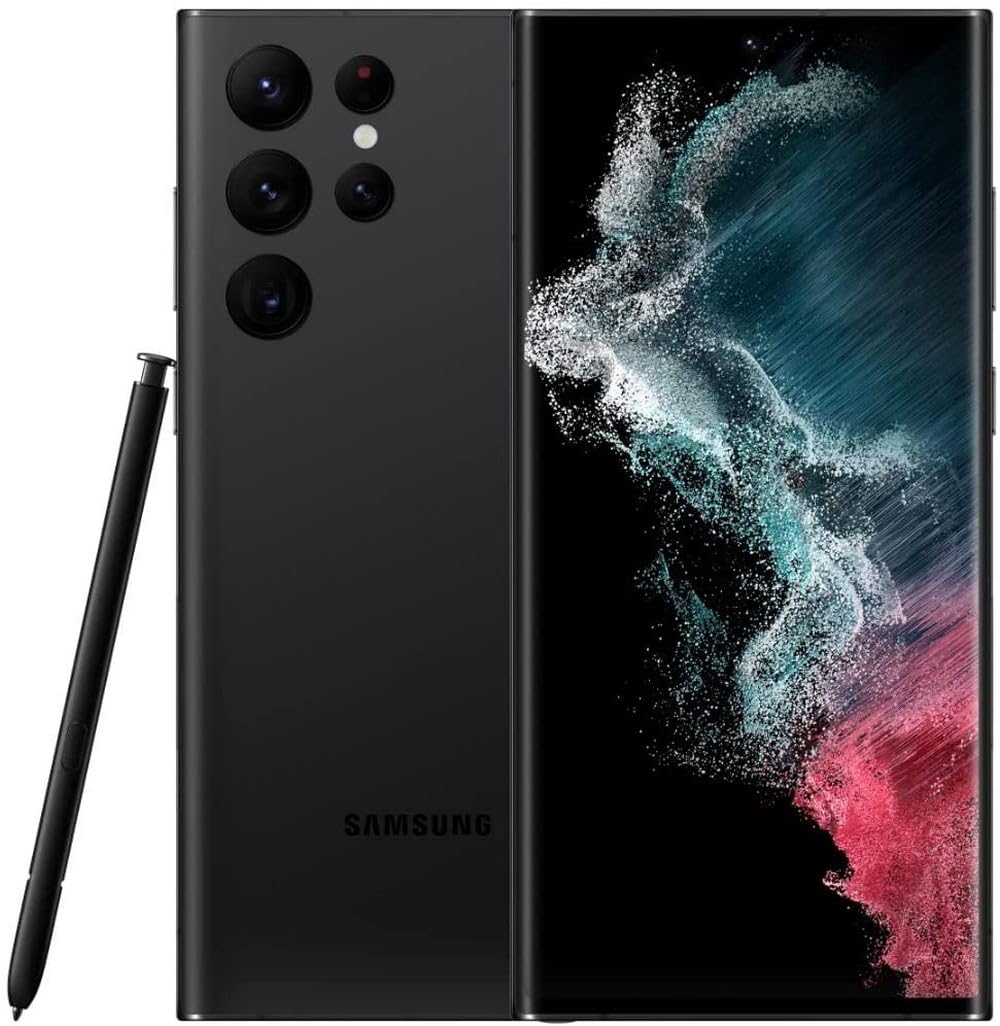
Image Description: Front view of the Samsung Galaxy S22 Ultra 5G in Phantom Black, showcasing its large display and the S Pen alongside it.

Image Description: Side view of the Samsung Galaxy S22 Ultra 5G, highlighting its slim profile and curved display edges.

Image Description: Another side view of the Samsung Galaxy S22 Ultra 5G, showing the power and volume buttons on the right edge.
3.1. Front
- Display: 6.8-inch Dynamic AMOLED 2X display.
- Front Camera: Located at the top center of the display.
3.2. Bottom
- S Pen Slot: Ejectable slot for the S Pen.
- USB Type-C Port: For charging and data transfer.
- Speaker Grille: Audio output.
- SIM Card Slot: For inserting your Nano-SIM card.
3.3. Right Side
- Power/Lock Button: To power on/off the device or lock/unlock the screen.
- Volume Rockers: To adjust the device volume.
3.4. Back
- Quad Camera System: Multiple lenses for diverse photographic capabilities.
- Flash: For illuminating subjects in low light.
4. Setup
4.1. Insert SIM Card
- Locate the SIM card slot on the bottom edge of the device.
- Insert the SIM ejector tool into the small hole next to the SIM card tray and push gently until the tray pops out.
- Place your Nano-SIM card into the tray with the gold contacts facing down.
- Carefully reinsert the SIM card tray into the device.
4.2. Power On
Press and hold the Power/Lock button on the right side of the device until the Samsung logo appears on the screen.
4.3. Initial Configuration
Follow the on-screen prompts to complete the initial setup, including selecting your language, connecting to Wi-Fi, signing in to your Google account, and setting up security features.
5. Operating the Device
5.1. Display and Navigation
The 6.8-inch Dynamic AMOLED 2X display offers vibrant colors and smooth scrolling. Navigate the interface using touch gestures: tap to select, swipe to scroll, pinch to zoom.
5.2. S Pen Usage
To use the S Pen, press the bottom of the S Pen to eject it from its slot. The Air Command menu will appear, offering quick access to features like Create Note, Smart Select, and Screen Write. Reinsert the S Pen firmly until it clicks into place.
5.3. Camera Features
The quad-camera system provides various modes for photography and videography:
- Photo: Standard photography mode.
- Video: Record videos, including 8K resolution.
- Portrait: Apply depth effects to subjects.
- Night: Enhance photos taken in low-light conditions.
- Pro: Manual control over camera settings.
6. Maintenance
6.1. Cleaning
Use a soft, lint-free cloth to clean the screen and body of the device. Avoid abrasive materials or harsh chemicals.
6.2. Software Updates
Regularly check for and install software updates to ensure optimal performance, security, and access to new features. Navigate to Settings > Software update to check for available updates.
6.3. Battery Care
To prolong battery life, avoid extreme temperatures and consider enabling power-saving modes when necessary. The device features a 5000 mAh battery.
7. Troubleshooting
7.1. Device Not Responding
If your device becomes unresponsive, press and hold the Power/Lock button and Volume Down button simultaneously for about 7-10 seconds to force a restart.
7.2. Network Connectivity Issues
Ensure your SIM card is properly inserted. Check your network settings (Settings > Connections > Mobile networks) or contact your service provider (AT&T for this version) for assistance.
7.3. App Malfunctions
If an app is not working correctly, try clearing its cache and data (Settings > Apps > [App Name] > Storage > Clear cache/Clear data) or reinstalling the app.
8. Specifications
| Feature | Specification |
|---|---|
| Brand | Samsung |
| Model Name | Galaxy S22 Ultra |
| Operating System | Android 13.0 (initial, subject to updates) |
| Screen Size | 6.8 Inches |
| Resolution | 1440x3088 |
| Display Type | AMOLED |
| RAM Memory Installed Size | 8 GB |
| Memory Storage Capacity | 128 GB |
| Rear Facing Camera Photo Sensor Resolution | 108 MP |
| Front Photo Sensor Resolution | 40 MP |
| Video Capture Resolution | 8K |
| Battery Capacity | 5000 Milliamp Hours |
| Wireless Carrier | AT&T |
| Cellular Technology | 5G |
| Water Resistance Level | Water Resistant |
| Biometric Security Feature | Face Recognition |
| Item Dimensions | 6.43 x 3.07 x 0.35 inches |
9. Warranty and Support
This renewed device typically includes a 30-day return policy. Any additional warranty information will be specified on the product listing at the time of purchase. For further support, please refer to the official Samsung support website or contact your seller.


