
1. Product Overview
This Guiheng Ultra-Slim Lightweight Bluetooth Keyboard and Mouse combo offers a portable and efficient input solution. The keyboard features a 7-color LED backlight and a scissor-key structure for a comfortable typing experience. Both devices utilize Bluetooth wireless connectivity and have built-in rechargeable lithium batteries.
The keyboard and mouse are compatible with various operating systems, including iOS (Apple iPad, iPhone), Android (Samsung, other tablets, smartphones), and Windows (PC, Laptop, Surface tablet).
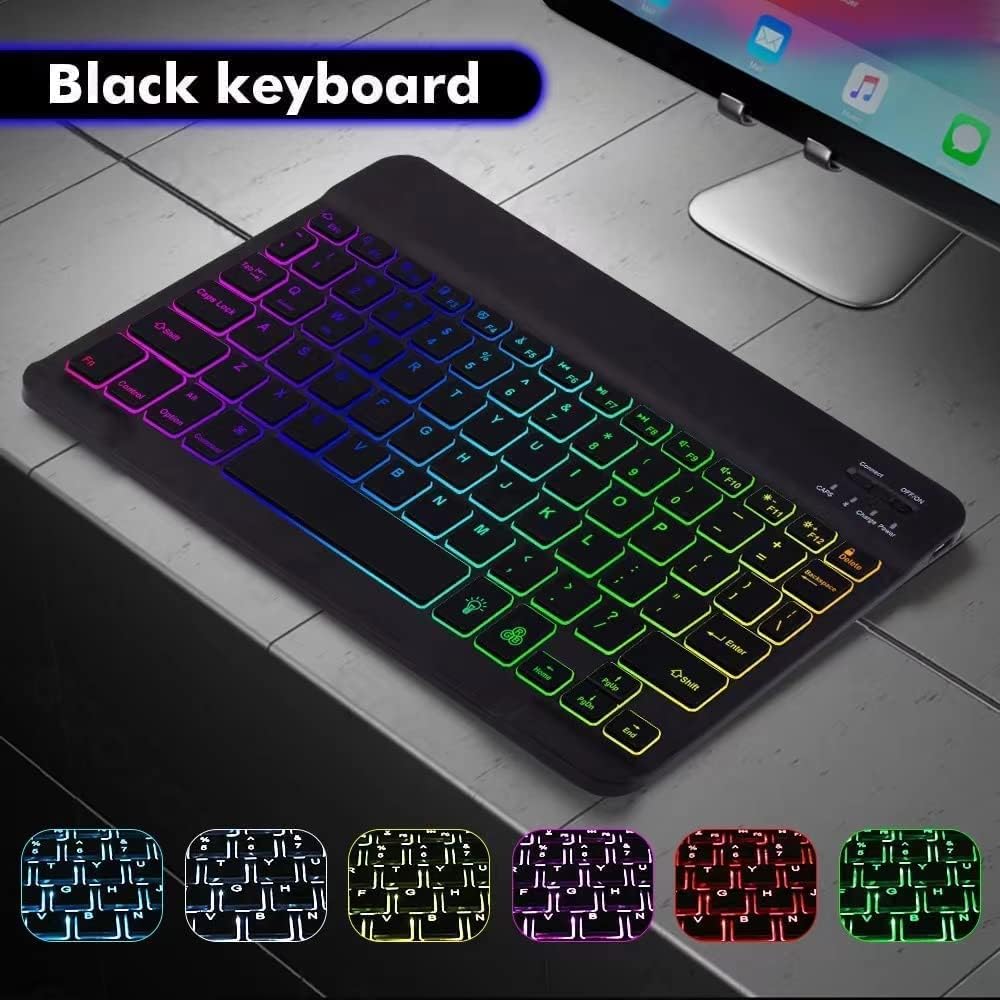
Image: The black keyboard showcasing its 7-color LED backlight in operation.
2. Setup and Connection
2.1 Initial Charging
Before first use, ensure both the keyboard and mouse are fully charged. Connect the provided USB charging cable to the charging port of each device and a power source. The red indicator light will be on during charging and turn off when fully charged.
- Keyboard: Charge for at least 6 hours initially. Subsequent charges should be at least 2 hours.
- Mouse: Charge for 2-3 hours. Only slow charging is allowed; high current/voltage fast chargers can damage the mouse battery.
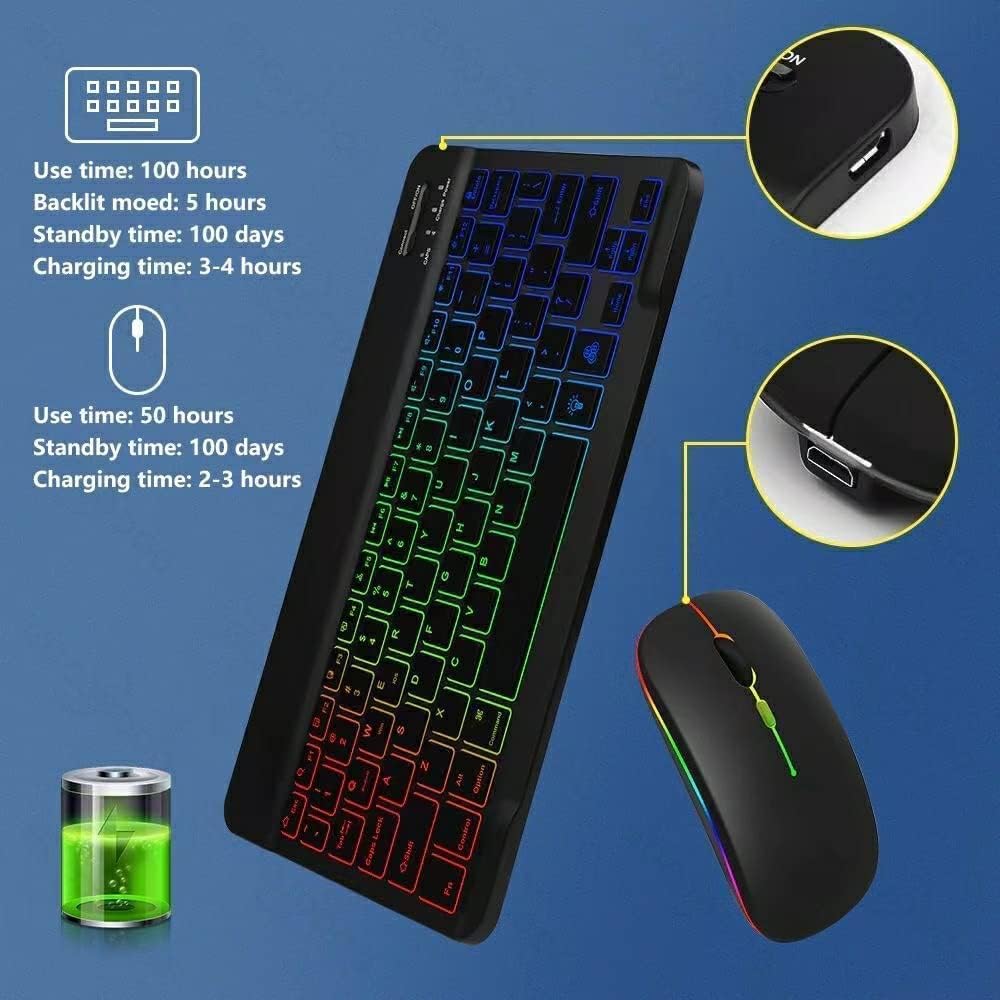
Image: Visual representation of battery usage and charging times for both the keyboard and mouse.
2.2 Keyboard Bluetooth Pairing
- Turn on the keyboard. The Bluetooth status indicator will blink for 5 seconds and then turn off.
- Press the "Connect" button for 3 seconds. The blue Bluetooth indicator will start blinking, indicating it is in pairing mode.
- On your tablet, PC, or smartphone, open Bluetooth settings. Search for "Bluetooth Keyboard" and click to connect.
- Once connected successfully, the Bluetooth indicator on the keyboard will turn off. No password is required for connection.
2.3 Mouse Pairing
2.3.1 Bluetooth Mode
- Switch the BT/2.4G button on the bottom of the mouse to the "Bluetooth" position. The mouse will automatically enter pairing mode.
- Open your device's Bluetooth settings and search for the mouse to connect.
2.3.2 2.4G Mode
- Switch the BT/2.4G button on the bottom of the mouse to the "2.4G" position.
- Plug the USB dongle (located inside the mouse) into a USB port on your computer.
- Power on the mouse. It should connect automatically.
Video: A short demonstration of the Bluetooth Keyboard and Mouse Combo, likely showing basic setup or features.
3. Operating Instructions
3.1 Keyboard Backlight Control
- Press the backlight key (usually an icon resembling a light bulb) once to turn on the backlight.
- Press the backlight key a second time to increase brightness.
- Press the backlight key a third time to turn off the light (for single-color backlights).
- For 3-color backlit keyboards, use the backlight key + Down Arrow key or backlight key + Up Arrow key to change backlight colors.
Note: The backlight will automatically turn off if the battery is below 20% or if the keyboard is idle for 10 minutes to conserve power.
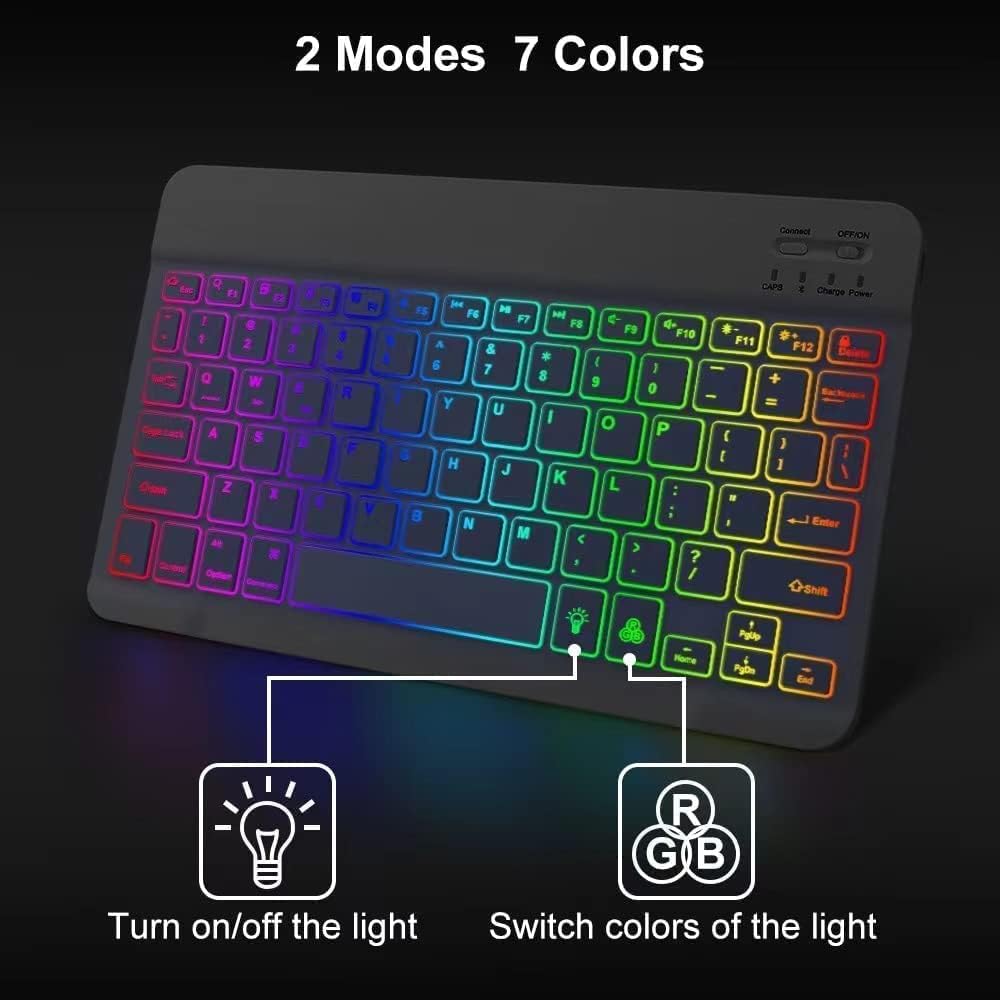
Image: Illustration of how to turn on/off and switch colors of the keyboard backlight.
3.2 Hotkeys and Indicators
Utilize the Function (Fn) key in combination with the F1-F12 keys for various hotkey functions. Refer to the keyboard layout for specific icons and their corresponding actions (e.g., volume control, media playback).
- Power LED: Flashes for 1-2 seconds when the keyboard is turned on, then goes out.
- Charging LED: Flashes while charging and turns off when the battery is full.
- BT LED: Flashes when the keyboard is connecting and turns off after a successful connection.
3.3 Auto-Sleep Function
The keyboard will enter sleep mode after 30 minutes of inactivity to conserve battery. To reactivate it, press any key and wait for 3 seconds; the keyboard will resume operation.
4. Maintenance
To ensure optimal performance and longevity of your keyboard and mouse, follow these maintenance guidelines:
- Charging: Always use the provided charging cable. When the red indicator flashes, it signifies low battery; charge promptly.
- Mouse Charging: The mouse only supports slow charging. Using fast chargers with high current and voltage can damage the internal battery.
- Cleaning: Use a soft, dry cloth to clean the surfaces of the keyboard and mouse. Avoid using harsh chemicals or abrasive materials.
- Storage: Store the devices in a cool, dry place away from direct sunlight and extreme temperatures.
5. Troubleshooting
5.1 Keyboard Troubleshooting
- Keyboard Not Working Properly:
- Ensure your device's Bluetooth function is enabled and the keyboard is within 10 meters (33 feet) of the device.
- Check if the keyboard's built-in battery is low; charge if necessary.
- Keyboard Not Connecting or Pairing / Text Input Delay:
- Delete all previously paired Bluetooth devices from your tablet/computer.
- Turn off and then turn on the Bluetooth option on your tablet/computer.
- Restart both the keyboard and your tablet/computer.
- Attempt the pairing process again as described in Section 2.2.
- Keyboard Always Disconnecting:
- Ensure the keyboard battery is not low; charge if the blue power light flashes.
- Verify that your Bluetooth equipment supports HID Bluetooth connection.
- Confirm compatibility: the keyboard supports Android, iOS, and Windows systems only.
- Keyboard Backlight Not Working:
- Ensure the keyboard is successfully paired with your device.
- Press the backlight key to cycle through on/off and brightness settings.
- Note that the backlight turns off automatically if the battery is less than 20% or after 10 minutes of idle time.
5.2 Mouse Troubleshooting
- Mouse Not Charging:
- Ensure you are using a slow charger. Fast chargers can damage the mouse battery.
- The charging light LED will be on during charging and go out when fully charged (after 2-3 hours).
- Mouse Not Working / Not Bluetooth Compatible:
- Check if the mouse battery is low. If the power switch light dims or turns off, charge the mouse.
- Ensure the mouse is successfully paired via Bluetooth or 2.4G mode as described in Section 2.3.
6. Specifications
| Feature | Detail |
|---|---|
| Brand | Guiheng |
| Color | Black |
| Connectivity Technology | Bluetooth, USB (for 2.4G mouse dongle) |
| Special Feature | Rechargeable, 7-Color LED Backlit Keyboard |
| Compatible Devices | Tablets, PCs, Laptops, Apple iPhone, iPad, Android Smartphones |
| Compatible Operating Systems | Android, iOS, Windows (Windows 11 minimum required version) |
| Keyboard Layout | QWERTY |
| Number of Keys | 78 |
| Keyboard Dimensions | 9.84 x 5.91 x 0.2 inches |
| Mouse Dimensions | 4.41 x 2.28 x 0.98 inches |
| Power Source | Battery Powered (Rechargeable) |
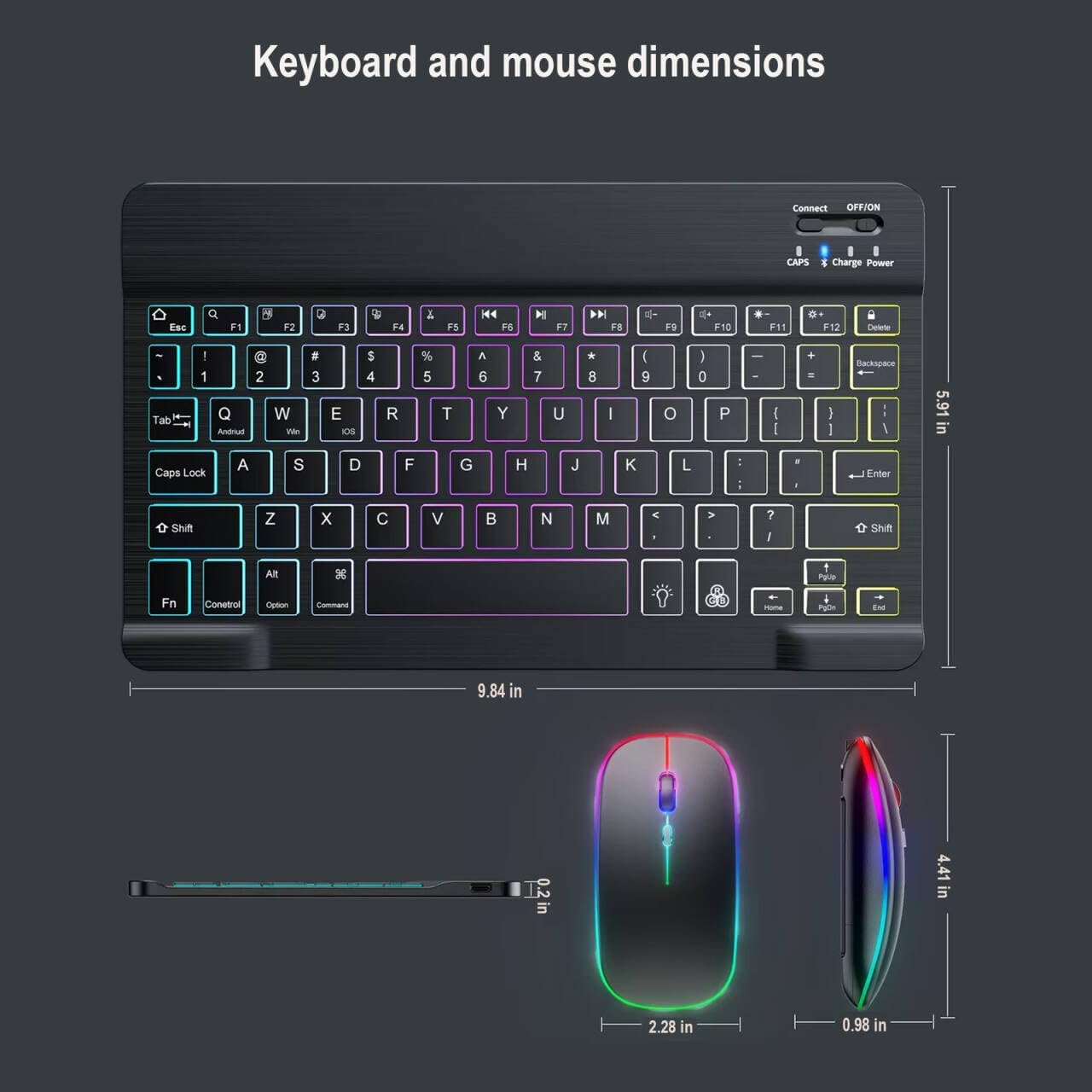
Image: Detailed dimensions of the keyboard and mouse for reference.
7. Warranty and Support
For warranty information and customer support, please refer to the product packaging or contact the seller directly. Keep your purchase receipt for warranty claims.