
SUMUP Solo
SumUp Solo + Printer Bundle Instruction Manual
Credit Card Payment Reader with Integrated Printer
1. Introduction
The SumUp Solo + Printer Bundle is a comprehensive solution for accepting credit card payments and issuing receipts. This device features a full touch-screen interface, free SIM card with mobile data, and a portable printer that also functions as a charging dock. This manual provides essential information for setup, operation, maintenance, and troubleshooting to ensure optimal performance of your device.

Image 1.1: SumUp Solo card reader with integrated printer.
2. Package Contents
Verify that all items are present in your SumUp Solo + Printer Bundle package:
- SumUp Solo Card Reader
- SumUp Printer
- USB-C Charging Cable
- Thermal Receipt Paper Rolls (typically 3 rolls)
- Quick Start Guide (not included in this manual)

Image 2.1: Unboxed SumUp Solo + Printer Bundle components.
3. Getting Started (Setup)
Follow these steps to set up your SumUp Solo + Printer Bundle and begin accepting payments:
- Download the SumUp App: Download the free SumUp mobile application from the App Store (iOS) or Google Play Store (Android) on your smartphone or tablet.
- Create Your Account: Open the SumUp app and follow the on-screen instructions to create your SumUp account. This process includes providing business details and undergoing an approval process.
- Register Your Card Reader: Once your account is approved, register your SumUp Solo card reader within the app.
- Connect to Wi-Fi: On your SumUp Solo device, navigate to the settings and connect to a stable Wi-Fi network. The device also includes a free, unlimited data service via an integrated SIM card for connectivity when Wi-Fi is unavailable.
- Pair with Printer: Ensure your Solo reader is correctly docked in the printer. The devices are designed to work together seamlessly.
- Start Accepting Payments: Your device is now ready to process transactions.

Image 3.1: Initial setup steps displayed on the SumUp Solo screen.

Image 3.2: Inserting a card for payment, illustrating the ease of use.
4. Operating Your Device
4.1 Accepting Payments
The SumUp Solo + Printer Bundle supports various payment methods:
- Chip Card Payments: Insert the customer's chip card into the slot at the bottom of the Solo reader.
- Contactless Payments (NFC): Tap the customer's contactless card or mobile device (e.g., Apple Pay, Google Pay) near the top of the Solo reader where the NFC symbol is located.

Image 4.1: Processing a contactless payment with the SumUp Solo.
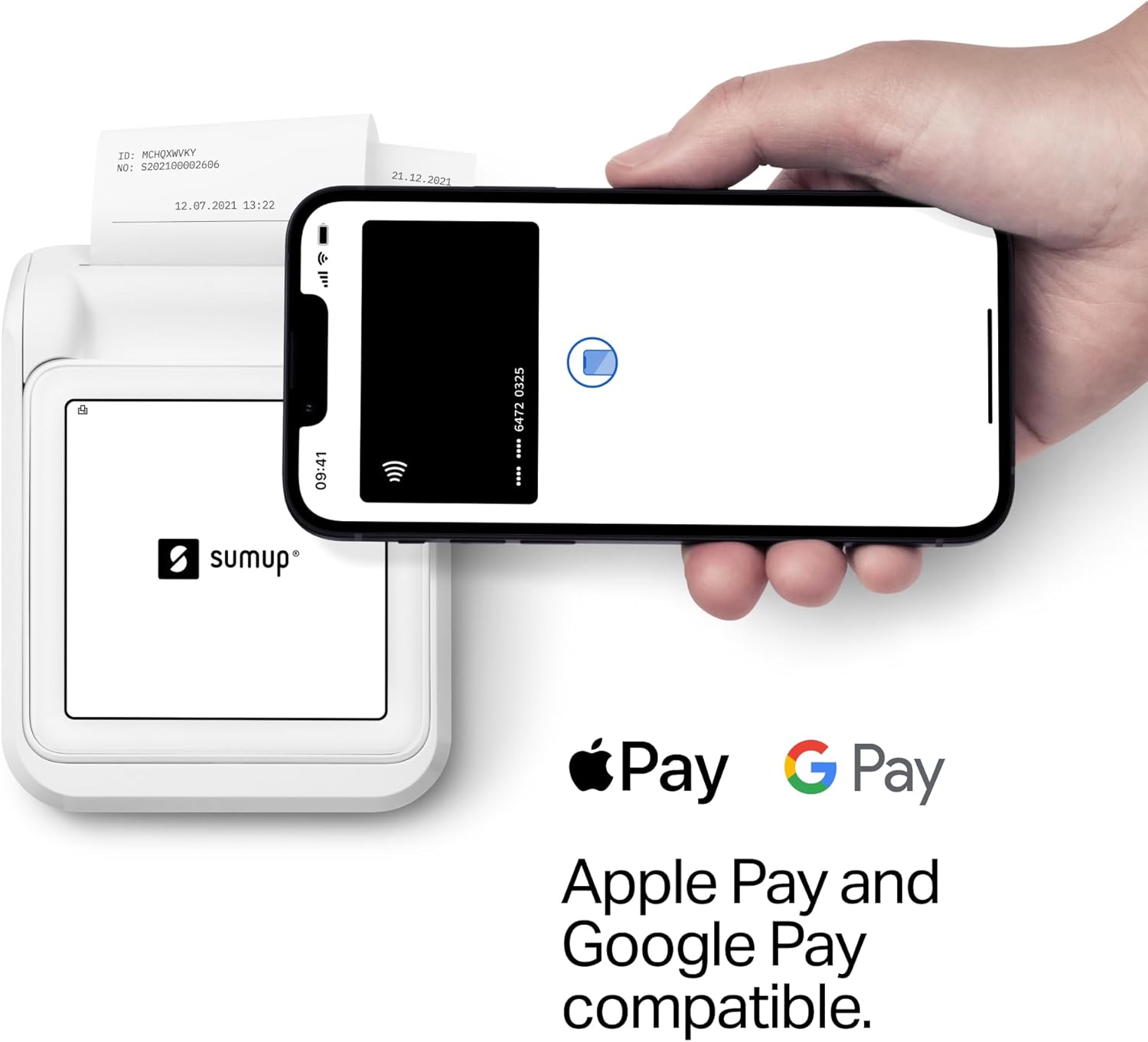
Image 4.2: SumUp Solo compatibility with Apple Pay and Google Pay.
4.2 Printing Receipts
The integrated printer allows for instant receipt generation. The printer uses thermal inkless technology and can print up to 800 receipts on a single charge.
- After a successful transaction, the device will prompt you to print a receipt. Confirm to print.
- To load new receipt paper, open the printer cover, insert the new roll, and close the cover, ensuring a small portion of paper extends from the slot.

Image 4.3: Issuing a physical receipt to a customer.
4.3 Transaction Management
The SumUp Solo device and accompanying app provide tools for managing your transactions:
- View Transaction History: Access past transactions directly on the device or through the SumUp app.
- Issue Refunds: Process refunds for transactions directly from the device interface.
- Enable Smart Tipping: Configure tipping options for your customers.

Image 4.4: SumUp Solo's intuitive touchscreen interface for managing functions.
5. Charging and Battery Life
The SumUp Solo + Printer Bundle is designed for extended use:
- The printer unit doubles as a power bank for the Solo card reader, providing additional battery life.
- When docked in the printer, both devices charge simultaneously using the provided USB-C cable.
- The Solo reader alone can process up to 50 transactions on a single charge when undocked.

Image 5.1: The Solo printer serving as a charging station.

Image 5.2: SumUp Solo in its charging dock.
6. Maintenance
To ensure the longevity and optimal performance of your SumUp Solo + Printer Bundle, follow these maintenance guidelines:
- Cleaning: Use a soft, dry, lint-free cloth to clean the exterior of the device. Do not use abrasive cleaners, solvents, or spray directly onto the device.
- Storage: Store the device in a cool, dry place away from direct sunlight and extreme temperatures.
- Receipt Paper: Use only approved thermal receipt paper rolls. Ensure the paper is loaded correctly to prevent jams.
- Software Updates: The device receives automatic software updates when connected to Wi-Fi or mobile data. Ensure your device is regularly connected to receive these updates for improved functionality and security.
7. Troubleshooting
If you encounter issues with your SumUp Solo + Printer Bundle, consider the following common solutions:
- Device Not Turning On: Ensure the device is fully charged. Connect it to the charging cable and allow it to charge for at least 30 minutes before attempting to power it on again.
- Payment Not Processing:
- Check your internet connection (Wi-Fi or mobile data). A stable connection is required for transactions.
- Ensure the card is inserted or tapped correctly.
- Verify that your SumUp account is active and approved.
- Printer Not Printing:
- Check if the receipt paper is loaded correctly and if there is enough paper.
- Ensure the Solo reader is securely docked in the printer.
- Verify the printer has sufficient battery charge.
- Connectivity Issues: If using Wi-Fi, try reconnecting to the network or restarting your router. If using mobile data, ensure you are in an area with network coverage.
- Account Approval Delays: If your account approval is taking longer than expected, contact SumUp customer support for assistance.
8. Product Specifications
| Feature | Specification |
|---|---|
| Model Name | Solo |
| Brand | SUMUP |
| Connectivity Technology | Wi-Fi, Free Mobile Data (via integrated SIM) |
| Printing Technology | Thermal (Inkless) |
| Printer Output | Monochrome |
| Max Input Sheet Capacity | 800 receipts per charge |
| Sheet Size | 2.24 inches (width) |
| Compatible Devices | Smartphones (via SumUp App) |
| Control Method | Touch Screen |
| Item Weight | 1 pound (approx. 16 ounces) |
| Package Dimensions | 7.05 x 6.97 x 3.9 inches |
| Memory Storage Capacity | 1 GB |
| Maximum Black and White Print Resolution | 203 dpi |
9. Warranty Information
The SumUp Solo + Printer Bundle comes with a Limited Warranty. For specific details regarding the warranty period, coverage, and claims process, please refer to the official SumUp website or contact SumUp customer support. Keep your proof of purchase for warranty purposes.
10. Customer Support
For further assistance, technical support, or inquiries regarding your SumUp Solo + Printer Bundle, please utilize the following resources:
- SumUp Online Help Center: Available 24/7 for self-service troubleshooting and FAQs.
- US-based Support Team: Contact the SumUp support team during business hours for personalized assistance. Contact details can be found on the official SumUp website.
Related documentsSolo


Ask a question about this manual
Ask about setup, troubleshooting, compatibility, parts, safety, or missing instructions. Manuals+ will review the question and use this page’s manual context to help answer it.