
Aresrora DW21
Contents
Aresrora Retro Bluetooth Speaker Instruction Manual
Model: DW21
Introduction
Thank you for choosing the Aresrora Retro Bluetooth Speaker. This portable speaker combines vintage aesthetics with modern technology, offering crystal clear sound and versatile playback options. This manual provides detailed instructions to help you get the most out of your device.
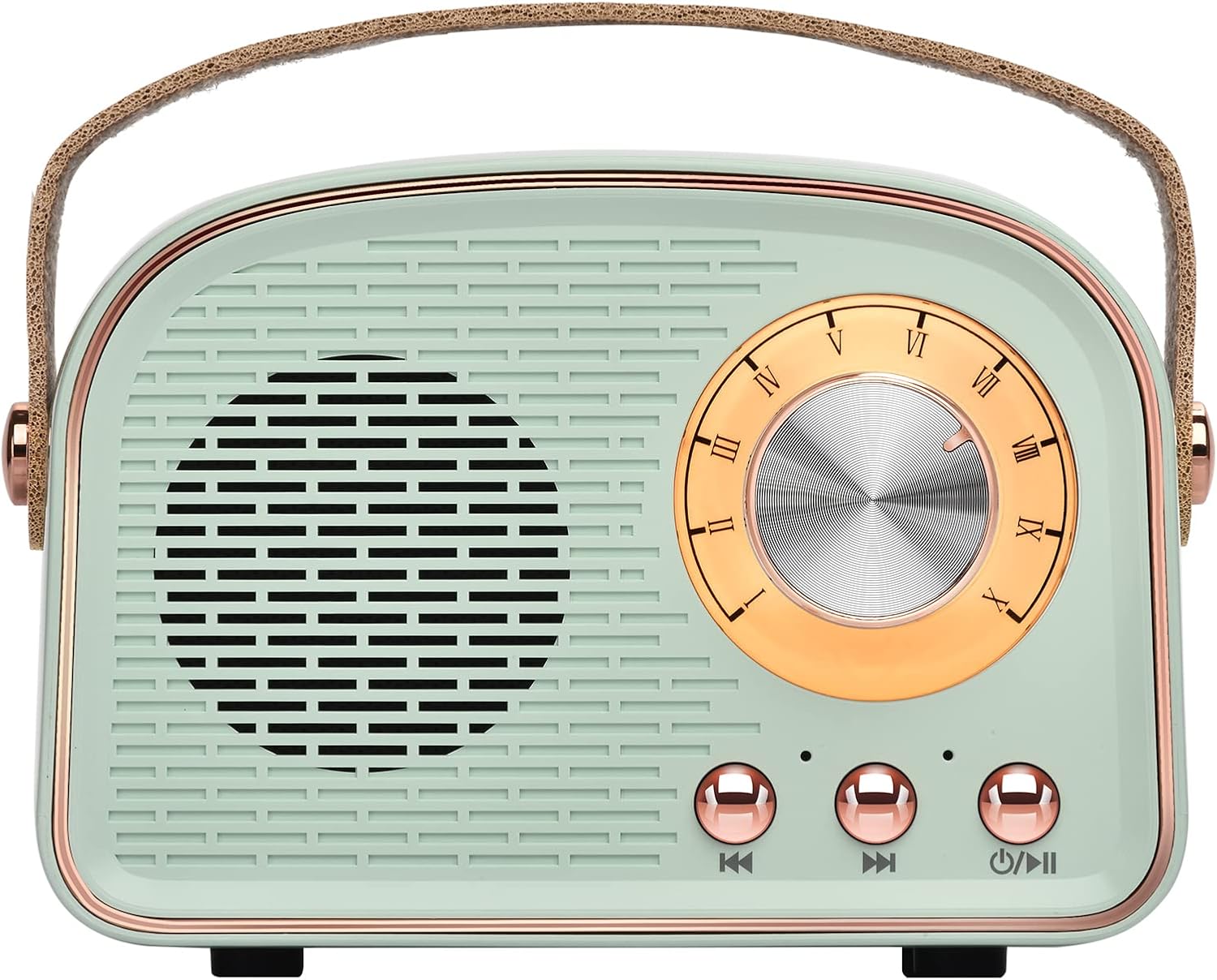
Image: Front view of the Aresrora Retro Bluetooth Speaker in Cyan, showcasing its vintage design and controls.
What's in the Box
- 1 x Aresrora Retro Bluetooth Speaker
- 1 x Type-C Charging Cable
- 1 x AUX Line
- 1 x Instruction Manual
Setup
Charging the Speaker
Before first use, fully charge the speaker. Connect the provided Type-C charging cable to the speaker's Type-C port and the other end to a compatible USB power adapter (not included). The speaker has a built-in 500mAh rechargeable battery and takes approximately 1.5 hours to fully recharge.

Image: Illustration showing the speaker with a battery icon, indicating its internal rechargeable battery.
Power On/Off
To power on the speaker, press and hold the power button (usually marked with a power symbol or play/pause icon) located on the front panel. You will hear an audible prompt indicating it's powered on. To power off, press and hold the same button until you hear the power off prompt.
Bluetooth Pairing
- Ensure the speaker is powered on and in Bluetooth mode. An audible prompt will confirm "Bluetooth mode".
- On your device (smartphone, tablet, laptop), go to Bluetooth settings and enable Bluetooth.
- Search for available devices. The speaker will appear as "DW21".
- Select "DW21" to connect. An audible prompt will confirm "Connected" once pairing is successful.

Image: The speaker shown with various compatible Bluetooth devices like phones, tablets, and laptops.
TWS (True Wireless Stereo) Pairing
For true stereo sound, you can pair two Aresrora Retro Bluetooth Speakers together:
- Ensure both speakers are powered on and in Bluetooth mode.
- On one speaker, double-press the power/play/pause button. It will enter TWS pairing mode.
- The two speakers will automatically connect to each other. An audible prompt will confirm the TWS connection.
- Once TWS paired, connect your device to one of the speakers via Bluetooth as described above. Both speakers will now play audio in stereo.

Image: Two speakers positioned on either side of a laptop, illustrating the TWS stereo sound feature.
Operating the Speaker
Volume Control
The large dial on the front of the speaker controls the volume. Rotate the dial clockwise to increase volume and counter-clockwise to decrease volume.

Image: A hand turning the vintage-style volume dial on the speaker.
Playback Modes
The speaker supports multiple playback modes:
- Bluetooth Mode: Connect wirelessly to your Bluetooth-enabled devices.
- TF Card Mode: Insert a TF (MicroSD) card into the TF card slot on the back of the speaker to play audio files directly.
- USB Playback Mode: Insert a USB flash drive into the USB port on the back of the speaker to play audio files.
- AUX Mode: Use the provided 3.5mm AUX cable to connect to devices without Bluetooth, such as desktop computers or older audio players.

Image: Detailed view of the speaker's rear panel, highlighting the Type-C charging, TF card, USB, and AUX ports.
Music Navigation
Use the buttons on the front panel for music control:
- Play/Pause: Short press the power button to play or pause the current track.
- Next Song: Short press the "Next Song" button (usually marked with a forward arrow).
- Previous Song: Short press the "Previous Song" button (usually marked with a backward arrow).

Image: A diagram labeling the volume dial, power/play/pause, next song, and previous song buttons on the speaker.
Built-in Microphone
The speaker features a built-in microphone, allowing you to answer calls when connected via Bluetooth to your smartphone. Press the play/pause button to answer or end a call.
Maintenance
- Keep the speaker dry. It is not waterproof.
- Clean the speaker with a soft, dry cloth. Do not use harsh chemicals or abrasive cleaners.
- Avoid exposing the speaker to extreme temperatures or direct sunlight for prolonged periods.
- Store the speaker in a cool, dry place when not in use.
Troubleshooting
| Problem | Possible Cause | Solution |
|---|---|---|
| Speaker does not power on. | Low battery; Power button not pressed correctly. | Charge the speaker fully. Ensure the power button is pressed and held until an audible prompt is heard. |
| Cannot pair via Bluetooth. | Speaker not in pairing mode; Device Bluetooth is off; Speaker too far from device. | Ensure speaker is in Bluetooth mode. Turn off and on your device's Bluetooth. Move speaker closer to your device (within 10 meters). |
| No sound or low volume. | Volume too low on speaker or device; Incorrect mode selected. | Increase volume on both the speaker and your connected device. Ensure the correct playback mode (Bluetooth, AUX, TF Card, USB) is selected. |
| Sound quality is poor. | Interference; Speaker too far from device; Low quality audio file. | Move speaker away from other electronic devices. Ensure speaker is within Bluetooth range. Try a different audio file or source. |
Specifications
| Feature | Detail |
|---|---|
| Model Name | DW21 |
| Brand | Aresrora |
| Material | Plastic |
| Color | Cyan |
| Product Dimensions | 2.5"D x 4.1"W x 3"H |
| Item Weight | 8 Ounces |
| Connectivity Technology | Bluetooth, USB, AUX, TF Card |
| Wireless Communication Technology | Bluetooth 5.0 |
| Bluetooth Range | 10 Meters (33 Feet) |
| Battery Capacity | 500 Milliamp Hours |
| Charging Time | 1.5 Hours |
| Speaker Maximum Output Power | 3 Watts |
| Signal-to-Noise Ratio | 75 dB |
| Is Waterproof | False (Not Water Resistant) |
| Included Components | Speaker, Type-C charging cable, AUX line, Instruction manual |

Image: An illustration representing the advanced Bluetooth 5.0 technology integrated into the speaker.
Product Overview Video
Video: A detailed overview of the Aresrora Retro Bluetooth Speaker, demonstrating its features and design.
Warranty and Support
This product comes with a Seller Warranty. For any issues, questions, or support needs, please contact the seller directly through your purchase platform. Please have your order details and product model number (DW21) ready when contacting support.
Documents and downloads
Ask a question about this manual
Ask about setup, troubleshooting, compatibility, parts, safety, or missing instructions. Manuals+ will review the question and use this page’s manual context to help answer it.