
Introduction
This manual provides detailed instructions for the operation and maintenance of your Aresrora Retro Bluetooth Speaker, Model DW21. Please read this manual thoroughly before use to ensure proper functionality and to extend the product's lifespan.
What's in the Box
- 1 x Aresrora Retro Bluetooth Speaker
- 1 x Type-C Charging Cable
- 1 x AUX Line
- 1 x Instruction Manual
Product Overview
The Aresrora Retro Bluetooth Speaker DW21 combines vintage aesthetics with modern audio technology, offering multiple playback options and a portable design.
Controls and Ports
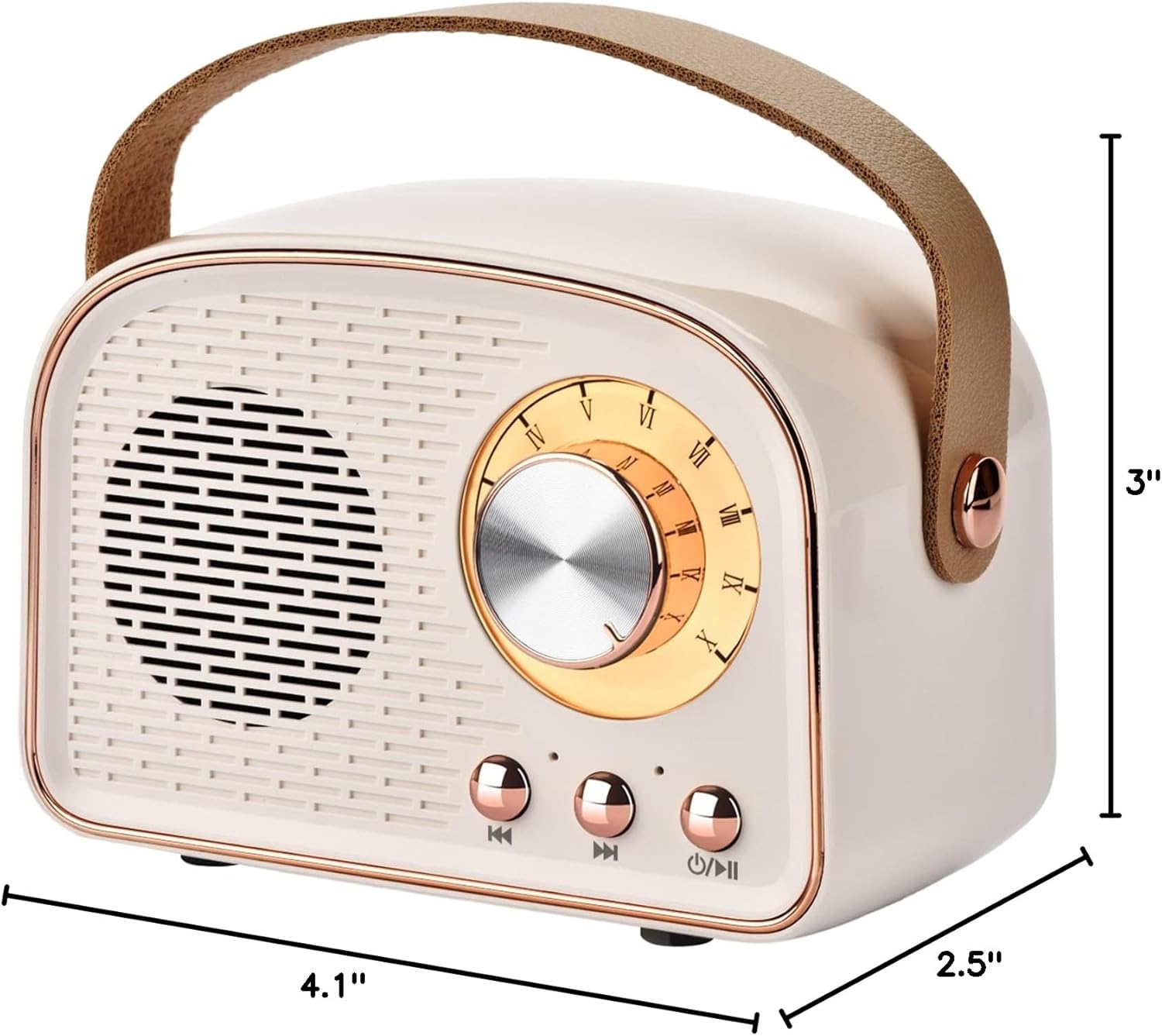
Image: Front and rear view of the Aresrora Retro Bluetooth Speaker, Model DW21, highlighting the volume knob, play/pause/power button, next/previous track buttons, TF card slot, Type-C charging port, USB interface, and AUX interface.
- Volume Knob: Rotate to adjust volume. Press to power on/off or play/pause.
- Previous Track Button: Short press for previous track.
- Next Track Button: Short press for next track.
- TF Card Slot: Insert a TF card for music playback.
- Type-C Charging Interface: Connect the Type-C cable for charging.
- USB Interface: Insert a USB drive for music playback.
- AUX Interface: Connect a 3.5mm audio cable for AUX input.
Setup
Charging the Speaker
Before first use, fully charge the speaker.
- Connect the provided Type-C charging cable to the speaker's Type-C charging port.
- Connect the other end of the cable to a USB power adapter (not included) or a computer's USB port.
- The charging indicator light will illuminate.
- A full charge takes approximately 1.5 hours. The indicator light will change or turn off once charging is complete.
Note: Do not charge for more than 2 hours to preserve battery life.
Power On/Off
To power on the speaker, press and hold the Volume Knob (which also functions as the Power On/Off button) for a few seconds until you hear a power-on prompt. To power off, press and hold the same button again.
Bluetooth Pairing
The speaker uses Bluetooth 5.0 technology for stable connections.
- Power on the speaker. It will automatically enter Bluetooth pairing mode, indicated by a flashing LED light.
- On your device (smartphone, tablet, laptop), enable Bluetooth and search for available devices.
- Select "DW21" (or similar name) from the list of devices.
- Once connected, you will hear a confirmation sound, and the LED light will stop flashing.

Image: The Aresrora Retro Bluetooth Speaker shown connected wirelessly to a smartphone, tablet, laptop, and PC, demonstrating its compatibility with various Bluetooth-enabled devices.
TWS (True Wireless Stereo) Pairing
To achieve true stereo sound, you can pair two Aresrora DW21 speakers together.
- Ensure both speakers are powered off.
- Power on both speakers simultaneously. They will enter Bluetooth pairing mode.
- On one of the speakers, double-press the Power On/Off button. The speakers will attempt to pair with each other.
- Once successfully paired, you will hear a confirmation sound, and one speaker will act as the master (left channel) and the other as the slave (right channel).
- Now, connect your device to the master speaker via Bluetooth as described in the "Bluetooth Pairing" section.

Image: Two Aresrora Retro Bluetooth Speakers positioned on either side of a laptop, illustrating the TWS (True Wireless Stereo) technology for enhanced sound experience.
Other Playback Modes (TF Card, USB, AUX)
The speaker supports multiple audio input options.
TF Card / USB Playback
- Insert a TF card or USB drive containing MP3 audio files into the respective slot.
- The speaker will automatically detect the storage device and begin playing music.
- Use the Previous/Next Track buttons to navigate songs.
AUX Input
- Connect one end of the 3.5mm AUX cable to the speaker's AUX interface.
- Connect the other end to the audio output jack of your device (e.g., desktop computer, MP3 player).
- The speaker will automatically switch to AUX mode.

Image: The rear panel of the Aresrora Retro Bluetooth Speaker, clearly showing the TF card slot, USB port, and AUX input, demonstrating its versatile connectivity options.
Operating Instructions
Volume Control
Rotate the large knob on the front of the speaker clockwise to increase volume and counter-clockwise to decrease volume.
Play/Pause
Short press the Volume Knob to play or pause the current track.
Track Navigation
Short press the "Previous Track" button to go to the beginning of the current track or to the previous track. Short press the "Next Track" button to skip to the next track.
Note: Some functions, like track navigation, may also be controlled directly from your connected Bluetooth device.
Maintenance
- Keep the speaker away from water, moisture, and extreme temperatures.
- Clean the speaker with a soft, dry cloth. Do not use abrasive cleaners or solvents.
- Avoid dropping or subjecting the speaker to strong impacts.
- When not in use for extended periods, store the speaker in a cool, dry place and charge it periodically to maintain battery health.
Troubleshooting
Speaker does not power on.
- Ensure the battery is charged. Connect the speaker to a power source using the Type-C cable and try again after a few minutes.
- Press and hold the power button for a longer duration (3-5 seconds).
Cannot pair with Bluetooth device.
- Ensure the speaker is in Bluetooth pairing mode (flashing LED).
- Make sure Bluetooth is enabled on your device and it is within range (up to 33 feet).
- Forget "DW21" from your device's Bluetooth list and try pairing again.
- Restart both the speaker and your Bluetooth device.
No sound or low volume.
- Check the volume level on both the speaker and your connected device.
- Ensure the speaker is correctly connected via Bluetooth, AUX, TF card, or USB.
- If using AUX, ensure the cable is fully inserted and not damaged.
- If using TF card or USB, ensure the audio files are in a compatible format (e.g., MP3).
TWS pairing fails.
- Ensure both speakers are powered off before attempting TWS pairing.
- Make sure both speakers are the same model (DW21).
- Try repeating the TWS pairing steps carefully.
Specifications
| Feature | Detail |
|---|---|
| Model Name | DW21 |
| Brand | Aresrora |
| Connectivity Technology | Bluetooth, AUX, TF Card, USB |
| Bluetooth Version | 5.0 |
| Wireless Range | Up to 33 Feet (10 meters) |
| Speaker Maximum Output Power | 5 Watts |
| Battery Capacity | 500 mAh Lithium Polymer |
| Playtime | Approx. 5 hours (varies by volume) |
| Charging Time | Approx. 1.5 hours |
| Product Dimensions | 2.5"D x 4.1"W x 3"H |
| Item Weight | 8 Ounces |
| Material | Plastic |
| Special Features | TWS Pairing, Bass Boost, Built-in Microphone, Portable |
Warranty and Support
This product comes with a seller warranty. For any issues or support inquiries, please contact Aresrora customer service through your purchase platform. Please retain your proof of purchase for warranty claims.
Official Product Videos
Video: An overview of the Aresrora Retro Bluetooth Speaker, demonstrating its features and design. Titled "What the product is really like" by Aresrora Direct.