1. Introduction
This instruction manual provides detailed information on the setup, operation, maintenance, and specifications of your MINISFORUM HM80 Mini PC. Please read this manual thoroughly before using the device to ensure proper functionality and to maximize its performance.
2. Package Contents
Verify that all items listed below are included in your package:
- 1x MINISFORUM HM80 Mini PC
- 1x Mounting Bracket
- 1x HDMI Cable (60cm)
- 1x Power Adapter
- 1x Instruction Manual
3. Product Features
The MINISFORUM HM80 Mini PC offers a range of features designed for efficient computing:
- Powerful Performance: Equipped with an AMD Ryzen 7 4800U processor (8 Cores/16 Threads, up to 4.0 GHz) for smooth handling of demanding tasks and multitasking.
- Triple Display Output: Features integrated AMD Radeon Graphics (1750 MHz) supporting 4K@60Hz output across three independent displays via HDMI 2.0, DisplayPort, and USB-C.
- Superior Connectivity: Includes M.2 2230 WIFI with WiFi 6 (802.11ax) and Bluetooth 5.1, offering dual-band 5GHz/2.4GHz support and multi-user 2x2 MIMO (MU-MIMO) for high-speed wireless connections. Two 2.5 Gigabit LAN ports are also provided for robust wired networking.
- Large Capacity: Comes with 32GB DDR4 RAM (2x16GB, upgradable to 32GB per slot) and a 512GB 2280 PCIe SSD (upgradable up to 2TB). Additionally, two 2.5-inch SATA HDD slots are available for further storage expansion (up to 2TB each).
4. Hardware Overview
4.1 Front and Rear Panels
Familiarize yourself with the ports and buttons on your HM80 Mini PC.

Image: Front and Rear Panel Ports of the HM80 Mini PC. The front panel includes the power button, audio jacks, and USB ports. The rear panel features multiple USB ports, LAN ports, HDMI, DisplayPort, and a USB-C port.
Front Panel:
- Power Button: To turn the device on or off.
- 3.5mm Microphone Jack: For connecting a microphone.
- 3.5mm Audio Jack: For connecting headphones or speakers.
- USB 3.1 Port (x2): For connecting USB devices.
- USB-C Port: For data transfer and display output.
Rear Panel:
- USB 3.0 Port (x4): For connecting USB devices.
- 2.5G LAN Port (x2): For wired network connections.
- HDMI Port: For connecting to a display.
- DisplayPort: For connecting to a display.
- Kensington Lock Slot: For security locking.
- USB-C Port: For data transfer and display output.
- Power Input: For connecting the power adapter.
4.2 Internal Components
The HM80 Mini PC is designed for easy access to internal components for upgrades.

Image: Exploded view of the HM80 Mini PC showing internal components like RAM, SSD, and HDD slots.
- M.2 2230 WIFI Module: Provides wireless connectivity.
- DDR4 SO-DIMM Slots (x2): For system memory (RAM).
- M.2 2280 PCIe SSD Slot: For the primary solid-state drive.
- 2.5-inch SATA HDD Slots (x2): For additional hard disk drives.
5. Setup Instructions
5.1 Connecting Peripherals
- Connect your monitor(s) to the HDMI, DisplayPort, or USB-C video output ports on the rear panel.
- Connect your keyboard and mouse to any available USB ports.
- If using a wired network, connect an Ethernet cable from your router or modem to one of the 2.5G LAN ports.
5.2 Power Connection
- Connect the power adapter to the power input port on the rear of the Mini PC.
- Plug the power adapter into a wall outlet.
5.3 Initial Boot
- Press the power button located on the front panel of the Mini PC.
- The system will boot up. Follow any on-screen instructions for initial Windows 11 Pro setup.
6. Operating Instructions
6.1 Power On/Off
- To Power On: Press the power button on the front panel.
- To Power Off: Click the Start button in Windows, then select Power > Shut down. Alternatively, press and hold the power button for 4-5 seconds for a forced shutdown (use only when necessary).
6.2 Network Connectivity
- Wired Connection: If an Ethernet cable is connected, the system should automatically detect and connect to the network.
- Wireless Connection (Wi-Fi): In Windows, click the Wi-Fi icon in the taskbar, select your desired network, enter the password, and click Connect.
6.3 Display Configuration
The HM80 supports up to three independent 4K@60Hz displays.
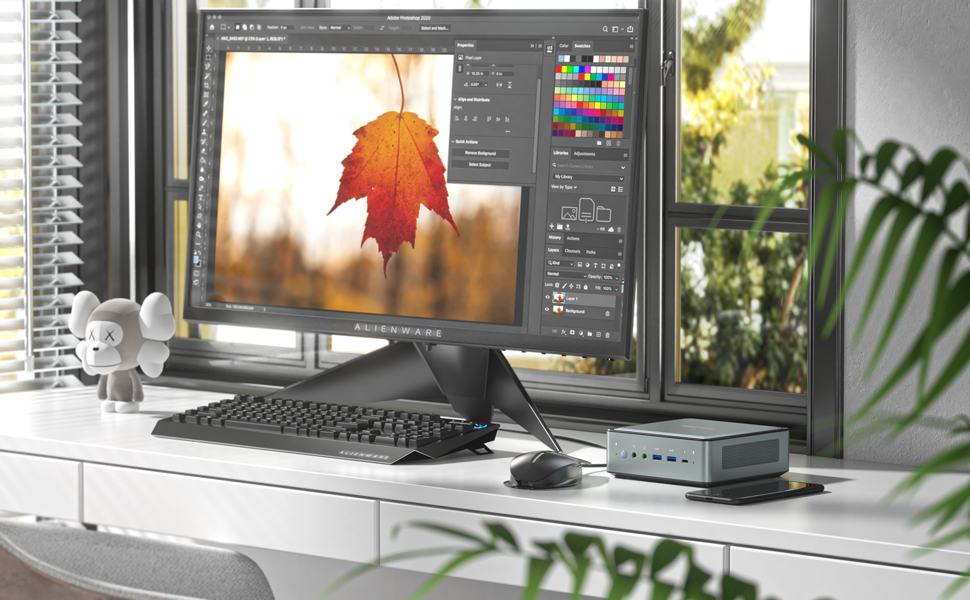
Image: Illustration of the HM80 Mini PC connected to three monitors, demonstrating its triple display output capability.
- Connect your monitors to the HDMI, DisplayPort, and USB-C video outputs.
- In Windows, right-click on the desktop and select 'Display settings' to configure display arrangement, resolution, and orientation.
7. Maintenance
7.1 Cleaning
- Use a soft, dry cloth to clean the exterior of the Mini PC.
- For dust accumulation in vents, use compressed air. Ensure the device is powered off before cleaning.
7.2 Storage and RAM Upgrades
The HM80 Mini PC allows for easy upgrades of RAM, SSD, and HDD.
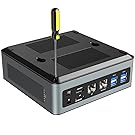
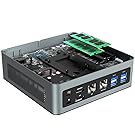

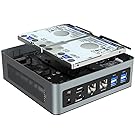
Images: Steps for opening the HM80 Mini PC and installing RAM, SSD, and HDD components.
- Ensure the Mini PC is powered off and disconnected from the power source.
- Carefully remove the bottom cover of the Mini PC.
- Locate the RAM (SO-DIMM) slots, M.2 SSD slot, or 2.5-inch HDD bays.
- Install or replace components according to their specific instructions. Ensure components are seated correctly.
- Replace the bottom cover and reconnect the power.
Note: Refer to the specific component's manual for detailed installation steps. Handle internal components with care to avoid damage.
8. Troubleshooting
If you encounter issues with your MINISFORUM HM80 Mini PC, refer to the following common troubleshooting steps:
- No Power: Ensure the power adapter is securely connected to both the Mini PC and a working power outlet. Try a different outlet if necessary.
- No Display: Verify that the monitor is powered on and the video cable (HDMI, DisplayPort, or USB-C) is securely connected to both the Mini PC and the monitor. Try a different cable or monitor if possible.
- No Internet Connection: For wired connections, check the Ethernet cable and router/modem status. For Wi-Fi, ensure Wi-Fi is enabled in Windows settings and you are connected to the correct network with the correct password.
- System Unresponsive: If the system freezes, press and hold the power button for 4-5 seconds to force a shutdown, then restart the device.
- Peripheral Not Detected: Ensure USB devices are properly connected. Try connecting them to a different USB port.
If problems persist, consult the MINISFORUM support website for further assistance.
9. Specifications
Detailed technical specifications for the MINISFORUM HM80 Mini PC:
| Feature | Specification |
|---|---|
| Processor | AMD Ryzen 7 4800U (8 Cores, 16 Threads, 3.4 GHz base, up to 4.0 GHz boost) |
| Graphics | Integrated AMD Radeon Graphics (1750 MHz) |
| RAM | 16 GB DDR4 (2x8GB, upgradable to 32GB per slot) |
| Storage | 512 GB 2280 PCIe SSD (up to 2TB), 2x 2.5-inch SATA HDD slots (up to 2TB each) |
| Operating System | Windows 11 Pro |
| Video Output | HDMI 2.0, DisplayPort, USB-C (supports triple 4K@60Hz displays) |
| Wireless Connectivity | Wi-Fi 6 (802.11ax), Bluetooth 5.1 |
| LAN Ports | 2x 2.5 Gigabit Ethernet (RJ45) |
| USB Ports | 4x USB 3.0, 2x USB 3.1, 2x USB-C |
| Audio | 3.5mm Microphone Jack, 3.5mm Audio Jack |
| Dimensions | Approximately 14.96 x 14.96 x 5.55 cm (5.89 x 5.89 x 2.19 inches) |
| Weight | Approximately 1.5 kg (3.32 pounds) |
10. Warranty and Support
MINISFORUM products typically come with a standard manufacturer's warranty. For specific warranty terms, duration, and to register your product, please visit the official MINISFORUM website or contact their customer support.
For technical support, driver downloads, and frequently asked questions, please refer to the MINISFORUM support page: www.minisforum.com/support


