
1. Introduction
The realme C33 is a feature-rich smartphone designed for dynamic photography and smooth user experience. It incorporates an AI-driven 50 MP camera, a large 5000 mAh battery, and is powered by the Unisoc T612 processor. This manual provides essential information to help you get started and make the most of your device.

Image 1.1: Rear view of the realme C33 smartphone, highlighting its camera module and design.
2. What's in the Box
Upon unboxing your realme C33, please ensure all the following items are present:
- realme C33 Smartphone
- Adapter
- USB Cable
- SIM Ejector Tool (may be included depending on region)
- Quick Start Guide (this document)
- Warranty Card
3. Setup
3.1. Inserting SIM Cards and MicroSD Card
The realme C33 supports dual SIM cards and a dedicated microSD card for expandable storage up to 1 TB.
- Locate the SIM card tray on the side of your device.
- Insert the SIM ejector tool into the small hole next to the tray and press gently until the tray pops out.
- Place your Nano-SIM cards into the designated slots (SIM1 and SIM2) with the gold contacts facing down.
- If using a microSD card, place it into the dedicated microSD card slot.
- Carefully push the tray back into the phone until it clicks into place.
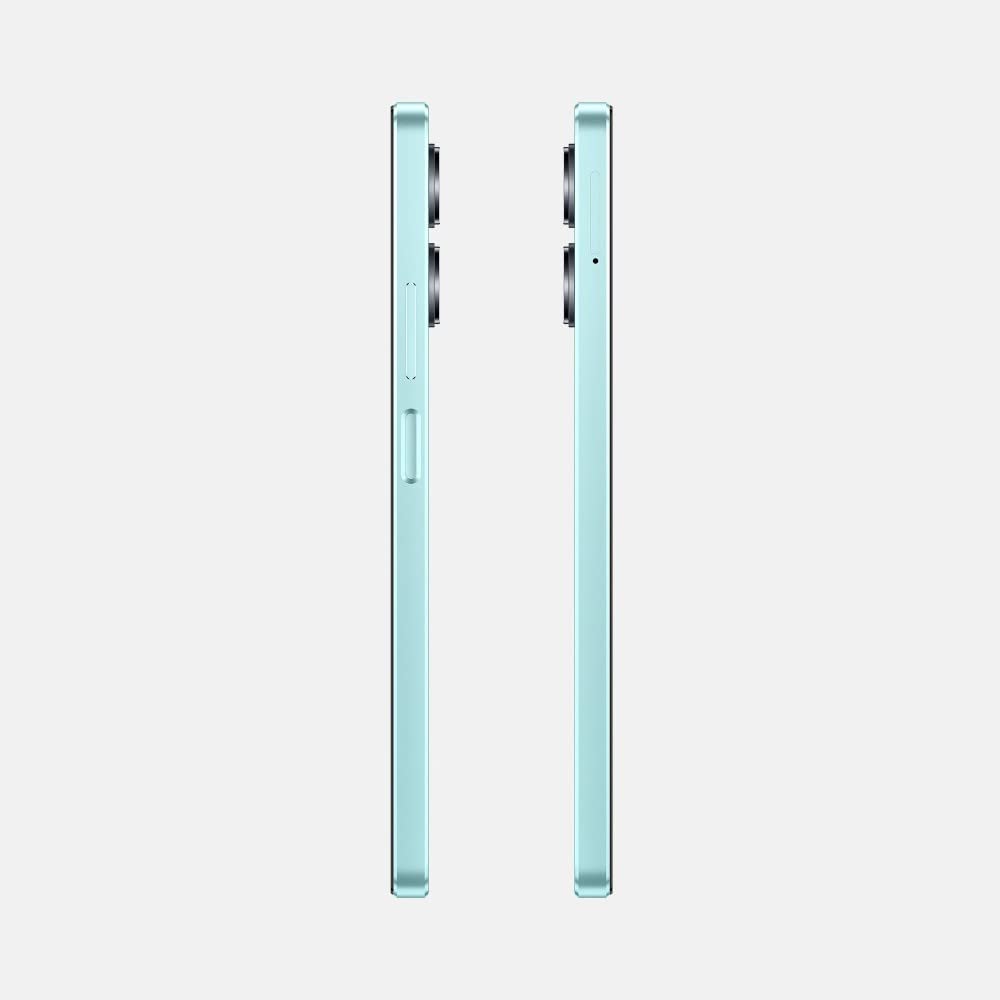
Image 3.1: Side view of the realme C33, indicating the location of the SIM card tray and power/volume buttons.
3.2. Charging the Device
Before initial use, it is recommended to fully charge your realme C33.
- Connect the USB cable to the adapter.
- Plug the adapter into a power outlet.
- Connect the USB cable to the USB Type-C port at the bottom of your phone.
- The charging indicator will appear on the screen.

Image 3.2: Bottom view of the realme C33, showing the USB Type-C charging port, 3.5mm headphone jack, and speaker.
3.3. Powering On and Initial Configuration
- Press and hold the Power button (located on the side) until the realme logo appears.
- Follow the on-screen prompts to select your language, connect to a Wi-Fi network, and set up your Google account.
- You may also be prompted to set up a screen lock (PIN, pattern, or fingerprint).
4. Operating Instructions
4.1. Basic Navigation
- Touchscreen Gestures: Tap to select, swipe to scroll, pinch to zoom.
- Home Screen: Access apps, widgets, and notifications.
- Notification Panel: Swipe down from the top of the screen to view notifications and quick settings.
4.2. Camera Usage
The realme C33 features a 50 MP AI main camera and a 5 MP front camera.
- Open the Camera app from your home screen or app drawer.
- Select your desired mode (e.g., Photo, Portrait, Video, Super Night).
- Tap the shutter button to capture photos or start/stop video recording.
- Use the toggle to switch between the rear and front cameras.
4.3. Fingerprint Recognition
The device includes a fingerprint sensor for secure unlocking and authentication.
- Go to Settings > Security > Fingerprint.
- Follow the on-screen instructions to register your fingerprint.
- Once registered, you can use your fingerprint to unlock the phone or authorize purchases.
4.4. Connectivity
- Wi-Fi: Connect to wireless networks via Settings > Network & internet > Wi-Fi.
- Bluetooth: Pair with other Bluetooth devices via Settings > Connected devices > Bluetooth.
- USB: Connect to a computer using the provided USB cable for data transfer or charging.
5. Maintenance
5.1. Cleaning Your Device
Use a soft, lint-free cloth to clean the screen and body of your phone. Avoid using harsh chemicals or abrasive materials.
5.2. Software Updates
Regularly check for and install software updates to ensure optimal performance and security.
- Go to Settings > System > System update.
- Follow the on-screen instructions to download and install any available updates.
5.3. Battery Care
- Avoid exposing the phone to extreme temperatures.
- Use only the original or certified charger and cable.
- Do not let the battery drain completely frequently.
5.4. Storage Management
To maintain device performance, regularly manage your storage:
- Delete unnecessary files and apps.
- Move large files to the microSD card.
- Clear cache data for apps.
6. Troubleshooting
If you encounter issues with your realme C33, try the following solutions:
- Device Not Turning On: Ensure the battery is charged. Press and hold the Power button for at least 10 seconds.
- Charging Issues: Check the USB cable and adapter for damage. Try a different power outlet.
- Apps Crashing/Freezing: Close the app and reopen it. Clear the app's cache (Settings > Apps > [App Name] > Storage > Clear cache). Restart the phone.
- Network Problems: Check if Airplane mode is off. Restart the phone. Reinsert the SIM card. Contact your network provider if the issue persists.
- Slow Performance: Close background apps. Clear storage space. Restart the device.
- Factory Reset (Last Resort): If problems persist, you may need to perform a factory reset. Warning: This will erase all data on your phone. Back up important data before proceeding. Go to Settings > System > Reset options > Erase all data (factory reset).
7. Specifications
| Feature | Detail |
|---|---|
| Brand | realme |
| Model | C33 |
| Operating System | Android 12.0 |
| Processor | Unisoc T612 (2.4 GHz) |
| RAM | 3 GB |
| Internal Storage | 32 GB |
| Expandable Storage | Up to 1 TB (MicroSD) |
| Display Type | LCD |
| Screen Size | 6.5 Inches |
| Resolution | 1280 x 720 |
| Rear Camera | 50 MP AI Camera |
| Front Camera | 5 MP |
| Battery Capacity | 5000 mAh Lithium-Ion |
| SIM Card Slot Count | Dual SIM (Nano) |
| Connector Type | USB Type C |
| Biometric Security | Fingerprint Recognition |
| Wireless Technology | Wi-Fi, Bluetooth, LTE |
8. Warranty and Support
8.1. Warranty Information
The realme C33 comes with a 1 Year Manufacturer Warranty for the phone and a 6 Months Warranty for in-box accessories from the date of purchase. Please retain your proof of purchase for warranty claims.
8.2. Customer Support
For further assistance, technical support, or warranty claims, please contact realme customer service through their official website or authorized service centers. Refer to the warranty card included in your product box for specific contact details.
You can also visit the official realme store for more information: realme Store