
Introduction
The PCsensor 3-Key Mini Keypad is a versatile and compact wireless mechanical gaming macro keyboard designed for various applications, including PC gaming, office work, and specialized tasks. This programmable keypad allows users to customize keys, key combinations, hotkeys, shortcuts, mouse functions, and even strings to meet specific needs. Its durable construction and rechargeable battery make it a reliable tool for enhancing productivity and gaming performance.

Image: The PCsensor 3-Key Mini Keypad in black, showcasing its compact design and illuminated keys.
Setup
1. What's in the Box
- PCsensor 3-Key Mini Keypad
- USB Type-C to USB-A Nylon Braided Cable
2. Charging the Keypad
Before first use, fully charge the keypad using the provided USB Type-C cable. Connect the Type-C end to the keypad's port and the USB-A end to a power source (e.g., computer USB port, wall adapter). A full charge typically takes approximately 2 hours and can provide up to 3 months of use. The LED light will flash for 3 seconds to indicate low battery.
3. Connecting the Keypad

Image: Detailed view of the keypad's side, highlighting the ON/OFF switch, USB Type-C port, and the connect button for pairing.
Wired Connection (USB Mode)
Connect the keypad directly to your computer using the provided USB Type-C cable. The keypad will be recognized as a standard HID device. In USB mode, the LED lights typically display a blue color.
Wireless Connection (Bluetooth Mode)
- Ensure the keypad is charged and the ON/OFF switch is in the "ON" position.
- Press and hold the "CONNECT" button (small circular button next to the Type-C port) for a few seconds until the LED lights start flashing, indicating pairing mode.
- On your device (computer, tablet, smartphone), go to Bluetooth settings and search for new devices.
- Select the PCsensor keypad from the list of available devices to pair.
- Once successfully paired, the LED lights will typically display a red color in wireless mode.
Note: For initial setup and programming, it is recommended to connect the keypad to a Windows or macOS system first.
4. Software Installation and Key Programming
The PCsensor 3-Key Mini Keypad requires dedicated software for programming its keys. This software allows you to assign various functions, including single keys, key combinations, macros, mouse actions, and text strings to each of the three keys.
- Visit the official PCsensor website or refer to the product packaging for the latest software download link.
- Install the software on a compatible operating system (Windows, macOS are typically supported).
- Launch the software and connect your keypad (preferably via USB for initial programming).
- Follow the on-screen instructions within the software to customize each key. The software interface provides options to select the desired function for each key.
- Save your configurations to the keypad. The programmed settings are stored on the keypad's internal memory, allowing it to function with these settings on other compatible devices without the software running.

Image: The software interface for programming the keypad, showing options for key assignment and device settings.
Operating the Keypad
Basic Operation
Once programmed, the keypad functions by simply pressing the assigned keys. The actions will be executed on the connected device as configured in the software.
LED Indicators
- Blue Light: Indicates the keypad is operating in USB wired mode.
- Red Light: Indicates the keypad is operating in wireless (Bluetooth) mode.
- Flashing Light: May indicate low battery or pairing mode.
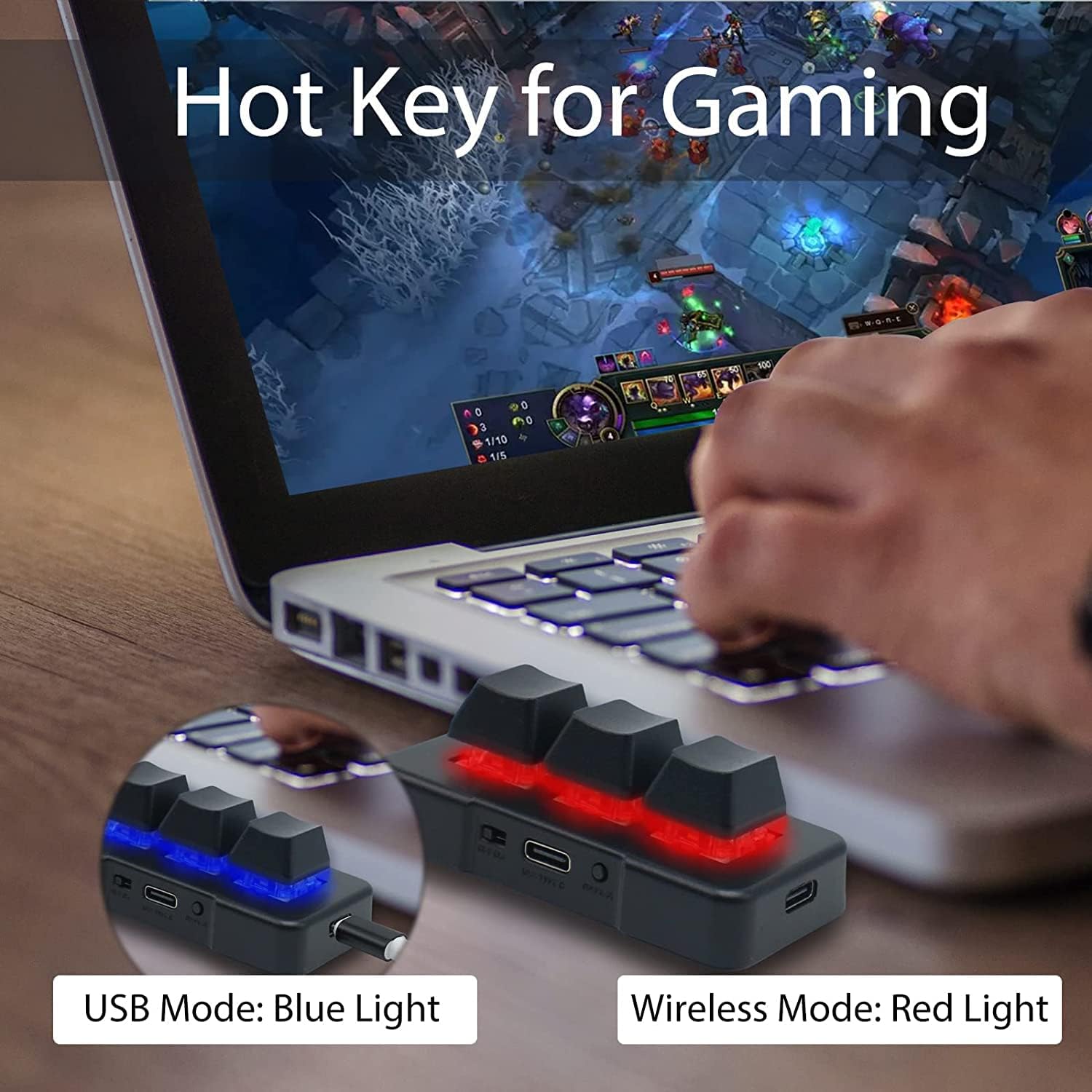
Image: A user engaging in PC gaming with the 3-key mini keypad, demonstrating its use in a gaming context with red backlighting.
Common Applications
The programmable nature of this keypad makes it suitable for a wide range of uses:
- Gaming: Assign complex macros, frequently used spells, or quick actions.
- Office Work: Create shortcuts for copy, paste, undo, or launching applications.
- Presentations: Control slides (next, previous) during PowerPoint or other presentations.
- Media Control: Play, pause, skip tracks, or adjust volume.
- Creative Software: Speed up workflows in photo/video editing or graphic design.
- Specialized Tasks: Use in industrial control, medical imaging, or other custom applications.

Image: A collage illustrating diverse applications of the keypad, including teaching, meetings, public speaking, and events.
Maintenance
Cleaning
To clean the keypad, gently wipe the surface with a soft, dry cloth. For stubborn dirt, a slightly damp cloth can be used, ensuring no liquid enters the ports or key switches. Avoid using harsh chemicals or abrasive materials.
Battery Care
- Charge the keypad regularly, especially if it will be stored for an extended period.
- Avoid completely draining the battery frequently, as this can reduce its overall lifespan.
- If the keypad is not used for a long time, charge it at least once every three months to maintain battery health.
Troubleshooting
| Problem | Possible Cause | Solution |
|---|---|---|
| Keypad not responding (wired) | Loose USB connection; faulty cable; driver issue. | Ensure cable is securely connected. Try a different USB port or cable. Restart your computer. |
| Keypad not connecting (Bluetooth) | Keypad not in pairing mode; Bluetooth off on device; interference. | Ensure keypad is ON and in pairing mode (flashing LED). Check device's Bluetooth settings. Move closer to the device. Remove other Bluetooth devices causing interference. |
| Keys not performing programmed functions | Incorrect programming; software not applied; conflict with other software. | Re-open the programming software and verify key assignments. Ensure settings are saved to the keypad. Close other macro/key-mapping software. |
| Battery drains quickly | LED lights constantly on; frequent use; aging battery. | Turn off LED lights via software if possible. Ensure keypad is turned off when not in use. Charge fully before use. |
| Software not working or found | Incorrect download source; compatibility issues. | Refer to the official PCsensor website for the correct and latest software version. Ensure your operating system is supported. |
Specifications

Image: Technical drawing illustrating the physical dimensions of the keypad and the length of the charging cable.
- Product Dimensions: 3 x 1.5 x 0.5 inches
- Item Weight: 2.39 ounces
- Manufacturer: PCsensor
- Batteries: 1 Lithium Ion battery (included)
- Connectivity Technology: Bluetooth, USB Wired (Type-C)
- Keyboard Description: Wireless, Mechanical
- Number of Keys: 3
- Keyboard Backlighting: RGB (programmable)
- Compatible Devices: Laptop, PC, Tablet (Windows, Linux, Mac OS, Android, iOS)
- Special Features: Customizable Display Keys, Rechargeable
Warranty and Support
For information regarding product warranty, returns, or technical support, please contact the manufacturer, PCsensor, or the seller directly. Keep your purchase receipt or order details handy for any warranty claims.
An official User Manual (PDF) is also available for download: Download User Manual (PDF)


