1. Introduction
The NX1 is an essential lighting controller within the innovative and powerful ONYX platform. It offers a complete ONYX experience without compromises in an ultra-compact package. Utilizing the full ONYX Operating System, the NX1 includes a high-brightness 10.1" HD multi-touch screen, assignable parameter encoders, motorized playbacks, and a dedicated Master Go section. Designed with industrial components, it features a powerful Intel processor, high-speed NVMe SSD, and 8GB of DDR4 RAM, enabling fast boot times, instant operation, and the ability to process 8 Universes directly within the console. The NX1 provides ample connectivity and power for a wide variety of shows and applications.
2. Key Features
- Portable and Compact Design: Fully featured lighting console in a compact form factor.
- Integrated Display: 10.1" Full HD multi-touch screen (1920x1200px).
- External Monitor Support: Supports one additional HDMI external touch monitor.
- ONYX Essential License: Provides control for 8 Universes.
- Powerful Hardware: Industrial Intel CPU, 250 GB NVMe M.2 storage, 8 GB DDR4 RAM, Windows 10 IoT Embedded OS.
- Control Surface: 10x 60mm motorized playback faders with 4 function-assignable buttons each, 10x customizable playback/multi-function keys, Master Go section (Go, Pause, Snap, Release), 4x digital rotary encoders.
- Connectivity: 4x DMX/RDM Universe In/Out (5pin locking XLR), 1x Gigabit RJ45 Ethernet (Art-Net, sACN, ONYX X-Net), 4x USB 3.0, 1x USB 2.0, Audio Out, Mic In (3.5mm Jack), USB 5V Desk Lamp port, IP65 Locking Power In.
3. Setup and Connections
This section details the physical setup and connection of the NX1 lighting controller.
3.1. Power Connection
Connect the provided power cable to the IP65 Locking Power In port on the rear of the console. Ensure the power source is within the 100-240V 50/60 Hz range.
3.2. DMX/RDM Output
The NX1 features four 5-pin locking XLR ports for DMX/RDM Universe In/Out. Connect your DMX-compatible lighting fixtures or DMX distribution devices to these ports.
3.3. Network Connection
Utilize the Gigabit RJ45 Ethernet port to connect the NX1 to your network for Art-Net, sACN, and ONYX X-Net protocols. This allows for expanded universe control and integration with other network devices.
3.4. External Display
An HDMI port is available for connecting one external touch monitor. This expands your workspace and provides additional direct access to ONYX functions.
3.5. USB Peripherals
The console includes four USB 3.0 ports and one USB 2.0 port for connecting storage devices, keyboards, mice, or other USB peripherals. A dedicated USB 5V port is available for a desk lamp.
3.6. Audio Connections
Two 3.5mm jack ports are provided for Audio Out and Mic In, allowing for audio integration with your lighting show.

Figure 3.6.1: Rear panel of the NX1, illustrating the various connectivity ports including DMX, HDMI, Network, USB, and Audio.
4. Operating the NX1
The NX1 offers a comprehensive control surface designed for intuitive operation of the ONYX lighting software.
4.1. Control Surface Overview

Figure 4.1.1: Top view of the NX1 console, highlighting the integrated screen, faders, and control buttons.
- Motorized Playbacks: Ten 60mm motorized faders are available, each accompanied by four function-assignable buttons. These are primarily used for controlling cues, sequences, or intensity levels.
- Playback / Function Hybrids: Ten additional customizable keys can be assigned as playbacks or multi-function keys, providing flexibility for various show requirements.
- Master Go Section: This dedicated section includes 'Go', 'Pause', 'Snap', and 'Release' buttons for precise control over cue lists and show execution.
- Digital Rotary Encoders: Four digital rotary encoders with push function and status LEDs are provided for fixture parameter control, allowing for fine adjustments of attributes like color, position, and gobos.
- Virtual Keypad: The integrated 10.1" multi-touch screen provides a virtual keypad for data entry and direct access to ONYX software functions.
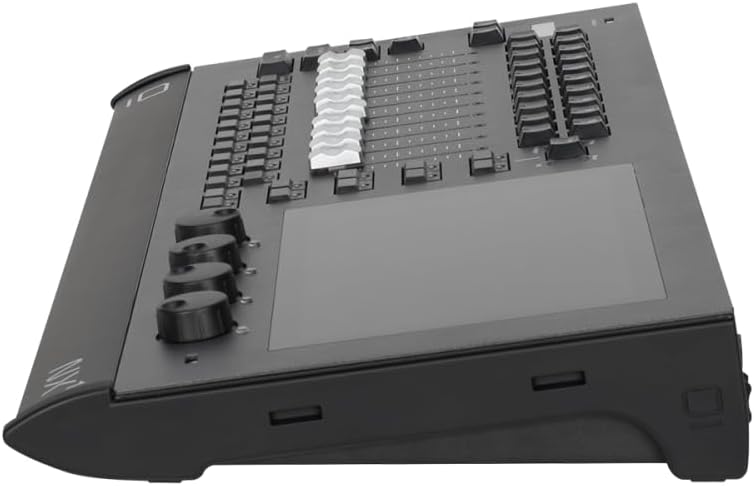
Figure 4.1.2: Side view of the NX1, emphasizing the ergonomic layout of the faders and the angle of the integrated screen.
5. Maintenance
Proper maintenance ensures the longevity and reliable operation of your NX1 controller.
- Cleaning: Use a soft, dry cloth to clean the exterior surfaces. For the touchscreen, use a screen-specific cleaner and a microfiber cloth. Avoid abrasive cleaners or solvents.
- Ventilation: Ensure that the ventilation openings on the console are not obstructed. The NX1 features a quiet thermal design with advanced copper heat pipe coolers, but proper airflow is still crucial.
- Software Updates: Regularly check the Obsidian Control Systems website for ONYX software updates to ensure you have the latest features and bug fixes.
- Storage: When not in use, store the console in a clean, dry environment, preferably in a protective case, to prevent dust accumulation and physical damage.
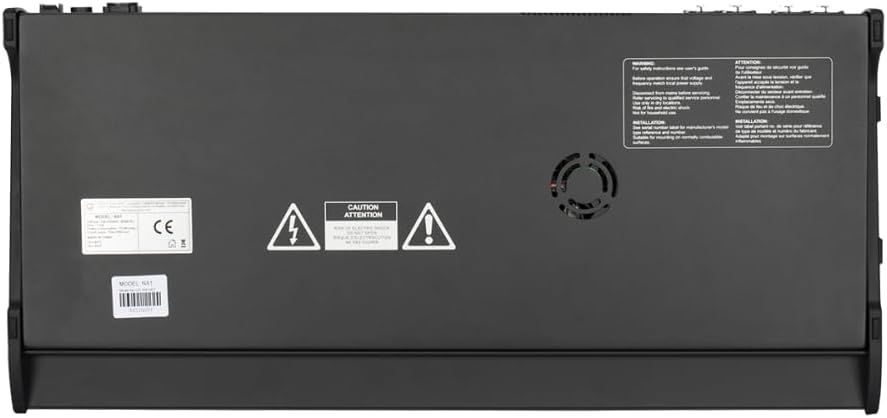
Figure 5.1: Bottom view of the NX1, showing the ventilation areas that should be kept clear for optimal cooling.
6. Troubleshooting
This section provides guidance for common issues you might encounter with the NX1 controller.
- Console Not Powering On:
- Ensure the power cable is securely connected to both the console and a working power outlet.
- Verify the power switch on the rear of the console is in the 'ON' position.
- Check the power source for functionality.
- Software Freezes or Becomes Unresponsive:
- If the console becomes unresponsive, a restart may be necessary. Press and hold the power button until the unit shuts down, then power it back on.
- Ensure the ONYX software is up to date. Outdated software can sometimes lead to instability.
- Avoid running excessive background applications if possible, though the dedicated OS is optimized for ONYX.
- No DMX Output:
- Verify DMX cables are correctly connected and not damaged.
- Check DMX universe assignments within the ONYX software to ensure they match your physical connections.
- Confirm that fixtures are properly addressed and terminated.
If issues persist after attempting these troubleshooting steps, please contact Obsidian Control Systems support for further assistance.
7. Specifications
| Category | Specification |
|---|---|
| Model Number | NX1007 |
| Dimensions (L x W x H) | 298.5 mm (11.75 in.) x 636 mm (25 in.) x 71 mm (2.8 in.) |
| Weight | 8.1 kg (17.8 lbs.) |
| Display | 10.1" TFT 16:9 touchscreen (1920x1200px) |
| Processor | Industrial Intel CPU |
| Storage | 250 GB NVMe M.2 SSD |
| RAM | 8 GB DDR4 |
| Operating System | Windows 10 IoT Embedded |
| DMX/RDM Ports | 4x 5-pin locking XLR |
| Network Port | 1x Gigabit RJ45 Ethernet |
| USB Ports | 4x USB 3.0, 1x USB 2.0 |
| External Display | 1x HDMI |
| Audio Ports | 2x 3.5mm Jack (Audio Out, Mic In) |
| Power Input | 100-240V 50/60 Hz, 104W (IP65 Locking) |
8. Warranty and Support
For information regarding product warranty, please refer to the official Obsidian Control Systems warranty policy available on their website. For technical support, troubleshooting beyond the scope of this manual, or service inquiries, please contact Obsidian Control Systems directly through their official support channels.
You can find more information and support resources on the official Obsidian Control Systems website: www.obsidiancontrol.com


