Introduction
This manual provides comprehensive instructions for the setup, operation, maintenance, and troubleshooting of your Mars Gaming MK60 Mechanical Gaming Keyboard. Please read this manual carefully before using the product to ensure optimal performance and longevity.
Product Overview
The Mars Gaming MK60 is a 60% ultra-compact mechanical gaming keyboard designed for performance and portability. It features durable anti-dust mechanical switches, 12 FRGB Rainbow lighting effects, and advanced anti-ghosting technology. Its high-performance ARM architecture chip ensures responsive and reliable operation across multiple platforms.
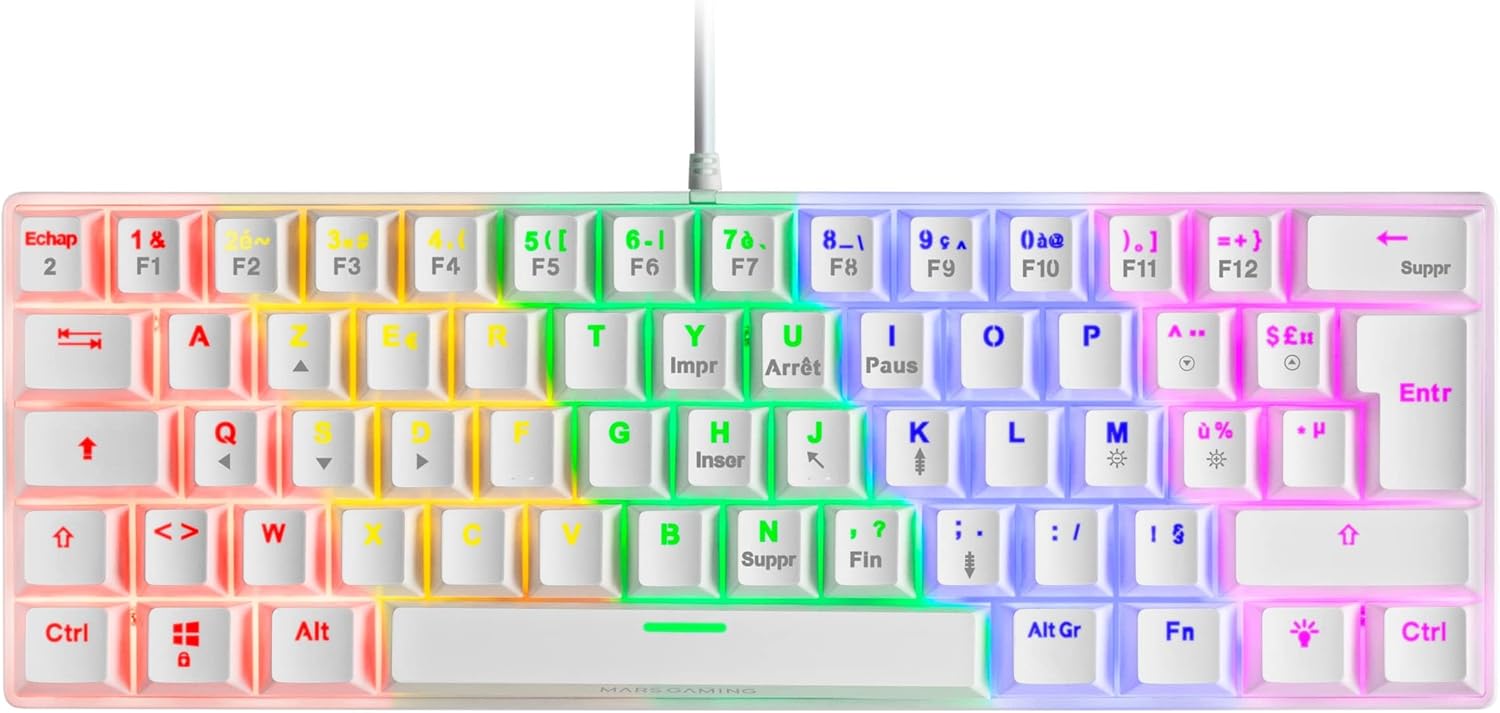
Figure 1: Front view of the Mars Gaming MK60 Mechanical Gaming Keyboard in white, showcasing its compact 60% layout and vibrant FRGB rainbow backlighting.
What's in the Box
- Mars Gaming MK60 Mechanical Gaming Keyboard
- USB Cable
Specifications
| Brand | Mars Gaming |
| Model Number | MK60WBRFR |
| Color | White |
| Keyboard Description | Gaming |
| Connectivity Technology | USB 2.0 |
| Compatible Devices | PC, Gaming Console, Laptop |
| Operating System | Linux, Windows, Mac (Multi-platform compatibility) |
| Dimensions (L x W x H) | 29.1 x 10.1 x 4 cm |
| Weight | 410 Grams |
| Special Feature | Ergonomic, Anti-ghosting, FRGB Lighting |
| Switch Type | Mechanical Brown |
Setup Guide
Connecting the Keyboard
- Unpack the Mars Gaming MK60 keyboard and the USB cable from the box.
- Locate an available USB 2.0 port on your computer or gaming console.
- Connect the USB cable to the keyboard's USB port.
- Plug the other end of the USB cable into the USB port on your device.
- The keyboard is plug-and-play and should be automatically recognized by your operating system (Windows, Linux, Mac) or console (PS4, PS5, Xbox One, Xbox Series X-S).
Driver Installation (Optional)
While the keyboard functions without additional drivers, for advanced customization such as macro programming or per-key RGB lighting control, you may download the official software from the Mars Gaming website. Refer to the website for the latest software and installation instructions.
Operating Instructions
Basic Keyboard Functions
The MK60 keyboard features a 60% layout, meaning some standard keys are accessed via function (Fn) key combinations. The keyboard supports full anti-ghosting for simultaneous key presses.
Function Key Combinations (Fn)
To access secondary functions, press and hold the Fn key (located to the right of the spacebar) and then press the desired key.
| Combination | Function |
|---|---|
| Fn + F1 | Media Player |
| Fn + F2 | Volume Down |
| Fn + F3 | Volume Up |
| Fn + F4 | Mute |
| Fn + F5 | Previous Track |
| Fn + F6 | Next Track |
| Fn + F7 | Play/Pause |
| Fn + F8 | Stop |
| Fn + F9 | |
| Fn + F10 | Web Browser |
| Fn + F11 | My Computer |
| Fn + F12 | Calculator |
| Fn + Win | Lock Windows Key |
| Fn + Spacebar | Change Lighting Effect |
| Fn + M | Adjust Lighting Brightness |
| Fn + K | Adjust Lighting Speed |
FRGB Lighting Effects
The MK60 features 12 distinct FRGB Rainbow lighting effects. You can cycle through these effects by pressing Fn + Spacebar. Adjust brightness with Fn + M and speed with Fn + K.
Anti-Ghosting
The keyboard is equipped with advanced anti-ghosting technology, ensuring that all simultaneous key presses are registered accurately, which is crucial for fast-paced gaming.
Gaming Mode
The keyboard includes a dedicated gaming mode. Specific instructions for activating and customizing this mode can be found in the optional software or by referring to the official Mars Gaming support resources.
Maintenance and Care
Proper maintenance ensures the longevity and optimal performance of your MK60 keyboard.
Cleaning
- Disconnect the keyboard from your device before cleaning.
- Use a soft, lint-free cloth slightly dampened with water or a mild cleaning solution to wipe the surface of the keyboard.
- For dust and debris between keycaps, use compressed air.
- Avoid using harsh chemicals, abrasive cleaners, or solvents, as these can damage the keyboard's finish and keycap legends.
Storage
When not in use, store the keyboard in a cool, dry place away from direct sunlight and extreme temperatures.
Troubleshooting
If you encounter issues with your Mars Gaming MK60 keyboard, refer to the following common problems and solutions:
| Problem | Possible Cause | Solution |
|---|---|---|
| Keyboard not responding | Loose USB connection, faulty USB port, driver issue. |
|
| Keys not registering or ghosting | Software conflict, physical obstruction, extreme wear. |
|
| Lighting not working or incorrect | Lighting mode setting, software glitch. |
|
If the problem persists after trying these solutions, please contact Mars Gaming customer support for further assistance.
Warranty and Support
Manufacturer's Warranty
The Mars Gaming MK60 Mechanical Gaming Keyboard comes with a 3-year manufacturer's warranty. This warranty covers defects in materials and workmanship under normal use. Please retain your proof of purchase for warranty claims.
Customer Support
For technical support, warranty claims, or additional information, please visit the official Mars Gaming website or contact their customer service department. You can find contact details and support resources on their official website: www.marsgaming.eu