1. Introduction
This manual provides detailed instructions for the installation, operation, and maintenance of your MokerLink 11 Port PoE Switch. This unmanaged Fast Ethernet switch is designed to provide reliable network connectivity and Power over Ethernet (PoE) capabilities for various devices, including IP cameras, wireless access points, and IP phones. Please read this manual thoroughly before using the product to ensure proper setup and optimal performance.

Figure 1: MokerLink 11 Port PoE Switch (Model: 9 POE + 2 FE)
2. Product Overview
2.1 Key Features
- 11 Ports: Includes 9 PoE ports and 2 Fast Ethernet (FE) UpLink ports, operating at 10/100Mbps. The uplink ports connect to devices like routers or NVRs.
- High PoE Power: Supports a maximum output power of 120W with a built-in power supply. Compliant with IEEE 802.3af/at standards, each PoE port can deliver up to 30W. Note: Does not support passive 24V PoE.
- Unmanaged Plug & Play: Features Power Detection function for automatic device detection. Compatible with both PoE and non-PoE devices for data connectivity. Requires no configuration; simply connect power and Ethernet cables.
- Extend Function: When enabled via the DIP switch, PoE ports can extend connectivity up to 250 meters at 10Mbps speed. Ports are isolated from each other in this mode, enhancing network security.
- Durable Design: Small, compact size with a durable metal housing. Fanless design ensures quiet operation.
- Versatile Applications: Ideal for IP cameras, Wireless Access Points, and other computer network devices in various settings.
2.2 Physical Components
The MokerLink 11 Port PoE Switch features a robust metal casing with clearly labeled ports and indicators on the front panel.

Figure 2: Front Panel Layout and Key Specifications
- PoE Ports (1-9): 10/100Mbps ports that provide both data and power to connected PoE-compatible devices.
- UpLink Ports (10-11): 10/100Mbps Fast Ethernet ports for connecting to your main network, router, NVR, or other non-PoE devices.
- PWR LED: Indicates power status. Lit when the switch is powered on.
- EXTEND LED: Indicates the status of the Extend mode. Lit when Extend mode is active.
- DIP Switch (S/E+V): Toggles between Normal mode (S) and Extension mode (E+V).
3. Setup
3.1 Package Contents
Before installation, please verify that all items are present and undamaged:
- MokerLink 11 Port PoE Switch (9 POE + 2 FE)
- Power Cord
- User Manual (this document)
3.2 Connecting the Switch
The MokerLink PoE Switch is designed for plug-and-play operation, requiring minimal setup.

Figure 3: Simple Plug and Play Connectivity
- Power Connection: Connect the provided power cord to the AC IN port on the back of the switch and then to a standard electrical outlet. The PWR LED on the front panel should illuminate.
- Network Connection (Uplink): Connect one of the UpLink ports (10 or 11) to your router, NVR, or main network device using a standard Ethernet cable.
- Device Connection (PoE/Non-PoE):
- For PoE-powered devices (e.g., IP cameras, wireless APs), connect them to any of the PoE ports (1-9) using an Ethernet cable. The switch will automatically detect and provide power.
- For non-PoE devices (e.g., computers, non-PoE NVRs) that only require data connectivity, you can connect them to any of the PoE ports (1-9) or the UpLink ports (10-11). The switch will provide data connectivity without power.
- Verify Connections: Check the Link/Act LEDs for each connected port. A solid green light indicates a stable link, and a blinking light indicates data activity.
4. Operating
4.1 LED Indicators
The front panel LEDs provide real-time status information:
- PWR (Power):
- Lit: The switch is powered on.
- Un-Lit: The switch is powered off.
- Link/Act (Per Port):
- Solid Green: A stable network link is established.
- Blinking Green: Data is being transmitted or received on the port.
- Un-Lit: No device is connected or the link is down.
- EXTEND LED:
- Lit: Extend mode is active (250m distance, 10Mbps speed, port isolation).
- Un-Lit: Default mode is active (100m distance, 100Mbps speed).

Figure 4: LED Indicator Overview
4.2 DIP Switch Functions (Extend Mode & Port-based VLAN)
The DIP switch on the front panel allows you to toggle between two operational modes:

Figure 5: Advanced Features via DIP Switch
- S (Default Mode):
- Speed: 10/100Mbps for all ports.
- Distance: Standard Ethernet cable length (up to 100 meters).
- VLAN: No port isolation; all ports can communicate with each other.
- E+V (Extension Mode):
- Speed: PoE ports (1-9) operate at 10Mbps. Uplink ports (10-11) remain at 10/100Mbps.
- Distance: PoE ports (1-9) can extend up to 250 meters.
- VLAN (Port Isolation): PoE ports (1-9) are isolated from each other, preventing direct communication between them. They can only communicate with the uplink ports. This enhances security and prevents broadcast storms in large surveillance networks.
To change the mode, simply slide the DIP switch to the desired position. It is recommended to power off the switch before changing the DIP switch setting to ensure proper application of the new mode.
5. Maintenance
Proper care and maintenance will ensure the longevity and reliable performance of your MokerLink PoE Switch.
- Cleaning: Use a soft, dry cloth to clean the exterior of the switch. Do not use liquid or aerosol cleaners.
- Ventilation: Ensure that the ventilation holes on the sides of the switch are not blocked. Although fanless, proper airflow helps dissipate heat.
- Environment: Operate the switch within the specified temperature and humidity ranges. Avoid placing it in direct sunlight, near heat sources, or in excessively dusty or humid environments.
- Cable Management: Keep network cables organized and free from kinks or excessive bending to prevent signal degradation.
- Power Supply: Use only the power adapter provided with the switch.
6. Troubleshooting
If you encounter issues with your MokerLink PoE Switch, refer to the following common problems and their solutions:
- No Power (PWR LED is off):
- Ensure the power cord is securely connected to the switch and the electrical outlet.
- Verify that the electrical outlet is functioning correctly by plugging in another device.
- No Link/Activity on a Port (Link/Act LED is off):
- Check if the Ethernet cable is securely connected at both ends (switch and device).
- Try a different Ethernet cable to rule out cable damage.
- Ensure the connected device is powered on and functioning correctly.
- If connecting a PoE device, ensure it is PoE-compatible (IEEE 802.3af/at).
- PoE Device Not Receiving Power:
- Confirm the device is connected to a PoE port (1-9).
- Check if the device is IEEE 802.3af/at compliant. This switch does not support passive 24V PoE.
- Ensure the total power consumption of all connected PoE devices does not exceed the switch's 120W power budget.
- Try connecting the device to a different PoE port.
- Network Speed Issues (Slow Connection):
- Check the DIP switch setting. If in Extend mode (E+V), PoE ports operate at 10Mbps. Switch to Default mode (S) for 100Mbps if extended distance is not required.
- Ensure Ethernet cables are Cat5e or better for optimal performance.
- Verify the connected device's network adapter speed settings.
- Intermittent Connectivity:
- Check for loose cable connections.
- Ensure the switch is placed in a well-ventilated area to prevent overheating.
- Avoid placing the switch near strong electromagnetic interference sources.
7. Specifications
Detailed technical specifications for the MokerLink 11 Port PoE Switch (Model: 9 POE + 2 FE).
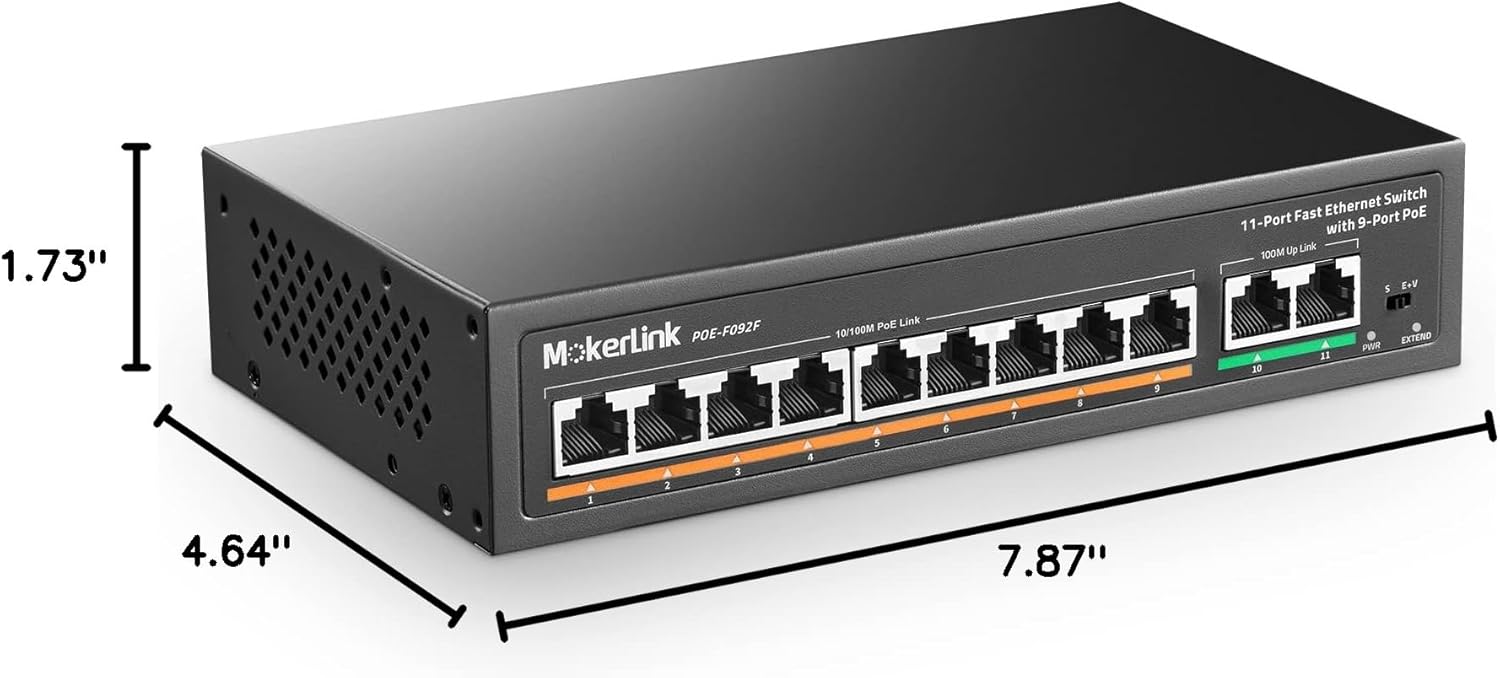
Figure 6: Product Dimensions
| Attribute | Value |
|---|---|
| Brand | MokerLink |
| Model Number | 9 POE + 2 FE |
| Number of Ports | 11 (9 PoE, 2 UpLink) |
| Data Transfer Rate | 10/100Mbps |
| PoE Standard | IEEE 802.3af/at |
| Max PoE Power per Port | 30W |
| Total PoE Power Budget | 120W |
| Switch Type | Unmanaged |
| Extend Function | Up to 250m at 10Mbps (via DIP switch) |
| VLAN Function | Port Isolation in Extend Mode (via DIP switch) |
| Case Material | Metal |
| Cooling | Fanless |
| Product Dimensions (L x W x H) | 7.87" x 4.64" x 1.73" |
| Item Weight | 2.09 pounds |
| Operating Temperature | -20°C to +50°C (Upper Temperature Rating: 55 Degrees Celsius) |
| Compatible Devices | IP Cameras, Wireless Access Points, Computer Networks devices, etc. |
8. Warranty and Support
MokerLink is committed to providing high-quality products and excellent customer service.
- Money-Back Guarantee: Enjoy a 30-day money-back guarantee from the date of purchase.
- Warranty: The product comes with a 1-year warranty covering manufacturing defects.
- Technical Support: Lifetime technical support is available for all MokerLink products.
For technical assistance, warranty claims, or any product-related inquiries, please contact MokerLink customer support through the official channels provided at the time of purchase or on the MokerLink website.