
1. Introduction
This manual provides detailed instructions for the Yoidesu 6-inch HD E Reader, model B0BDD192NJ. It covers device setup, operation, maintenance, and troubleshooting to ensure optimal use of your e-reader.
2. Product Overview
2.1 Components Included
- Yoidesu 6-inch HD E Reader
- Protective Case
- Headphones
- USB Charging Cable
- User Manual (this document)

The image displays the Yoidesu E Reader alongside its standard accessories: a pair of headphones, a USB charging cable, and a protective cover.
2.2 Device Features
- Display: 6-inch 800x600 HD E Ink screen. Designed to protect eyes by not emitting blue light, providing a paper-like reading experience.
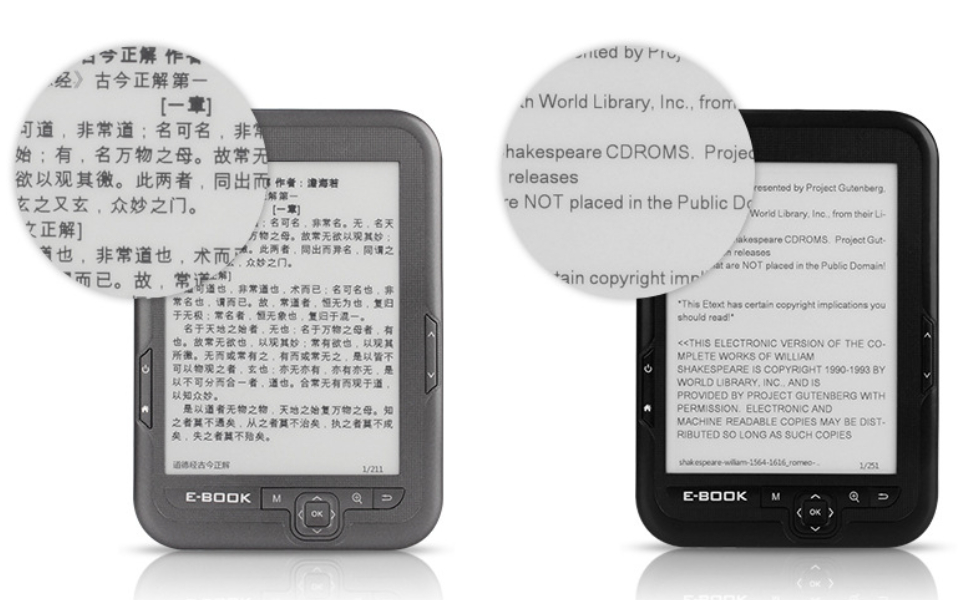
A detailed view of the E Reader's high-definition ink screen, showcasing its clear text display and paper-like appearance.
- Storage: Built-in 16GB storage capacity, expandable up to an additional 16GB via a memory card.

A user reading on the Yoidesu E Reader, demonstrating the device's capacity to store a large library of books.
- Battery: Equipped with a 2500mAh battery for extended usage between charges.

A user reading on the Yoidesu E Reader, emphasizing the device's long-lasting battery for uninterrupted reading.
- Portability: Compact, lightweight (15.5 ounces / 439 grams), and thin design for easy handling and transport.

A hand holding the Yoidesu E Reader from the side, showcasing its slim profile and light weight.
- Supported File Formats: Compatible with various ebook and image formats including BMP, DOC, EPUB, FB2, GIF, HTML, MOBI, PDF, PNG, RTF, TXT.

A person reading on the Yoidesu E Reader in an outdoor setting, highlighting its ability to display various document and image formats.
- Multimedia: Supports FM radio and music playback.
- Interface: Features mechanical buttons for navigation.
3. Getting Started (Setup)
3.1 Charging the Device
- Connect the provided USB cable to the e-reader's charging port and to a USB power adapter (not included) or a computer's USB port.
- The charging indicator will illuminate.
- Disconnect the cable once fully charged.
3.2 Powering On/Off
- To power on, press and hold the Power button (usually marked with a circle and vertical line) for a few seconds until the screen activates.
- To power off, press and hold the Power button until a power-off prompt appears, then confirm. A short press will put the device into sleep mode.
3.3 Inserting a Memory Card
- Locate the memory card slot on the device.
- Gently insert a compatible microSD card (up to 16GB) into the slot until it clicks into place. Ensure the card is oriented correctly.
- To remove, gently push the card further in until it springs out.
3.4 Transferring Files
- Connect the e-reader to your computer using the provided USB cable.
- The device will appear as a removable storage drive on your computer.
- Drag and drop your desired ebook files (BMP, DOC, EPUB, FB2, GIF, HTML, MOBI, PDF, PNG, RTF, TXT) or music files into the appropriate folders on the e-reader's storage.
- Safely eject the device from your computer before disconnecting the USB cable.
4. Basic Operation
4.1 Navigation
- The device features physical buttons for navigation.
- Use the directional buttons (up, down, left, right) to move through menus and pages.
- The "OK" button (often central) confirms selections.
- Other buttons like "M" (Menu), "Q" (Search/Quick access), and "U" (Return/Back) provide additional functionality.
4.2 Reading Ebooks
- From the main menu, select "Ebook" or "Library".
- Browse your stored books and select one to open.
- Use the page turn buttons (often on the sides of the device) to navigate through pages.
- Access reading options (e.g., font size, line spacing) through the menu button while reading.
4.3 Music Playback
- Connect the included headphones to the device's audio jack.
- From the main menu, select "Music".
- Browse and select audio files to play.
- Use the device's buttons to control playback (play/pause, skip tracks, volume).
4.4 FM Radio
- Connect the included headphones, as they act as the antenna.
- From the main menu, select "FM".
- Use the navigation buttons to scan for stations or manually tune to a frequency.
4.5 Settings
Access the "Settings" menu from the main screen to adjust device preferences such as language, date and time, display refresh, and system information.
5. Maintenance
5.1 Cleaning
- Use a soft, dry, lint-free cloth to clean the screen and body of the device.
- Avoid using liquid cleaners, aerosols, or abrasive materials.
5.2 Storage
- Store the e-reader in a cool, dry place, away from direct sunlight and extreme temperatures.
- Use the provided protective case to prevent scratches and minor impacts.
5.3 Battery Care
- For optimal battery life, avoid fully discharging the battery frequently.
- If storing the device for an extended period, charge it to about 50% before storage.
6. Troubleshooting
6.1 Common Issues and Solutions
- Device Not Turning On:
- Ensure the battery is charged. Connect the device to a power source for at least 30 minutes.
- Press and hold the Power button for 10-15 seconds to perform a hard reset.
- Screen Not Responding/Frozen:
- Perform a hard reset by pressing and holding the Power button for 10-15 seconds.
- If the issue persists, ensure the device is charged.
- Cannot Transfer Files:
- Ensure the USB cable is securely connected to both the device and the computer.
- Try a different USB port or cable.
- Verify that the device is recognized as a removable drive on your computer.
- Ebook Files Not Opening:
- Check if the file format is supported (BMP, DOC, EPUB, FB2, GIF, HTML, MOBI, PDF, PNG, RTF, TXT).
- Ensure the file is not corrupted. Try opening another file.
- Verify the file was transferred correctly to the device's ebook folder.
- Poor Audio Quality (Music/FM):
- Ensure headphones are fully plugged in.
- Try a different pair of headphones.
- For FM radio, ensure you are in an area with good signal reception.
7. Specifications
7.1 Technical Specifications
| Feature | Detail |
|---|---|
| Brand | Yoidesu |
| Model | B0BDD192NJ |
| Display Technology | LCD (E Ink screen type) |
| Screen Size | 6 Inches |
| Display Resolution | 800x600 |
| Memory Storage Capacity | 16 GB (expandable up to 16 GB via memory card) |
| Connectivity Technology | USB |
| Supported File Formats | BMP, DOC, EPUB, FB2, GIF, HTML, MOBI, PDF, PNG, RTF, TXT |
| Human Interface Input | Buttons |
| Item Weight | 15.5 ounces (approx. 439 grams) |
| Package Dimensions | 10.51 x 7.2 x 1.5 inches |
| Included Components | Headphone, User Manual (and USB cable, protective case) |
8. Warranty and Support
8.1 Warranty Information
Specific warranty details are not provided in this manual. Please refer to the product packaging or the manufacturer's official website for warranty terms and conditions.
8.2 Customer Support
For further assistance or technical support, please visit the Yoidesu official website or contact their customer service department. Contact information may be available on the product packaging or the brand's online store.