1. Introduction
This manual provides essential information for the safe and efficient use of your Dell PowerEdge T330 Server. It covers installation, operation, maintenance, and troubleshooting. Please read this manual thoroughly before operating the server and retain it for future reference.
The Dell PowerEdge T330 is a powerful and versatile tower server designed for small to medium-sized businesses and remote office/branch office applications. It offers robust performance and storage capabilities for various workloads.

Figure 1: Dell PowerEdge T330 Server, showing the front panel with drive bays and side ventilation.
2. Safety Information
Always observe the following safety precautions to prevent injury and damage to the equipment:
- Power Source: Connect the server only to a grounded power outlet. Ensure the voltage and frequency match the server's requirements.
- Ventilation: Do not block ventilation openings. Ensure adequate airflow around the server to prevent overheating.
- Weight: The server can be heavy. Use proper lifting techniques or assistance when moving it.
- Static Electricity: Always use an anti-static wrist strap when handling internal components to prevent electrostatic discharge (ESD) damage.
- Liquid Exposure: Keep liquids away from the server.
- Servicing: Only qualified service personnel should perform internal servicing.
3. Setup
3.1 Unpacking and Inspection
Carefully remove the server and all accessories from the packaging. Inspect for any signs of damage during transit. If any damage is found, contact your vendor immediately.

Figure 2: Dell PowerEdge T330 Server securely packaged in a cardboard box with protective foam inserts and included power cable.
3.2 Physical Installation
Place the server on a stable, flat surface in a well-ventilated area. Ensure there is sufficient space around the server for proper airflow, especially at the front and rear.
3.3 Connecting Peripherals
- Power Cables: Connect the power cables to the server's power supply units (PSUs) at the rear and then to grounded electrical outlets.
- Network Cables: Connect one or more Ethernet cables from the server's network ports to your network switch or router.
- Monitor, Keyboard, Mouse: For initial setup, connect a monitor to the VGA port, and a USB keyboard and mouse to the USB ports on the rear panel.
- Optional Peripherals: Connect any other required peripherals such as external storage or KVM switches.
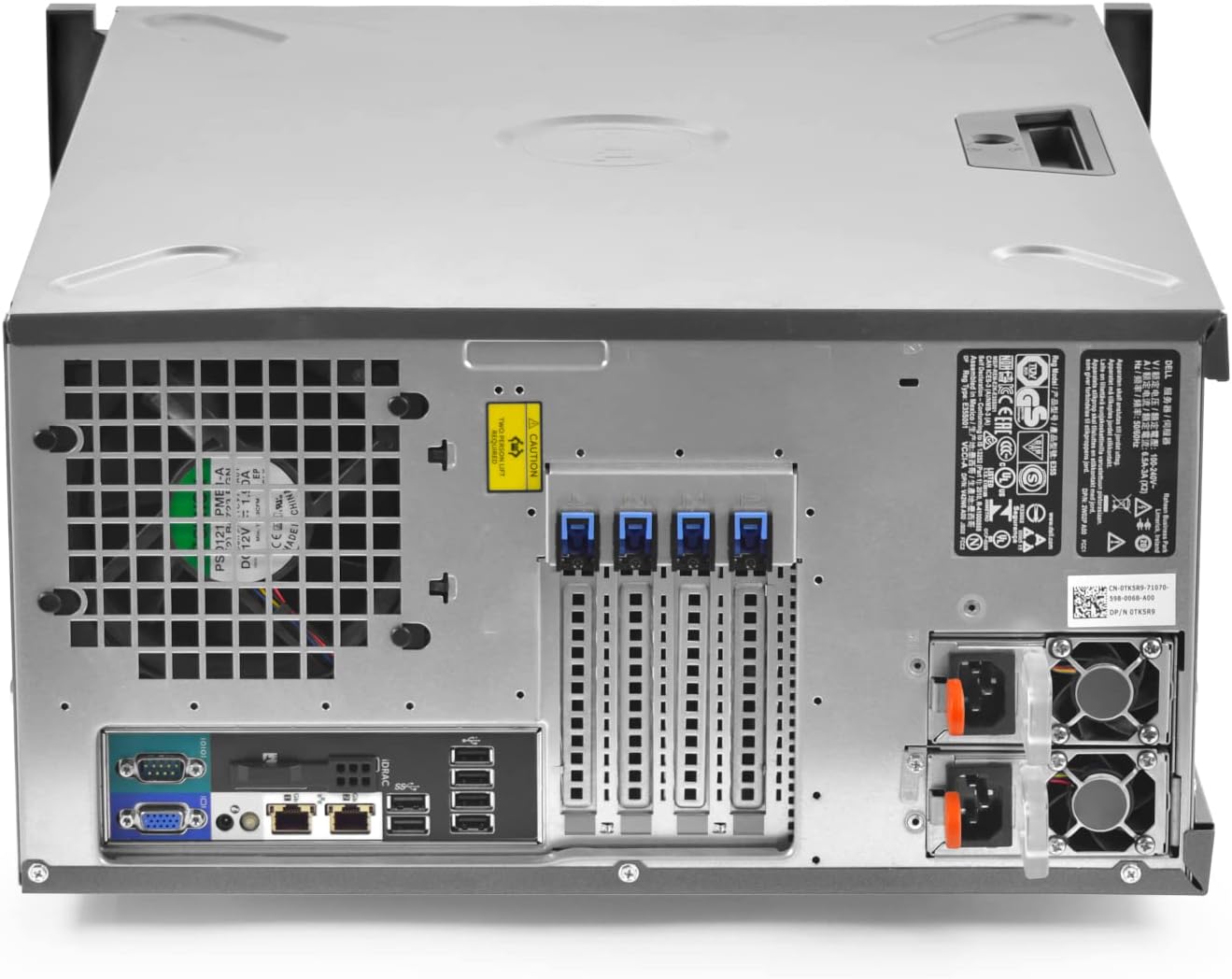
Figure 3: Rear panel of the Dell PowerEdge T330 Server, showing power supply units, network ports, USB ports, and VGA connector.
3.4 Initial Power-On
Press the power button on the front panel of the server. Observe the power indicator lights and listen for fan activity. The server should begin its boot sequence.

Figure 4: Front panel of the Dell PowerEdge T330 Server, displaying the power button, status indicators, and accessible drive bays.
3.5 Operating System Installation
Once the server powers on, you will typically need to install an operating system. Refer to the operating system's documentation for detailed installation instructions. You may need to configure RAID settings via the H330 controller BIOS during this process.
4. Operating the Server
4.1 Powering On and Off
- Power On: Press the power button on the front panel.
- Normal Shutdown: Initiate a shutdown from the operating system.
- Forced Shutdown: Press and hold the power button for 4 seconds (use only when normal shutdown is not possible).
4.2 Accessing Server Management
The Dell PowerEdge T330 includes an integrated Dell Remote Access Controller (iDRAC) for remote management. You can access iDRAC through a web browser using its assigned IP address or through the server's BIOS setup.
To access the BIOS setup, press F2 during startup. To access the Boot Manager, press F11.
4.3 Disk Management and RAID
The server is equipped with a Dell PERC H330 RAID controller. You can configure RAID arrays (e.g., RAID 0, 1, 5, 10) through the controller's BIOS utility during startup (typically by pressing Ctrl+R or Ctrl+C depending on the firmware version). This allows for data redundancy and improved performance.
The server supports hot-swappable drives. Refer to the Dell documentation for proper procedures when adding or replacing drives in a RAID configuration.
5. Maintenance
5.1 Regular Cleaning
Periodically clean the exterior of the server with a soft, dry cloth. Ensure ventilation openings are free from dust and debris. Use compressed air to gently clear dust from internal components if necessary, ensuring the server is powered off and unplugged first.
5.2 Firmware and Software Updates
Regularly check the Dell support website for updated firmware for the server, iDRAC, RAID controller (H330), and other components. Keeping firmware up-to-date ensures optimal performance, stability, and security. Also, ensure your operating system and applications are regularly patched.
5.3 Component Replacement
When replacing components such as RAM modules, hard drives, or power supply units, always refer to the detailed service manual available on the Dell support website. Ensure the server is powered off and unplugged before opening the chassis, and use appropriate ESD precautions.
5.4 Data Backup
Implement a robust data backup strategy to protect against data loss. Even with RAID configurations, regular backups are crucial for disaster recovery.
6. Troubleshooting
This section provides solutions to common issues. For more complex problems, consult the Dell PowerEdge T330 service manual or contact technical support.
6.1 No Power
- Verify power cables are securely connected to both the server and the power outlet.
- Check if the power outlets are functional.
- Inspect the power supply unit (PSU) status indicator lights.
6.2 Server Does Not Boot
- Listen for beep codes and observe diagnostic LEDs on the front panel. Refer to the Dell documentation for beep code interpretations.
- Ensure RAM modules are properly seated.
- Check RAID array status in the H330 controller BIOS.
6.3 Network Connectivity Issues
- Verify network cables are securely connected.
- Check network adapter status lights on the rear panel.
- Confirm network settings within the operating system.
- Test network connectivity with other devices on the same network.
6.4 Contacting Support
If you encounter issues that cannot be resolved using this guide, please contact Dell technical support or your vendor. Have your server's service tag and a detailed description of the problem ready.
7. Specifications
| Component | Description |
|---|---|
| Model | Dell PowerEdge T330 |
| Processor | Intel Xeon E3-1220v5 3.00Ghz Quad-Core |
| Memory (RAM) | 24GB |
| Storage | 8 x 6TB (48TB total) 12G Hard Drives |
| RAID Controller | Dell PERC H330 |
| Form Factor | Tower Server |
| Network | Integrated Gigabit Ethernet ports |
| Management | Integrated Dell Remote Access Controller (iDRAC) |
8. Warranty and Support
This Dell PowerEdge T330 server is a renewed product. Please refer to the warranty information provided by your vendor, TekBoost Certified, for details regarding coverage and duration. For technical assistance, visit the official Dell support website or contact your vendor directly.
You can find additional resources, drivers, and documentation on the Dell Support website by entering your server's service tag.


