
Introduction
This manual provides instructions for the ROCCAT Vulcan II Max Optical-Mechanical Gaming Keyboard. This keyboard is designed for performance and functionality, featuring customizable RGB illumination and durable Titan II Optical Tactile switches. It offers a 100 million keystroke life cycle and compatibility with third-party keycaps.

Image: The ROCCAT Vulcan II Max keyboard shown in its retail packaging, highlighting its RGB features and optical-mechanical switches.
Setup
- Connect the Keyboard: Plug the USB cable from the Vulcan II Max keyboard into an available USB port on your PC.
- Operating System Compatibility: The keyboard is compatible with Windows 10 and newer operating systems.
- Software Installation: For full functionality, including customization of RGB lighting, key reassignments, and firmware updates, download and install the ROCCAT Swarm software from the official ROCCAT website.
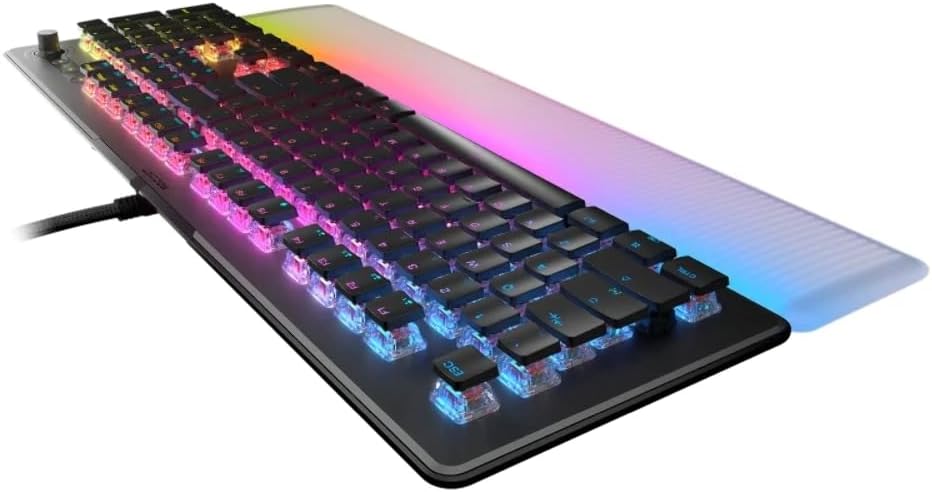
Image: A side view of the keyboard, illustrating its low-profile design and the integrated USB cable for connection to a PC.
Operating Instructions
TITAN II Optical Switches
The Vulcan II Max features exclusive TITAN II Optical Tactile switches. These switches provide a smooth mechanical feel with hyper-fast actuation and a durability rating of 100 million clicks. They are designed with cross-shaped stems, allowing compatibility with many third-party keycaps for customization.
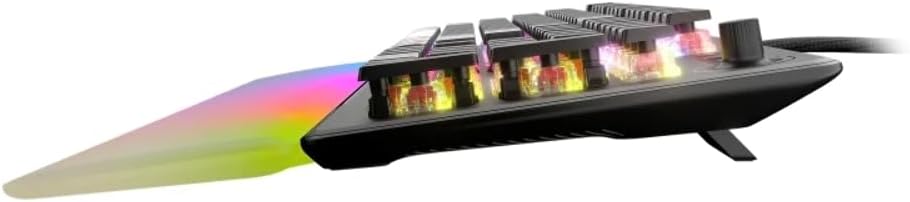
Image: A detailed side view of the keyboard, highlighting the transparent housing of the optical switches and their internal mechanism.
AIMO Illumination
The keyboard incorporates AIMO lighting technology, which produces vibrant and smooth RGB lighting effects. This system operates at double the refresh rate of standard gaming keyboards and can synchronize with other compatible AIMO-enabled products for an integrated lighting experience.
Detachable Palm Rest
A translucent, detachable palm rest is included to enhance comfort and extend the RGB lighting display. To attach, align the palm rest with the front edge of the keyboard and gently push until it clicks into place. To detach, pull the palm rest away from the keyboard.

Image: A top-down view of the keyboard, showcasing the full layout with the detachable, translucent palm rest illuminated with RGB lighting.
Easy-Shift[+] Button Duplicator Technology
Activate 'game mode' to utilize Easy-Shift[+] technology. This feature allows you to assign a second function layer to various keys, providing near-limitless customization options for macros and key reassignments. This is typically accessed via a dedicated Easy-Shift[+] key or a combination within the Swarm software.
Smart Keys
The Vulcan II Max includes 24 multi-function smart keys. Each smart key features a dedicated LED indicator that illuminates when its secondary function is active, providing clear visual feedback during use.
Dedicated Media Controls
A full set of dedicated media keys and a push-to-mute volume knob are located on the keyboard. These controls allow for convenient adjustment of audio and media playback without interrupting your activity.
On-Board Profiles
The keyboard supports saving up to 4 user profiles directly onto its internal memory. These profiles can store custom lighting configurations, key reassignments, and other settings, allowing you to switch between personalized setups without software intervention.
Maintenance
Cleaning
To maintain optimal performance and appearance, regularly clean your keyboard. Use a can of compressed air to remove dust and debris from between the keycaps. For surface cleaning, gently wipe the keycaps and chassis with a soft, damp cloth. Avoid using harsh chemicals or abrasive materials.
Keycap Customization
The TITAN II switches are compatible with many third-party keycaps that feature a cross-shaped mount. This allows for personalization of the keyboard's aesthetic. Exercise caution when removing and installing keycaps to avoid damaging the switches.
Troubleshooting
- Keyboard Not Responding: Ensure the USB cable is securely connected to both the keyboard and the PC. Try a different USB port.
- Lighting Issues: Verify that the ROCCAT Swarm software is installed and updated. Check lighting settings within the software.
- Key Functionality: If specific keys are not working, ensure no software conflicts are present. Reinstalling the Swarm software or updating keyboard firmware may resolve the issue.
- General Issues: Restart your computer. If problems persist, consult the ROCCAT support website for further assistance or contact customer support.
Specifications
| Feature | Detail |
|---|---|
| Brand | ROCCAT |
| Model | Vulcan II Max Tactile (ROC-12-012) |
| Switch Type | TITAN II Optical Mechanical Tactile Linear Switches |
| Keystroke Durability | 100 Million Clicks |
| Illumination | HD AIMO RGB Lighting |
| Palm Rest | Translucent Detachable |
| Special Features | Easy-Shift[+], Smart Keys with LED, Dedicated Media Controls |
| On-board Storage | Up to 4 User Profiles |
| Top Plate Material | Durable Aluminum |
| Connectivity | USB |
| Compatible Devices | Laptop, PC |
| Operating System | Windows 10 |
| Item Weight | 1.36 pounds |
| Product Dimensions (LxWxH) | 4.88 x 12.8 x 1.3 inches |
Warranty and Support
The ROCCAT Vulcan II Max keyboard comes with a manufacturer's warranty. For specific warranty terms and conditions, please refer to the documentation included with your product or visit the official ROCCAT website. For technical support, driver downloads, and frequently asked questions, please visit the ROCCAT support page at www.roccat.com/support.


