
Estink B250 BTC 12P
Estink B250 BTC 12P Mining Mainboard User Manual
Brand: Estink | Model: B250 BTC 12P
Introduction
This manual provides essential information for the setup, operation, and maintenance of your Estink B250 BTC 12P Mining Mainboard. Designed for cryptocurrency mining, this motherboard supports LGA 1151 series 6th and 7th generation processors and features extensive GPU connectivity.
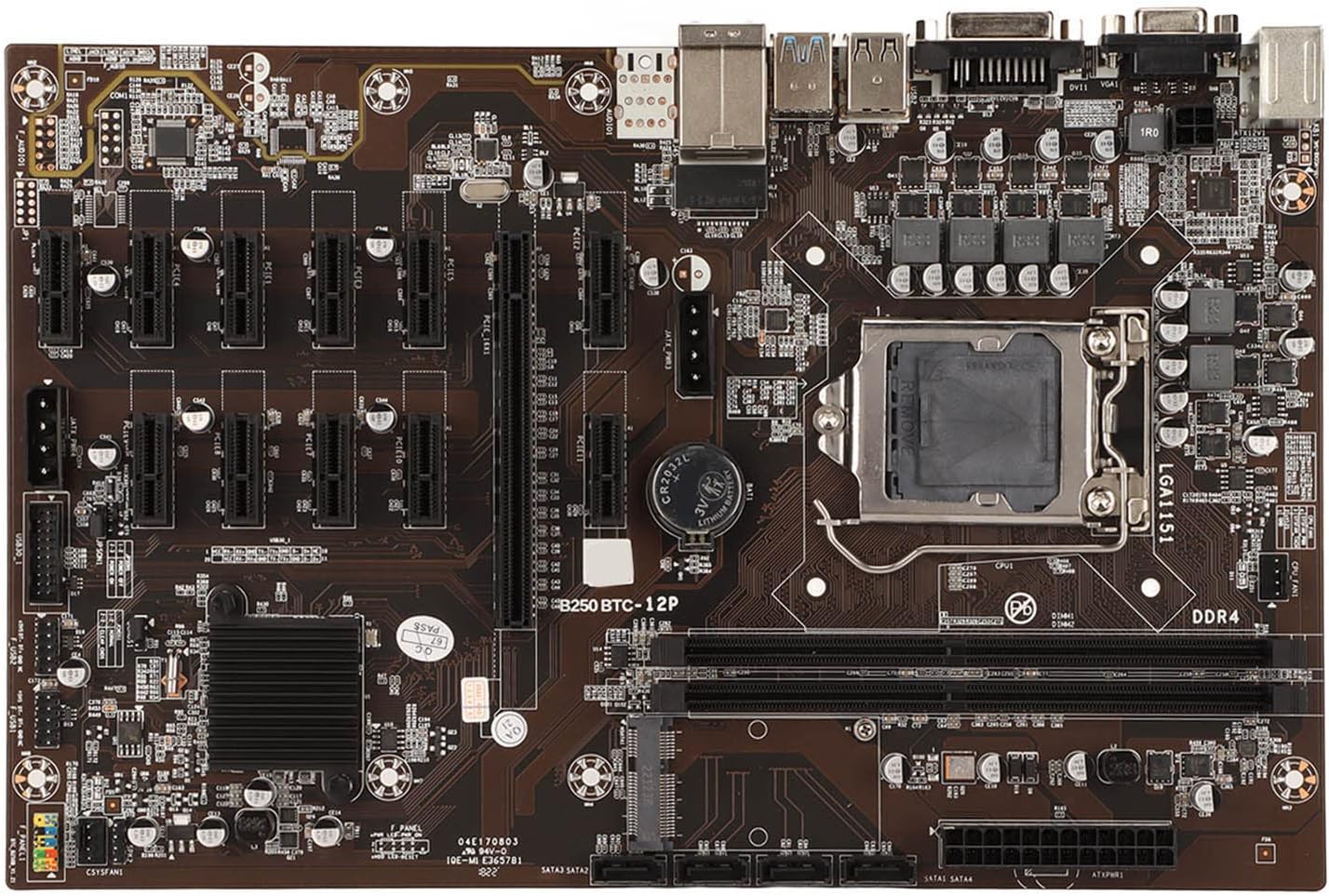
Figure 1: Top view of the Estink B250 BTC 12P Mining Mainboard.
Key Features
- 12 PCIE Ports: Onboard support for up to 12 Graphics Processing Units (GPUs) for mining operations.
- DDR4 Memory Support: Compatible with 2xDDR4 DIMM slots, supporting a maximum memory capacity of 16GB (8GBx2) with frequencies up to 3000MHZ.
- LGA 1151 Processor Support: Designed for LGA 1151 series 6th and 7th generation Intel processors.
- Multiple Expansion Interfaces: Includes 4 x SATA3.0 ports and an M.2 high-speed interface for diverse storage solutions.
- Enhanced Electrical Stability: Utilizes PCB electrical performance enhancement technology for improved stability, heat dissipation, and longevity.
- Integrated I/O: Features 2 x USB3.0, 4 x USB2.0, 1 x DVI, 1 x VGA, 1 x RJ45, and 1 x PS/2 interfaces.

Figure 2: Motherboard with DDR4 memory acceleration engine.

Figure 3: Motherboard illustrating rich expansion interfaces.

Figure 4: Motherboard designed for mining, emphasizing stability.
Technical Specifications
| Feature | Detail |
|---|---|
| Model | B250 BTC 12P |
| Dimensions | 295 x 190mm (11.61 x 7.5 inches) |
| CPU Socket Type | LGA 1151 (6th/7th Gen Intel Processors) |
| Chipset Type | Intel B250 |
| Memory Type | 2xDDR4 DIMM (Max 16GB) |
| Memory Clock Speed | 2133MHZ, 2400MHZ, 2800MHZ, 3000MHZ |
| Graphics Card Slots | 1 x PCIE X16, 11 x PCIE X1 |
| SATA Interface | 4 x SATA3.0 |
| I/O Interfaces | 2 x USB3.0, 4 x USB2.0, 1 x DVI, 1 x VGA, 1 x RJ45, 1 x PS/2 |
| Other Interfaces | M.2 High Speed Interface |
| Network Card | 100 Card |
| Battery Type | 240mAh Battery (Built-In) |
| Item Weight | 1.3 pounds |

Figure 5: Close-up view of the motherboard's I/O ports.
Setup Guide
1. Component Installation
- CPU Installation: Carefully open the CPU socket lever. Align your LGA 1151 series 6th or 7th generation Intel processor with the socket, ensuring the gold triangle on the CPU matches the triangle on the socket. Gently place the CPU into the socket and close the lever to secure it.
- CPU Cooler: Install the CPU cooler onto the processor, ensuring proper thermal paste application and secure mounting. Connect the CPU fan cable to the designated header on the motherboard.
- RAM Installation: Open the clips on the DDR4 DIMM slots. Insert your DDR4 memory modules firmly into the slots until the clips snap into place. This motherboard supports up to 16GB across two slots.
- Storage Devices: Connect your SATA 3.0 hard drives or SSDs to the 4 SATA ports using SATA data cables. For M.2 SSDs, insert the module into the M.2 slot and secure it with the provided screw.
- GPU Installation: Install your Graphics Processing Units (GPUs) into the available PCIe slots. This motherboard features one PCIE X16 slot and eleven PCIE X1 slots. Ensure each GPU is securely seated and, if necessary, connected to its riser.

Figure 6: Close-up of the LGA 1151 CPU socket.
2. Power Connections
- Connect the 24-pin ATX main power connector from your power supply to the corresponding port on the motherboard.
- Connect the 8-pin (or 4-pin) CPU power connector to the motherboard.
- Ensure all GPUs and storage devices are properly connected to your power supply.
3. Initial Boot
- Connect a monitor to the motherboard's VGA or DVI output, or to one of your installed GPUs.
- Connect a keyboard and mouse to the USB or PS/2 ports.
- Power on the system. During startup, press the designated key (usually DEL or F2) to enter the BIOS/UEFI settings.
- Configure boot order, enable necessary PCIe settings for multiple GPUs, and save changes before exiting.
Video 1: Overview of the B250 BTC 12P Mining Mainboard. This video provides a visual guide to the motherboard's layout and features, which can assist during the setup process.
Operating Instructions
The Estink B250 BTC 12P Mining Mainboard is designed for stable, continuous operation. Once your operating system and mining software are installed and configured, the system can be left to run. Monitor your system's temperature and performance regularly using appropriate software. Ensure your power supply is sufficient for all connected components, especially when running multiple GPUs.
Maintenance
- Dust Removal: Regularly clean dust from the motherboard, CPU cooler, GPU fans, and power supply using compressed air. Dust accumulation can lead to overheating and reduced performance.
- Firmware Updates: Periodically check the manufacturer's website for BIOS/UEFI updates. Keeping your firmware current can improve stability, compatibility, and performance.
- Cable Management: Ensure all power and data cables are securely connected and organized to promote optimal airflow and prevent accidental disconnections.
- Environmental Control: Operate the motherboard in a well-ventilated area with stable temperature and humidity to prolong its lifespan.

Figure 7: Close-up of a heatsink on the motherboard, emphasizing the need for proper cooling.
Troubleshooting
- No Display on Boot:
- Verify that your monitor is correctly connected and powered on.
- Ensure all GPUs are properly seated in their PCIe slots and have adequate power.
- If using integrated graphics, ensure no discrete GPUs are conflicting or that the BIOS is configured to use integrated graphics.
- System Instability/Crashes:
- Check RAM modules for proper seating; try reseating them or testing one module at a time.
- Ensure the CPU cooler is securely attached and thermal paste is correctly applied.
- Verify your power supply unit (PSU) has sufficient wattage for all components, especially under load.
- Check for overheating components using monitoring software.
- GPU Detection Issues:
- Confirm all GPUs are correctly inserted into their respective PCIe slots/risers.
- Ensure all GPUs are receiving power from the PSU.
- Update GPU drivers to the latest version.
- Check BIOS settings for PCIe slot configurations (e.g., PCIe Gen1/Gen2/Gen3 settings).
Warranty and Support
For detailed warranty information, return policies, and technical support, please refer to the official Estink website or contact their customer service directly. It is recommended to retain your proof of purchase for any warranty claims.
Ask a question about this manual
Ask about setup, troubleshooting, compatibility, parts, safety, or missing instructions. Manuals+ will review the question and use this page’s manual context to help answer it.