1. Introduction
This manual provides comprehensive instructions for the installation, operation, and maintenance of your SALCAR T9W WiFi Heating Thermostat. Please read this manual thoroughly before using the device to ensure proper function and safety. This thermostat system consists of a main thermostat unit and a receiver, designed to provide efficient and smart control over your heating system.
2. Product Overview
2.1 Components
- Thermostat Unit: Features a VA color screen for displaying temperature, humidity, and settings.
- Receiver: Connects to your heating system and communicates wirelessly with the thermostat unit.
- Type-C Cable: For USB power supply to the thermostat unit.
- Screw Pack: For mounting the receiver and optional wall-mounting of the thermostat.
- User Manual: This document.
Note: 2 x 1.5V AA batteries are required for battery power supply and are not included.
2.2 Key Features
- WiFi Connectivity: Connects to your home network for remote control via the Smart Life app.
- RF Wireless Technology: Stable wireless communication between the thermostat and receiver.
- VA Color Screen: Clear display of current room temperature, set temperature, humidity, and local weather (when connected to WiFi).
- Remote Control: Manage your heating from anywhere using the "Smart Life" app on your smartphone.
- Voice Control: Compatible with Amazon Alexa and Google Assistant for hands-free operation.
- Programmable Schedules: Set daily or weekly heating schedules to optimize energy consumption.
- Multiple Power Options: The thermostat unit can be powered via USB (Type-C) or 2x AA batteries.
- Flexible Installation: Thermostat can be placed on a tabletop or wall-mounted.

Image 2.1: The SALCAR T9W thermostat unit with its VA color screen and the accompanying receiver unit.
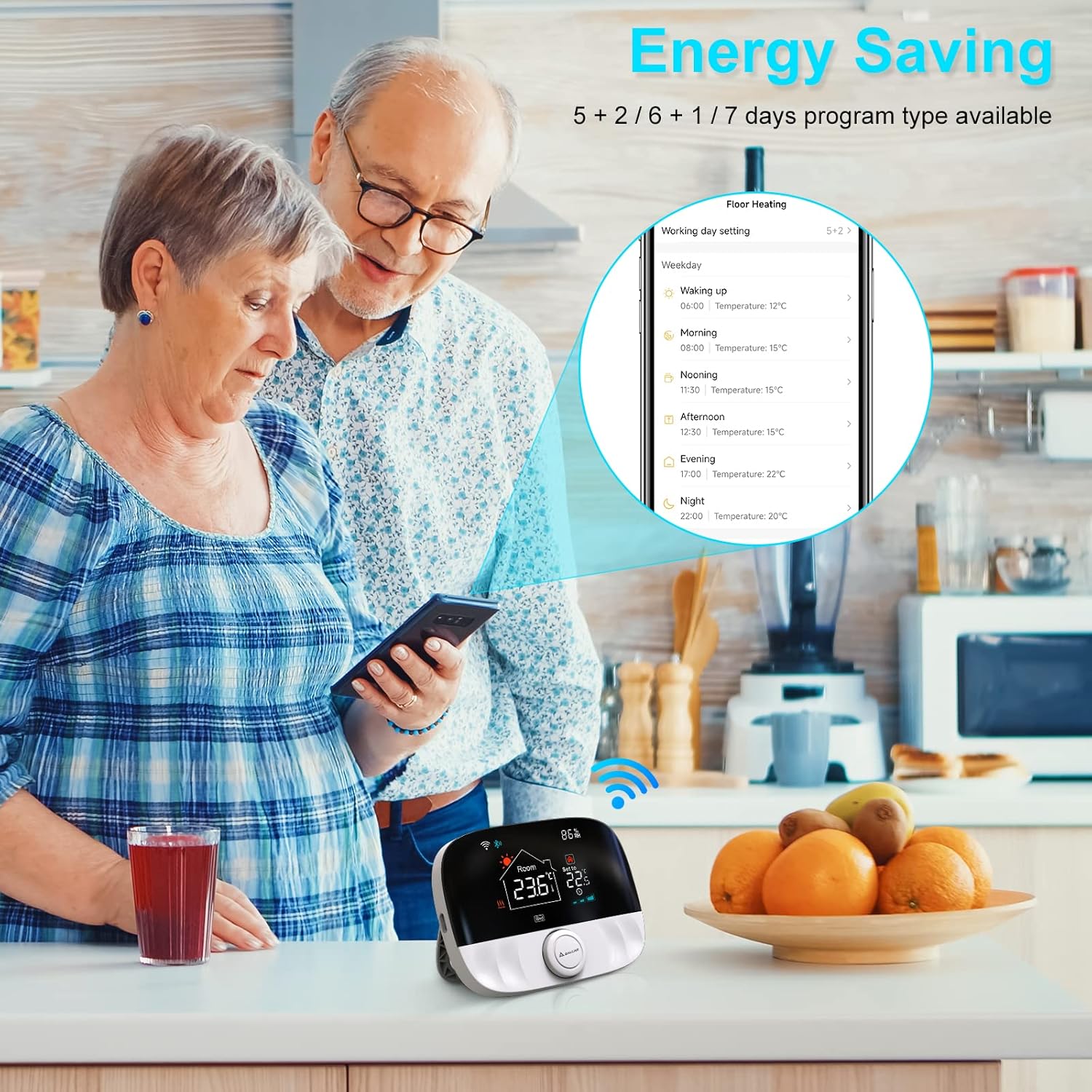
Image 2.2: Contents of the SALCAR T9W package, including the thermostat, receiver, USB cable, screws, and manual.
3. Setup
3.1 Receiver Installation
The receiver unit should be installed near your heating appliance (e.g., boiler, radiator). Ensure it is placed in a location that allows for stable RF communication with the thermostat unit and has access to a power source for connection to your heating system.
- Power Off: Before any wiring, ensure the main power supply to your heating system is turned off at the circuit breaker.
- Mounting: Secure the receiver to a wall using the provided screws.
- Wiring: Connect the receiver to your heating system according to the wiring diagram provided in the separate wiring guide (if applicable) or consult a qualified electrician. The receiver typically requires a 230V power connection and control wires to the heating appliance.
- Power On: Once wired, restore power to your heating system. The receiver's indicator lights will show its status.
3.2 Thermostat Unit Placement and Power Supply
The thermostat unit can be placed on a tabletop or wall-mounted for convenience.
- Placement: Choose a central location in the room where accurate temperature readings can be taken, away from direct sunlight, drafts, or heat sources.
- Power Supply:
- USB Power: Connect the provided Type-C cable to the thermostat unit and a USB power adapter (not included). This is recommended for continuous power and optimal WiFi performance.
- Battery Power: Insert 2 x 1.5V AA alkaline batteries into the battery compartment on the back of the thermostat unit. Ensure correct polarity. Battery life may vary depending on usage and settings.

Image 3.1: The SALCAR T9W thermostat showing both USB (Type-C) and AA battery power supply options.
3.3 Connectivity (RF and WiFi Pairing)
The thermostat and receiver communicate via RF. The thermostat also connects to your home WiFi for smart features.
- RF Pairing (Thermostat and Receiver):
- Ensure both the thermostat and receiver are powered on.
- Refer to the specific instructions in your detailed manual for initiating RF pairing mode on both devices. Typically, this involves pressing a button on the receiver and then a sequence on the thermostat.
- A successful pairing will be indicated by a change in the receiver's LED status or a message on the thermostat screen.
- WiFi Pairing (Thermostat to App):
- Download the "Smart Life" app from your smartphone's app store.
- Register or log in to your Smart Life account.
- In the app, tap '+' to add a new device. Select the thermostat category.
- Follow the in-app instructions to put the thermostat into WiFi pairing mode (usually by pressing and holding a button until a WiFi icon flashes).
- Connect your phone to a 2.4GHz WiFi network (5GHz networks are not supported).
- Enter your WiFi password in the app to complete the connection.
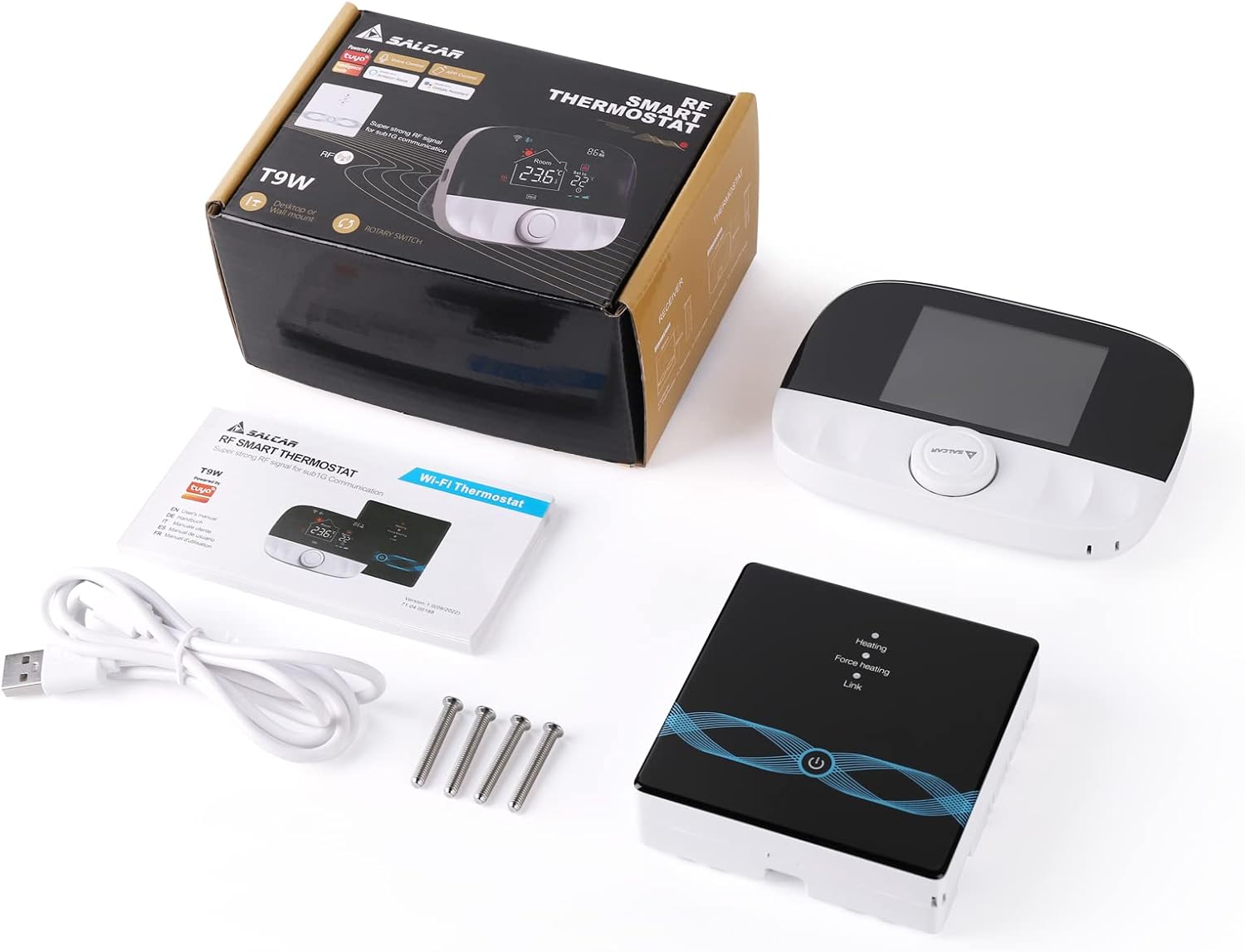
Image 3.2: Diagram illustrating the connectivity between the smartphone, WiFi router, smart speaker, RF thermostat, and RF receiver.
4. Operation
4.1 Basic Controls
The thermostat unit features a rotary knob and buttons for direct control.
- Rotary Knob: Turn to adjust the target temperature. Press to confirm selections or enter menus.
- Display: Shows current room temperature, set temperature, time, day, WiFi status, RF status, and humidity.
- Mode Selection: Switch between manual mode, automatic (programmed) mode, and temporary mode.
4.2 App Remote Control
The "Smart Life" app provides comprehensive control and monitoring features.
- Temperature Adjustment: Change the set temperature remotely.
- Mode Switching: Toggle between manual, auto, and temporary modes.
- Scheduling: Create and modify heating schedules for different days and times.
- Device Settings: Access advanced settings like temperature calibration, child lock, and anti-freeze function.
- Monitoring: View current room temperature, humidity, and heating status.

Image 4.1: A smartphone displaying the Smart Life app interface for remote control of the SALCAR T9W thermostat.
4.3 Voice Control
Integrate your thermostat with Amazon Alexa or Google Assistant for convenient voice commands.
- Link Accounts: In the Alexa or Google Home app, link your Smart Life account.
- Discover Devices: Allow the voice assistant to discover your SALCAR T9W thermostat.
- Voice Commands: Use commands such as:
"Alexa, set [Thermostat Name] to 22 degrees."
"Hey Google, what's the temperature in the living room?"
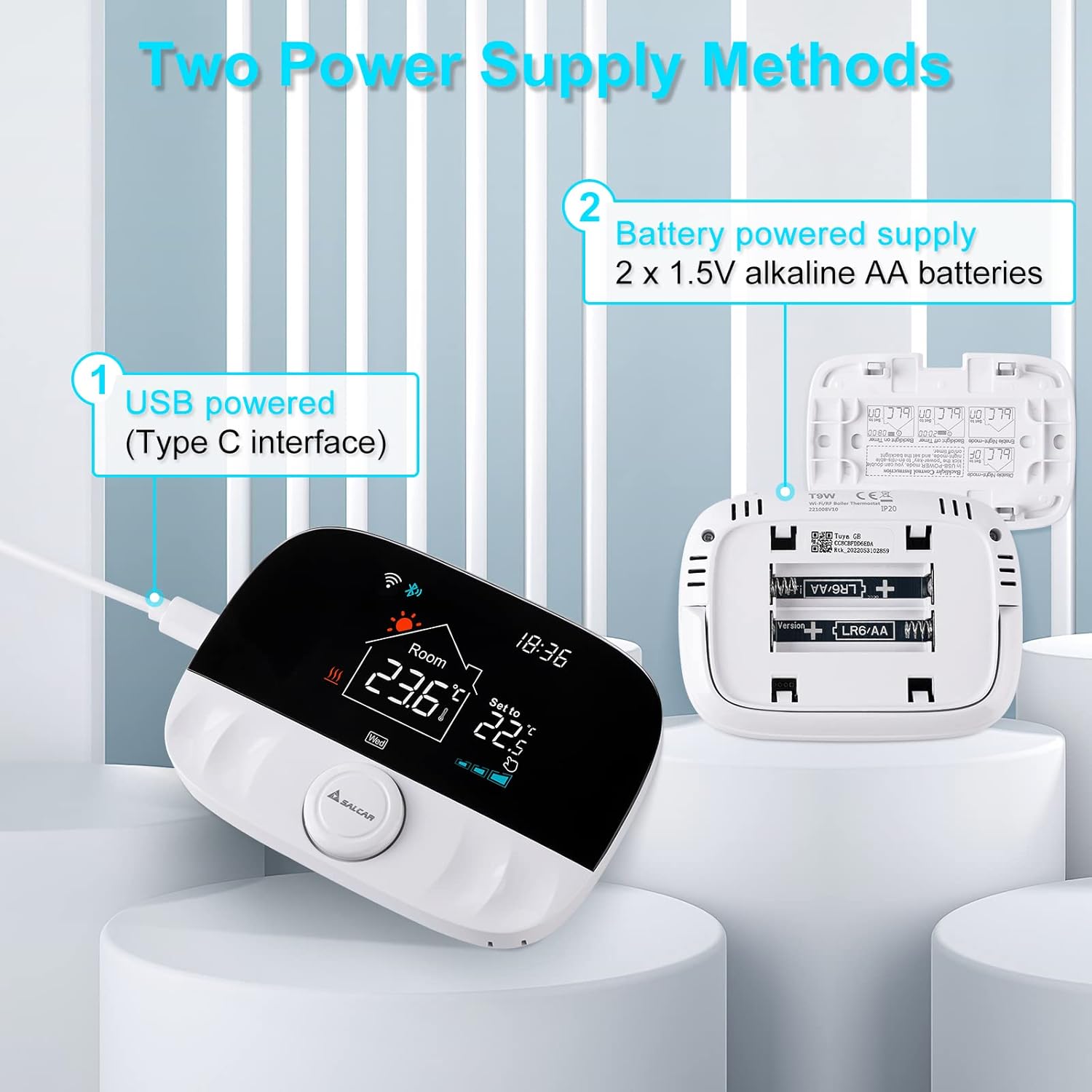
Image 4.2: Demonstrating voice control functionality of the SALCAR T9W thermostat with Amazon Alexa and Google Assistant devices.
4.4 Programming Schedules (Energy Saving)
The thermostat supports programmable schedules to optimize heating and save energy.
- Schedule Types: Typically supports 5+2 day (weekday/weekend) or 6+1 day programming, and 7-day individual programming.
- Setting Periods: Define multiple time periods per day with specific target temperatures (e.g., morning, daytime, evening, night).
- App Configuration: Schedules are best configured and managed through the "Smart Life" app for ease of use.

Image 4.3: An example of the energy-saving programming interface within the Smart Life app, showing daily temperature schedules.
5. Maintenance
- Cleaning: Wipe the thermostat screen and body with a soft, dry cloth. Do not use abrasive cleaners or solvents.
- Battery Replacement: If using battery power, replace AA batteries when the low battery indicator appears on the screen. Ensure to use new alkaline batteries.
- Firmware Updates: Periodically check the Smart Life app for any available firmware updates for your thermostat to ensure optimal performance and new features.
6. Troubleshooting
| Problem | Possible Cause | Solution |
|---|---|---|
| Thermostat not connecting to WiFi. | Incorrect WiFi password; 5GHz network used; thermostat not in pairing mode; router too far. | Ensure correct 2.4GHz WiFi password. Put thermostat in pairing mode. Move closer to router. |
| Receiver not responding to thermostat. | RF pairing lost; receiver not powered; distance too great. | Re-pair thermostat and receiver. Check receiver power. Reduce distance between units. |
| Inaccurate temperature readings. | Thermostat placed near heat source/draft; calibration needed. | Relocate thermostat. Use the app to calibrate temperature if necessary. |
| Voice control not working. | Smart Life account not linked; device not discovered; incorrect commands. | Link Smart Life account in Alexa/Google Home app. Discover devices. Use correct voice commands. |
| Thermostat screen is blank. | No power; batteries depleted. | Check USB power connection or replace AA batteries. |
7. Specifications
- Brand: SALCAR
- Model Number: RV7
- Product Name: T9W WiFi Heating Thermostat
- Color: Silver / Black
- Dimensions (Package): 13.7 x 10.2 x 6.9 cm
- Weight (Product): 370 g
- Voltage: 15 Volts (Thermostat), 230V (Receiver)
- Connectivity Technology: WiFi (2.4GHz), RF (433MHz)
- Controller Type: Amazon Alexa, Google Assistant
- Temperature Control Type: Digital
- Power Source (Thermostat): USB (Type-C) or 2 x 1.5V AA Batteries
- Special Features: WiFi Connection, Amazon Alexa & Google Assistant Compatibility, Remote Control via App, Multiple Heating Zone Control
8. Warranty and Support
For warranty information and technical support, please refer to the documentation included with your purchase or contact SALCAR customer service directly. Keep your purchase receipt as proof of purchase for warranty claims.
For further assistance, visit the official SALCAR website or contact their support channels.


