1. Introduction
This manual provides comprehensive instructions for the operation, setup, and maintenance of your YOWHICK Native 1080P 5G WiFi Bluetooth Projector. Please read this manual thoroughly before using the projector to ensure proper and safe operation. Keep this manual for future reference.

Image: The YOWHICK Native 1080P 5G WiFi Bluetooth Projector, showcasing its compact design and lens. This projector supports 4K input, offers native 1080P resolution, 12000 Lux brightness, and 5G WiFi connectivity.
2. Safety Information
To prevent fire or electric shock, do not expose this appliance to rain or moisture. Do not open the casing to avoid electric shock. Refer all servicing to qualified personnel.
- Do not block ventilation openings.
- Use only attachments/accessories specified by the manufacturer.
- Unplug the projector during lightning storms or when unused for long periods.
- Avoid direct eye exposure to the projector lens when the lamp is on.
3. Package Contents
Verify that all items are included in your package:
- YOWHICK Native 1080P 5G WiFi Bluetooth Projector
- Power Cable
- Remote Control
- HDMI Cable
- AV Cable
- User Manual
- Projection Screen (included with some models)
4. Product Overview
Familiarize yourself with the main components of your projector.
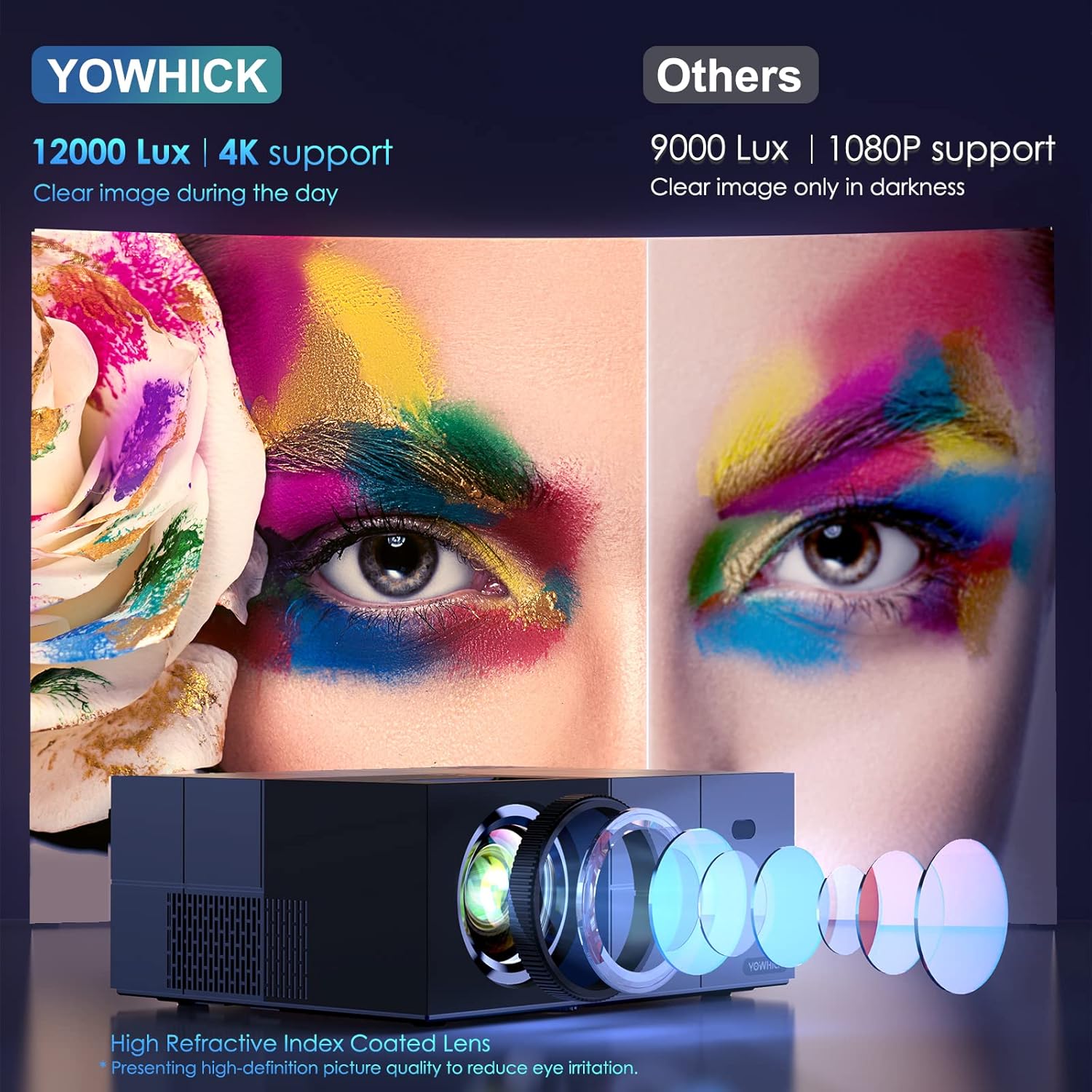
Image: A detailed view of the projector's high refractive index coated lens and internal light path, highlighting its 12000 Lux brightness and 4K support for clear images even in ambient light, compared to other projectors.

Image: An internal diagram of the projector highlighting its Bluetooth 5.1 module and built-in speaker. This allows for connection to external Bluetooth speakers or headphones for enhanced audio, while also providing sound directly from the unit.
5. Setup
5.1 Physical Setup and Placement
Choose a suitable location for your projector. It can be placed on a table, mounted on a tripod, or ceiling-mounted.

Image: Demonstrates various placement options for the projector, including tripod mount, table placement, and ceiling mount. It also illustrates different screen sizes (40", 120", 300") and aspect ratios (16:9, 4:3) achievable with the projector.
5.2 Initial Power On
- Connect the power cable to the projector and a power outlet.
- Press the power button on the projector or remote control to turn it on.
5.3 Network Connection (WiFi)
The projector supports both 5G and 2.4G WiFi for stable and faster video synchronization.
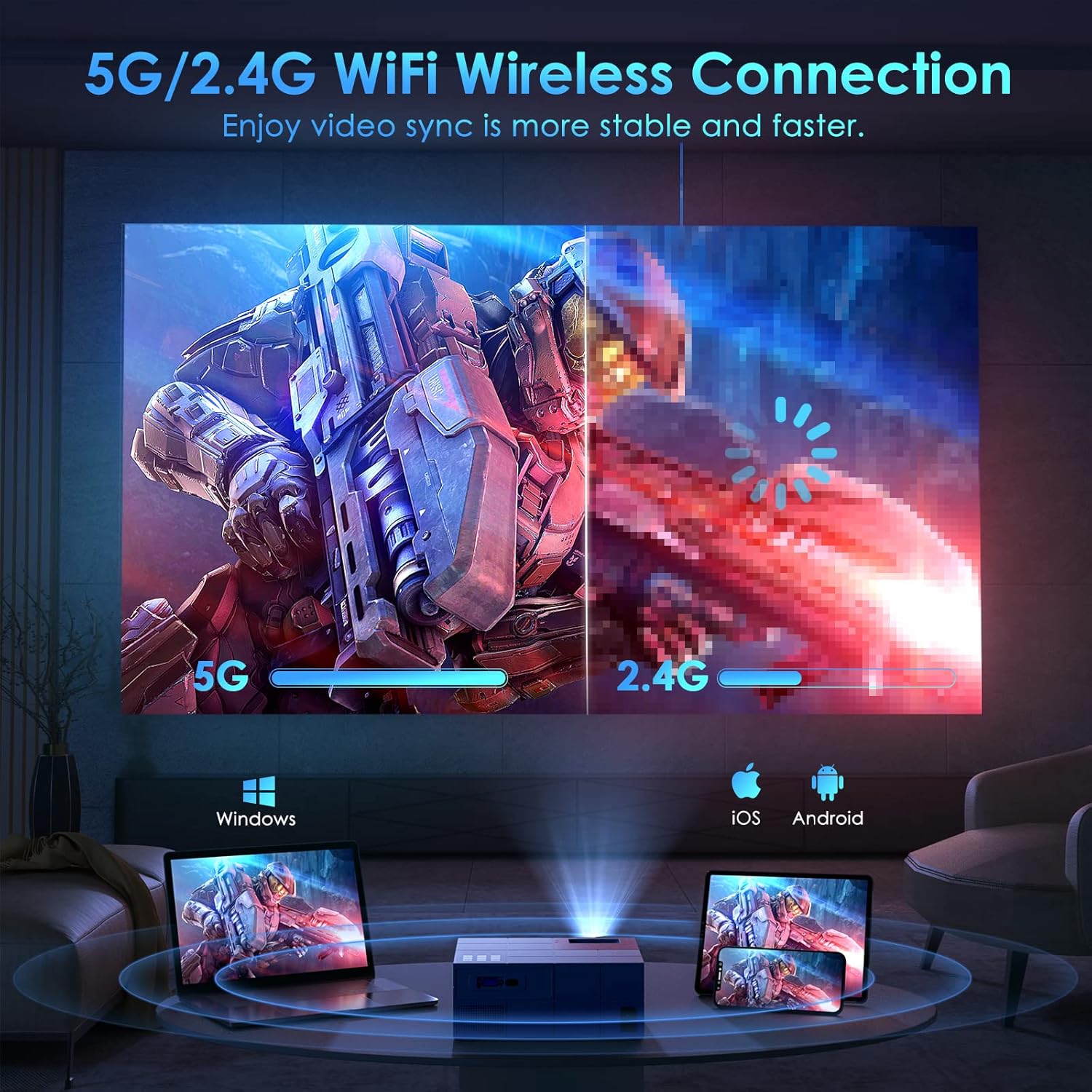
Image: Illustrates the projector's 5G/2.4G WiFi wireless connection capability, showing a split screen comparing the speed of 5G versus 2.4G. It also depicts compatibility with Windows, iOS, and Android devices for screen mirroring.

Image: A step-by-step guide on how to connect the projector to WiFi and enable screen mirroring for iOS and Android devices. It shows the system setup menu, WiFi selection, and the process for selecting Android Screen or iOS Screen mirroring.
5.4 Connecting Devices
The projector offers multiple connectivity options for various devices.
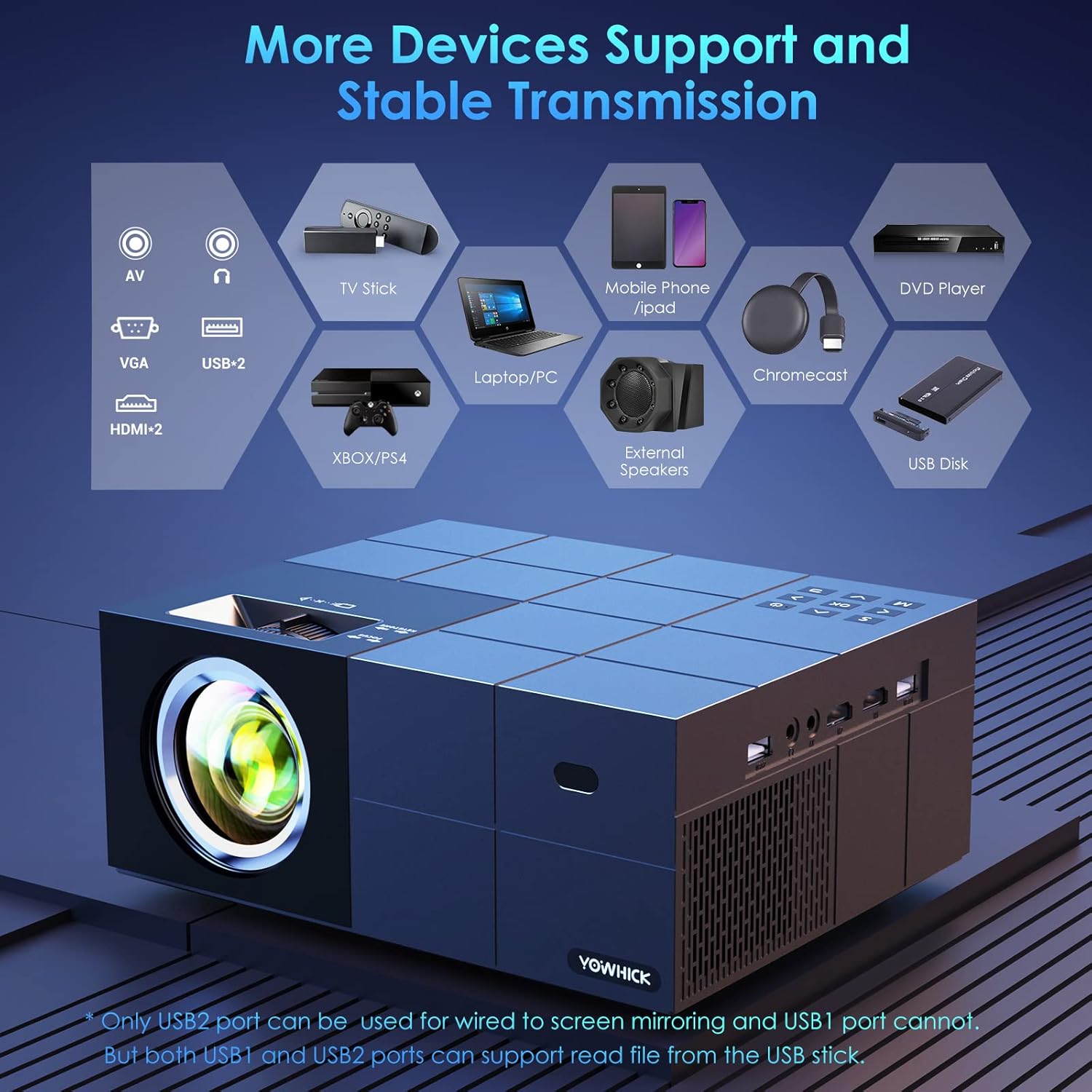
Image: A diagram showing the projector's various input ports, including AV, VGA, USB (x2), and HDMI (x2). It also lists compatible devices such as TV Stick, Laptop/PC, Mobile Phone/iPad, Chromecast, DVD Player, Xbox/PS4, External Speakers, and USB Disk. Note: Only USB2 port supports wired screen mirroring; both USB ports can read files from a USB disk.
6. Operating Instructions
6.1 Basic Operation
- Power On/Off: Press the power button.
- Menu Navigation: Use the arrow keys on the remote or projector to navigate menus. Press OK/Enter to confirm.
- Source Selection: Press the 'Source' button to select input (HDMI1, HDMI2, AV, USB).
6.2 Image Adjustment
- Focus: Rotate the focus ring on the projector lens until the image is clear.
- Keystone Correction: Adjust the keystone knob to correct trapezoidal distortion.
- Zoom Function: The projector features a zoom function to adjust the display size from 100% to 50% at a fixed distance.

Image: Highlights key features of the projector including the zoom function (100%-50%), a timer mode for automatic shutdown, a long lamp life of 50,000 hours (approximately 35 years if used 4 hours/day), and the capability for a 300-inch large screen display.
6.3 Screen Mirroring
The projector supports both wired and wireless screen mirroring for various devices.

Image: Compares wired and wireless connection methods for screen mirroring. Wired connection is shown with a laptop (Windows via HDMI cable) and an iPhone (iOS via original cable). Wireless connection is shown for Windows, iOS, and Android devices.
6.4 Audio Output
The projector has a built-in speaker. For enhanced audio, connect external speakers via Bluetooth 5.1.

Image: Depicts the projector being used outdoors, connected via Bluetooth 5.1 to external speakers for high-quality sound. It shows people enjoying a movie night around a campfire, emphasizing the portability and audio capabilities. Note: An additional power supply unit may be required for outdoor use.
7. Maintenance
7.1 Cleaning
- Lens: Use a soft, lint-free cloth and lens cleaning solution. Do not touch the lens directly.
- Casing: Wipe with a soft, dry cloth. Do not use abrasive cleaners.
- Ventilation: Ensure ventilation openings are clear of dust and debris.
7.2 Storage
When not in use for extended periods, store the projector in a cool, dry place, away from direct sunlight and extreme temperatures. Use the original packaging or a protective case.
8. Troubleshooting
Refer to the following table for common issues and their solutions.
| Problem | Possible Cause | Solution |
|---|---|---|
| No image displayed | Power cable loose; Incorrect input source; Device not connected | Check power connection; Select correct input source (HDMI, AV, USB); Ensure device is properly connected. |
| Image blurry | Focus not adjusted; Keystone not adjusted | Adjust the focus ring; Adjust the keystone knob. |
| No sound | Volume too low; Muted; External speaker not connected | Increase volume; Unmute; Check Bluetooth connection to external speaker. |
| WiFi connection unstable | Projector too far from router; Interference | Move projector closer to router; Reduce interference from other devices. |
9. Specifications
Key technical specifications of the YOWHICK Native 1080P 5G WiFi Bluetooth Projector.
- Brand: YOWHICK
- Model Name: Outdoor
- Display Technology: LCD
- Native Resolution: 1920 x 1080 (1080P)
- 4K Support: Yes
- Brightness: 12000 Lux
- Connectivity Technology: Bluetooth, Wi-Fi (5G/2.4G)
- Hardware Interface: USB, HDMI
- Compatible Devices: Smartphones, Tablets, Computers, TVs, Gaming Consoles
- Special Features: Built-In Speaker, Digital Keystone Correction
- Form Factor: Desktop
- Mounting Type: Tabletop Mount
- Parcel Dimensions: 34.29 x 32.9 x 14.4 cm; 2.29 kg
10. Warranty and Support
YOWHICK is committed to providing high-quality products and customer support.
- 24 Hours: Quick response via phone or email for support inquiries.
- 30 Days: 30 days no reason to return policy.
- 2 Years: 2 years free replacement for product defects.
- Lifetime: Lifetime support and satisfied solution.
For further assistance, please contact YOWHICK customer service.


