
MARVO B0BD6QKXPT
MARVO Wireless Keyboard and Mouse Combo User Manual
Model: B0BD6QKXPT
Introduction
This manual provides detailed instructions for the setup, operation, and maintenance of your MARVO 2.4G Ergonomic Wireless Keyboard and Mouse Combo. Please read this manual thoroughly before using the product to ensure optimal performance and longevity.
Package Contents
- 1 x MARVO Wireless Keyboard
- 1 x MARVO Wireless Mouse
- 1 x 2-in-1 USB Nano Receiver
- 1 x User Manual (this document)

Image: The MARVO Wireless Keyboard and Mouse Combo, including the keyboard with an integrated phone/tablet holder, the wireless mouse, and the compact USB receiver. A tablet is shown in the keyboard's holder.
Setup Instructions
1. Battery Installation
The keyboard and mouse require batteries (not included). Please refer to the diagrams below for correct installation.
- For the Keyboard: Locate the battery compartment on the underside of the keyboard. Insert the required batteries, ensuring correct polarity (+/-).
- For the Mouse: Open the battery compartment on the underside of the mouse. Insert the required batteries, observing correct polarity.

Image: A detailed diagram of the MARVO wireless mouse, highlighting its components including the scroll wheel, left/right buttons, DPI switch, LED indicator, anti-slip pads, power switch, battery slot, and USB receiver storage.
2. Connecting the USB Nano Receiver
- Locate the USB Nano Receiver, typically stored within the mouse's battery compartment or packaged separately.
- Plug the USB Nano Receiver into an available USB port on your computer (Laptop, Personal Computer).
- The system will automatically detect and install the necessary drivers. No additional software installation is required.
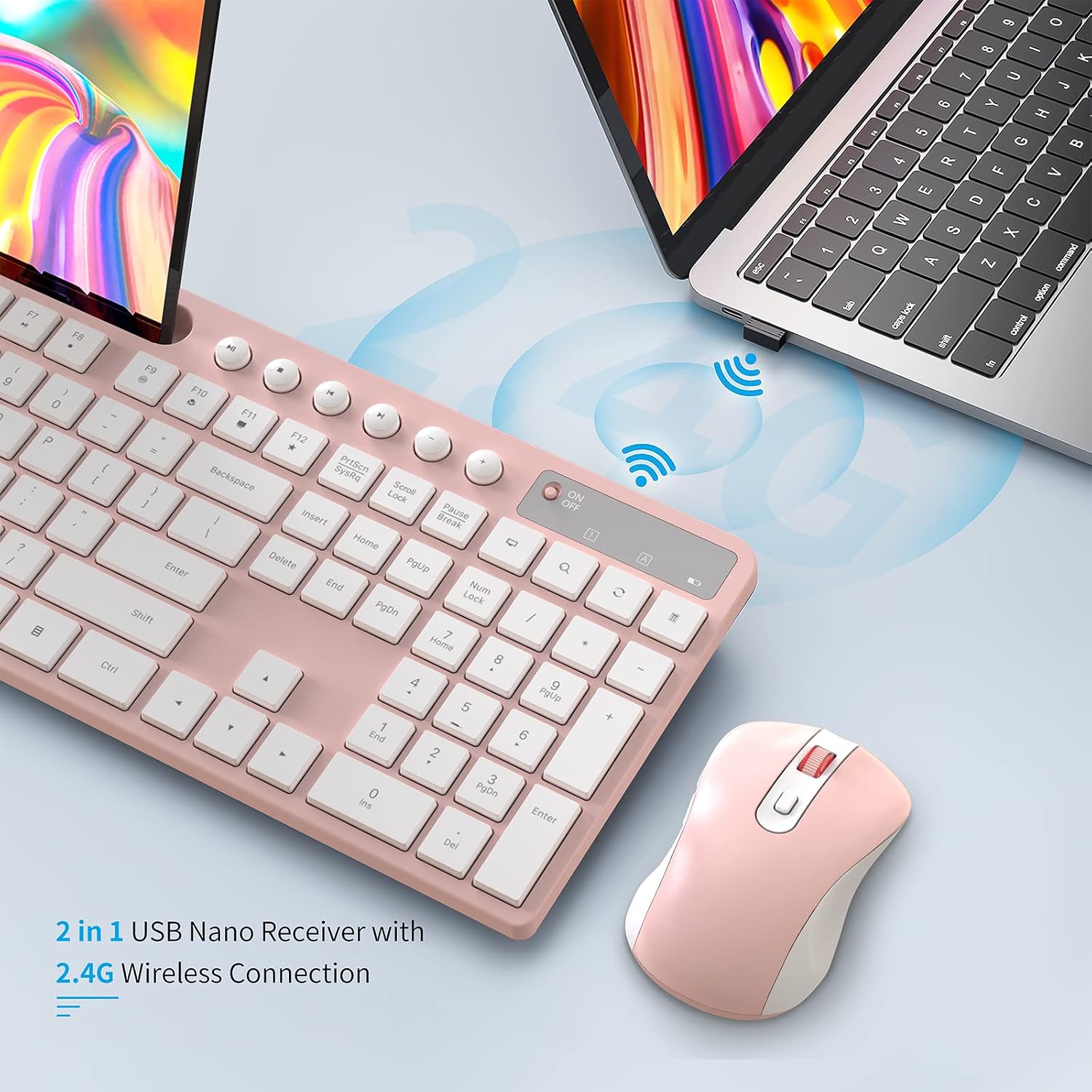
Image: The MARVO wireless keyboard and mouse combo shown in use, with the compact 2-in-1 USB Nano Receiver plugged into a laptop, illustrating the 2.4G wireless connection.
3. Powering On
- Turn on the power switch located on the keyboard and the mouse.
- Upon connection, the red power light on the keyboard will blink for 5-8 seconds and then turn off. This is normal behavior.
- In low battery mode, the red power light will blink when you press any key, indicating that batteries need replacement.
Operating Instructions
Keyboard Usage
The keyboard features a full layout with optimized multimedia keys for enhanced productivity.

Image: The MARVO wireless keyboard with a blue overlay highlighting the row of optimized multimedia function keys designed for laptop and PC use.
Integrated Phone/Tablet Holder
The keyboard includes a built-in holder compatible with phones and tablets ranging from 5.8 to 12.9 inches. This allows for convenient placement of your mobile devices while working.

Image: The MARVO wireless keyboard featuring its built-in phone and tablet holder, with both a smartphone and a tablet securely placed in the slot, demonstrating its compatibility and convenience.
Mouse Usage
The silent mouse features 6 buttons and adjustable DPI settings for precise control.
- DPI Adjustment: Press the DPI switch button (located on the top of the mouse) to cycle through 800, 1200, and 1600 DPI settings. Choose the sensitivity that best suits your needs.
- Silent Clicks: The mouse is designed for silent operation, reducing click noise.
Maintenance
Cleaning
- To clean the keyboard and mouse, use a soft, dry cloth.
- For stubborn dirt, a slightly damp cloth with mild soap can be used, ensuring no liquid enters the device.
- Avoid using harsh chemicals, abrasive cleaners, or solvents.
Battery Replacement
When the low battery indicator blinks, replace the batteries in both the keyboard and mouse promptly to ensure uninterrupted operation. Refer to the "Battery Installation" section for guidance.
Troubleshooting
| Problem | Possible Cause | Solution |
|---|---|---|
| Keyboard/Mouse not responding |
|
|
| Lag or delayed response |
|
|
| Red power light blinking continuously | Low battery warning. | Replace batteries in the affected device. |
Specifications
| Feature | Detail |
|---|---|
| Brand | MARVO |
| Model | Wireless Keyboard and Mouse Combo |
| Color | Pink |
| Connectivity Technology | 2.4G Radio Frequency |
| Wireless Range | Up to 33 feet (approx. 10 meters) |
| Keyboard Special Feature | Ergonomic design, Integrated Phone/Tablet Holder (compatible with 5.8-12.9 inch devices) |
| Mouse Buttons | 6 Buttons (Silent Click) |
| Mouse DPI Settings | 800 / 1200 / 1600 DPI (Adjustable) |
| Compatible Operating Systems | Windows XP / Vista / 7 / 8 / 10, macOS |
| Compatible Devices | Laptop, Personal Computer, Smartphone |
| Package Dimensions | 17.17 x 9.02 x 1.85 inches |
| Item Weight | 1.65 pounds |
| Country of Origin | China |

Image: Technical drawing showing the dimensions of the MARVO wireless keyboard (17.0 inches / 430mm length, 6.0 inches / 152mm width, 0.7 inches / 18mm height) and mouse (2.5 inches / 63mm width, 4.4 inches / 111mm length, 1.5 inches / 39mm height).
Warranty and Support
MARVO provides a 12-month worry-free warranty for this product. For any questions, technical support, or warranty claims, please contact MARVO customer service.
You can find contact information on the official MARVO website or through your purchase platform.
For more information, visit the MARVO Store on Amazon.
Related documentsB0BD6QKXPT


Ask a question about this manual
Ask about setup, troubleshooting, compatibility, parts, safety, or missing instructions. Manuals+ will review the question and use this page’s manual context to help answer it.