
Introduction
This manual provides detailed instructions for the installation, operation, and maintenance of your podofo 4G+64G Android 13 Car Stereo. This unit is specifically designed for Honda Odyssey models manufactured between 2005 and 2010, offering an upgraded in-car entertainment and navigation experience with a 10.1-inch IPS touchscreen, wireless CarPlay, and Android Auto functionality.
Vehicle Compatibility
This car stereo is compatible with Honda Odyssey models from 2005 to 2010. It is designed for a direct fit and includes a plug-and-play wiring harness for simplified installation.

Image: Comparison of a Honda Odyssey dashboard before and after the installation of the podofo car stereo, showing the integrated 10.1-inch display.
Important Compatibility Note
This product does not support vehicles equipped with a factory-installed central control unit featuring a large screen or original car navigation system. Please verify your vehicle's dashboard configuration before installation.

Image: Visual guide indicating compatible (standard radio, marked A) and incompatible (large screen navigation, marked B) dashboard types for Honda Odyssey.
What's in the Box
The package includes the following components:
- Android Car Stereo Unit
- GPS Antenna
- External Microphone
- HD Backup Camera
- RCA Cable Set
- USB Cable
- Power Cable
- Rear Camera Input Cable
- Installation Tool (typically plastic pry tools)

Image: Overview of the car stereo dimensions and a visual representation of the included accessories such as cables, antennas, and the backup camera.
Setup and Installation
Before beginning installation, ensure your vehicle's battery is disconnected to prevent electrical damage. Refer to your vehicle's service manual for specific dashboard removal procedures.
Wiring Connections
- Power Cable: Connect the main power harness to the vehicle's wiring. The included harness is designed for plug-and-play installation for Honda Odyssey 2005-2010.
- RCA Cables: Connect audio output (FR, FL, RR, RL), auxiliary input (AUX R IN, AUX L IN), subwoofer output, and video output as needed for external amplifiers or monitors.
- USB Cables: Connect the provided USB cables for external USB devices.
- Radio Antenna: Connect the vehicle's radio antenna to the unit.
- GPS Antenna: Mount the GPS antenna in a location with a clear view of the sky, such as on the dashboard or under the windshield.
- External Microphone: Connect the external microphone for improved call quality and voice commands. Position it near the driver for optimal performance.
- Rear Camera Input: Connect the HD backup camera cable to the designated input. Ensure the camera's power and ground wires are correctly connected, typically to the vehicle's reverse light circuit.
- Steering Wheel Control (SWC): The unit supports steering wheel controls. Connect the SWC wires according to the wiring diagram. The system may require a learning process for the controls to function correctly.
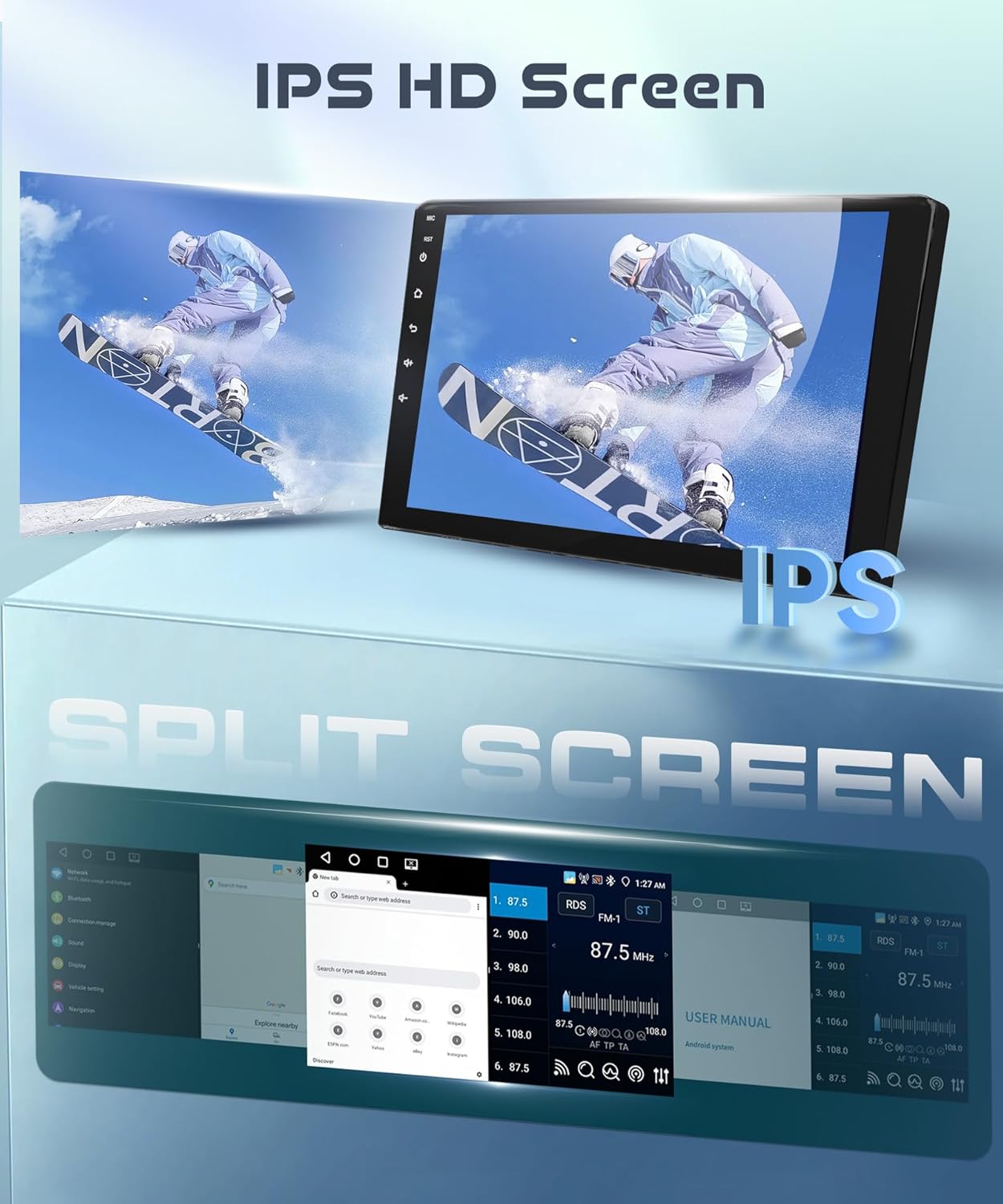
Image: Comprehensive wiring diagram illustrating all necessary connections for the car stereo, including power, audio, video, USB, GPS, and backup camera inputs.
Dashboard Integration
Once all wiring is connected, carefully mount the car stereo unit into the dashboard opening. Secure it using the appropriate mounting brackets and screws. Reassemble the dashboard trim panels.
Operating Instructions
Power On/Off
Press and hold the power button (usually located on the front panel or screen) to turn the unit on or off. A short press typically mutes or unmutes the audio.
Touchscreen Interface
The unit features a responsive 10.1-inch IPS touchscreen. Navigate through menus and applications by tapping, swiping, and pinching gestures, similar to a smartphone or tablet.

Image: The IPS HD touchscreen displaying vibrant colors and demonstrating the split-screen feature, allowing two applications to run simultaneously.
Wireless CarPlay / Android Auto
Connect your compatible iOS or Android smartphone wirelessly to access navigation, music, calls, and other apps directly on the car stereo display. Follow the on-screen prompts to pair your device via Bluetooth and Wi-Fi.

Image: The car stereo displaying the Wireless CarPlay and Android Auto interfaces, highlighting voice control capabilities for navigation, music, and weather.
GPS Navigation & WiFi
The unit comes with a built-in offline map application. Connect to a Wi-Fi network or mobile hotspot to use online navigation services and download additional map data. The Wi-Fi connection also enables access to the application store for downloading Android apps.

Image: The car stereo running Android 13, displaying GPS navigation on the main screen and illustrating Wi-Fi connectivity for online content and app downloads.
Bluetooth Functions
Pair your phone via Bluetooth 5.0 for hands-free calling and audio streaming. Access your phone's contact list and call history directly from the stereo.
FM/RDS Radio
Tune into your favorite FM radio stations. The RDS (Radio Data System) feature displays station information, song titles, and other relevant data where available.
Multimedia Playback
Play audio and video files from connected USB devices. The unit supports various formats. The 32-band DSP audio processor allows for precise sound adjustments to optimize your listening experience.

Image: The car stereo's interface showing the 32-band DSP audio equalizer, allowing users to fine-tune sound settings for various music genres.
Backup Camera Display
When the vehicle is shifted into reverse, the display automatically switches to the view from the connected HD backup camera, providing parking assistance with guidelines.

Image: The car stereo displaying the wide-angle view from the AHD backup camera, complete with dynamic parking guidelines for safe reversing.
Maintenance
To ensure the longevity and optimal performance of your car stereo, follow these maintenance guidelines:
- Screen Cleaning: Use a soft, lint-free cloth to gently wipe the touchscreen. For stubborn smudges, slightly dampen the cloth with water or a screen-safe cleaner. Avoid harsh chemicals or abrasive materials.
- Software Updates: Periodically check for available software updates to ensure the system has the latest features and bug fixes. Updates can typically be performed via Wi-Fi.
- Environmental Conditions: Avoid exposing the unit to extreme temperatures, direct sunlight for prolonged periods, or excessive moisture.
- Cable Connections: Periodically check all cable connections to ensure they are secure and free from corrosion or damage.
Troubleshooting
If you encounter issues with your car stereo, refer to the following common problems and solutions:
| Problem | Possible Cause | Solution |
|---|---|---|
| Unit does not power on | Loose power connection, blown fuse, vehicle battery issue. | Check power cable connections. Inspect vehicle fuses. Ensure vehicle battery is charged. |
| No sound | Volume muted, incorrect audio source, loose speaker wires, amplifier issue. | Check volume and mute settings. Select correct audio source. Verify speaker wire connections. |
| Backup camera not displaying | Incorrect camera wiring, faulty camera, reverse signal not detected. | Verify camera power and video signal connections. Ensure the reverse trigger wire is correctly connected. |
| Wi-Fi disconnects frequently | Weak signal, interference, software glitch. | Ensure strong Wi-Fi signal. Try restarting the unit. Check for software updates. |
| Steering wheel controls not working | Incorrect wiring, controls not programmed. | Verify SWC wiring. Access the steering wheel control learning function in the unit's settings to program the buttons. |
| System is slow or unresponsive | Too many apps running, low memory, software issue. | Close unnecessary applications. Restart the unit. Perform a factory reset if issues persist (note: this will erase all data). |
Specifications
| Feature | Detail |
|---|---|
| Brand | podofo |
| Operating System | Android 13 |
| RAM | 4GB |
| ROM (Internal Storage) | 64GB |
| Screen Size | 10.1 Inches |
| Display Type | IPS Touch Screen |
| Resolution | 1280*720 |
| Connectivity | Bluetooth 5.0, USB, Wi-Fi |
| Special Features | Wireless CarPlay & Android Auto, GPS Navigation, FM/RDS Radio, DSP Audio, Split Screen, Steering Wheel Control, Backup Camera Support |
| Included Components | Android Car Stereo, External Microphone, GPS Antenna, HD Backup Camera |
| Mounting Type | Dashboard Mount |
Warranty and Support
Warranty Information
This podofo car stereo unit comes with a 2-year warranty from the date of purchase. This warranty covers manufacturing defects and malfunctions under normal use. Please retain your proof of purchase for warranty claims.
Technical Support
Podofo offers professional technical support for all its products. If you encounter any issues with compatibility, installation, or usage, please contact our support team. You can typically find contact information through the seller's page on the platform where you purchased the product.

Image: Guide on how to access Podofo's technical support by navigating to the seller's information on the purchase platform.