
1. Introduction
Welcome to the Nokia T10 Wi-Fi Tablet user manual. This guide provides essential information to help you set up, operate, maintain, and troubleshoot your new device. The Nokia T10 is an 8-inch HD Android 12 tablet designed for everyday use, offering a balance of performance and portability.
Please read this manual carefully to ensure proper use and to maximize the lifespan of your tablet.
2. What's in the Box
Upon unboxing your Nokia T10 tablet, please verify that all the following items are included:
- Nokia T10 Tablet Device
- Type-C USB Cable
- Charger
- Quick Start Guide (QSG)
- Safety Booklet
- User Guide Band
- Plastic Bag (packaging material)
If any items are missing or damaged, please contact your retailer or Nokia customer support immediately.
3. Setup
3.1 Charging the Tablet
Before first use, fully charge your Nokia T10 tablet. Connect the provided Type-C USB cable to the tablet's charging port and the other end to the charger. Plug the charger into a power outlet. The battery indicator on the screen will show the charging status.
3.2 Powering On/Off
- To Power On: Press and hold the Power button until the Nokia logo appears.
- To Power Off: Press and hold the Power button until the power options appear on the screen. Select "Power off" and confirm.
- To Restart: Press and hold the Power button until the power options appear. Select "Restart" and confirm.
3.3 Initial Setup
When you power on your tablet for the first time, you will be guided through an initial setup process:
- Language Selection: Choose your preferred language.
- Wi-Fi Connection: Connect to a Wi-Fi network to access the internet. This is crucial for downloading updates and setting up your Google account.
- Google Account: Sign in with your existing Google account or create a new one. This is necessary for accessing the Google Play Store, Gmail, and other Google services.
- Date & Time: Set the correct date and time, or allow the network to set it automatically.
- Security: Set up a screen lock (PIN, pattern, password) and consider enabling AI Face Unlock for convenient access.
3.4 Inserting a MicroSD Card
The Nokia T10 supports expandable storage via a MicroSD card. Locate the SIM/SD card tray on the side of the tablet. Use the provided SIM ejector tool to open the tray. Carefully place the MicroSD card into the designated slot with the gold contacts facing down, then reinsert the tray firmly.
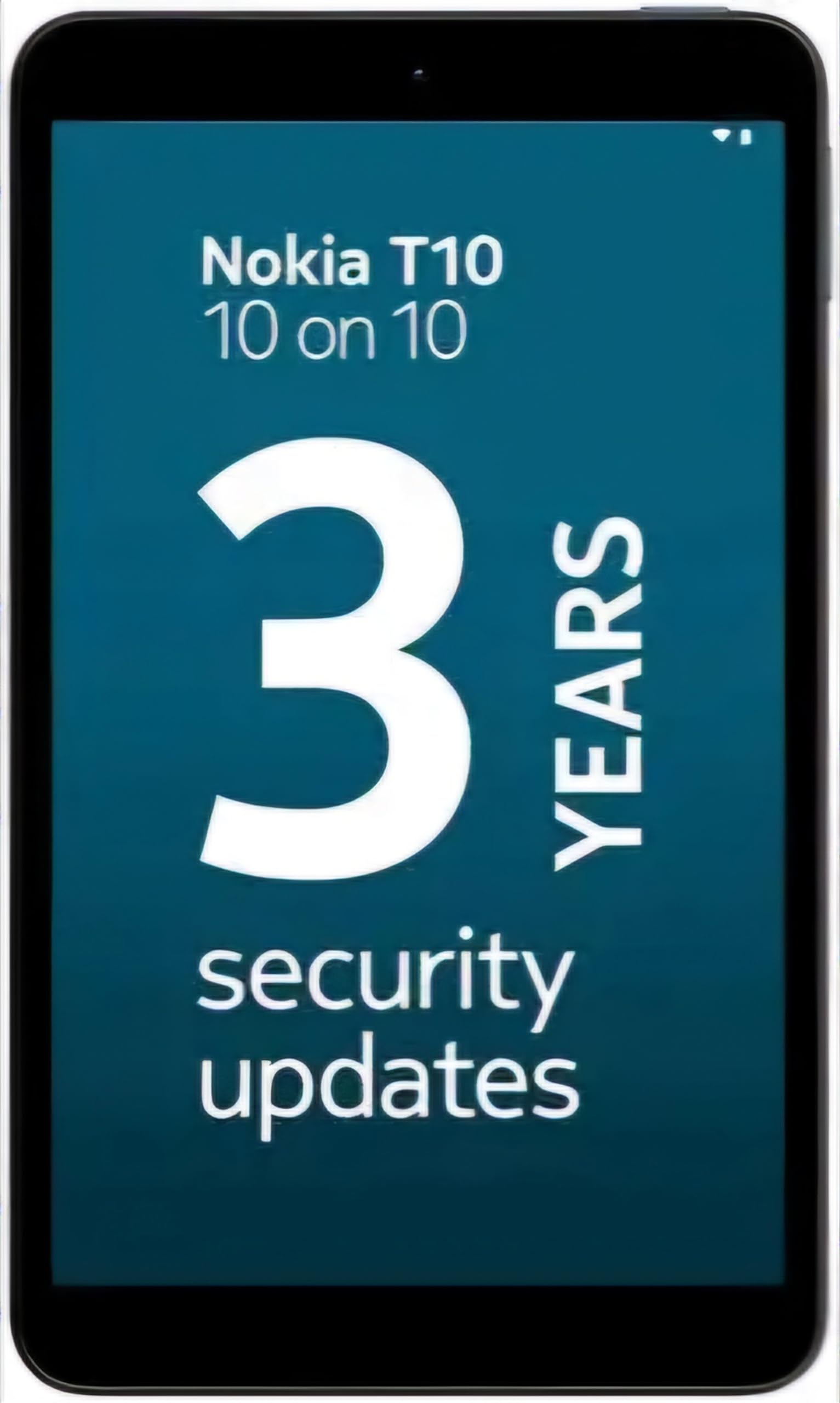
Image: Nokia T10 tablet, showcasing its sleek design and the rear camera module.
4. Operating Instructions
4.1 Display and Navigation
The Nokia T10 features an 8-inch HD display (1280x800 pixels). Navigate the interface using touch gestures:
- Tap: Select an item or open an app.
- Swipe: Scroll through screens, lists, or content.
- Pinch-to-Zoom: Zoom in or out on photos and web pages.
- Long Press: Access contextual menus or move app icons.
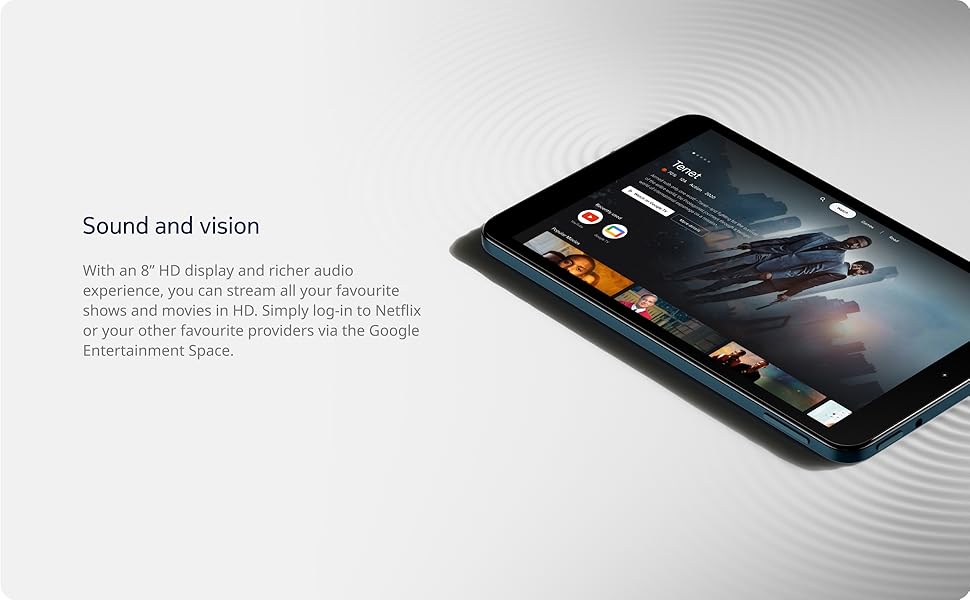
Image: The Nokia T10 tablet showcasing its 8-inch HD display with streaming video content.
4.2 Camera Functions
Your tablet is equipped with an 8MP rear camera with autofocus and flash, and a 2MP front camera.
- Taking Photos: Open the Camera app, frame your shot, and tap the shutter button.
- Recording Videos: Switch to video mode in the Camera app and tap the record button to start/stop. The tablet supports FHD 1080p video capture.
- Front Camera: Tap the camera switch icon to use the front camera for selfies or video calls.

Image: A Nokia T10 tablet displaying a video call, highlighting its front camera functionality.
4.3 Battery Management
The Nokia T10 has a 5250 mAh battery designed for all-day use. To optimize battery life:
- Reduce screen brightness.
- Turn off Wi-Fi and Bluetooth when not in use.
- Close background apps.
- Enable battery saver mode in Settings.
4.4 Connectivity
- Wi-Fi: Connect to wireless networks via Settings > Network & internet > Wi-Fi. The tablet supports 802.11a/b/g/n/ac standards.
- Bluetooth: Pair with Bluetooth devices (headphones, speakers) via Settings > Connected devices > Bluetooth. The tablet features Bluetooth 5.0.
- USB Type-C: Use the USB-C port for charging and data transfer.
4.5 AI Face Unlock
For quick and secure access, set up AI Face Unlock:
- Go to Settings > Security > Face unlock.
- Follow the on-screen instructions to register your face.
- Ensure you are in a well-lit environment during setup and use.
4.6 Software and Updates
The Nokia T10 runs on Android 12. Nokia provides 2 years of OS updates and 3 years of monthly security updates to keep your device secure and up-to-date. You will receive notifications when updates are available. It is recommended to install updates over a Wi-Fi connection.
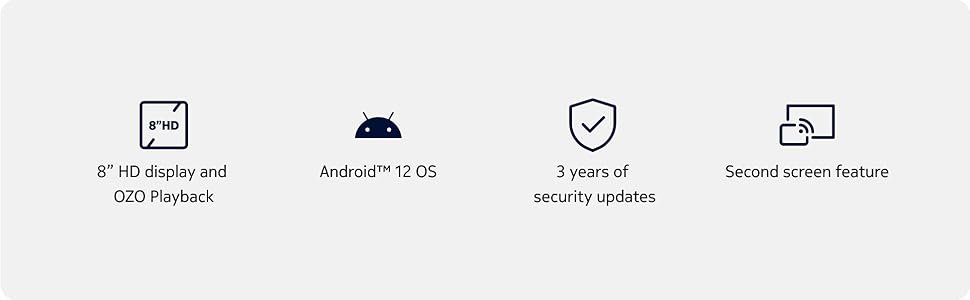
Image: Visual representation of Nokia T10 features including Android 12 OS and 3 years of security updates.
5. Maintenance
5.1 Cleaning Your Tablet
- Use a soft, lint-free cloth to clean the screen and body.
- Avoid using harsh chemicals, abrasive cleaners, or aerosol sprays.
- Do not expose the tablet to excessive moisture.
5.2 Software Updates
Regularly check for and install software updates to ensure optimal performance and security. Go to Settings > System > System update.
5.3 Storage Management
To maintain performance, periodically manage your tablet's storage:
- Delete unnecessary apps and files.
- Move large files (photos, videos) to a MicroSD card or cloud storage.
- Clear app cache regularly via Settings > Apps > [App Name] > Storage & cache.
6. Troubleshooting
If you encounter issues with your Nokia T10 tablet, try the following solutions:
| Problem | Solution |
|---|---|
| Tablet does not power on | Ensure the battery is charged. Connect the charger and wait a few minutes before attempting to power on again. |
| Wi-Fi connection issues | Restart your Wi-Fi router. Go to Settings > Network & internet > Wi-Fi, turn Wi-Fi off and then on again. Forget the network and reconnect. |
| Slow performance | Close unused apps. Clear app caches. Restart the tablet. Check for available software updates. |
| Apps crashing or freezing | Force stop the app (Settings > Apps > [App Name] > Force stop). Clear the app's cache and data. Reinstall the app. |
| Battery drains quickly | Reduce screen brightness. Disable unnecessary features like GPS, Bluetooth, and Wi-Fi when not in use. Check battery usage in Settings to identify power-hungry apps. |
If the problem persists after trying these steps, please contact Nokia customer support.
7. Specifications
Below are the key technical specifications for the Nokia T10 Wi-Fi Tablet:
- Model Name: Nokia T10 TA-1472 WIFI 3/32
- Operating System: Android 12
- Processor: Unisoc T606 (Octa-core, 1.6 GHz)
- Graphics Coprocessor: Mali-G57
- RAM: 3 GB
- Internal Storage: 32 GB
- Expandable Storage: Yes, via MicroSD card (up to 512GB, sold separately)
- Display: 8-inch HD (1280 x 800 pixels) TFT, 16:10 aspect ratio
- Rear Camera: 8 MP with AF and Flash
- Front Camera: 2 MP
- Video Capture Resolution: FHD 1080p at 30 fps
- Battery: 5250 mAh Lithium Polymer
- Connectivity: Wi-Fi (802.11a/b/g/n/ac), Bluetooth 5.0, USB Type-C, 3.5mm Audio Jack
- Security Features: AI Face Unlock
- Audio: Stereo Speakers, OZO Playback
- Dimensions (L x W x Thickness): 20.8L x 12.3W x 0.9Th Centimeters
- Weight: 375 Grams
- Color: Blue
8. Warranty Information
The Nokia T10 tablet comes with a 1-year manufacturer warranty for the device and battery from the date of purchase. In-box accessories are covered by a 6-month manufacturer warranty from the date of purchase. Please retain your proof of purchase for warranty claims. For detailed terms and conditions, refer to the warranty card included in your product packaging or visit the official Nokia support website.
9. Support
For further assistance, technical support, or to find service centers, please visit the official Nokia support website or contact their customer service. You can typically find support contact information on the Nokia website or in the safety booklet provided with your tablet.
Online Support: Nokia Support Website


