
Introduction
Thank you for choosing the Aigo Q38 USB Wired Gaming Mouse. This manual provides detailed instructions for setting up, operating, maintaining, and troubleshooting your new gaming mouse. Please read this manual carefully before use to ensure optimal performance and longevity of your device.
Setup
The Aigo Q38 gaming mouse is designed for easy plug-and-play installation. Follow these steps to get started:
- Connect the Mouse: Locate an available USB port on your computer. Insert the USB connector of the Aigo Q38 mouse firmly into the USB port.
- Driver Installation: For most operating systems (including Windows XP and Linux), the mouse will be automatically detected, and the necessary drivers will be installed without user intervention. Wait a few moments for your system to recognize the device.
- Test Functionality: Once installed, move the mouse and click the buttons to ensure it is functioning correctly.

Image: Top-front view of the Aigo Q38 USB Wired Gaming Mouse, showing its ergonomic design and the attached USB cable. This view highlights the primary left and right click buttons, the scroll wheel, and two side buttons.
Operating Instructions
The Aigo Q38 mouse features 7 buttons and an optical sensor for precise control. Its ambidextrous and ergonomic design ensures comfortable use for extended periods.
- Left Click Button: Primary action button, typically used for selecting items, opening files, and confirming actions.
- Right Click Button: Secondary action button, typically used for opening context menus or accessing additional options.
- Scroll Wheel: Used for scrolling through documents and web pages. It also functions as a clickable middle button for various actions depending on the application.
- Side Buttons: The mouse includes additional buttons, typically located on the side, which can be programmed for various functions in games or applications. Refer to your game or software settings for customization options.
- DPI Adjustment: The Aigo Q38 mouse features adjustable DPI (Dots Per Inch) settings, allowing you to change the cursor sensitivity on the fly. The available DPI settings are 800, 1200, 1600, and 2400. A dedicated DPI button (often located near the scroll wheel or on the underside) allows you to cycle through these settings.
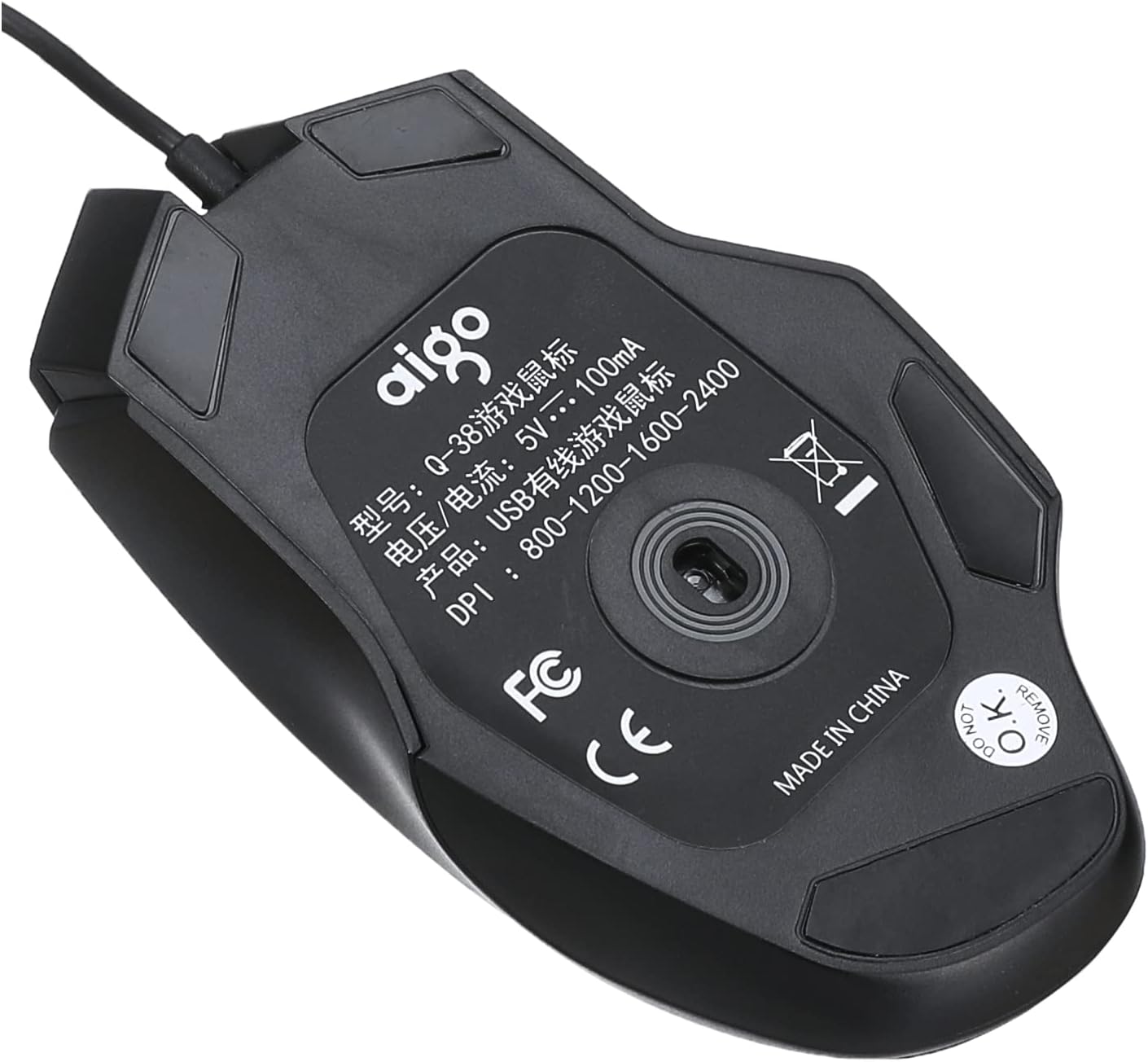
Image: Bottom view of the Aigo Q38 USB Wired Gaming Mouse, showing the optical sensor, product model (Q-38), power specifications (5V --- 100mA), and DPI settings (800-1200-1600-2400).
Maintenance
Proper maintenance ensures the longevity and performance of your Aigo Q38 gaming mouse.
- Cleaning: Use a soft, dry cloth to wipe the surface of the mouse. For stubborn dirt, slightly dampen the cloth with water or a mild cleaning solution. Avoid using harsh chemicals or abrasive materials.
- Sensor Cleaning: Occasionally, dust or debris may accumulate around the optical sensor on the bottom of the mouse. Use a cotton swab or compressed air to gently clean the sensor area.
- Storage: When not in use for extended periods, store the mouse in a clean, dry environment away from direct sunlight and extreme temperatures.
Troubleshooting
If you encounter issues with your Aigo Q38 gaming mouse, try the following troubleshooting steps:
- Mouse Not Responding:
- Ensure the USB cable is securely connected to your computer's USB port.
- Try connecting the mouse to a different USB port.
- Restart your computer.
- Test the mouse on another computer to determine if the issue is with the mouse or your computer.
- Erratic Cursor Movement:
- Clean the optical sensor on the bottom of the mouse for any dust or debris.
- Ensure you are using the mouse on a suitable surface. Highly reflective or transparent surfaces may interfere with optical tracking. A mouse pad is recommended.
- Buttons Not Working:
- Check for any physical obstructions preventing the buttons from clicking properly.
- Ensure no software conflicts are present. Try testing the mouse in a different application or after restarting your computer.
Specifications
Below are the technical specifications for the Aigo Q38 USB Wired Gaming Mouse:
| Model | Q38 |
| Brand | Aigo |
| Connectivity Technology | USB Wired |
| Movement Detection | Optical |
| Button Quantity | 7 |
| DPI Settings | 800 / 1200 / 1600 / 2400 |
| Operating Voltage/Current | 5V --- 100mA |
| Hand Orientation | Ambidextrous |
| Special Features | Ergonomic Design |
| Recommended Uses | Gaming |
| Compatible Devices | Laptop, Personal Computer |
| Operating System | Linux, Windows XP |

Image: Side view of the Aigo Q38 USB Wired Gaming Mouse, illustrating its approximate length of 5.1 inches (12 cm).
Warranty and Support
For warranty information and customer support, please refer to the documentation provided with your purchase or contact the retailer where you purchased the Aigo Q38 USB Wired Gaming Mouse. You may also visit the official Aigo website for further assistance and product information.

