1. Introduction
Thank you for purchasing the HXSJ 2.4G Wireless Rechargeable Keyboard Mouse Combo (L99). This manual provides detailed instructions on how to set up, operate, and maintain your new keyboard and mouse set. Please read this manual carefully before use to ensure optimal performance and longevity of your product.
2. Product Features
The HXSJ L99 Keyboard Mouse Combo offers a range of features designed for enhanced gaming and office productivity:
- 2.4GHz Wireless Transmission: Provides stable and delay-free connectivity with strong anti-interference capabilities.
- 96-Key Compact Design: Space-saving layout, convenient for portability.
- RGB Backlight Keyboard: Enhances gaming ambiance with customizable lighting.
- Multi-function Shortcut Keys (FN Group): Allows quick access to various functions for office work and gaming.
- Adjustable DPI Mouse: 3-gear adjustable DPI (1000/1600/2400DPI) for precise cursor control.
- Ergonomic Design: Keyboard and mouse are shaped to fit the hand curve, providing comfortable use and reducing fatigue.
- Plug and Play: Easy setup via a single USB receiver.
- 19-Key Anti-Ghosting: Ensures accurate input during intense gaming sessions.
- 7-Color Auto Changing Breathing Backlight Mouse: Aesthetic lighting for the mouse.
- Energy-saving Mouse: Automatically enters power-saving mode after 8 minutes of inactivity.

Image: The HXSJ L99 Wireless Keyboard and Mouse Combo, showcasing its RGB backlighting and ergonomic design.
3. Setup Guide
Follow these steps to set up your HXSJ L99 Keyboard Mouse Combo:
- Unpack the Contents: Carefully remove the keyboard, mouse, and USB receiver from the packaging.
- Locate the USB Receiver: The wireless tiny receiver is typically stored in a slot next to the battery compartment of the mouse for safe keeping.
- Connect the Receiver: Insert the USB receiver into an available USB port on your computer.
- Power On: Ensure both the keyboard and mouse are powered on. The keyboard usually has a power switch, and the mouse will activate once the receiver is connected and it detects movement.
- Automatic Connection: The keyboard and mouse should automatically connect to your computer. No additional drivers are typically required for basic functionality.
- Charging: If the devices are low on power, connect the provided Type-C to USB charging cable to the keyboard and a USB power source. The mouse is also rechargeable.

Image: Illustration showing the USB receiver being inserted into a computer's USB port, and the keyboard and mouse in use.
4. Operating Instructions
4.1 Keyboard Functions
The keyboard features various function key combinations for enhanced control:
- Backlight Switching: Press FN + 1, 2, 3, 4, or 5 to cycle through different backlight modes (continuous flow, colorful horse racing, colorful cyclic breathing, colorful gradient, seven sets of monochrome).
- Backlight Brightness Control: Use FN + ↑ to increase brightness and FN + ↓ to decrease brightness (3 levels of adjustment).
- Backlight Breathing/Racing Speed Control: Adjust speed with FN + ← (reduces frequency period) and FN + → (extends frequency period) (4 steps of adjustment).
- WIN Key Lock Function: Press WIN + L to lock or unlock the WIN key function.
- Game Direction Keys Exchange: Use FN + W to swap WASD keys with arrow keys (↑↓←→). Default is normal function.
- Backlight On/Off: Press FN + PGDN to turn the backlight off or on.
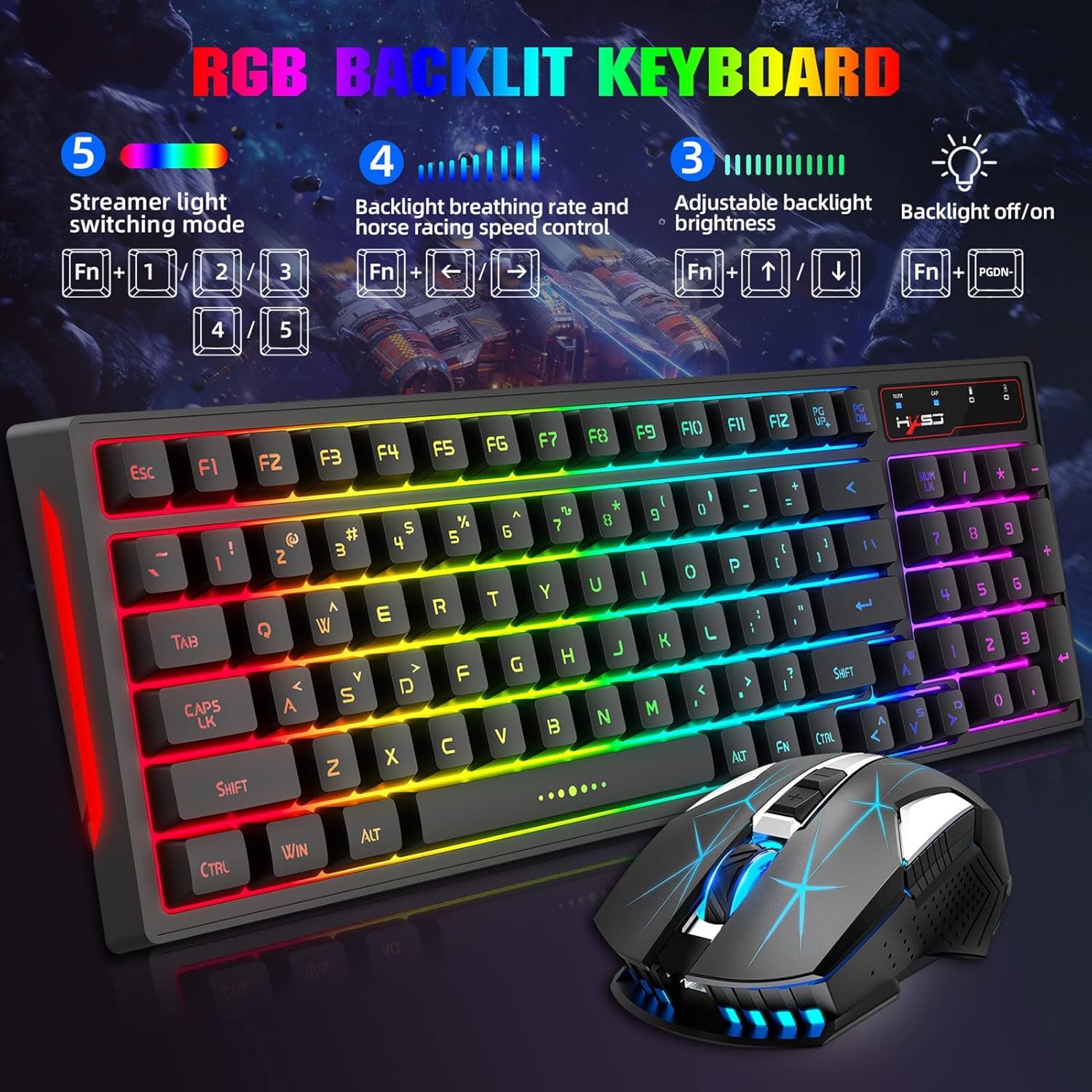
Image: Diagram illustrating the keyboard's FN key combinations for backlight control, brightness, and speed adjustments.
4.2 Mouse Functions
- DPI Adjustment: The mouse features three adjustable DPI levels: 1000, 1600, and 2400 DPI. Use the DPI button (usually located near the scroll wheel) to cycle through these settings for desired cursor sensitivity.
- Energy Saving Mode: To conserve battery life, the mouse will automatically enter a power-saving mode if not used for over 8 minutes. Move the mouse or click a button to wake it up.

Image: Close-up of the HXSJ L99 mouse, highlighting its ergonomic shape and RGB lighting.
5. Maintenance
Proper maintenance ensures the longevity and optimal performance of your HXSJ L99 combo:
- Cleaning: Use a soft, dry cloth to wipe down the keyboard and mouse. For stubborn dirt, a slightly damp cloth with mild soap can be used, but ensure no liquid enters the device. Avoid harsh chemicals or abrasive cleaners.
- Keycap Cleaning: For deeper cleaning, keycaps can be carefully removed (if designed to be removable) and cleaned separately. Ensure they are completely dry before reattaching.
- Charging: Recharge the devices when the battery indicator shows low power. Avoid overcharging for extended periods.
- Storage: When not in use for extended periods, store the keyboard and mouse in a cool, dry place away from direct sunlight and extreme temperatures.
- USB Receiver: Always store the USB receiver in its designated slot within the mouse when transporting the combo to prevent loss.
6. Troubleshooting
| Problem | Possible Cause | Solution |
|---|---|---|
| Keyboard/Mouse not responding | Low battery; USB receiver disconnected; Interference; Device not paired. | Charge devices; Re-insert USB receiver; Move closer to receiver; Try a different USB port; Re-pair if necessary (refer to setup guide). |
| Lag or delayed response | Distance from receiver; Interference from other wireless devices. | Reduce distance between devices and receiver; Move away from other 2.4GHz devices (e.g., Wi-Fi routers). |
| Backlight not working | Backlight turned off; Low battery. | Press FN + PGDN to toggle backlight; Charge the keyboard. |
| Mouse cursor erratic or not moving smoothly | Dirty sensor; Unsuitable surface; Low battery. | Clean the optical sensor; Use on a clean, non-reflective mouse pad; Charge the mouse. |
7. Specifications
| Feature | Detail |
|---|---|
| Brand | HXSJ |
| Model Number | L99 |
| Connectivity | 2.4G Wireless |
| Keyboard Keys | 96 Keys |
| Keyboard Backlight | RGB (Multiple modes) |
| Mouse DPI | 1000/1600/2400 DPI (Adjustable) |
| Mouse Buttons | 6 Buttons |
| Mouse Backlight | 7-color auto changing breathing backlight |
| Power Source | Battery Powered (Rechargeable) |
| Compatibility | PC (Windows, macOS compatible) |
| Item Weight | 750 g |
8. Warranty and Support
For warranty information and technical support, please refer to the official HXSJ website or contact their customer service directly. Keep your purchase receipt as proof of purchase for warranty claims.
For further assistance, you may visit the HXSJ Store on Amazon.


