1. Introduction and Overview
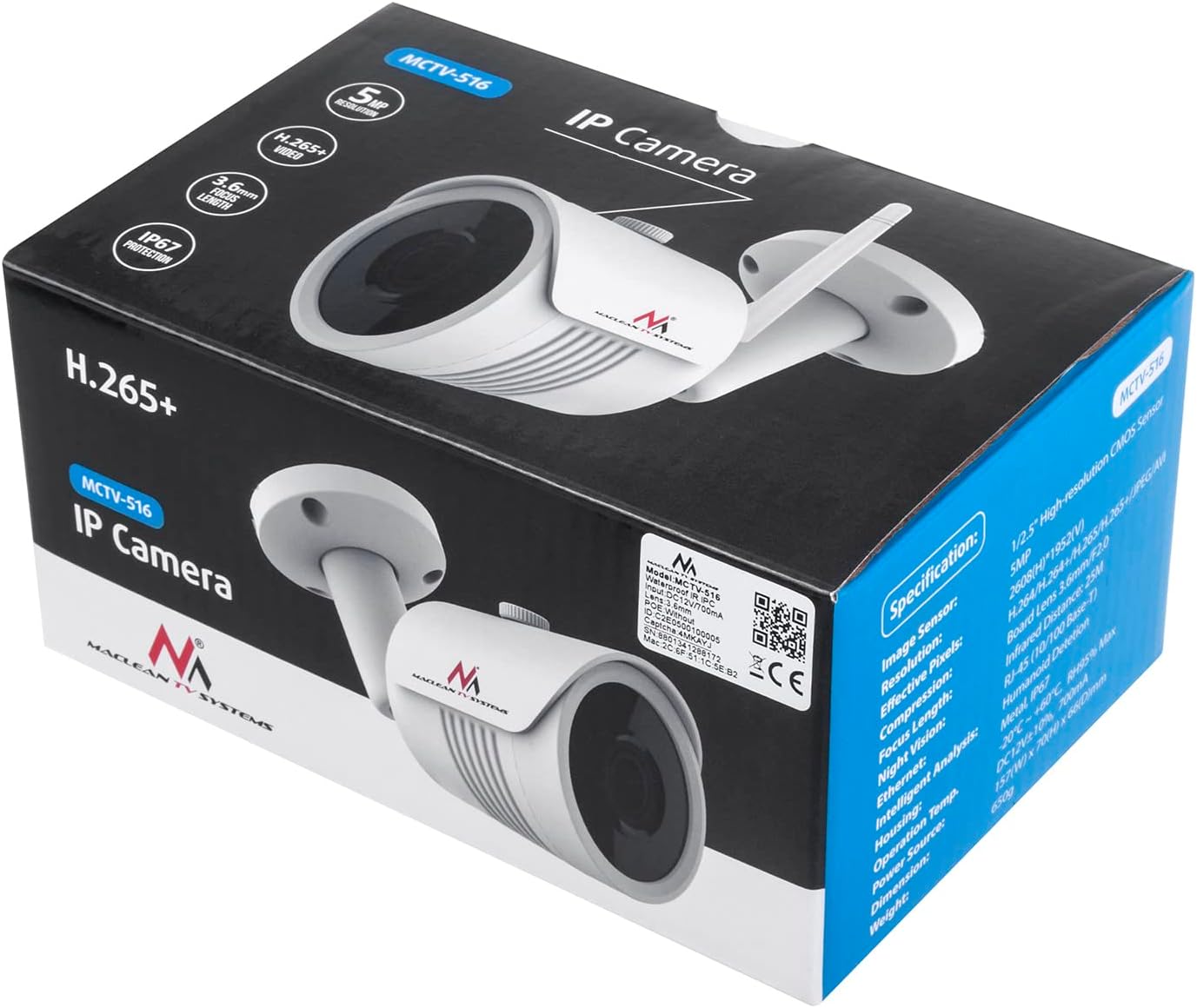
The Maclean MCTV-516 WiFi IP/IPC Surveillance Camera is designed for reliable 24-hour monitoring. It features a high-resolution 1/2.5" CMOS sensor, ensuring clear image quality, and is equipped with infrared LEDs for effective night vision up to 25 meters. With an IP67 protection class, this camera is suitable for both indoor and outdoor environments, offering robust performance against various weather conditions. It is an ideal solution for securing homes, offices, warehouses, and construction sites. The camera is compatible with the Bitvision application, allowing for live surveillance from any location via your smartphone.
2. Package Contents
Please verify that all components are present in the package before proceeding with installation.
- Maclean MCTV-516 WiFi IP Camera
- Installation Kit (screws, wall plugs, drill template, Allen key)

3. Setup
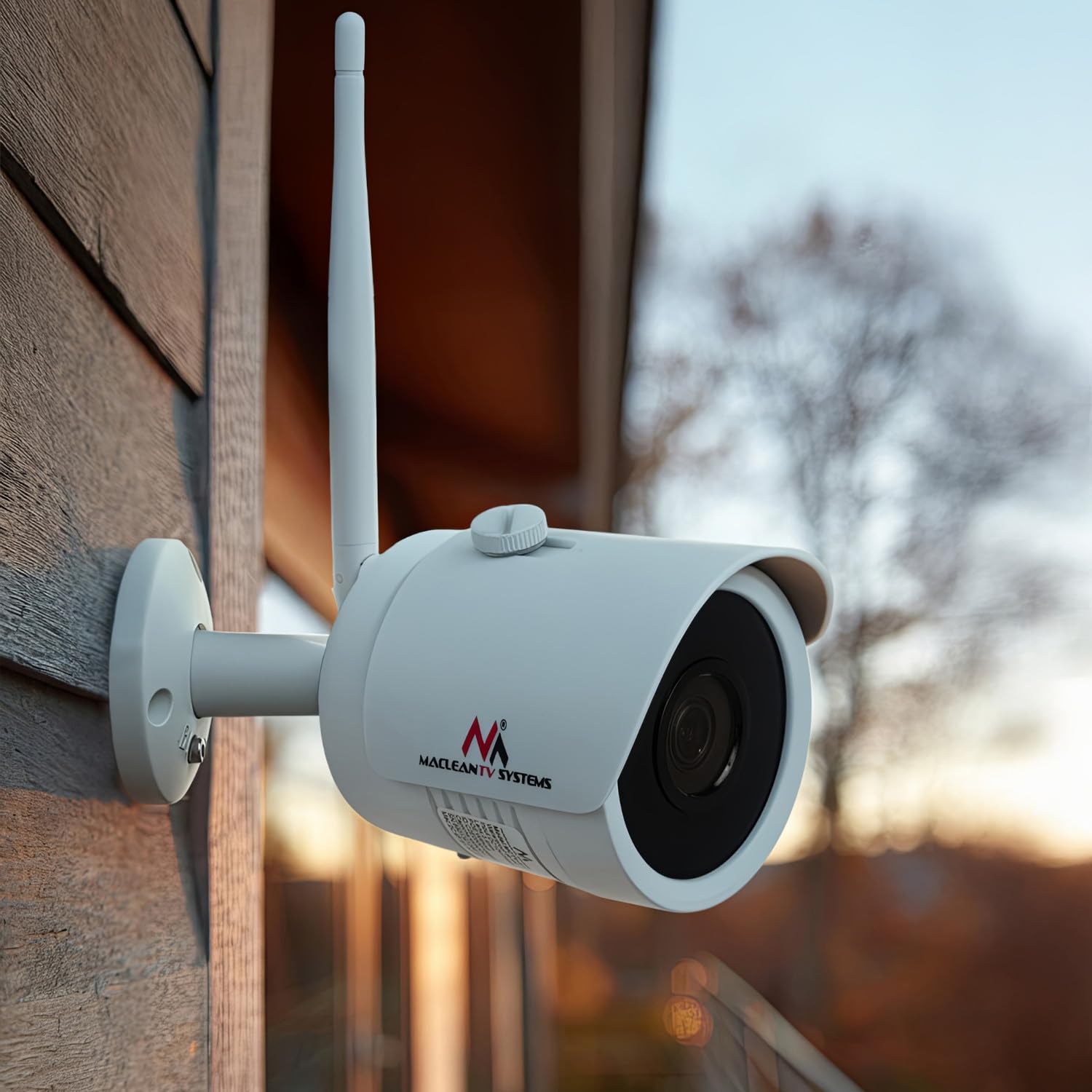
3.1 Mounting the Camera
- Choose a Location: Select a suitable outdoor or indoor location for optimal surveillance coverage. Ensure the camera has a clear line of sight and is within range of your Wi-Fi network.
- Mark Drill Holes: Use the provided drill template to mark the positions for the mounting screws on the wall or ceiling.
- Drill Holes: Drill holes at the marked positions. Insert the wall plugs if mounting on masonry or concrete.
- Secure the Mounting Base: Attach the camera's mounting base to the wall or ceiling using the provided screws.
- Attach the Camera: Secure the camera body to the mounting base. Adjust the camera angle as needed.

3.2 Connecting Power and Network
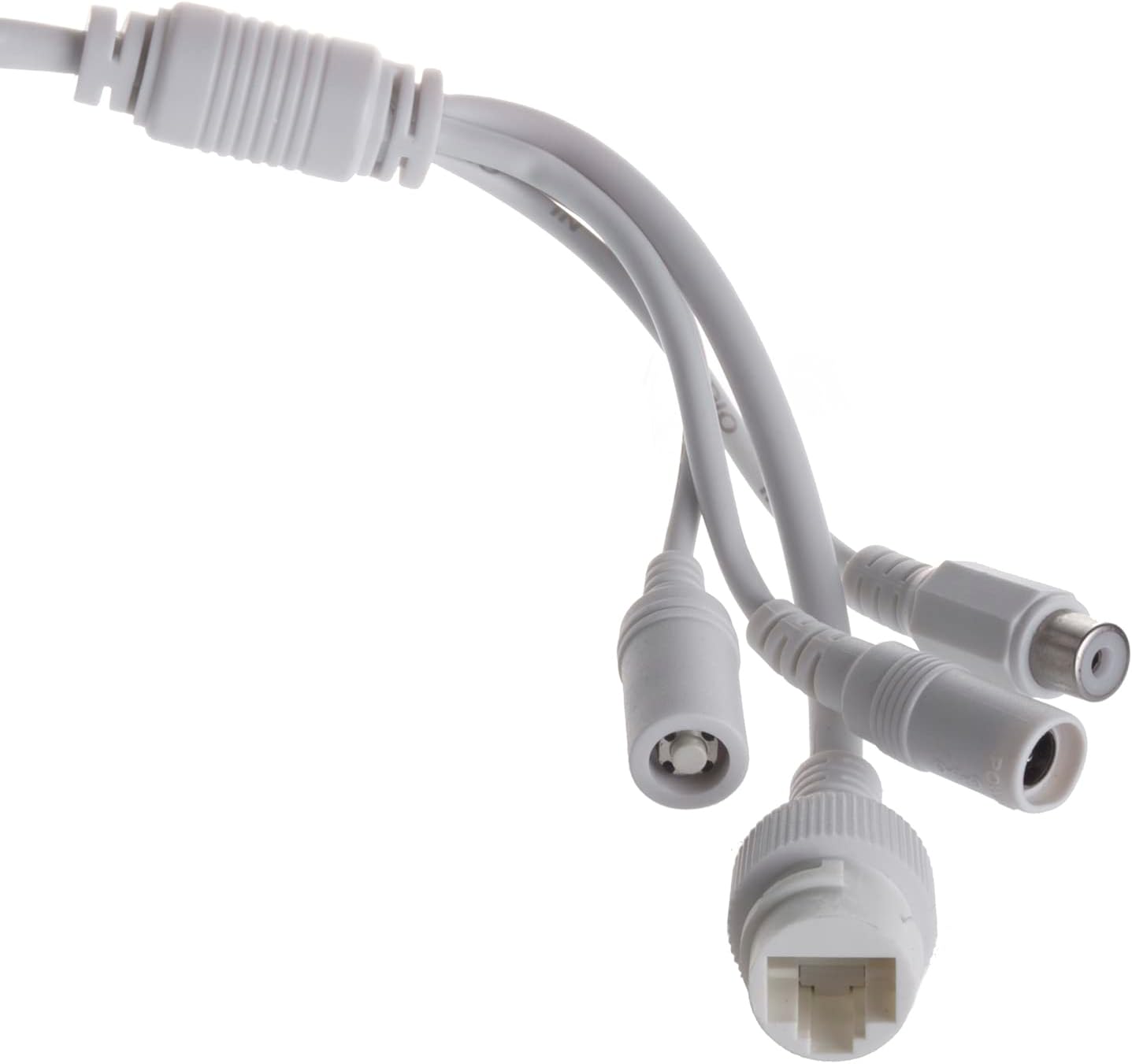
Connect the power adapter to the camera's power input and plug it into an electrical outlet. The camera supports Wi-Fi connectivity for network access. Ensure your Wi-Fi network is active and within range.
3.3 App Installation and Configuration
Download the Bitvision application from your smartphone's app store (iOS or Android). Follow the in-app instructions to add your camera, connect it to your Wi-Fi network, and complete the initial setup. This typically involves scanning a QR code on the camera or manually entering its ID.
4. Operating the Camera
4.1 Live Monitoring
Once the camera is successfully added to the Bitvision app, you can access live video feeds from your smartphone. The app allows you to view real-time footage, take snapshots, and record video.
4.2 Night Vision
The MCTV-516 camera automatically switches to night vision mode in low-light conditions, utilizing its infrared LEDs to provide clear black and white images up to 25 meters. This ensures continuous surveillance even in complete darkness.

4.3 Motion Detection and Alerts
Configure motion detection settings within the Bitvision app. When motion is detected, the camera can send alerts to your smartphone via email or app notifications, keeping you informed of any unusual activity.
5. Maintenance
Regular maintenance helps ensure the longevity and optimal performance of your surveillance camera.
- Cleaning: Periodically clean the camera lens and housing with a soft, damp cloth to remove dust, dirt, or water spots that may obstruct the view. Do not use harsh chemicals.
- Firmware Updates: Check the Bitvision app or Maclean's official website for any available firmware updates. Keeping the camera's firmware updated ensures access to the latest features and security enhancements.
- Cable Inspection: Regularly inspect power and network cables for any signs of wear or damage, especially for outdoor installations.
6. Troubleshooting
If you encounter issues with your Maclean MCTV-516 camera, refer to the following common troubleshooting steps:
- No Image/Offline:
- Ensure the camera is properly powered on and the power adapter is securely connected.
- Verify your Wi-Fi network is active and the camera is within range.
- Restart the camera by disconnecting and reconnecting the power.
- Check your router settings to ensure the camera is not blocked.
- Poor Image Quality:
- Clean the camera lens.
- Ensure there are no obstructions in front of the lens.
- Check the camera's resolution settings in the Bitvision app.
- Motion Detection Not Working:
- Verify motion detection is enabled in the Bitvision app settings.
- Adjust motion sensitivity settings.
- Ensure notification permissions are granted for the Bitvision app on your smartphone.
- Cannot Connect to Wi-Fi:
- Ensure you are entering the correct Wi-Fi password.
- Move the camera closer to the Wi-Fi router to improve signal strength.
- If issues persist, try resetting the camera to factory defaults (refer to the product's specific reset procedure, usually a small button on the cable or camera body).
7. Specifications
| Feature | Specification |
|---|---|
| Brand | Maclean |
| Model Name | MCTV-516 |
| Mounting Type | Wall mount |
| Video Recording Resolution | 5 MP |
| Color | White |
| Included Components | Maclean MCTV-516 WiFi IP Camera + installation kit |
| Wireless Communication Technology | Wi-Fi |
| Form Factor | Bullet (Outdoor) |
| Effective Video Resolution | 1080p |
| Night Vision Range | 25 Meters |
| Upper Rated Temperature | 60 Degrees Celsius |
| Frame Rate | 5MP@20fps, 4MP@25fps, 1080P@30fps |
| Material | Metal |
| Voltage | 12 Volts |
| Power Consumption | 3.5 Watts |
| Item Dimensions (L x W x H) | 16 x 11 x 8 centimeters |
| Product Weight | 452 grams |
| Special Features | Night vision, Motion detection |
| Indoor/Outdoor Use | Outdoor |
| Compatible Devices | Smartphone |
| Power Source | Electric cable |
| Connectivity Protocol | Wi-Fi |
| Controller Type | iOS |
| ASIN | B0BCW7N7GD |
| Date First Available | September 22, 2022 |
| Country of Origin | China |
8. Warranty and Support
For warranty information, please refer to the documentation provided with your purchase or contact your retailer. For technical support, product inquiries, or further assistance, please visit the official Maclean website or contact their customer service department. Keep your purchase receipt for warranty claims.


